LinkedIn accepts videos from 3 seconds to 15 minutes, 75 KB to 5 GB, up to 4096 × 2304 pixels and 60 fps, with aspect ratios from 1:2.4 to 2.4:1 and MP4 among the supported formats. X allows up to 140 seconds and 512 MB per video without Premium. For a website video, post a short H.264 MP4 at 1080p: vertical or square with a phone layout fills more of a mobile feed, while landscape suits a desktop site. GlidePage, a Mac app for Apple Silicon, records the site as a 4K, 60 fps scroll in a device frame, which you can then export at feed size.
On this page
- LinkedIn video specs at a glance
- X video specs at a glance
- Vertical, square or landscape: which shape for a website
- Make a website readable in a feed
- The first frame and the first second
- Do you need captions?
- Export settings that survive re-encoding
- How to post it
- Recording a feed-ready website video with GlidePage
- Quick checklist before you post
You recorded a smooth video of your website. It looks great on your monitor. Then you post it to LinkedIn or X, and in the feed it turns into a small, soft rectangle where nobody can read the headline.
The specs are only half the story. A website is mostly text, and text is what suffers when a video is shrunk into a phone feed and re-compressed. This guide lists the current limits for both platforms, checked against their help pages, and then covers the choices that matter for a website video: the shape, the first frame, captions, pace and export settings.
LinkedIn video specs at a glance#
These are LinkedIn's limits for videos you share in a post, from its help centre:
| Spec | LinkedIn post video |
|---|---|
| Length | 3 seconds (desktop) or 2 seconds (mobile app) up to 15 minutes |
| File size | 75 KB to 5 GB |
| Resolution | 256 × 144 up to 4096 × 2304 |
| Aspect ratio | 1:2.4 (tall) to 2.4:1 (wide) |
| Frame rate | 10 to 60 fps |
| Bitrate | 192 kbps to 30 Mbps |
| Formats | MP4, MOV, WebM, MKV and others |
A few things the table does not show:
- One video per post. LinkedIn does not let you attach more than one video to a single post, and its video platform does not accept animated GIFs.
- ProRes will not process. LinkedIn notes that a ProRes file may upload but will not process. Post an H.264 MP4, not your editing master.
- Keep the edges clear. LinkedIn recommends keeping the top, bottom and sides of the video free of key text and logos so the app's interface does not cover them.
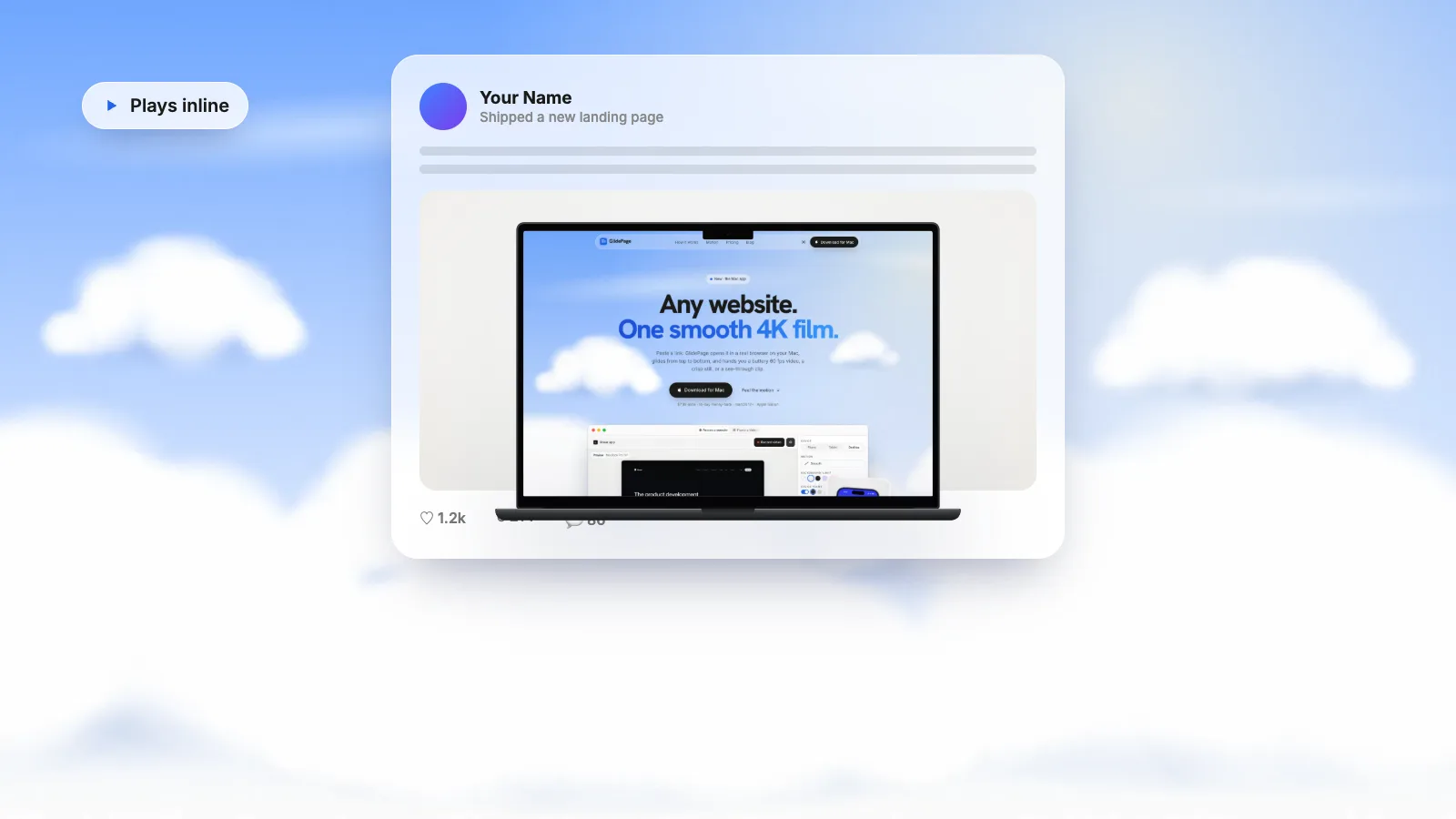
- Videos autoplay without sound. Some videos play automatically and silently as people scroll their feed, so the video has to make sense muted.
- You can upload a thumbnail and captions when you post from a desktop browser.
If you are running LinkedIn ads rather than posting, the ad specs are different and stricter, so check LinkedIn's ads specs page separately.
X video specs at a glance#
X's help centre is short on numbers for regular posts, but it does give the limits that matter most:
| Spec | X post video |
|---|---|
| Length without Premium | Up to 140 seconds |
| File size without Premium | Up to 512 MB |
| Premium | Much longer uploads; X's help page describes videos of up to 4 hours at 1080p |
| Playback | Native videos autoplay in timelines (people can turn it off) |
For everything else, X's ad specs are a good quality target, since ads go through the same player:
- File type: MP4 or MOV.
- Codec: H.264 (Baseline, Main or High profile) with 4:2:0 colour.
- Frame rate: 29.97 or 30 fps recommended, up to 60 fps supported.
- Size: 1920 × 1080 recommended for 16:9, 1200 × 1200 for 1:1. X also supports 9:16 and 4:5 for ads.
- Bitrate: 6,000 to 10,000 kbps for 1080p.
- Looping: the ad specs note that videos under 60 seconds loop.
Premium limits have changed several times, so if you depend on them, check the help page before a long upload. A website video never needs more than a minute anyway.
Vertical, square or landscape: which shape for a website#
Both platforms accept a wide range of shapes. The question is which one keeps your website readable on a phone, where a lot of feed viewing happens.
| Shape | Best for | Watch out for |
|---|---|---|
| Vertical (9:16 or 4:5) | A mobile layout in a phone frame | Too narrow for a desktop site |
| Square (1:1) | A phone or laptop on a background | A desktop page inside it is small |
| Landscape (16:9) | Desktop sites, dashboards, SaaS products | Takes the least space in a phone feed |
The rule of thumb: match the shape of the video to the shape of the layout you are showing.
- Show the mobile layout vertically. A phone-width site in a vertical video fills the feed and the text stays close to its real size. This is usually the strongest option for consumer products and landing pages. Mobile website mockup videos covers how to frame one.
- Put a desktop site in a square or landscape frame. A 1440-pixel-wide page squeezed into a phone feed shrinks a lot. Landscape keeps it as large as possible; square with a laptop frame on a background looks more designed and takes more vertical space.
- Post both if the site deserves it. A vertical phone scroll for reach and a landscape desktop scroll for people watching on a laptop.
Make a website readable in a feed#
The biggest problem with website videos in feeds is not resolution. It is the size of the text relative to the frame. Some fixes:
- Zoom the page in. Recording at 125 or 150% page zoom reflows the layout with larger type. For a feed, that often matters more than any export setting.
- Show fewer screens. A 20-screen page in 20 seconds is a blur. Pick the hero and the two or three sections that explain the product.
- Slow down. About one to two seconds per screen height gives people time to read headlines. Fast scrolling also compresses badly, because every frame is different from the last.
- Use an eased scroll. A scroll that starts gently and settles at the end reads as intentional. A constant, fast scroll reads as someone flicking through.
- Use a background with contrast. A light page on a light background disappears at feed size. A soft colour or a dark background frames the page and makes the edges clear.
The first frame and the first second#
On both platforms the video starts playing, silently, as it scrolls into view. On LinkedIn you can also upload a custom thumbnail. Either way, the first second decides whether someone keeps watching:
- Start on the hero, already loaded. No blank white frame, no spinner, no fonts popping in.
- Hold it for a beat. Half a second to a second of stillness at the top lets people read the headline before the page moves.
- Keep overlays off the page. Cookie banners, chat bubbles and sign-up pop-ups in the first frame are the first thing people see.
Do you need captions?#
For a silent scroll, no. Captions transcribe speech, and a scrolling website has none: the headlines on the page do the talking. LinkedIn's auto captions and X's automatic captions are designed for spoken audio.
What you do need is context in the post text. Say what the site is and what you want people to notice, in a sentence or two. That helps people who are skimming, and anyone using a screen reader, who cannot see the video at all.
If you add a voiceover, then add captions too. On LinkedIn's desktop composer, the Captions option lets you add auto captions or upload a caption file.
Export settings that survive re-encoding#
Both platforms re-compress every upload. You cannot stop that, but you can give their encoders a clean file to start from:
- Start from a sharp master. A 4K recording downscaled to 1080p looks noticeably crisper than a 1080p recording, because the fine detail in text is resolved before the platform compresses it. 4K 60 fps website videos explains when that extra resolution matters.
- Export H.264 in an MP4. It is what both platforms recommend or accept everywhere, and it avoids the ProRes problem on LinkedIn.
- Upload at 1080p. 1920 × 1080 for landscape, 1080 × 1080 for square, 1080 × 1920 for vertical. It fits every limit above and uploads quickly.
- Keep 60 fps for organic posts. Scrolling text looks smoother at 60 fps, and both platforms accept it. For ads, follow the ad specs (X recommends 30 fps).
- Give it enough bitrate. X's ad specs suggest 6,000 to 10,000 kbps for 1080p; LinkedIn accepts up to 30 Mbps. Scrolling needs more bits than a talking head, so aim high within the limits.
If you have ffmpeg installed, this turns a 4K vertical master into a feed-ready 1080 × 1920 MP4 that starts playing quickly:
ffmpeg -i master.mp4 -vf "scale=1080:-2" -c:v libx264 -preset slow -crf 18 -pix_fmt yuv420p -movflags +faststart feed.mp4
For a landscape master, change the scale to 1920:-2. If the result still looks blocky after posting, the usual culprit is a scroll that is too fast. Why screen recordings look choppy covers that and the other causes.
How to post it#
On LinkedIn (desktop)
- Click the Video icon in the share box at the top of your homepage.
- Click Upload from computer and choose the file.
- Optionally, use Video thumbnail to upload a still, and Captions if the video has speech.
- Click Next, add a line or two of text, choose who can see it, and click Post.
On X (web)
- Click in the compose box, or click the Post button.
- Click the gallery button, choose the video file and click Open. X tells you if the format is not supported.
- Add your text and click Post.
Recording a feed-ready website video with GlidePage#
Everything above can be done with a screen recorder and an editor. The fiddly part is getting a smooth scroll, a real phone layout and a device frame in one go. GlidePage, a Mac app, is built for that:
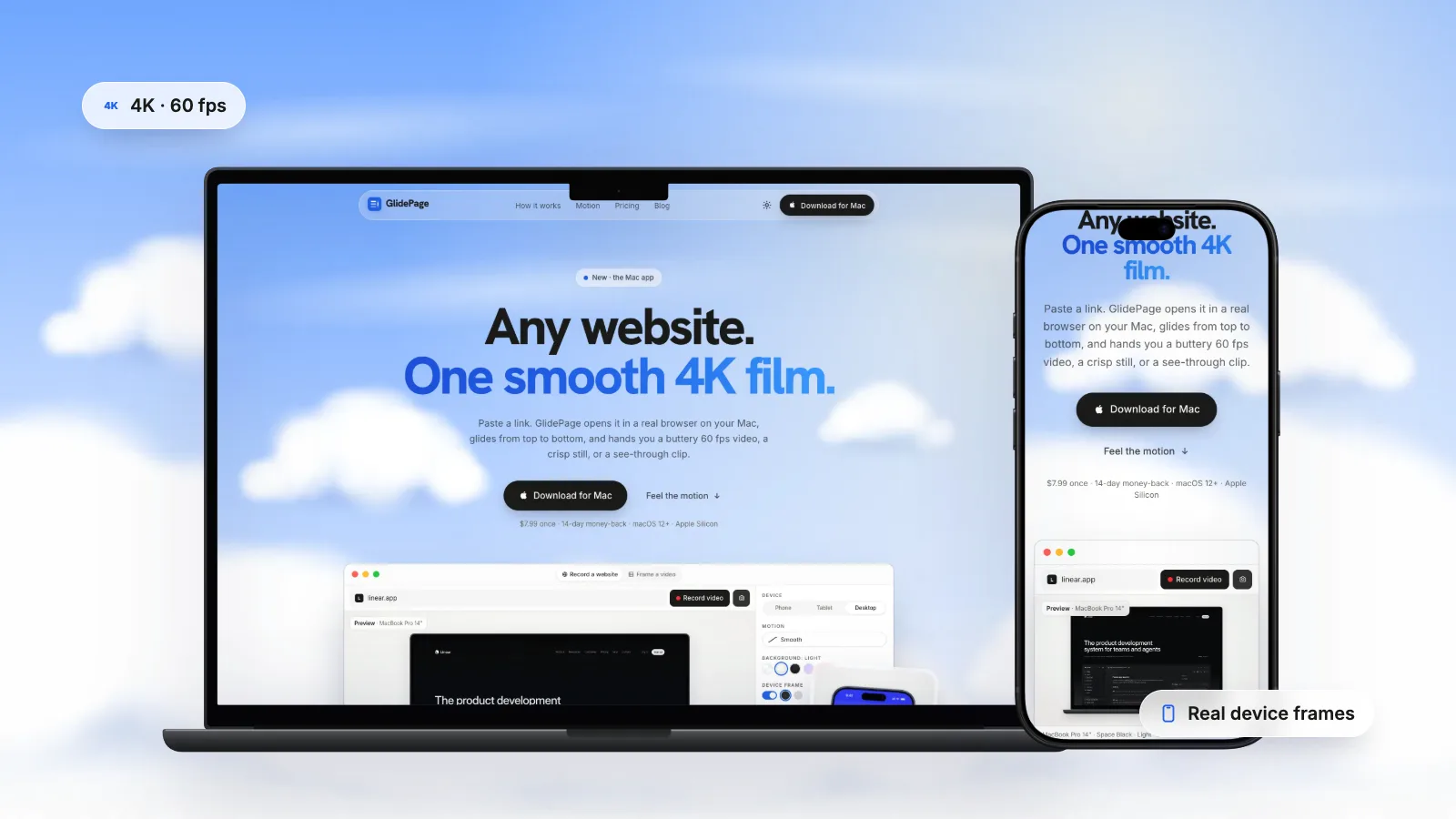
- Real phone layouts. Pick a current iPhone, Pixel or Galaxy and the page is rendered with a real phone user agent and viewport, inside an accurate frame with the status bar and safe areas in place.
- Page zoom from 50% to 200%. Make the type bigger for a feed without changing the output resolution.
- Speed in seconds per screen, with six motion styles, including Smooth (eased in and out) and Page by page (a pause on each screen).
- Backgrounds from Light and Midnight to gradients or your own colour, so a light site does not blend into the feed.
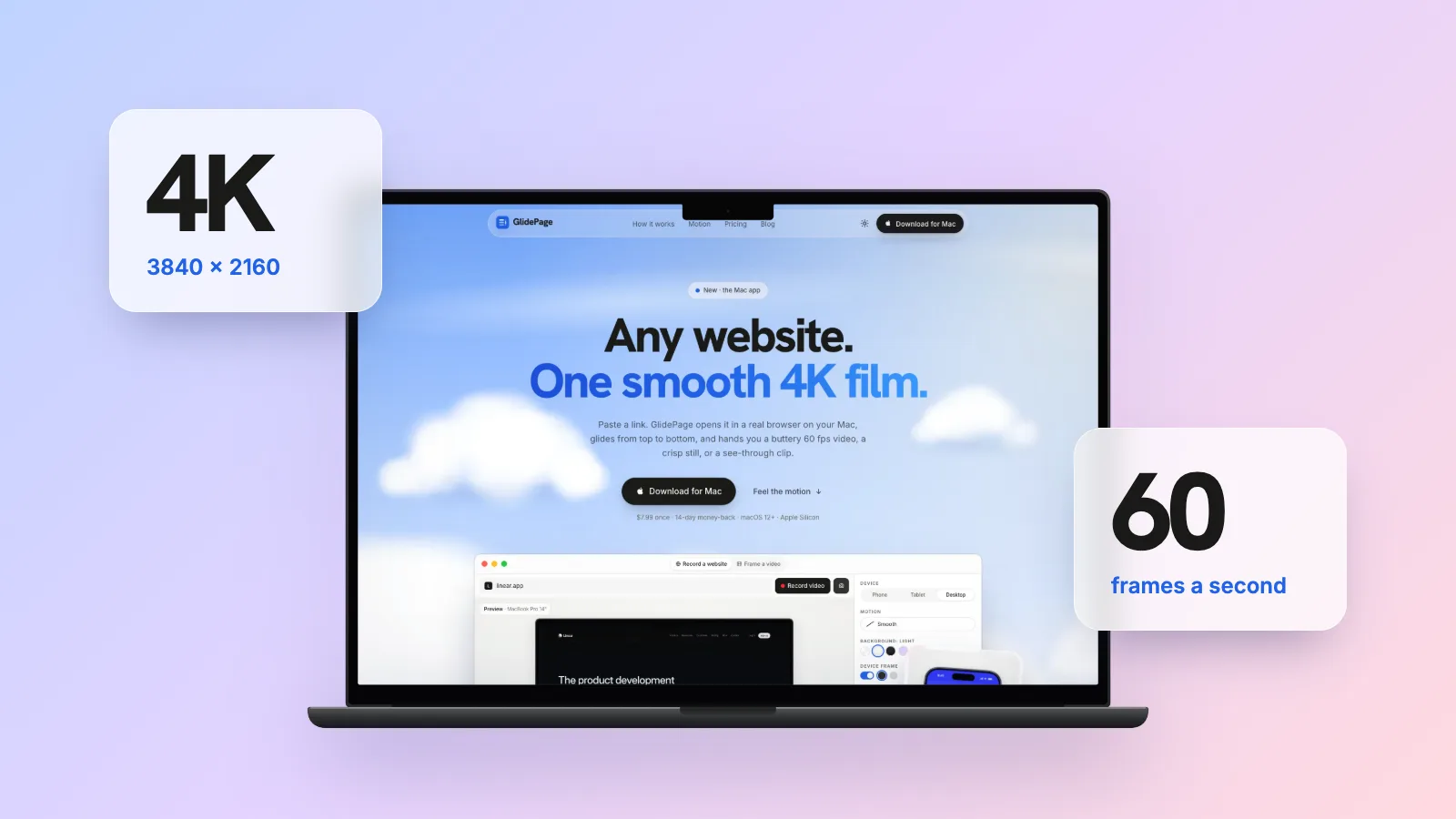
- 4K, 60 fps MP4 (H.264). A framed phone video is 2160 × 3840 and a framed desktop video is 3840 × 2160, so you downscale a sharp master to 1080p rather than stretching a small one.
- Cookie banners hidden by default, and the page is recorded frame by frame on your Mac, with nothing uploaded.
It runs on Apple Silicon Macs with macOS 12 or later. It does not add captions or voiceover, and it cannot record pages behind a login. For the full process, see how to make a scrolling video of a website.
Quick checklist before you post#
- Shape matches the layout: vertical for a phone site, square or landscape for desktop
- Page zoomed so headlines are readable on a phone
- 15 to 30 seconds, one to two seconds per screen
- First frame is the loaded hero, with no banners or pop-ups
- H.264 MP4 at 1080p, 60 fps for organic posts
- Under 140 seconds and 512 MB for X without Premium
- One or two sentences of post text that say what the site is
Sources
- LinkedIn Help: Video sharing troubleshooting (video specifications) (checked September 2026)
- LinkedIn Help: Share videos on LinkedIn (checked September 2026)
- LinkedIn Help: Share a video on LinkedIn FAQ (checked September 2026)
- LinkedIn Help: Disabling autoplay of videos (checked September 2026)
- X Help Center: How to share and watch videos on X (checked September 2026)
- X Business: X Ads creative specs (checked September 2026)



Make your site move.
Any page, one smooth 4K video. Framed, on any background, or transparent.
Questions, answered
What are the video specs for LinkedIn?
LinkedIn post videos can be 3 seconds to 15 minutes long, 75 KB to 5 GB, from 256 × 144 up to 4096 × 2304 pixels, at 10 to 60 fps and 192 kbps to 30 Mbps. Aspect ratios from 1:2.4 to 2.4:1 are accepted, and MP4 is among the supported formats. Ads have their own, stricter specs.
What is the best aspect ratio for a LinkedIn video?
It depends on what you are showing. For a website, match the video to the layout: vertical (9:16 or 4:5) for a mobile layout in a phone frame, square or landscape for a desktop site. Vertical and square take up more of a phone feed than landscape.
How long can a video be on X?
Without Premium, X allows videos up to 140 seconds and 512 MB. X says Premium subscribers can upload much longer videos, up to hours long. A website video rarely needs more than 30 seconds.
Should I upload 4K video to LinkedIn or X?
Record in 4K, then upload a 1080p H.264 MP4. Downscaling a 4K master keeps text sharper than recording at 1080p, and a 1080p file fits every limit and uploads faster. LinkedIn accepts up to 4096 × 2304, but many people watch the feed on a phone.
Why does my video look blurry after posting on LinkedIn or X?
Both platforms re-compress uploads, and fast scrolling text is hard to compress. Start from a sharper master, export H.264 at a generous bitrate, zoom the page so the text is larger, and slow the scroll down.
Do I need captions on a website video?
Not for a silent scroll, since captions transcribe speech and the page text speaks for itself. Add a sentence of context in the post text instead. If you add a voiceover, add captions too; LinkedIn lets you add auto captions or upload a caption file.