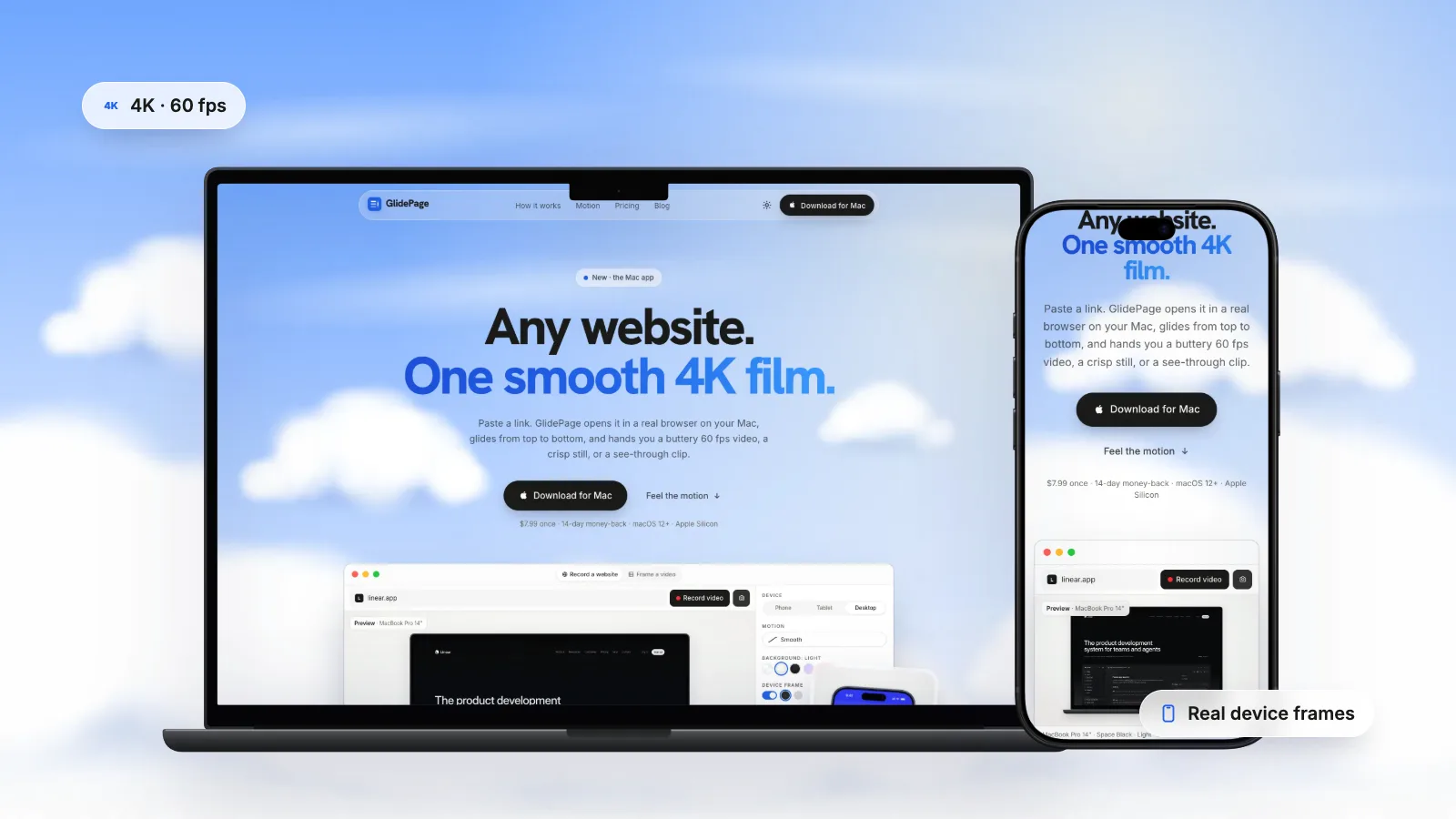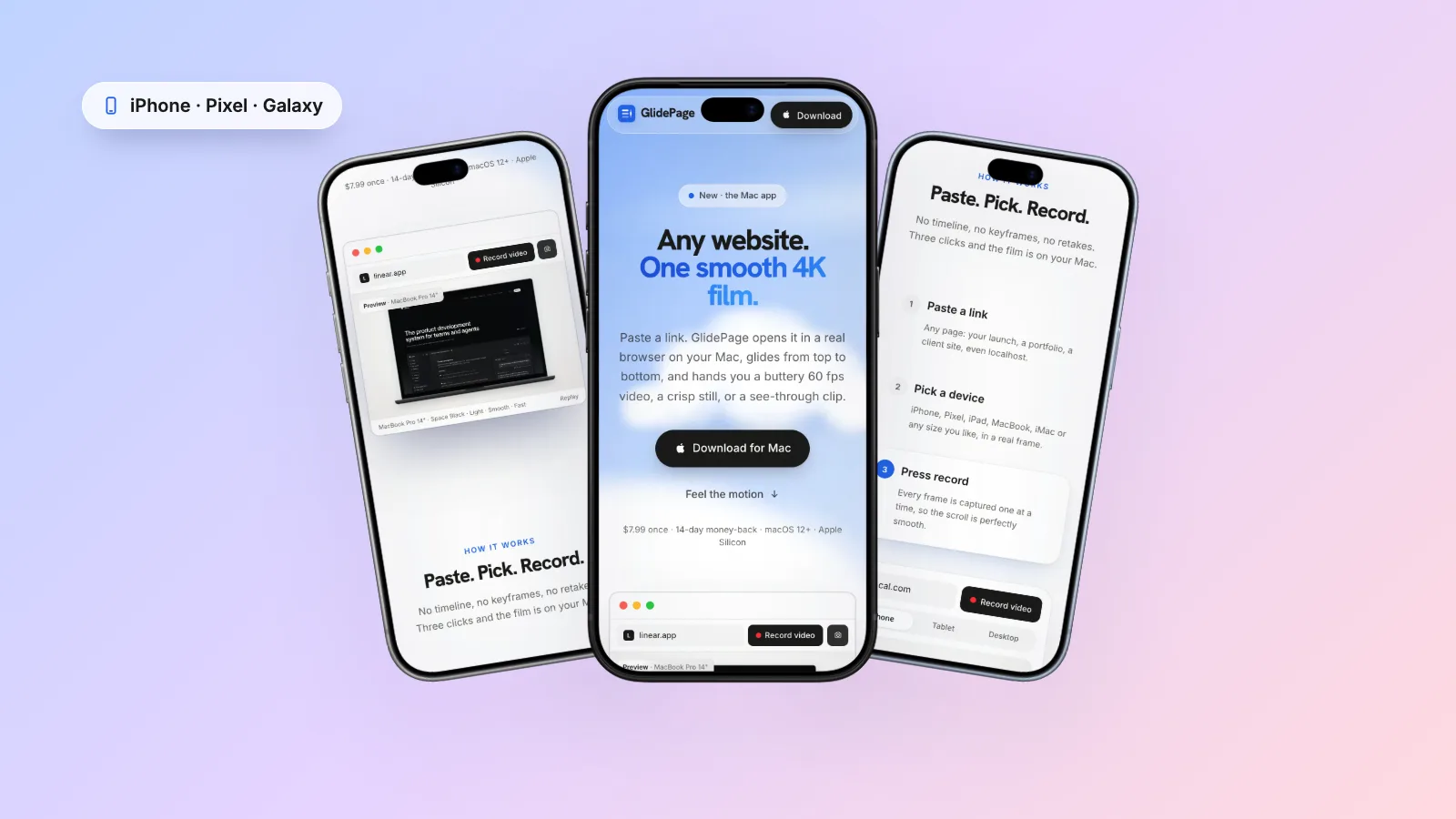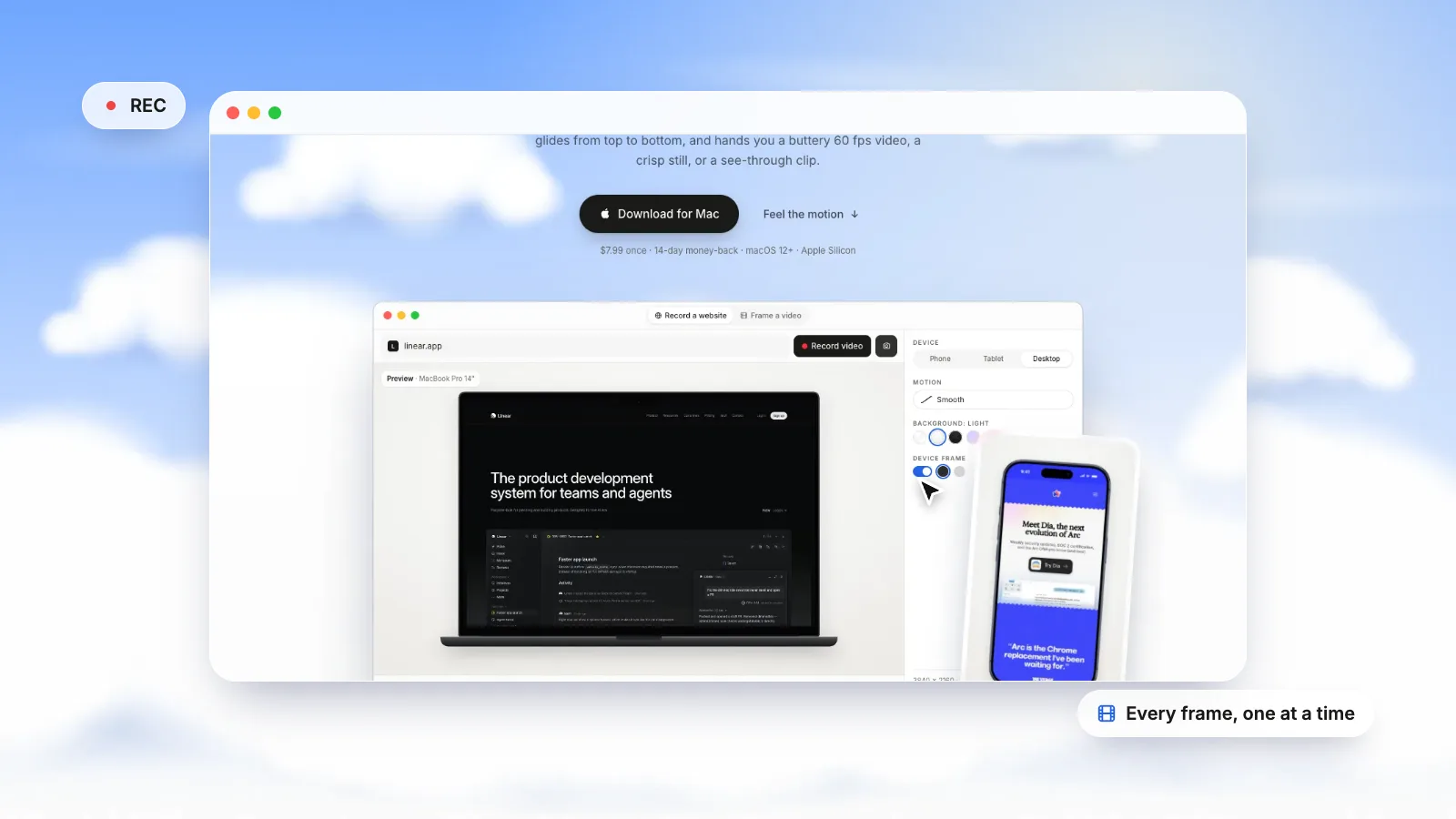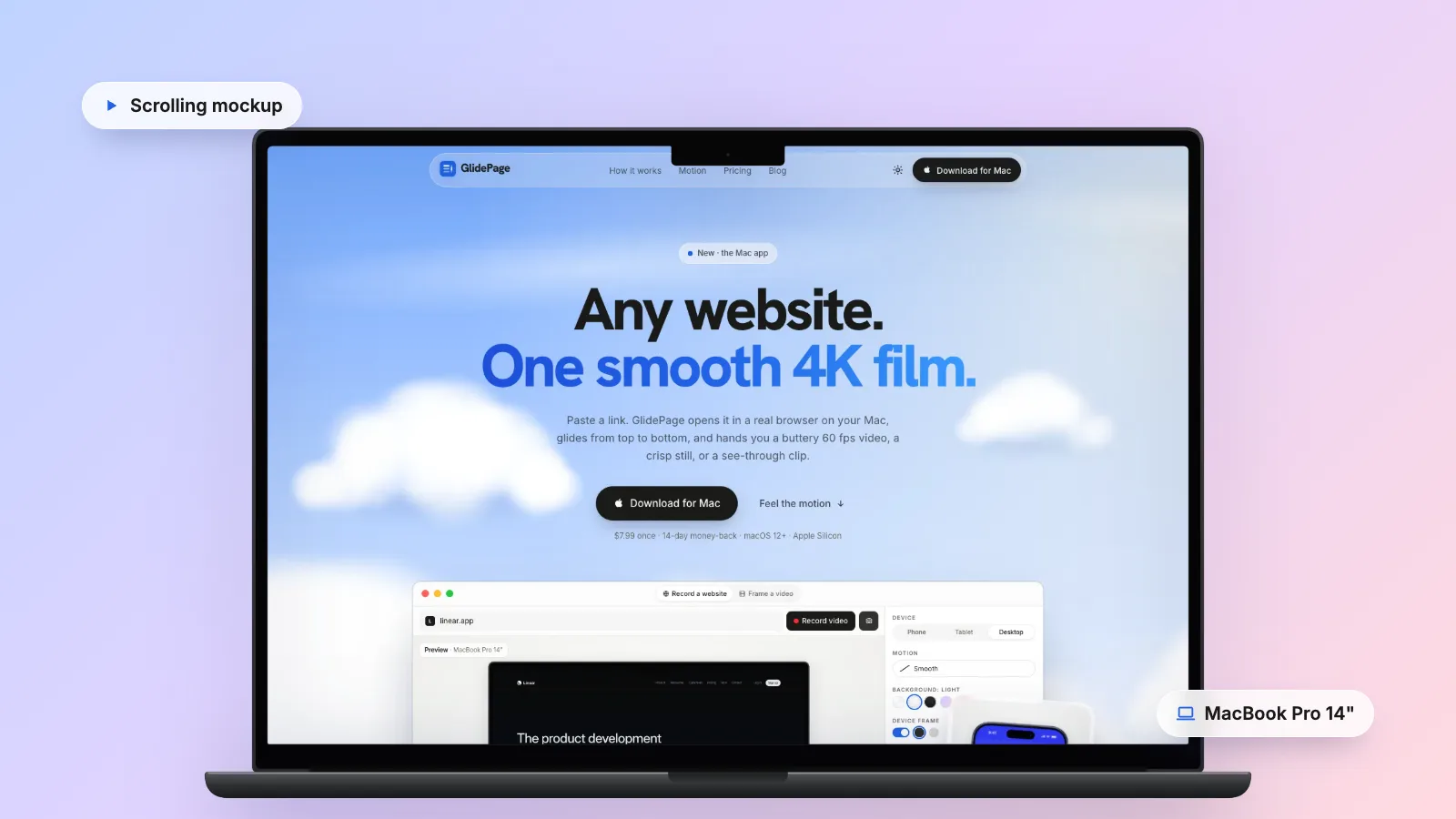
A scrolling website mockup is a video of a site scrolling inside a device frame, such as a laptop or phone, on a clean background. To make one by hand, record the page scrolling at a viewport that matches the device screen, then place the clip behind a device frame image in Keynote or a video editor and export it as a movie. GlidePage, a Mac app for Apple Silicon, does it in one pass: paste the link, pick a device and background, and it scrolls the live page inside a real frame and exports a 4K video.
On this page
A static mockup shows a site. A scrolling mockup shows how it feels: the hero, the rhythm of the sections, the way content reveals itself as you move down. It is the format you see at the top of portfolio case studies, in launch posts and in client presentations, and it is not hard to make once you know where the usual problems come from.
This guide covers what a scrolling website mockup is, which device to put the site in, how to build one by hand with free tools on a Mac, how to choose frames and backgrounds, and a quicker route when you make these often.
What a scrolling website mockup is#
A scrolling website mockup is a short video of a website scrolling from top to bottom inside a device frame, usually a laptop, phone or tablet, placed on a background. It sits between a screenshot and a screen recording:
- Unlike a screenshot, it shows the whole page and any motion on it.
- Unlike a raw screen recording, it has no browser chrome, no cursor and no desktop, and the frame tells viewers straight away whether they are looking at the desktop or mobile design.
Designers use them in portfolios and on Dribbble and Behance. Agencies use them in pitch decks and handoffs. Founders use them on landing pages and in launch posts. Most are 10 to 30 seconds long and play silently on a loop.
Laptop, phone or both?#
The device is the first decision, because it changes the layout you record.
| Situation | Show | Why |
|---|---|---|
| SaaS product, dashboard, B2B site | Laptop | That is where the audience will use it |
| Consumer brand, restaurant, local business | Phone | Most visitors arrive on a phone |
| Portfolio case study | Both | Proves the design works at every size |
| Instagram, TikTok, Stories | Phone | Fills a vertical screen |
| LinkedIn, X, YouTube, slides | Laptop, or both side by side | Fits a landscape frame |
Whatever you choose, record the layout that matches the device. A desktop page shrunk into a phone frame is the most common mistake in mockups, and viewers spot it immediately. If the phone version is the star, mobile website mockup videos covers getting the real mobile layout on screen.
Two ways to build one by hand#
There are two manual approaches, and they look different in the result:
| Record a live scroll | Pan a full-page screenshot | |
|---|---|---|
| How it works | Screen-record the page while it scrolls, place the clip in a frame | Capture one tall image, animate it sliding up behind the screen |
| Motion on the page | Real: reveal animations, videos and sticky headers behave as on the site | Frozen: animations never play, sticky headers stay stuck at the top of the image |
| Smoothness | Depends on your hand and your Mac | Perfectly even |
| Effort | Medium | Medium, and needs a way to mask the image |
Panning a screenshot is what many design tool templates and motion templates do. It is smooth, but it is not really the site. For anything with animation, recording the live page is more honest. The steps below use that approach, with Keynote, which is free on every Mac.
The manual way, step by step (Keynote)#
1. Get a device frame
You need an image of the device with a see-through screen area. Apple publishes product bezels for current iPhones, iPads, MacBook Air, MacBook Pro, iMac and Studio Display as PNG and Photoshop files on its Apple Design Resources page. Check Apple's marketing guidelines before using them in public work. For other devices, look for the maker's press or design resources, or a design tool template.
2. Match the page to the frame's screen
This step prevents stretched or cropped mockups. Laptop screens are not 16:9: a 13-inch MacBook Air is 2560 × 1664 pixels, roughly 1.54 to 1. If you record a 16:9 browser window and force it into that screen, it gets squashed or cut off.
In Chrome, open DevTools, press Command-Shift-M to turn on the device toolbar, keep Dimensions on Responsive, and type the width and height. 1280 × 832 is exactly half of the MacBook Air screen, so it fits perfectly. For a phone, pick the phone from the Dimensions menu, which also switches the user agent. Safari's Develop → Enter Responsive Design Mode works too.
3. Record the scroll
Load the whole page once so lazy images are in place, dismiss the cookie banner, then record just the viewport with Shift-Command-5 and Record Selected Portion, scrolling with one slow trackpad swipe. How to record a scrolling screen on Mac has the full steps and the habits that avoid stutter.
4. Build the scene in Keynote
- Create a blank presentation. In the Document sidebar, open the menu below Slide Size, choose Custom Slide Size and enter 1920 × 1080 (or 3840 × 2160 if your recording is large enough).
- Set the slide background in the Format sidebar with a colour or gradient fill.
- Drag your recording onto the slide, then drag the frame PNG on top of it.
- Scale the recording so it is a few pixels larger than the frame's screen opening, and position it behind the opening. The bezel hides the edges.
- Select the recording, open the Movie tab in the Format sidebar and turn off Start movie on click so it plays as soon as the slide appears. Use Edit Movie to trim the start and end.
Keynote's masking tools work on images and live video, not on movie files, which is fine for laptops, where the bezel is thick enough to cover the edges. Phones are harder; adding an iPhone frame to a screen recording covers the workarounds.
5. Export the movie
Choose File → Export To → Movie. Set Playback to Self-Playing and give the slide at least as long as your clip. Choose a Resolution, or Custom to type your own. Advanced Options lets you change the frame rate, movie format and colour space, and make the slide background transparent if you want to composite the device somewhere else later.
Choosing frames and backgrounds#
A good mockup looks designed, not assembled. A few guidelines:
- Use the real device proportions. A frame drawn at the wrong ratio makes every page look slightly off.
- Match the frame colour to the mood. A dark frame suits dark sites and bold brands; silver or light frames suit bright, airy ones.
- Keep the background quieter than the site. A soft light background works in most feeds. A dark background makes bright sites glow. A gradient suits launch graphics. Avoid busy photos.
- Leave breathing room. The device should fill about 70 to 85 percent of the frame, with a soft shadow to lift it off the background.
- Stay consistent across a series. In a portfolio or a launch thread, use the same background and frame colour for every project so the work, not the styling, is what changes.
- Plan for transparency. If the mockup will go into a slide, a web page or another edit, export the device on a transparent background instead of a coloured one.
Common problems and quick fixes#
| Problem | Cause | Fix |
|---|---|---|
| Page looks squashed or stretched | Recording ratio does not match the screen | Set the viewport to the screen's ratio before recording |
| Edges of the browser show inside the frame | Recording smaller than the screen opening | Scale it slightly larger than the opening |
| Mobile frame shows the desktop layout | Recorded at desktop width | Use a phone viewport with a phone user agent |
| Text is soft | Small recording scaled up | Record larger, export at the size you recorded |
| Scroll stutters | Live recording dropped frames | Quit apps, set 60 Hz, or capture frame by frame |
| Animations frozen, header stuck | Panned screenshot instead of a real scroll | Record the live page |
Making one with GlidePage#
If you make mockups regularly, most of the steps above are the same every time. GlidePage is a Mac app that does them in one pass, and it scrolls the live page rather than panning a screenshot:
- Paste the link. Any public page, or a local one such as a dev server on localhost:3000.
- Pick a device. Frames for MacBook Air, MacBook Pro, iMac, Studio Display and Windows laptops, iPads and Android tablets, and current iPhones, Pixels and Galaxy phones, in their real colours. Phone layouts use a real phone user agent and viewport, so you get the site's actual mobile design, not a shrunken desktop page.
- Choose a background. Light, Midnight, Aurora, Sunset, any custom colour or gradient, or none. The device casts a soft shadow.
- Set the motion. Six curves, from Smooth and Steady to Cinematic and Page by page, and a speed slider.
- Press Record. It scrolls through once so lazy content loads, captures every frame one at a time, and exports an MP4. A framed desktop mockup comes out at 3840 × 2160, a phone at 2160 × 3840.
With the frame on and no background, you can export a transparent ProRes 4444 MOV for editing apps or a WebM with alpha for websites. Photo mode saves a 4K PNG still from any point on the page, handy for a cover image. Everything runs on your Mac, so client work and unreleased sites are not uploaded anywhere. It cannot record pages behind a login, and it does not edit video, so titles or music still go in an editor afterwards.
Export tips for where it is going#
- Portfolio and case studies. A silent MP4 loop of 10 to 20 seconds. Pair a laptop version with a phone version of the same project. Web design portfolio videos covers embedding and file sizes.
- Social feeds. Landscape for LinkedIn, X and YouTube, vertical phone mockups for Reels, TikTok and Stories. Keep the first second interesting: start on the hero, not a blank screen.
- Slides and pitch decks. A transparent version drops straight onto any slide background.
- MP4, not GIF. An animated GIF of the same clip is far larger and loses colour detail in gradients and photos.
A scrolling mockup takes an hour or so by hand the first time, and much less once you have a Keynote file set up as a template. If you would rather paste a link and get a framed 4K video back, that is what GlidePage is for. Either way, how to make a scrolling video of a website covers the scroll itself in more depth.
Sources
- Apple Developer: Apple Design Resources (product bezels) (checked September 2026)
- Apple: MacBook Air technical specifications (checked September 2026)
- Chrome DevTools: Simulate mobile devices with device mode (checked September 2026)
- Keynote User Guide: Change the slide size (checked September 2026)
- Keynote User Guide: Edit video and audio (checked September 2026)
- Keynote User Guide: Export to PowerPoint or another file format (checked September 2026)



Make your site move.
Any page, one smooth 4K video. Framed, on any background, or transparent.
Questions, answered
What is a scrolling website mockup?
It is a short video of a website scrolling from top to bottom inside a device frame, such as a laptop or phone, on a background. Designers use them in portfolios, case studies, launch posts and client presentations because they show the whole page and its motion in a few seconds.
How do I make a scrolling website mockup for free?
Record the page scrolling on your Mac with Shift-Command-5, at a viewport that matches the device screen. Then place the clip behind a device frame PNG in Keynote, such as one of Apple's product bezels, and export it with File → Export To → Movie. It takes some care to size the recording, but everything you need comes with macOS.
Do I need Photoshop or After Effects to make a website mockup video?
No. Keynote handles a laptop mockup well, and Final Cut Pro, Premiere Pro or DaVinci Resolve work if you already use them. After Effects is only needed for complex camera moves. A dedicated app such as GlidePage skips the editing step entirely.
How do I stop the website looking stretched in the mockup?
Record the page at the same aspect ratio as the frame's screen. A 13-inch MacBook Air screen is 2560 × 1664 pixels, so a 1280 × 832 browser viewport fits it exactly. You can set an exact viewport in Chrome DevTools with the device toolbar.
Will scroll animations and parallax show in a scrolling mockup?
Only if you record the live page. Mockups that pan a flat full-page screenshot show animations frozen and sticky headers stuck at the top. Recording the real scroll, by hand or with a tool that captures the page frame by frame, keeps them working.
Should a website mockup video be MP4 or GIF?
MP4 in almost every case. It is much smaller than a GIF of the same length and keeps colours and gradients intact. Use a GIF only where a platform accepts nothing else.