To make a scrolling video of a website, you can record your screen while you scroll (on a Mac, press Shift-Command-5 and choose Record Selected Portion), script a headless browser to capture the page frame by frame and join the frames with ffmpeg, or use a dedicated app. Screen recording is free but tends to stutter and is limited to your display resolution. GlidePage, a Mac app for Apple Silicon, does it in one step: paste the link, pick a device, and it records a perfectly smooth 4K, 60 fps scroll, optionally inside a real device frame, without uploading anything.
On this page
- What a good scrolling website video looks like
- Four ways to make one, compared
- Method 1: Record it yourself on a Mac
- Method 2: Pan a full-page screenshot
- Method 3: Script it with a headless browser
- Method 4: Use GlidePage on your Mac
- Choosing the device, speed and motion
- Make it look finished: frames and backgrounds
- Get the page itself to look right
- Export for where it is going
- Common problems and quick fixes
A screenshot shows one moment of a website. A scrolling video shows the whole thing: the hero, the way sections reveal themselves, how the layout breathes as you move down. That is why scrolling videos are everywhere, from launch posts and portfolio case studies to ads and client handoffs.
They are also surprisingly easy to get wrong. Most homemade scroll recordings stutter, speed up and slow down, show a cursor wandering across the page, or catch a cookie banner sitting on top of the hero. This guide walks through three ways to make one, what "good" looks like, and the settings that make the difference.
What a good scrolling website video looks like#
Before choosing a method, it helps to know what you are aiming for. A scrolling video looks professional when it gets these right:
- A steady, eased scroll. The page starts still, glides down at an even pace, and settles at the end. No jerks, no sudden bursts of speed.
- A high, even frame rate. 60 frames per second makes motion look smooth. Dropped frames are what make a scroll feel "choppy".
- Sharp text. Small type is the first thing to smear. Recording at 4K (3840 pixels on the long edge) keeps it crisp even after a platform compresses it.
- A fully loaded page. Images, fonts and scroll-triggered animations should be in place before they reach the frame, not popping in late.
- Nothing extra on top. No cursor, no notifications, no browser chrome, no cookie banner covering the headline.
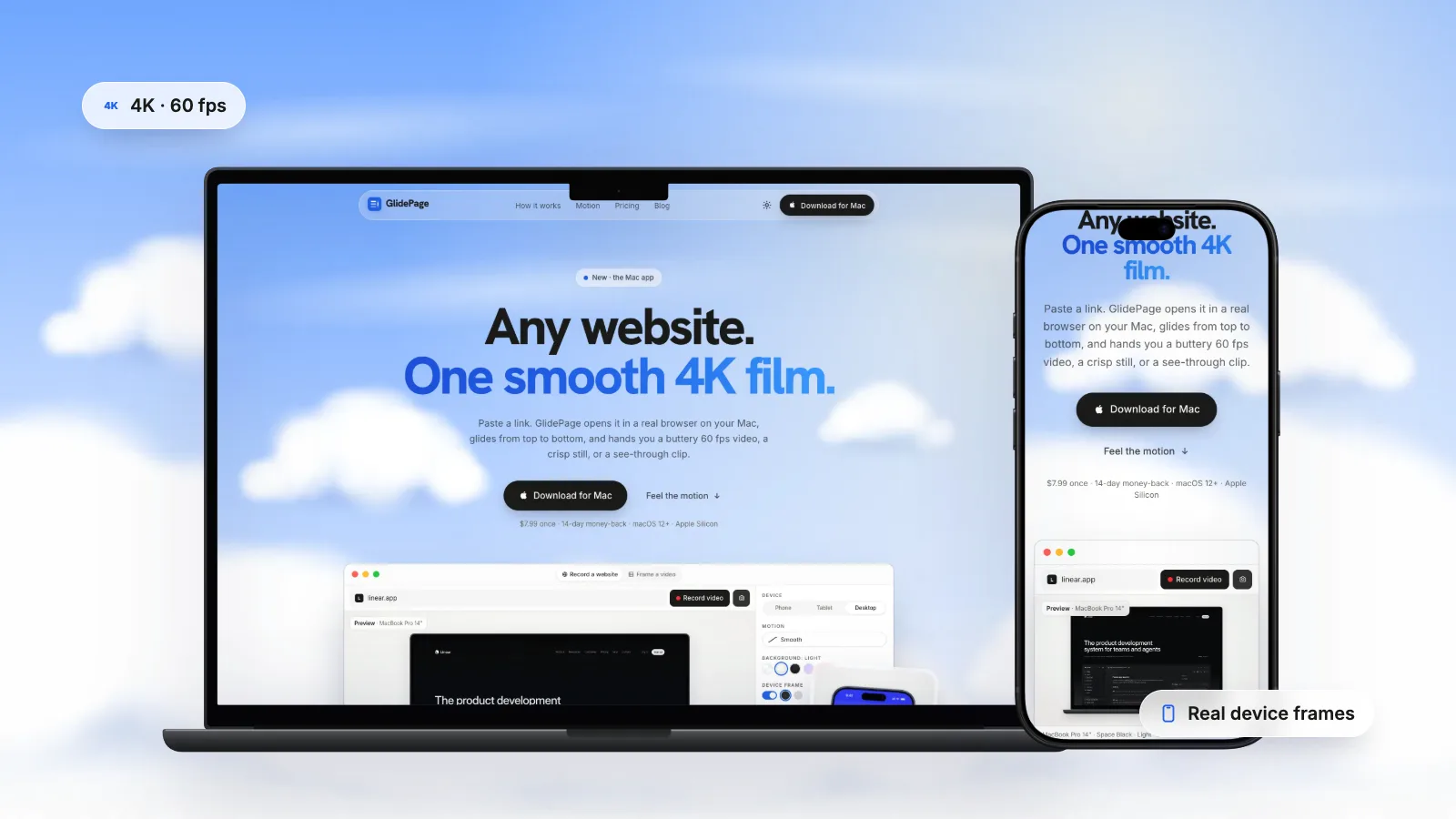
- A frame that says what it is. A phone layout in a phone, a desktop layout in a laptop, on a background that suits where the video will be posted.
Keep that list in mind: each method below gets some of these for free and makes others hard.
Four ways to make one, compared#
| Method | Smoothness | Sharpness | Live page (animations, sticky headers) | Local or staging sites | Effort |
|---|---|---|---|---|---|
| Record your screen while you scroll | Depends on your hand and your Mac | Limited to your display | Yes | Yes | Low setup, many retakes |
| Pan a full-page screenshot in an editor | Smooth | Good | No, it is a flat image | Yes | Medium |
| A web-based generator | Usually smooth | Varies | Varies, some pan a screenshot | No, it cannot reach your machine | Low |
| Script a headless browser, or a Mac app that does it | Excellent, frame by frame | 4K or more | Yes | Yes | High by hand, one step with an app |
Method 1: Record it yourself on a Mac#
macOS has screen recording built in, so you can start right now.
1. Get the page ready
Open the site in your browser and make the window the size you want the video to be. Scroll through the whole page once so lazy-loaded images and fonts finish loading, then scroll back to the top. Accept or dismiss any cookie banner. Turn on a Focus mode so notifications do not slide in mid-take.
2. Start recording
Press Shift-Command-5 to open the Screenshot toolbar, choose Record Selected Portion, and drag the frame around the browser's page area (leave out the tabs and address bar). Click Record. QuickTime Player can do the same: choose File → New Screen Recording.
3. Scroll as evenly as you can
Scrolling with a trackpad gives the smoothest hand-made result: one long, gentle two-finger swipe, then let momentum carry it. Keyboard scrolling (the Space bar or Page Down) moves in jumps, which looks worse on video. Expect a few takes.
4. Stop and trim
Click the stop button in the menu bar. Open the recording in QuickTime Player and use Edit → Trim to cut the dead time at the start and end.
That works, but look at the checklist again. The frame rate depends on how busy your Mac is, so heavy pages drop frames. The scroll speed depends on your hand. The resolution is capped at your display. And the cursor usually ends up somewhere in the shot. If it looks off, why screen recordings look choppy explains the causes in detail.
Method 2: Pan a full-page screenshot#
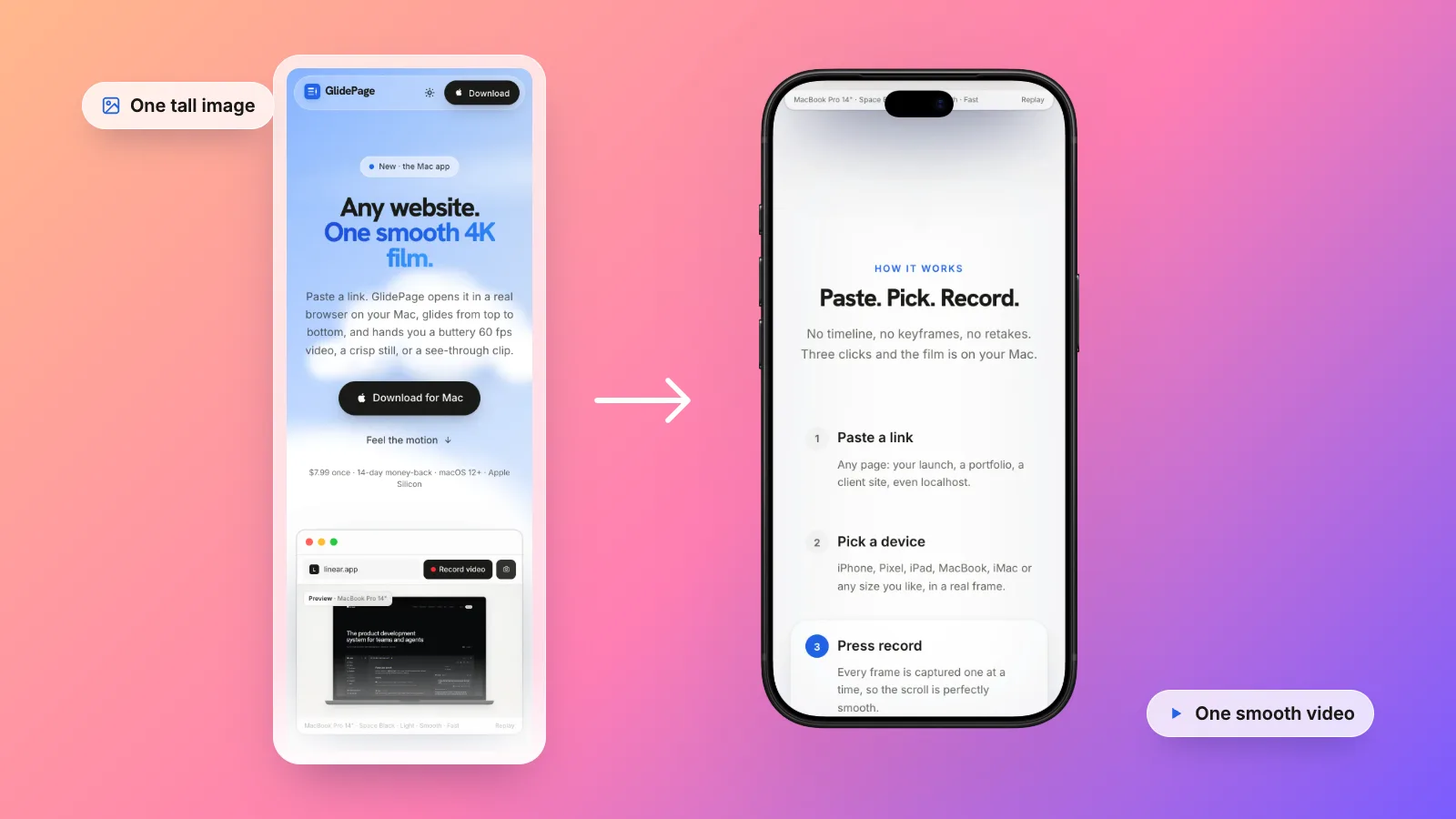
A common workaround in design tutorials: take one tall screenshot of the whole page, place it inside a device frame in a video or presentation app, and animate it moving upward. The motion is perfectly smooth, because nothing is being recorded live.
The trade-off is that it is a picture of a page, not the page. Scroll-triggered animations never play, sticky headers scroll away instead of staying put, video and motion on the page are frozen, and very long pages produce enormous images. It suits simple, static sites. Full-page screenshot vs scrolling video covers how to take the screenshot and when a still is the better choice.
Web-based generators are the quick version of this idea: you paste a link and a server renders the video for you. They are handy for public pages, but they cannot reach a site on your own machine or a private staging server, and your page is loaded on someone else's computer.
Method 3: Script it with a headless browser#
If you are comfortable with code, you can get a perfectly smooth result by not recording in real time at all. The idea:
- Open the page in a headless browser (Playwright or Puppeteer), at the viewport size you want.
- Scroll to a position, take a screenshot, move a tiny bit further, take another. Repeat until the bottom. For 60 fps, you need 60 screenshots for every second of video.
- Join the frames into a video with ffmpeg.
Because each frame is captured on its own, a slow page cannot make the scroll stutter. The catch is everything around it: you have to write the easing yourself, wait for lazy images, handle animations that run on a real clock (they will be at the wrong point in each frame unless you control time), deal with sticky headers, cookie banners and pages that scroll inside a container, and then composite a device frame and background in a separate step.
It is a great weekend project, and a lot of maintenance.
Method 4: Use GlidePage on your Mac#
GlidePage is a Mac app built for exactly this. It does the frame-by-frame capture from Method 3 on the live page, with the parts that are hard to script already handled:
- Paste the link. Any public page, or a local one like localhost:3000.
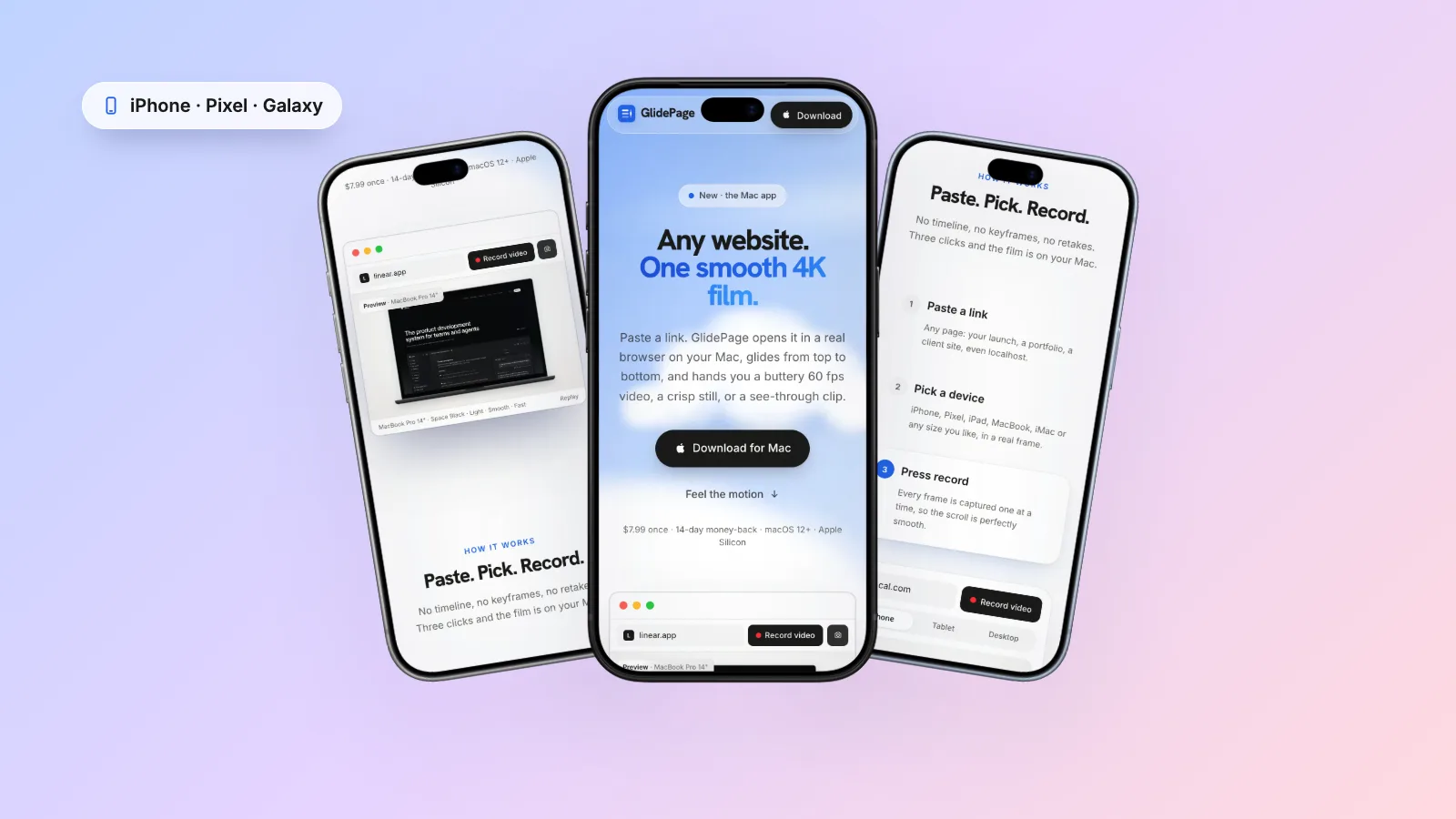
- Pick a device. A current iPhone, Pixel, Galaxy, iPad, MacBook or iMac, or any custom size. Phone sizes load the site's real mobile layout.
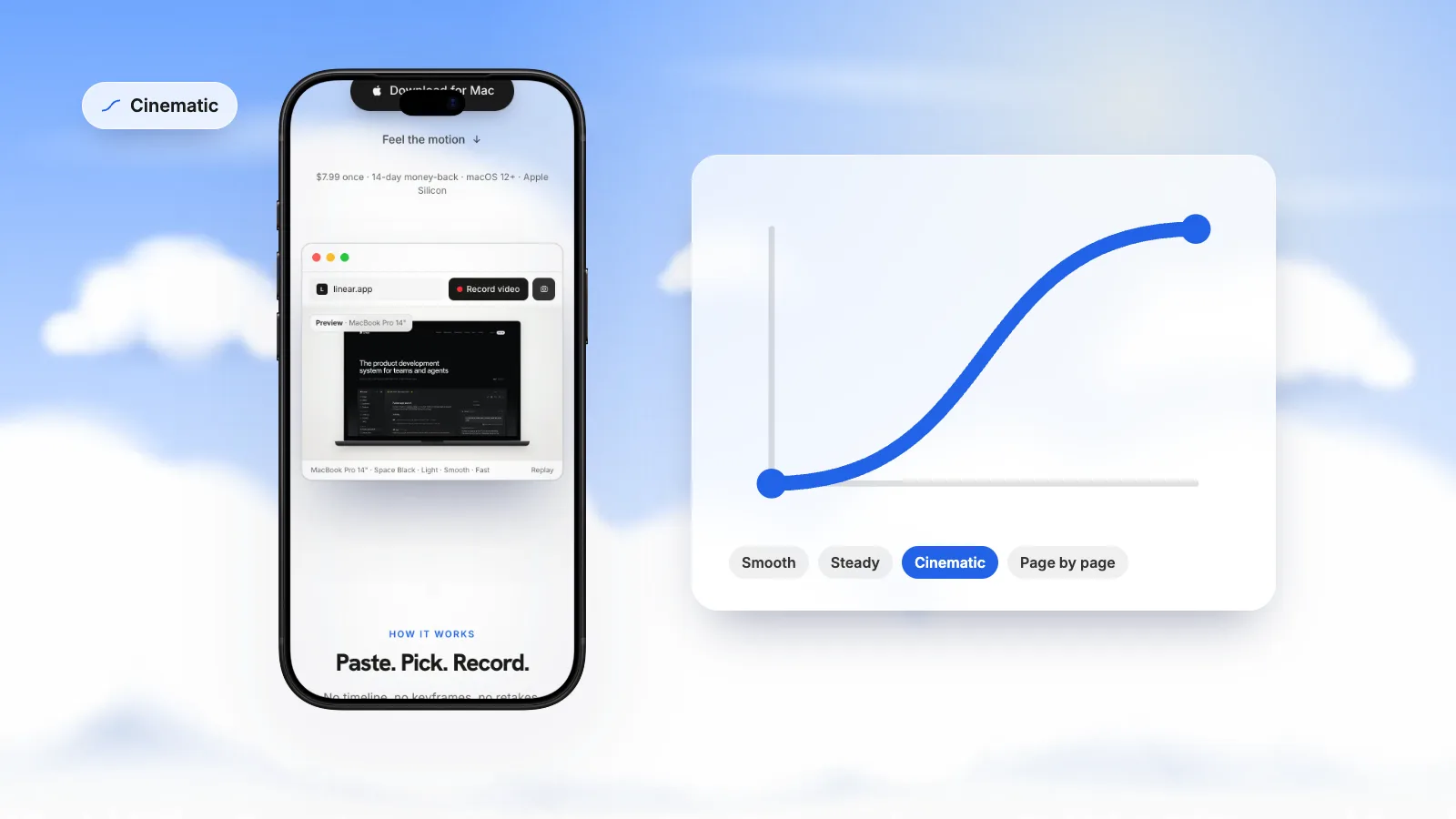
- Choose the motion and speed. Six motion styles, from Smooth to Cinematic to Page by page, and a speed dial.
- Choose a frame and background. A real device frame in its real colours, on a soft light, a midnight glow, a gradient, your own colour, or nothing at all for a transparent export.
- Press Record. It scrolls through once to load everything, then captures every frame one at a time and encodes a 4K, 60 fps video.
Everything happens on your Mac: the page is not uploaded anywhere, which is also why it can record sites that only exist on your machine.
Choosing the device, speed and motion#
Device
Match the device to the audience. A consumer product or a mobile-first site reads best on a phone; a SaaS dashboard or a portfolio usually needs a laptop. Many launches post both. If the site has a strong mobile design, a mobile website mockup video often gets more attention in a feed than the desktop version, because it fills a vertical screen.
Speed and length
Most scrolling videos work best between 10 and 30 seconds. Around one to two seconds per screen height lets people read the headlines without getting bored. Very long pages can go faster in the middle, which is exactly what a cinematic curve does.
Motion
A constant speed looks mechanical. An eased scroll (slow start, even middle, gentle stop) looks intentional, like a camera move. Page-by-page motion, which pauses on each screen, is great for landing pages where every section has a message. Easing curves for scroll videos goes deeper into which curve suits which page.
Make it look finished: frames and backgrounds#
A bare recording of a page is fine for a bug report. For anything public, a frame and a background make it look designed:
- A device frame tells viewers instantly whether they are looking at the phone or desktop experience. See scrolling website mockups for how to choose one.
- A background should suit the destination: a soft light background for most feeds, a dark one for dark sites, a gradient for launch graphics.
- A transparent background gives you just the device, to drop into a video editor, a slide or your own page. See how to make a video with a transparent background.
Get the page itself to look right#
Most of what goes wrong in a scrolling video is the page, not the recording:
- Lazy images and reveal animations. Scroll through once before recording so everything has loaded.
- Cookie banners. Accept them before recording, or use a recorder that hides them. Screenshots without cookie banners covers the options.
- Dark mode. If the site has a dark theme, showing it is a nice touch. Record a website in dark mode shows how.
- Unreleased sites. For a site that is not live yet, record it from your dev server. See how to record a localhost website.
- Text too small. Record at a higher resolution, or zoom the page in a little so the layout is larger in the frame.
Export for where it is going#
- Social feeds. Use MP4, keep it short, and check the platform's limits. Website videos for LinkedIn and X lists the current specs.
- Launches and galleries. A short, framed loop works best. See making a website launch video.
- Portfolios. Loop it silently and show the device. See web design portfolio videos.
- On a website. A transparent WebM can float a device over your own page. See transparent video on a website.
- Video editors. A transparent ProRes 4444 MOV keeps its alpha channel in Final Cut Pro, Premiere Pro and DaVinci Resolve. See ProRes 4444 vs WebM with alpha.
Common problems and quick fixes#
| Problem | Likely cause | Fix |
|---|---|---|
| The scroll stutters | Frames dropped while recording in real time | Capture frame by frame instead of recording live |
| The speed wobbles | Hand scrolling | Use a scripted or automated scroll with an easing curve |
| Text looks soft | Recorded at display resolution, then compressed | Record at 4K |
| Images pop in late | Lazy loading | Scroll through once before recording |
| A banner covers the hero | Cookie consent | Accept it first or hide it |
| The video is too long | Speed too slow for a long page | Speed up, or use a curve that moves faster in the middle |
If you want a single tool that handles all of that, GlidePage turns any link into a smooth, framed 4K video in one step. If you would rather do it by hand, the steps above will get you a clean result with a little patience.
Sources
- Apple Support: How to record the screen on Mac (checked September 2026)
- Apple Support: Record your screen in QuickTime Player on Mac (checked September 2026)
- Apple Support: Trim a movie in QuickTime Player on Mac (checked September 2026)
- Playwright docs: Screenshots (checked September 2026)
- FFmpeg documentation (checked September 2026)



Make your site move.
Any page, one smooth 4K video. Framed, on any background, or transparent.
Questions, answered
Which format should a scrolling website video be: MP4, MOV, WebM or GIF?
MP4 (H.264) for almost everything: social posts, launch galleries and portfolios. Use a ProRes 4444 MOV when you need transparency in a video editor, and a WebM with alpha for a transparent video on a website. Avoid GIF for scrolling pages: it is limited to 256 colours and files get very large.
Can I make a scrolling video of a website for free?
Yes. On a Mac, press Shift-Command-5, choose Record Selected Portion, and scroll through the page while recording. It is free, but the result depends on how smoothly you scroll and is limited to your display resolution. A scripted headless browser is also free if you can write code.
What frame rate should a scrolling website video be?
60 frames per second. Scrolling is fast, continuous motion, and at 30 fps it tends to look juddery, especially with text moving past. Capture at 60 fps and let the platform downsample if it needs to.
How long should a scrolling website video be?
Usually 10 to 30 seconds. About one to two seconds per screen height gives people time to read the headlines. For long pages, use a faster speed or a curve that moves quickly through the middle.
Why does my screen recording of a website look choppy?
Real-time screen recording drops frames when the Mac is busy rendering the page, and hand scrolling is uneven. Capturing the page frame by frame, as a scripted browser or GlidePage does, avoids both problems.
Can I record a website that is not live yet?
Yes, as long as your recorder can reach it. Screen recording works with anything on your screen, and GlidePage can record localhost, LAN and .local addresses because it runs on your Mac rather than on a server.
Does GlidePage work on Windows or Intel Macs?
Not yet. GlidePage currently runs on Apple Silicon Macs (M1 and newer) with macOS 12 or later.