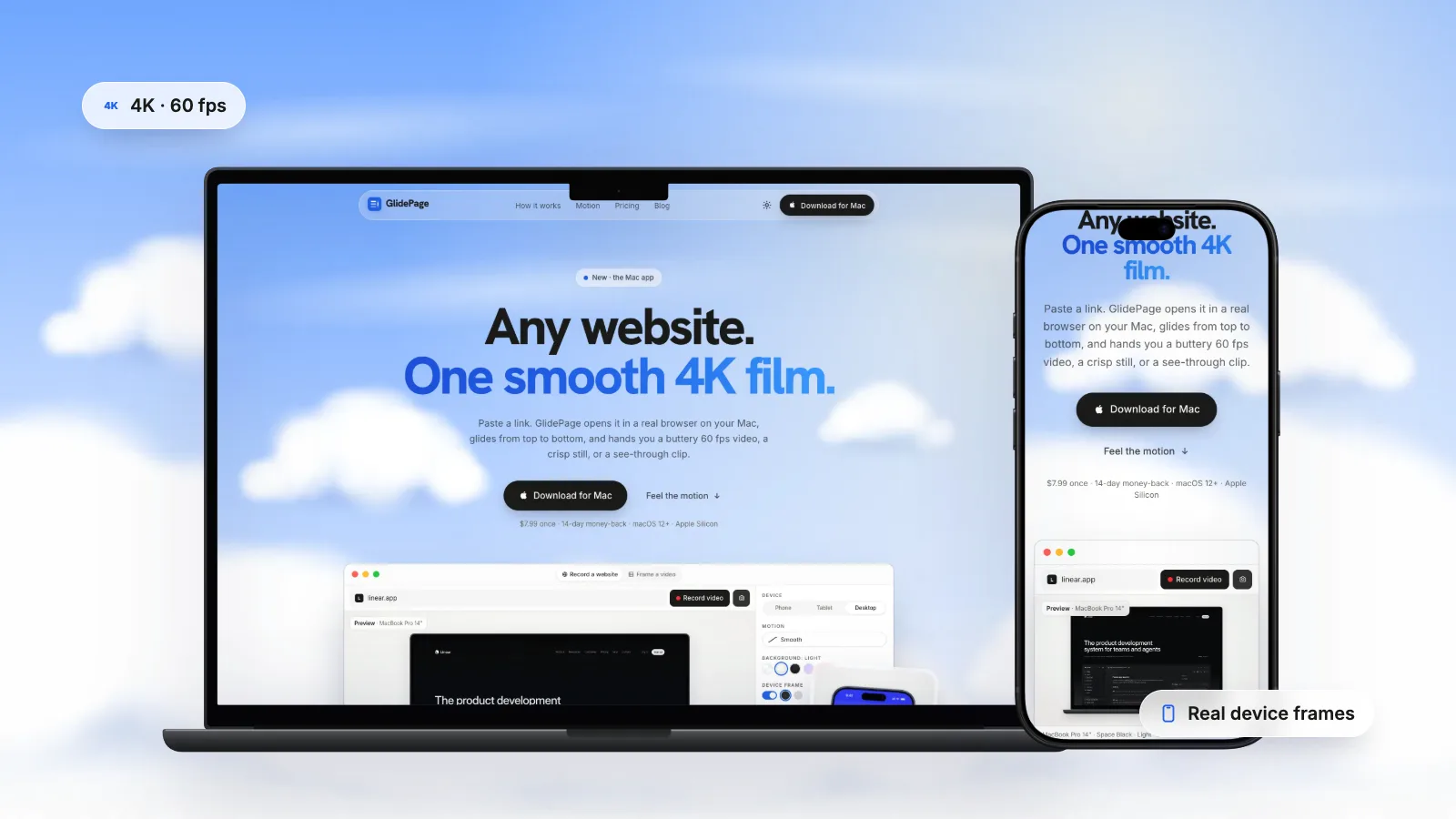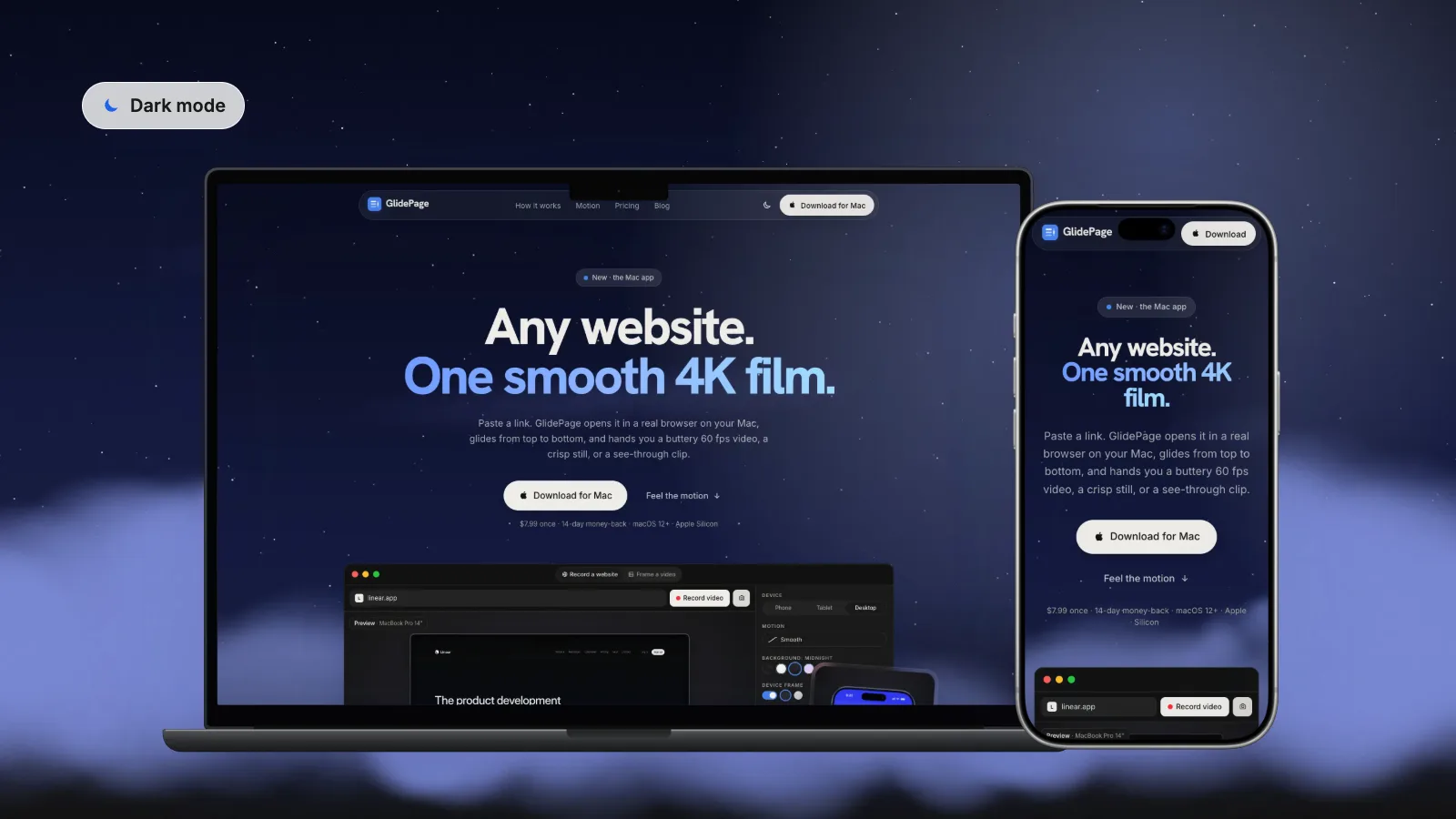
Websites show their dark theme when the browser reports a dark colour scheme preference (the prefers-color-scheme media feature), so the simplest way to screenshot a site in dark mode is to set your Mac to Dark in System Settings → Appearance, or to emulate dark mode for one tab: in Chrome DevTools, use the Rendering tab's prefers-color-scheme option; in Safari, use Override user preferences in Web Inspector's Elements tab. Sites with their own theme toggle need the toggle, and sites without a dark theme can only be shown with a forced filter that is not the real design. GlidePage, a Mac app for Apple Silicon, has a Page theme switch that records the site in light or dark mode as a 4K video or still.
On this page
- How websites decide to show dark mode
- Check whether a site has a dark theme
- Method 1: switch your Mac to dark
- Method 2: set only websites to dark in Firefox
- Method 3: emulate dark mode in DevTools
- Theme toggles and sites without a dark mode
- Phone layouts in dark mode
- Record it in dark mode with GlidePage
- Light and dark, side by side
A dark theme is often the best-looking version of a site, and the one that rarely makes it into the portfolio, the launch post or the product gallery. The reason is simple: most of us capture sites in whatever mode our Mac happens to be in, and automated tools almost always capture the light version.
This guide covers how websites decide when to go dark, the quickest ways to switch one page into dark mode for a screenshot or a recording, and what to do when a site has a toggle, or no dark mode at all.
How websites decide to show dark mode#
There are three different situations, and they need different fixes:
| How the site does it | What controls it | How to capture dark mode |
|---|---|---|
| Follows the system setting | The prefers-color-scheme media feature | Set or emulate a dark preference |
| Has its own theme toggle | A button on the page, often remembered by the site | Click the toggle before capturing |
| Has no dark theme | Nothing | Only a forced filter, which is not the real design |
Most modern sites that have a dark theme use the first approach. MDN describes prefers-color-scheme as the CSS media feature that detects whether the visitor has asked for a light or dark theme, through an operating system setting or a browser setting. The site's CSS says, in effect, "if the visitor prefers dark, use these colours". Your job is to make the browser say "dark".
Many sites combine the first two: they follow the system by default and offer a toggle that overrides it.
Check whether a site has a dark theme#
Before you spend time on settings, find out which of the three cases you are dealing with. It takes a minute:
- Look for a toggle. A sun, moon or "Theme" control, usually in the header, footer or settings menu, means the site has a dark theme and probably remembers your choice.
- Emulate the preference and reload. Use one of the DevTools methods below. If the colours change, the site follows the system setting and every method in this guide will work.
- Search the CSS. In DevTools, select the page's body element and look through the Styles pane for rules inside a prefers-color-scheme: dark block. If there are none and there is no toggle, the site has no dark theme.
- Check the details once it is dark. Logos, illustrations, product screenshots and embedded maps are the parts most often forgotten. A white logo box on a dark page will stand out in a close-up video.
Knowing the case up front also tells you whether an automated recorder can help, or whether you need to click something first.
Method 1: switch your Mac to dark#
The bluntest way works fine for a quick screenshot:
- Open System Settings and click Appearance in the sidebar.
- Choose Dark.
- Reload the page in your browser.
You can also switch from Control Center: click the arrow next to Display, then click Dark Mode. Browsers that follow the system setting will now report a dark preference, and sites that support it will switch.
The downside is that everything goes dark, including your other apps, and you have to remember to switch back. When you only need one tab, use one of the methods below.
Method 2: set only websites to dark in Firefox#
Firefox has a setting that changes the colour scheme websites see without touching the rest of your Mac:
- Choose Firefox → Settings and go to the General panel.
- Scroll down to Language and Appearance.
- Set the website colour scheme to Dark (the other options are Automatic and Light).
Every site you visit in Firefox now gets a dark preference. Mozilla notes that the website still decides whether and how to respond, which is the same rule as everywhere else.
Method 3: emulate dark mode in DevTools#
Developer tools can emulate a dark preference for just the page you are inspecting. This is the best method for designers and developers, because it is quick to toggle back and forth.
Chrome
- Open DevTools: right-click the page and choose Inspect, or press Command-Option-I.
- Press Command-Shift-P to open the Command Menu, type rendering, and choose Show Rendering.
- In the Rendering tab, find Emulate CSS media feature prefers-color-scheme and choose prefers-color-scheme: dark.
- Reload the page if it does not update straight away.
To take the screenshot in Chrome, open the Command Menu again and type screenshot: DevTools offers area, node and full-page captures. Or use the Mac's own Screenshot toolbar (Shift-Command-5).
Safari
- Turn on the developer tools once: choose Safari → Settings, click Advanced, and select Show features for web developers.
- Open the page and choose Develop → Show Web Inspector (Option-Command-I).
- In the Elements tab, click the Override user preferences button and set the colour scheme to dark.
The override applies to the inspected page while Web Inspector is open. Take the screenshot with Shift-Command-5 as usual.
Automated screenshots
If you capture screenshots with code, set the colour scheme in the browser context rather than hoping the default is right. Playwright, for example, supports a colorScheme option with the values 'light' and 'dark', either in the test configuration or per page with page.emulateMedia(). That is also why so many automated screenshots look light: unless someone sets that option, the page gets the default preference.
Theme toggles and sites without a dark mode#
Sites with their own theme toggle
If the page has a sun or moon button, emulation might not be enough. Some sites ignore the system preference once a visitor has picked a theme, and some only ever start in light mode.
- Click the toggle, then capture. It is the most reliable route.
- If you are scripting it, click the toggle in the script before the screenshot, and wait for any colour transition to finish.
- If you are using a recorder with its own browser, it starts fresh, so a choice you made in your everyday browser will not carry over.
Sites without a dark mode
Some browsers and extensions can force any site into a dark palette. Chrome DevTools even has an Enable automatic dark mode option in the Rendering tab, which applies an automatically generated dark theme to show what a site could look like.
That is useful for a developer exploring an idea. It is not the site's design:
- Brand colours shift, sometimes badly.
- Logos, illustrations and screenshots inside the page can end up inverted or muddy.
- Charts and colour-coded UI may stop making sense.
Do not present a forced dark version as the real thing in a portfolio or a client deliverable. If the site has no dark theme, show it in light mode on a background that flatters it instead.
Phone layouts in dark mode#
Dark themes often get the most attention on phones, where many people keep their system in dark mode. To capture the mobile layout on your Mac:
- In Chrome, click Toggle device toolbar at the top of DevTools to get a phone-sized viewport, then set the Rendering tab's prefers-color-scheme emulation to dark. Both settings apply together.
- Check the details that only show on small screens: the collapsed menu, sticky headers and bottom bars all need dark styles too, and they are often where a dark theme is unfinished.
- A phone-sized browser window is not the same as a phone. Some sites serve a different mobile layout based on the device, so check it on a real phone before you publish a mobile screenshot as "the app".
Record it in dark mode with GlidePage#
For a video rather than a still, you also need a smooth scroll, a frame and a sensible background. GlidePage, a Mac app, has a Page theme option that records the site in light or dark mode. It sets the colour scheme preference in its built-in browser, so sites that support dark mode show it, without changing your Mac's appearance.
- Paste the link, including a local one such as localhost:3000.
- Pick a device. A current iPhone, Pixel, Galaxy, iPad, MacBook or iMac, or a custom size.
- Set Page theme to Dark.
- Pick a background that suits a dark site. Midnight works well, or use your own dark colour or gradient.
- Record a video, or take a still. Videos are 4K at 60 fps with a perfectly smooth scroll; photo mode saves a 4K PNG from any point on the page.
Be clear about what it does not do. Page theme sets the preference; it does not click theme toggles or force a dark palette onto sites that have none. Its browser starts without saved sessions, so a theme you picked on the site in your everyday browser does not carry over.
Light and dark, side by side#
Showing both themes is a quick way to demonstrate that a design was thought through. A few ways to use the pair:
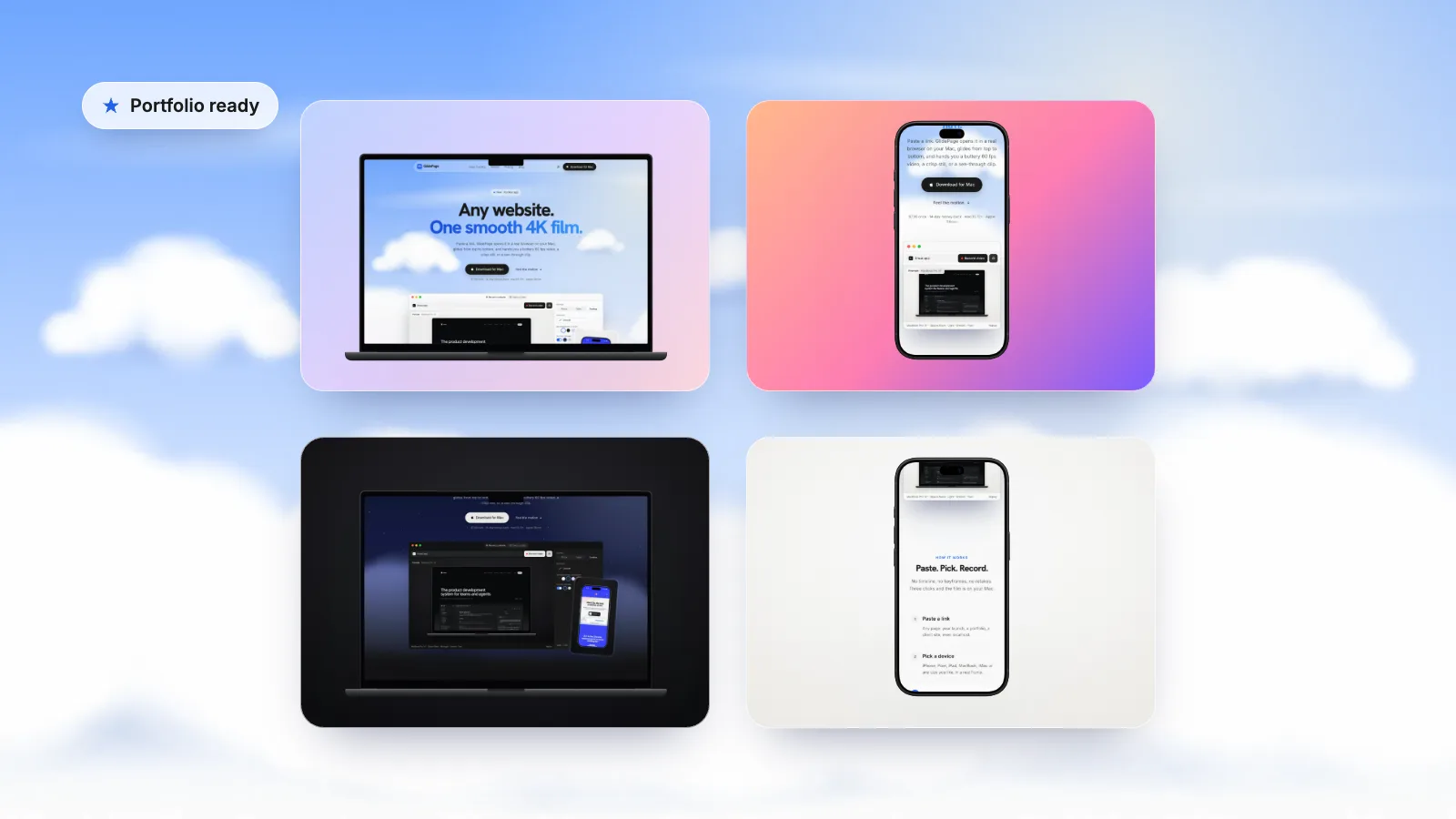
- Portfolio: light and dark versions one after the other, or side by side in a case study. See web design portfolio videos.
- Launch posts: lead with whichever theme looks best in the feed, and show the other in the replies or the gallery. See making a website launch video.
- Client handoff: proof that both themes work on real devices.
To make the two match, capture them with the same device, speed and motion, so they move the same way (as long as the page is the same length in both themes). With GlidePage, that means recording twice with only the Page theme changed.
Backgrounds that suit dark sites
- A dark background (such as Midnight) keeps the focus on the screen and avoids a bright border around a dark UI.
- A subtle gradient works well if the site has an accent colour: pick a dark shade of it.
- Avoid pure white behind a dark site: the device edge gets lost and the page looks like a hole in the image.
Quick checklist
- The site really has a dark theme, not a forced one.
- The preference is set (system, Firefox setting, DevTools or Page theme) and the page was reloaded.
- Any theme toggle is set to dark.
- Images, logos and embedded media look right in the dark theme.
- The cookie banner is gone; see screenshots without cookie banners.
- The background suits a dark page.
If you are new to recording sites, how to make a scrolling video of a website covers devices, speed and motion from the start.
Sources
- MDN: prefers-color-scheme (checked September 2026)
- Apple Support: Use a light or dark appearance on your Mac (checked September 2026)
- Chrome DevTools: Emulate CSS media features (checked September 2026)
- WebKit: Web Inspector Elements tab (checked September 2026)
- Mozilla Support: Change website appearance settings in Firefox (checked September 2026)
- Playwright docs: Emulation (color scheme) (checked September 2026)



Make your site move.
Any page, one smooth 4K video. Framed, on any background, or transparent.
Questions, answered
How do I view a website in dark mode without switching my whole Mac to dark?
Use a browser-level setting. In Firefox, go to Settings, General, Language and Appearance and set websites to Dark. In Chrome or Safari, emulate a dark preference in the developer tools for just the tab you are working in.
How do I emulate prefers-color-scheme in Chrome DevTools?
Open DevTools, press Command-Shift-P, type rendering and choose Show Rendering. In the Rendering tab, set Emulate CSS media feature prefers-color-scheme to prefers-color-scheme: dark, then reload the page if needed.
Why do automated screenshot tools always show the light theme?
Because the browser they use reports the default colour scheme unless someone sets it. In Playwright, set the colorScheme option to dark. In GlidePage, set Page theme to Dark.
What if the site has a theme toggle instead of following the system setting?
Click the toggle before you capture. Emulating the system preference does not always override a theme the site stores itself, and recorders that use their own fresh browser will not know about a choice you made elsewhere.
Can I screenshot a site in dark mode if it has no dark theme?
Only with a forced dark filter, such as Chrome DevTools' Enable automatic dark mode option. It generates colours automatically and can distort brand colours, logos and images, so do not present it as the site's real design.
Does GlidePage force dark mode on any website?
No. Its Page theme option sets the browser's colour scheme preference, so sites that support dark mode show it and sites without one stay light. It does not click on-page theme toggles.