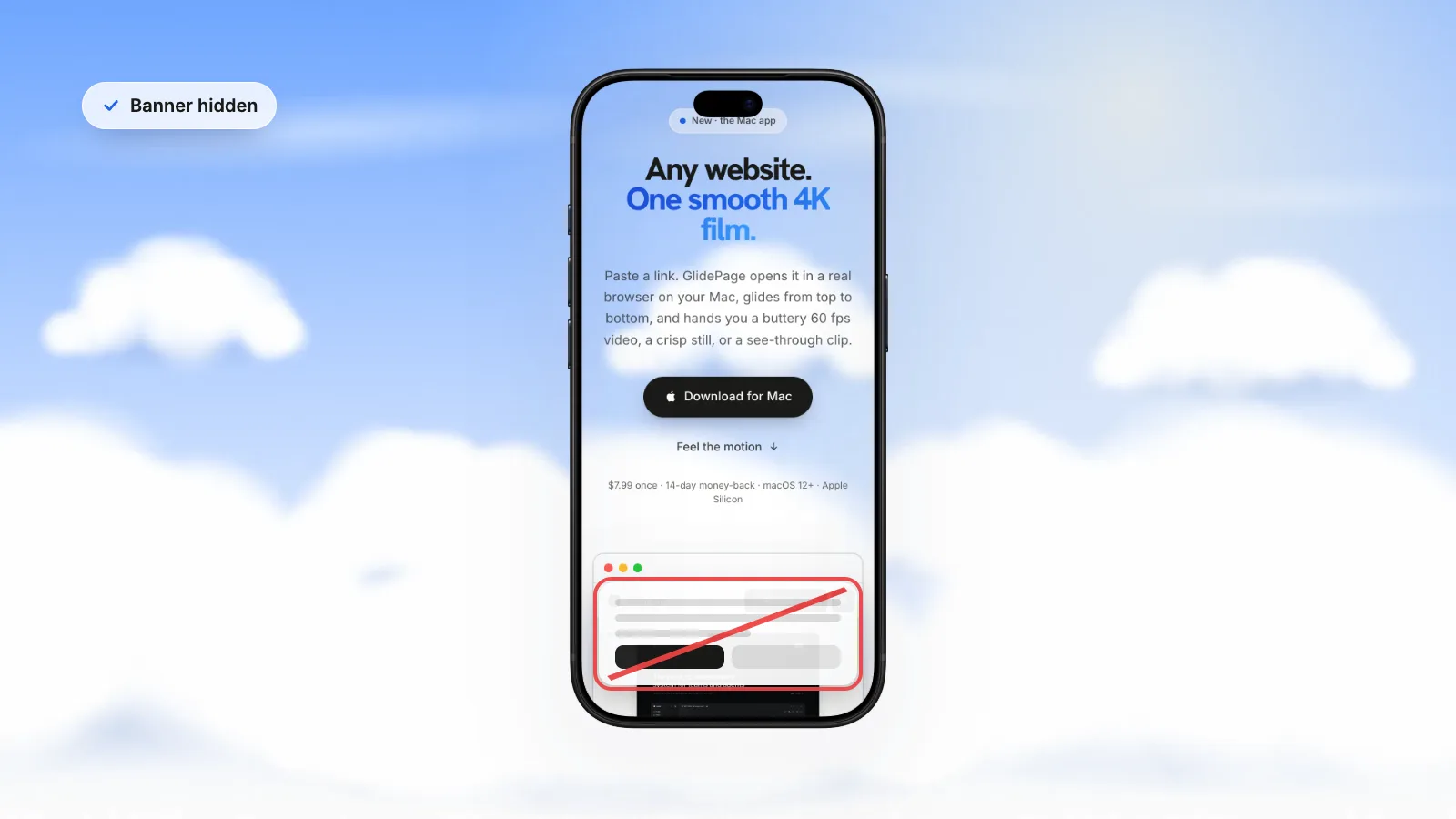
The simplest way to keep a cookie banner out of a screenshot is to accept or dismiss it in the same browser you capture with, then reload the page. If that is not possible, open the browser's developer tools, select the banner in the Elements panel and hide or delete it (in Chrome and Firefox, press H to hide or Delete to remove); if the page will not scroll afterwards, turn off overflow: hidden on the html or body element. GlidePage, a Mac app for Apple Silicon, hides common consent banners by default using a filter list plus CSS rules, though some custom banners can still appear.
On this page
- Why the banner keeps coming back
- Method 1: accept or dismiss it first
- Method 2: hide or delete it in developer tools
- Fix a page that will not scroll after you remove the banner
- Method 3: hide it with CSS, for repeat captures
- Method 4: a content blocker with a cookie-notice filter list
- Chat bubbles, pop-ups and other overlays
- Is it OK to hide a cookie banner?
- Clean captures with GlidePage
- A clean-capture checklist
You capture a beautiful hero section, and half of it is covered by "We value your privacy". In a screenshot that is annoying. In a scrolling video it is worse, because the banner is usually pinned to the bottom of the screen and rides along for the whole take.
Cookie banners, chat bubbles, newsletter pop-ups and "get the app" bars all have the same problem and the same fixes. This guide covers the free methods, from the one-click option to developer tools, plus the one problem almost nobody warns you about: the page that refuses to scroll after the banner is gone.
Why the banner keeps coming back#
Most consent banners remember your choice in the browser, in a cookie or in local storage. That choice belongs to one browser and one profile. So the banner comes back when you:
- open the page in a private window, which starts with no stored data;
- switch to a different browser, or a different browser profile;
- use a recording or screenshot tool with its own built-in browser, which has never seen your choice;
- script captures with a headless browser, which starts fresh every time;
- clear your cookies, or the stored choice expires.
That is why "I already accepted it" often does not help. The tool doing the capture has to see the accepted state, or the banner has to be removed some other way.
Method 1: accept or dismiss it first#
The simplest method, and the one that leaves the page exactly as a returning visitor sees it.
- Open the page in the browser you will capture with.
- Click Accept, Reject or close the banner. For a capture, any choice that makes it go away is fine.
- Reload the page and check that the banner stays gone.
- Scroll through the whole page once. Some sites show a second prompt, a newsletter pop-up or a chat greeting after a delay or partway down.
- Take the screenshot or recording.
Accept or reject? It can change what the page shows. Accepting may load embedded videos, maps and third-party widgets that only appear after consent; rejecting may leave empty placeholders where they would be. Pick the choice that makes the page look complete, and check the sections with embeds before you capture.
Good for: quick screenshots and live screen recordings in your everyday browser. Not enough when: you capture in another tool, the banner has no close button, or you need the same clean result every time.
Method 2: hide or delete it in developer tools#
Every major browser on the Mac can remove an element from the page you are looking at. Nothing changes on the real site: the next reload brings it back.
Safari
- Choose Safari → Settings, open Advanced, and check Show features for web developers (once).
- Right-click the banner and choose Inspect Element. Web Inspector opens with the banner's code selected.
- In the Elements tab, move up the tree until the whole banner is highlighted on the page, including any dark backdrop behind it.
- Control-click that element and choose Toggle Visibility to hide it, or Delete → Node to remove it.
Chrome
- Right-click the banner and choose Inspect.
- In the Elements panel, select the element that wraps the whole banner.
- Press H to hide it, or Delete to remove it. Right-clicking the element offers Hide element and Delete element too. Command-Z undoes it.
Firefox
- Press Command-Option-C to open the Inspector with the element picker, then click the banner.
- In the HTML pane, select the element that wraps the whole banner.
- Press H to hide or show it, or Delete to remove it. Command-Z undoes a delete.
| Action | Safari | Chrome | Firefox |
|---|---|---|---|
| Select the banner | Right-click → Inspect Element | Right-click → Inspect | Command-Option-C, then click it |
| Hide it | Control-click → Toggle Visibility | H | H |
| Delete it | Control-click → Delete → Node | Delete | Delete |
| Undo | Reload the page | Command-Z | Command-Z |
Fix a page that will not scroll after you remove the banner#
This is the part most guides skip. Many consent banners lock the page while they are open, so you cannot scroll past them without choosing. They usually do it by setting overflow: hidden on the html or body element, often through a class added to one of them.
When you hide the banner in developer tools, that lock stays behind. The page looks clean, but it will not scroll, which is fatal for a scrolling video or a full-page capture.
To undo it:
- In the Elements panel, select the html element, then the body element.
- In the Styles pane, look for an overflow: hidden declaration, often in a rule with a class name like "no-scroll" or "modal-open".
- Turn that declaration off in the Styles pane, or delete the class from the element.
- Scroll the page to check it moves again.
With overflow set to hidden, the content is clipped and the element has no scroll bars. It can still be scrolled by scripts, which is why some pages seem half-stuck rather than completely frozen.
Method 3: hide it with CSS, for repeat captures#
If you capture the same site often, such as your own product or a client's staging site, a stylesheet is more reliable than clicking around each time:
- Find the selector once. In developer tools, note the banner's ID or class, and the class that locks scrolling.
- For scripted captures, if you use Playwright or Puppeteer, inject a small stylesheet before the screenshot that sets the banner to display: none and puts overflow back to auto on html and body.
- For your own site, ask the developers for a capture mode on staging, such as a setting that skips loading the consent script. It keeps the live site unchanged and makes every capture clean.
Method 4: a content blocker with a cookie-notice filter list#
Content blocker extensions can subscribe to filter lists that target cookie notices. The list contains patterns for known consent banners and hides or blocks them automatically, on every site.
It is convenient, with some caveats:
- It is a separate browser setup. Use a dedicated browser profile for captures, so your normal browsing is unaffected.
- It can break pages. Blocking a consent script can also block things that load after consent, such as embedded videos or maps, so check the page looks complete.
- It may leave scroll lock behind, like Method 2.
- It misses custom banners. Lists cover common consent tools well, and one-off banners less so.
Chat bubbles, pop-ups and other overlays#
The same methods work for everything else that floats over a page:
- Chat widgets: hide the launcher bubble in developer tools. It is often inside an iframe, so select the iframe's container element rather than something inside it.
- Newsletter and discount pop-ups: they often appear after a delay or at a scroll depth. Scroll through and wait a few seconds before capturing, then dismiss or hide what shows up.
- "Open in app" and announcement bars: usually closable once, like a consent banner.
- Browser prompts, such as notification or location requests, belong to the browser rather than the page. Dismiss them before you start, so they cannot drop over the page mid-take.
Is it OK to hide a cookie banner?#
For a capture, generally yes, as long as you are honest about what it shows:
- Your capture is not the live site. Hiding a banner in a screenshot or video does not change the site, and the live site should keep showing it wherever it is required.
- Do not misrepresent a site in ads or compliance material. A clean screenshot is fine for showing a design. It should not be used to suggest that a site does not ask for consent, or to present someone else's site as something it is not.
- Tell clients what you changed. If you deliver captures of a client's site, mention that overlays were hidden for presentation.
This is common-sense practice, not legal advice. If you are unsure about a specific use, ask whoever handles privacy for the site.
Clean captures with GlidePage#
If you are recording scrolling videos or taking stills of websites, GlidePage, a Mac app, takes care of most of this for you:
- Hide cookie banners is on by default. It blocks common consent banners with a filter list plus CSS rules before recording.
- It is honest about the limits. Some custom banners can still appear. When one does, you can record a staging or local version of the site without the consent script (GlidePage can record localhost, LAN and .local addresses, see how to record a localhost website), or dismiss it in your browser, make your own screen recording, and use GlidePage's Frame a video option to put that recording in a device frame.
- The page is fully loaded first. It scrolls through once before recording, so lazy images and reveal animations are in place, then captures every frame at 4K and 60 fps.
- Stills too. Photo mode takes a 4K PNG of any point on the page, so you can grab a clean screen without a separate screenshot tool.
It runs on Apple Silicon Macs with macOS 12 or later, nothing is uploaded, and it cannot record pages behind a login. For the whole workflow, see how to make a scrolling video of a website.
A clean-capture checklist#
- Banner accepted, dismissed, hidden or blocked in the browser or tool doing the capture
- Page scrolls freely (no leftover overflow: hidden on html or body)
- Chat bubble, pop-ups and app banners hidden
- Whole page scrolled once so delayed pop-ups and lazy images have shown up
- Nothing important depended on consent (embedded videos, maps, fonts)
- Clients told that overlays were hidden for presentation
If you are taking a full-page image rather than a video, full-page screenshots vs scrolling videos covers the browser methods, and how to record a scrolling screen on Mac covers live recording with the built-in tools.
Sources
- Apple Developer: Enabling features for web developers (Safari) (checked September 2026)
- Apple Developer: Inspecting Safari on macOS (checked September 2026)
- WebKit source: Web Inspector DOM tree context menu (Toggle Visibility, Delete) (checked September 2026)
- Chrome for Developers: Get started with viewing and changing the DOM (checked September 2026)
- Firefox Source Docs: DevTools keyboard shortcuts (checked September 2026)
- MDN: overflow (checked September 2026)



Make your site move.
Any page, one smooth 4K video. Framed, on any background, or transparent.
Questions, answered
How do I hide a cookie banner before taking a screenshot?
Accept or dismiss it in the browser you will capture with, then reload. If that is not possible, right-click the banner, choose Inspect, select the element that wraps it and press H to hide it (Chrome and Firefox) or use Toggle Visibility (Safari).
Why does the cookie banner still appear after I clicked Accept?
Your choice is stored in one browser and profile. Private windows, other browsers, screen recording apps with their own browser and headless browsers start fresh, so they show the banner again. Accept it in the tool doing the capture, or hide it.
Why can't I scroll after removing a cookie banner?
Many banners lock scrolling by setting overflow: hidden on the html or body element while they are open. Removing the banner leaves that lock in place. Turn the declaration off in the Styles pane, or delete the class that adds it.
How do I find the CSS selector of a cookie banner?
Right-click the banner and choose Inspect (Inspect Element in Safari), then move up the Elements tree until the whole banner is highlighted. Its ID or class names are shown in the tag, and you can use them in a stylesheet for repeat captures.
Is it legal to hide a cookie banner in a screenshot?
Hiding it in your own capture does not change the live site, and it is common for design and marketing material. Do not use clean captures to suggest a site does not ask for consent. This is not legal advice; check with whoever handles privacy for the site if you are unsure.
Does GlidePage remove cookie banners automatically?
Yes, by default. GlidePage, a Mac app, blocks common consent banners with a filter list plus CSS rules before it records. Some custom banners can still appear; for those, record a staging or local version without the banner, or frame your own recording.