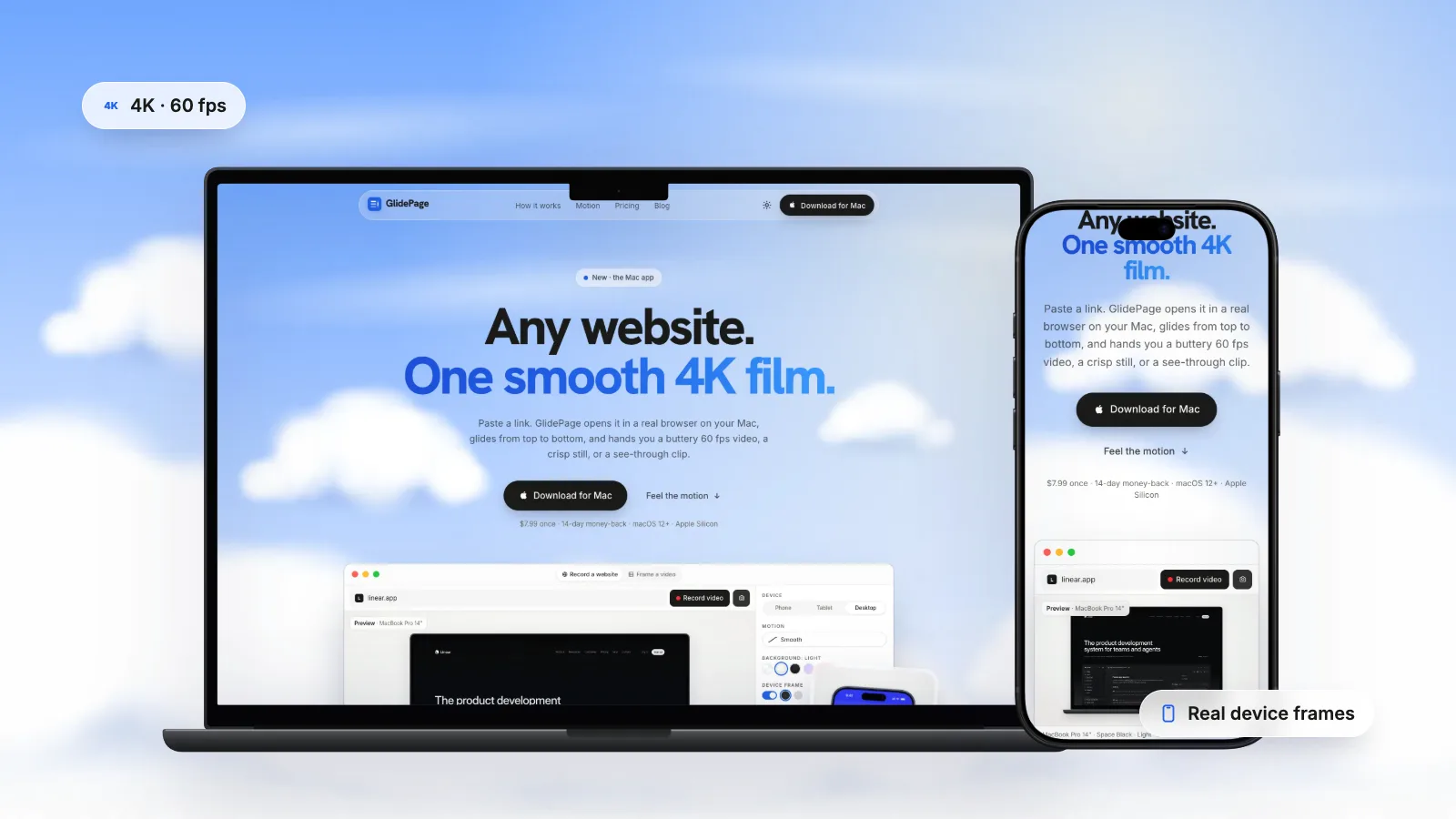
macOS has no built-in scrolling screenshot, but every major browser on a Mac can capture a full web page for free. In Safari, turn on the web developer features, open Web Inspector, Control-click the html element and choose Capture Screenshot. In Chrome, open DevTools, press Command-Shift-P, type "screenshot" and choose Capture full size screenshot; in Firefox, right-click the page, choose Take Screenshot, then Save full page. A tall image suits reviews and archives, while a scrolling video shows motion, sticky headers and animations; GlidePage, a Mac app for Apple Silicon, makes those videos and 4K stills of any single screen, but not stitched full-page images.
On this page
- Does macOS have a scrolling screenshot?
- Full-page screenshot in Safari
- Full-page screenshot in Chrome
- Full-page screenshot in Firefox
- Which browser to use
- How to get a sharper, more useful capture
- Why full-page screenshots break (and how to fix them)
- Tall image or scrolling video?
- Scrolling videos and sharp stills with GlidePage
- Quick decision guide
You want the whole page, top to bottom, in one image. Maybe it is for a design review, a client sign-off, a portfolio, or a record of how a site looked before a redesign. A regular screenshot only gets what fits on the screen.
The good news: you do not need to install anything. Safari, Chrome and Firefox can all capture a full page on a Mac. The less good news: modern websites often fight back, with sticky headers, blank images and stretched sections. This guide covers the free methods step by step, how to fix what breaks, and when a scrolling video would serve you better.
Does macOS have a scrolling screenshot?#
No. The Mac's built-in Screenshot tool captures what is visible on your display: the whole screen, a window or a selected area. It has no scrolling or full-page mode, and the same goes for its screen recording options.
A full-page capture has to come from something that can render the whole page, not just the visible part. That is exactly what the browsers' own tools do. They lay out the page at its full height and save it as a single PNG.
Full-page screenshot in Safari#
Safari's option lives in Web Inspector, its developer tools. You only need to switch them on once.
1. Turn on the developer features
From the menu bar, choose Safari → Settings, go to the Advanced pane, and check Show features for web developers. A Develop menu appears in the menu bar.
2. Open Web Inspector
With the page open, choose Develop → Show Web Inspector (Option-Command-I), or right-click the page and choose Inspect Element.
3. Capture the page element
In the Elements tab, find the html element at the top of the tree (or body). Control-click it and choose Capture Screenshot. Safari saves a PNG of that element at its full size, including everything below the fold.
Full-page screenshot in Chrome#
Chrome's option is in DevTools, and it is quickest from the Command Menu.
1. Open DevTools
With the page open, press Command-Option-I.
2. Run the screenshot command
Press Command-Shift-P to open the Command Menu, type screenshot, and choose Capture full size screenshot. Chrome downloads a PNG of the whole page.
3. For a mobile layout, use device mode
Press Command-Shift-M (or click Toggle device toolbar) to emulate a phone and pick a device. Then open the device toolbar's More options menu and choose the full size screenshot option, or run the same command as above. The menu also has Capture screenshot for just the visible viewport.
Full-page screenshot in Firefox#
Firefox has screenshots built into the browser, no developer tools needed.
- Right-click an empty part of the page (or Control-click) and choose Take Screenshot. The keyboard shortcut is Command-Shift-S.
- Click Save full page in the upper right corner. (Save visible captures just what is on screen.)
- Click Download to save a PNG to your downloads folder, or Copy to put it on the clipboard.
Which browser to use#
| Browser | Where it is | Setup | Nice extra |
|---|---|---|---|
| Safari | Web Inspector → Control-click element → Capture Screenshot | Enable web developer features once | Capture any single element |
| Chrome | DevTools → Command Menu → Capture full size screenshot | None | Device mode for mobile layouts |
| Firefox | Right-click → Take Screenshot → Save full page | None | Easiest for non-developers |
If one browser gives you a broken result, try another. They render and capture pages differently, and a page that breaks in one often comes out fine in the next.
How to get a sharper, more useful capture#
Browsers generally capture at your screen's pixel density, so on a Retina Mac a page 1,440 pixels wide usually comes out around 2,880 pixels wide. That is sharp enough for most reviews. A few habits make the result more useful:
- Set the width before you capture. The page is laid out at the current window width, so resize the window, or pick a width in Chrome's device mode, to get the layout you actually want. A desktop layout and a phone layout are different designs.
- Set the pixel ratio in Chrome. In device mode, choose More options → Add device pixel ratio, then pick a value from the new DPR menu. A higher ratio gives a sharper image of a narrow phone layout.
- Capture sections, not always the whole page. Safari's element screenshot, or Firefox's option to click a part of the page, gives you one section at full resolution. Five section images are often easier to review and share than one 20,000-pixel strip.
- Watch the file size. A PNG of a long page can run to tens of megabytes. If a chat app or CMS rejects it, convert it to JPEG or split it into sections.
Why full-page screenshots break (and how to fix them)#
A full-page capture renders the page in a way it was never designed to be seen: as one enormous, motionless screen. Modern layouts assume a viewport that moves. These are the usual problems:
| Problem | Why it happens | Fix |
|---|---|---|
| Blank or grey images further down | Images load lazily as you scroll, and the capture never scrolled | Scroll slowly to the bottom and back before capturing |
| Sections missing or invisible | Scroll-triggered reveal animations never fired | Scroll through the page first; or capture section by section |
| Header stuck in the wrong place | Fixed and sticky elements are positioned relative to a viewport that no longer exists | Try another browser, or hide the header in DevTools before capturing |
| Hero section stretched or huge | Sections sized to the screen height (100vh) can grow when the capture treats the whole page as one tall screen | Capture that section separately at normal size |
| Cookie banner in the shot | The consent banner is part of the page | Accept or dismiss it first. See screenshots without cookie banners |
| Only part of the page captured | The page scrolls inside a container, not the window | Capture the scrolling element itself, or use a video |
| The image is unusably long | Very long pages make images tens of thousands of pixels tall | Split into sections, or show the page as a video |
Two habits prevent most of these: scroll the whole page once before you capture, and close anything that sits on top of the content.
Tall image or scrolling video?#
When a tall image is the right choice
A full-page screenshot is still the best format for some jobs:
- Design reviews and feedback. People can annotate a static image, and comments can point at exact spots.
- Archives and before-and-after records. One file captures the whole layout at a moment in time.
- Documentation. An image embeds anywhere, including tools that do not play video.
- Dribbble or Behance shots of a long page, where viewers expect to scroll through a tall image themselves.
- Side-by-side comparisons. Two tall images next to each other show exactly what changed between versions.
When a scrolling video is better
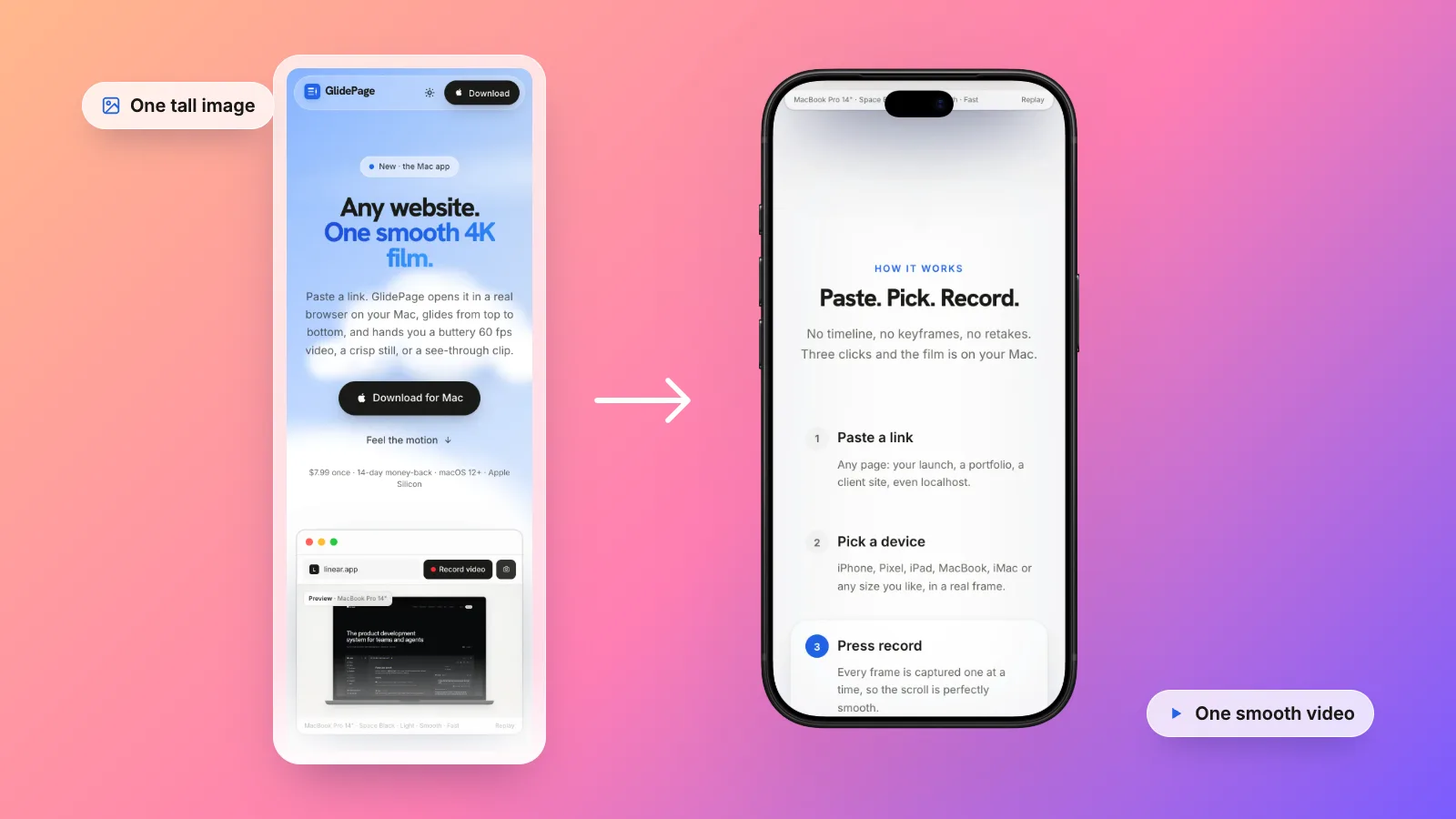
A tall image is a map of the page. A video is the experience of it. Choose video when:
- The page moves. Sticky navigation, parallax, reveal animations, carousels and embedded videos only make sense in motion. In a still they are frozen or missing.
- It is going into a feed. A very tall image shrinks to an unreadable strip in a social feed. A scrolling video fills the frame and holds attention.
- The page is long. Twenty screens of content is a tiring image but a comfortable 20-second video.
- You want it framed. A phone layout inside a phone, or a desktop site inside a laptop, reads instantly, and looks finished in a portfolio or a launch post.
For a portfolio, the two work well together: a video on the case study page, with a tall image or a few stills for people who want to study the details. Web design portfolio videos covers how to present both. To record a scrolling video with the Mac's built-in tools, see how to record a scrolling screen on Mac.
Scrolling videos and sharp stills with GlidePage#
GlidePage is a Mac app for the video side of this, and it is worth being precise about what it does and does not do.
What it does not do: it does not make stitched full-page screenshots. There is no single tall image output. For that, use the free browser methods above.
What it does:
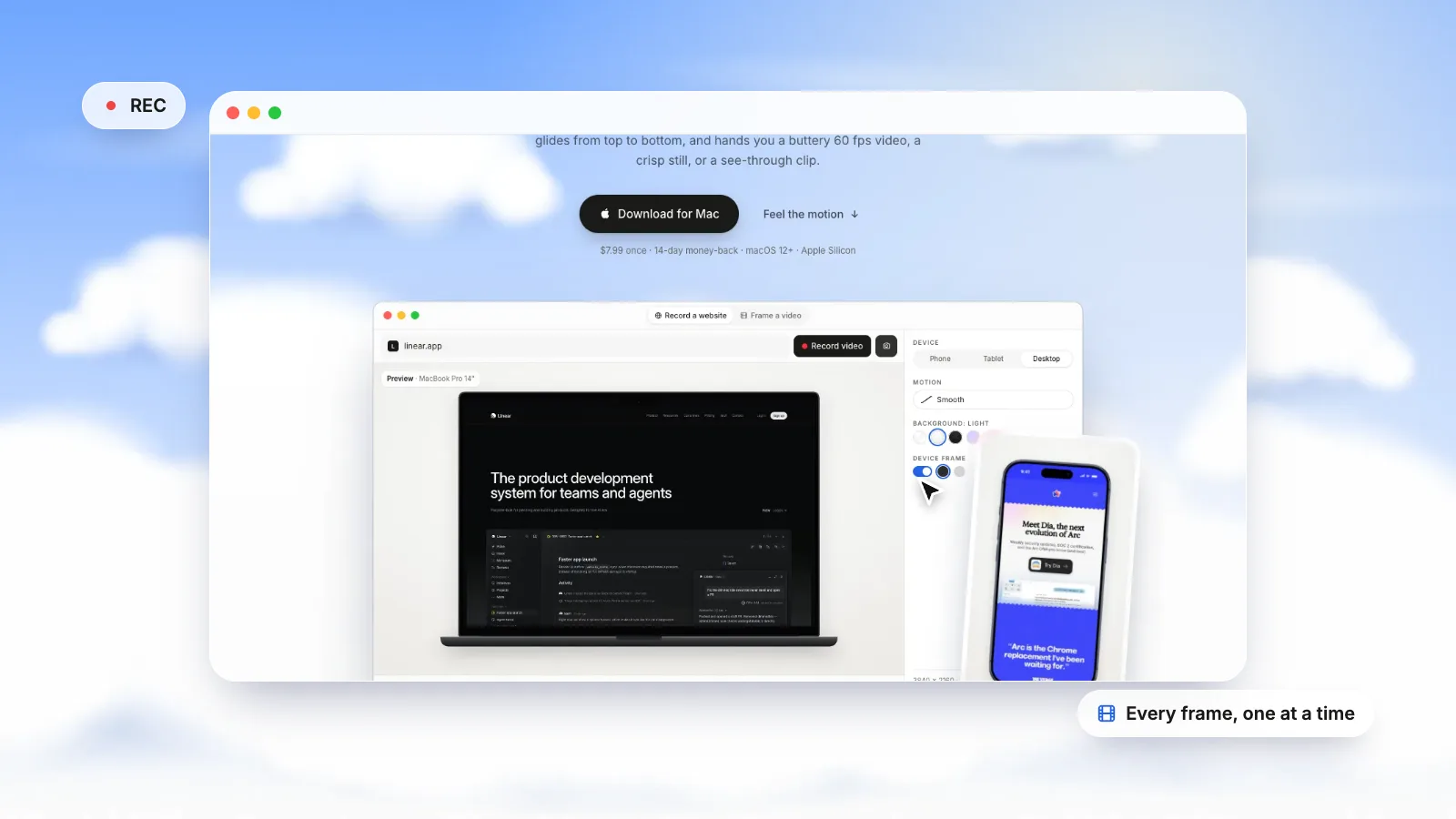
- Scrolling videos of the real page. Paste a link, pick a device, press Record. It opens the page in its own browser on your Mac, scrolls through once so lazy images and reveal animations load, then captures every frame one at a time and encodes a smooth 4K, 60 fps video. Sticky headers behave as they do in a browser, and on-page animations play.
- 4K stills of any screen. Photo mode takes a 4K PNG from any point on the page: press the camera, scroll to the spot with the scrollbar, press again. It is viewport-sized, like one perfect screen of the page, not the whole page.
- Frames and backgrounds. Put the video or still in a real iPhone, Pixel, Galaxy, iPad, MacBook or iMac frame, on a background, or on nothing at all: with a frame and no background, the PNG is transparent.
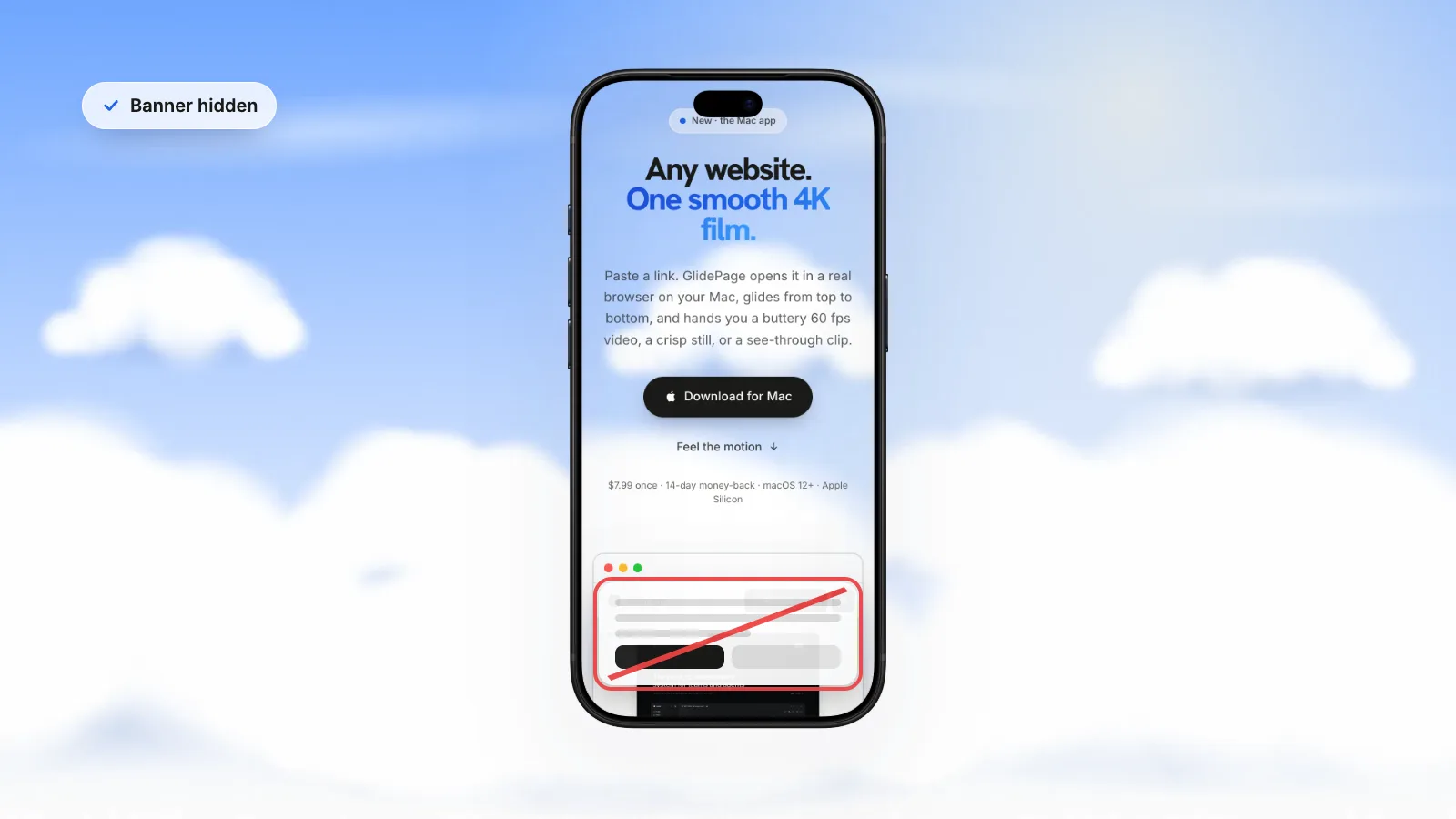
- Clean captures. Cookie banners are hidden by default, and you can record the page in light or dark mode.
It runs on Apple Silicon Macs with macOS 12 or later, nothing is uploaded, and it cannot record pages behind a login. For the full video workflow, see how to make a scrolling video of a website.
Quick decision guide#
| You need | Use |
|---|---|
| The entire page as one image, for review or records | A browser's full-page screenshot (Safari, Chrome or Firefox) |
| A sharp image of one section or screen | Safari's element screenshot, Chrome's node or area screenshot, or a 4K still from GlidePage's photo mode |
| The page for a social post, launch or portfolio | A scrolling video |
| The mobile layout | Chrome's device mode for an image; a phone-framed scrolling video for motion |
| Something people will comment on line by line | A full-page image |
Start with the free browser tools. If you find yourself fighting sticky headers, stretched heroes and missing animations, that is usually the sign the page wants to be seen in motion.
Sources
- Apple Developer: Enabling features for web developers (Safari) (checked September 2026)
- Apple Developer: Inspecting Safari on macOS (checked September 2026)
- WebKit source: Web Inspector element context menu (Capture Screenshot) (checked September 2026)
- Chrome for Developers: DevTools keyboard shortcuts (checked September 2026)
- Chrome for Developers: Simulate mobile devices with device mode (checked September 2026)
- Mozilla Support: Take screenshots in Firefox (checked September 2026)



Make your site move.
Any page, one smooth 4K video. Framed, on any background, or transparent.
Questions, answered
Can you take a scrolling screenshot on a Mac?
Not with the built-in Screenshot tool, which only captures what is visible on the screen. Use a browser instead: Safari (Web Inspector, Capture Screenshot), Chrome (DevTools, Capture full size screenshot) and Firefox (Take Screenshot, Save full page) can all capture a whole web page for free.
How do I take a full-page screenshot in Safari?
Turn on Show features for web developers in Safari Settings, Advanced. Open Develop, Show Web Inspector, then in the Elements tab Control-click the html element and choose Capture Screenshot. Safari saves a PNG of the whole page.
How do I take a full-page screenshot in Chrome without an extension?
Open DevTools with Command-Option-I, press Command-Shift-P to open the Command Menu, type "screenshot" and choose Capture full size screenshot. Chrome downloads the whole page as a PNG.
Why are images missing in my full-page screenshot?
Most sites lazy-load images as you scroll, and a full-page capture does not scroll, so images further down never load. Scroll slowly to the bottom of the page and back up before capturing, then try again.
Why is the header in the wrong place in my full-page screenshot?
Fixed and sticky headers are positioned relative to the screen, and a full-page capture treats the whole page as one tall screen. Try another browser, or delete or hide the header in developer tools before capturing.
Does GlidePage take full-page screenshots?
No. GlidePage, a Mac app, makes scrolling videos of a page and 4K stills of any single screen with its photo mode, but it does not stitch a whole page into one tall image. Use a browser's full-page screenshot for that.