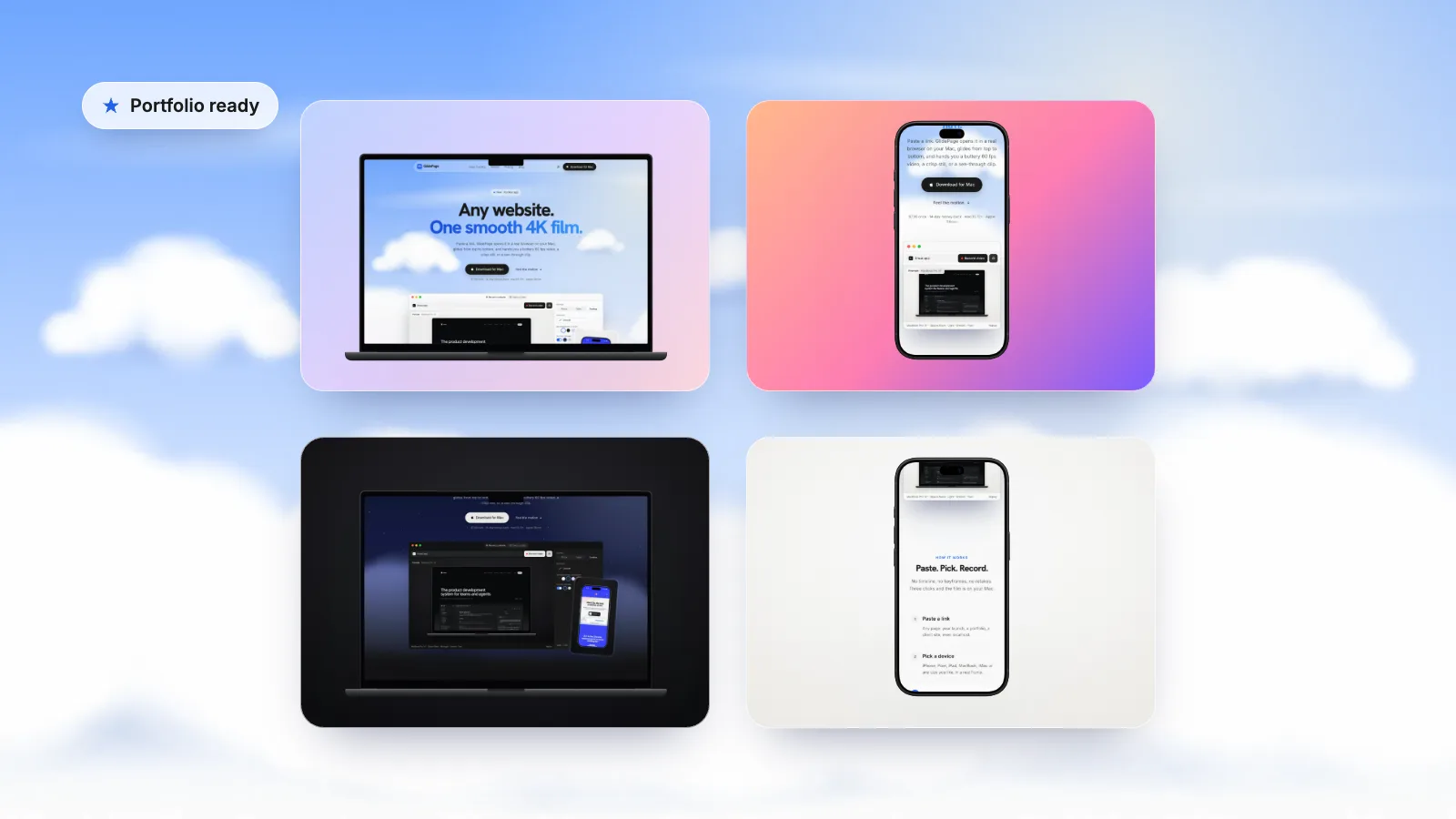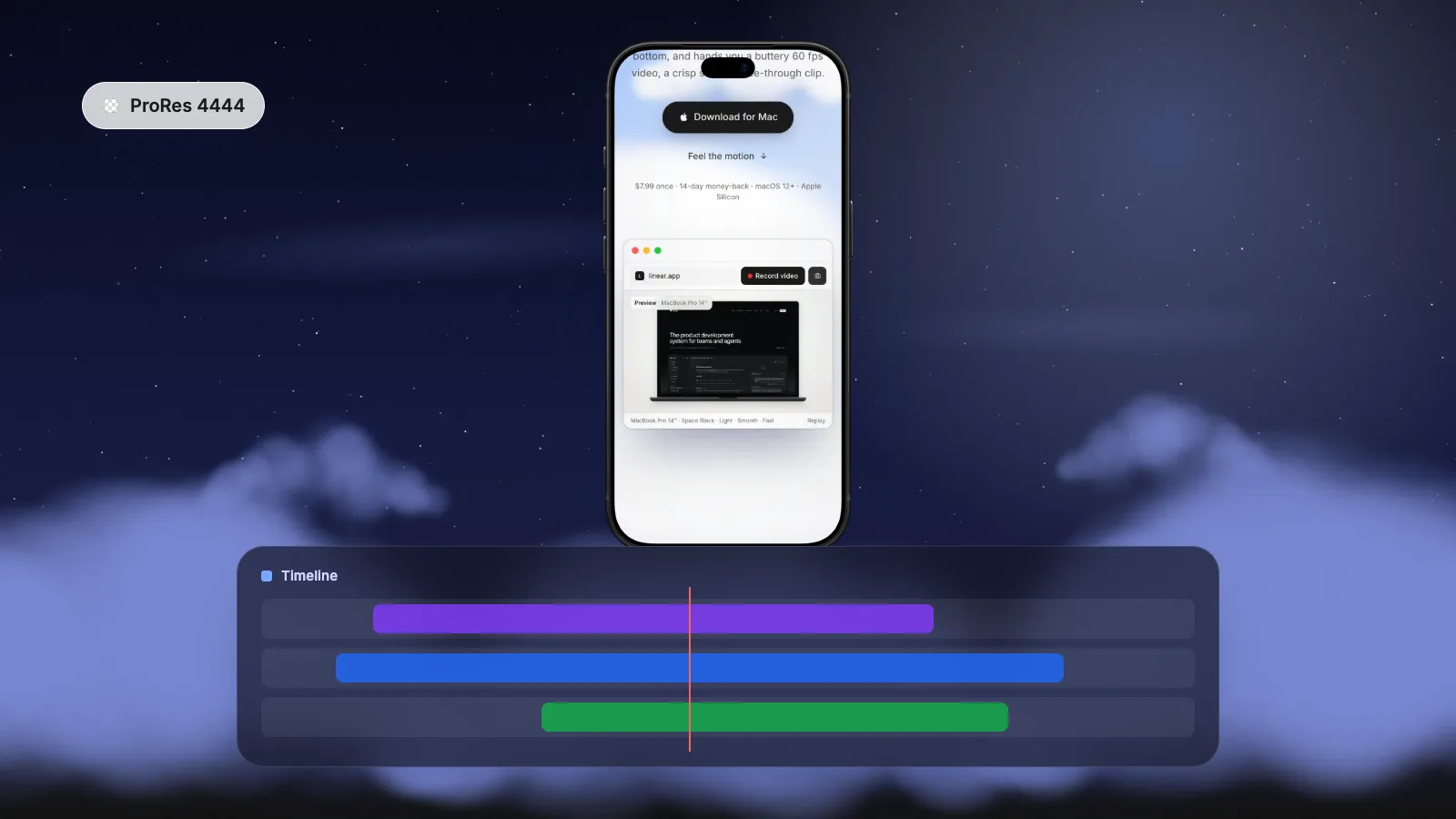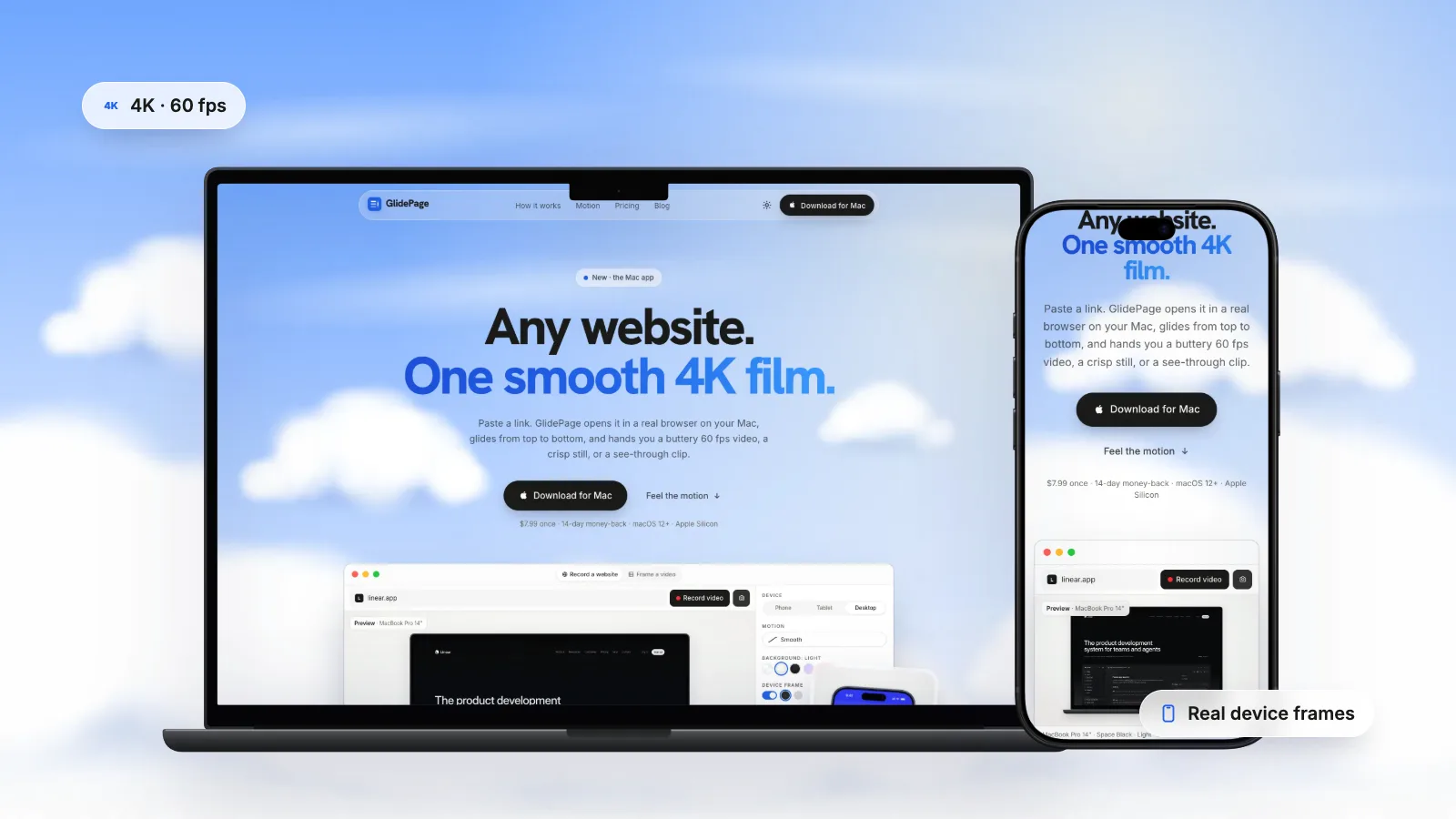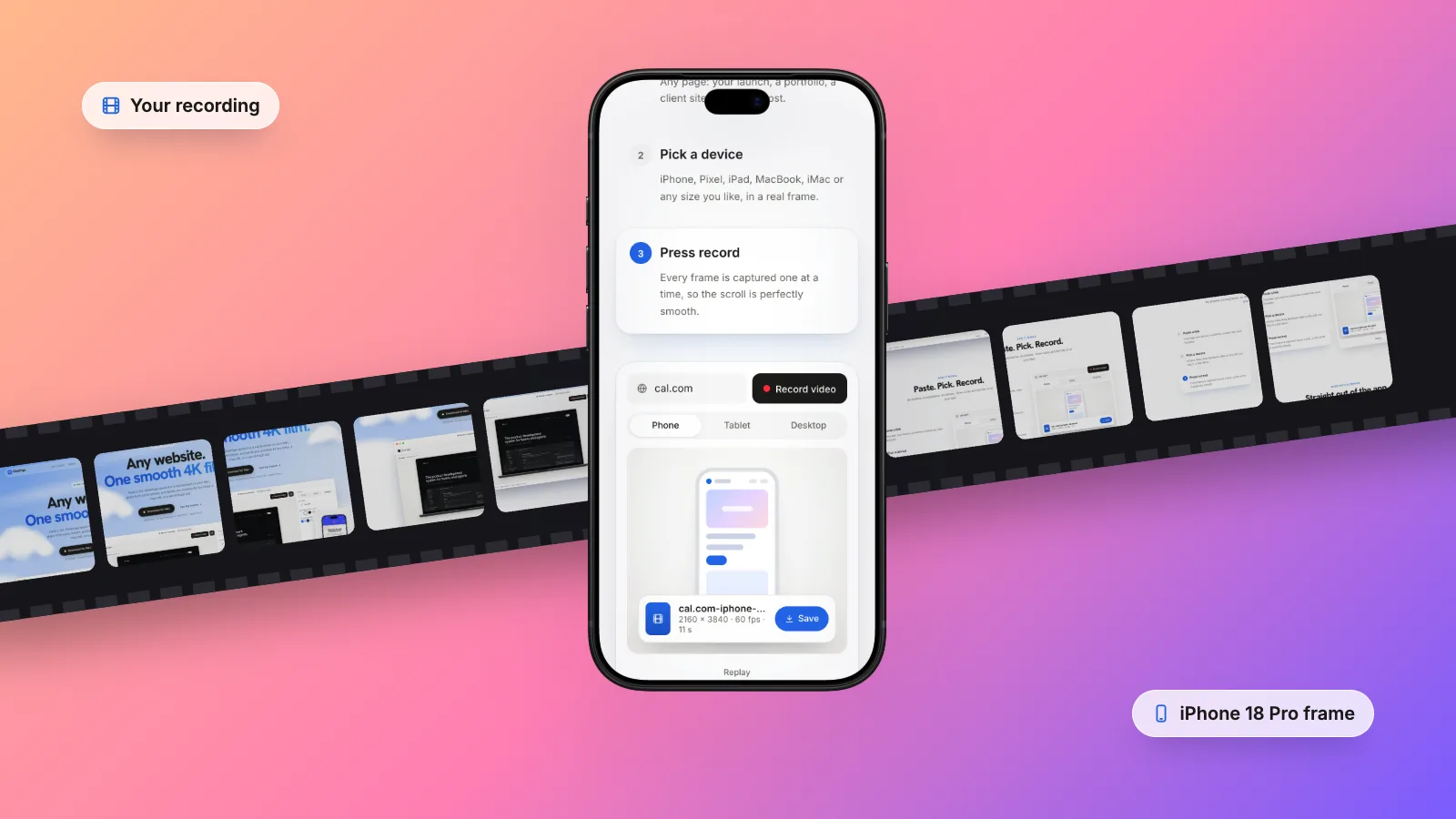
To put a screen recording in an iPhone frame, place the recording behind an iPhone frame image with a see-through screen, scale it to fill the screen opening, round its corners to match the display, and export the result as a video. On a Mac you can do this for free in Keynote, using a shape with a rounded hole to hide the corners, or in Final Cut Pro with the Shape Mask effect. GlidePage, a Mac app for Apple Silicon, has a Frame a video mode that does it in one step: upload an MP4, MOV or WebM, pick the device, fill or fit, and export in 4K without uploading anything.
On this page
You have a screen recording of an app, a prototype or a mobile website, and on its own it looks like a raw clip: a tall rectangle with square corners and nothing around it. Put it inside an iPhone on a background and it becomes something you can post, pitch or put on a landing page.
This guide covers what you need, the sizing mistakes that make framed recordings look wrong, two manual methods on a Mac (Keynote, which is free, and Final Cut Pro), a one-step option, and one place you should not use a device frame at all.
What you need#
- The recording. An MP4 or MOV works everywhere. If it came from your iPhone, it is in the Photos app; AirDrop it to your Mac at full quality. If it is a web page, it may have come from your Mac's screen recorder or a browser's responsive mode.
- A frame image. An image of the phone with a see-through screen area, as a PNG with transparency. Apple publishes product bezels for current iPhones, iPads and Macs on its Apple Design Resources page, in PNG and Photoshop formats. Review Apple's marketing guidelines before using them publicly. For Pixel or Galaxy phones, look for the maker's press or design resources.
- An app to combine them. Keynote (free on every Mac), Final Cut Pro, Premiere Pro or DaVinci Resolve, or a dedicated tool.
Before you start, trim the recording and check the top of it: a screen recording includes the status bar, so a low battery or a stray notification icon will show up inside the frame.
Get the sizes right first#
Most framed recordings that look off have a sizing problem, not a design problem.
Match the aspect ratio
A current iPhone screen is tall. An iPhone 17 display is 2622 × 1206 pixels, a ratio of about 2.17 to 1. A recording made on a recent iPhone with the same shape fits a current frame almost exactly. Recordings from other sources often do not:
| Recording | Shape | What happens in an iPhone frame |
|---|---|---|
| Recent iPhone screen recording | About 2.17 : 1 | Fits the screen almost exactly |
| Older iPhone with a Home button | 16 : 9 (1.78 : 1) | Too short: gaps top and bottom, or cropped sides |
| Browser responsive mode at a phone size | Whatever you set | Fits if you set a phone-shaped viewport |
| Desktop screen recording | Wide | Does not fit; record the mobile layout instead |
When the shapes differ, you have two choices. Fill scales the recording until the screen is covered and crops what spills over the edges. Fit shows the whole recording and leaves bars, which look best filled with a colour from the app or a blurred copy of the video.
Respect the top of the screen
Current iPhones have a Dynamic Island at the top of the screen, and a realistic frame shows it. A recording from an iPhone already has its status bar in the right place, so the island sits where it should. A recording without a status bar, such as a web page captured in a browser, will have its top content hidden behind the island. Leave a strip of space at the top, or record a layout that has one.
Think about the video's shape
The phone sits on a background, and the shape of the whole video depends on where it goes: vertical 9:16 for Reels, TikTok and Stories, 16:9 for YouTube, slides and most websites, square or 4:5 for feeds. A single phone fills a vertical video nicely; in a landscape one, leave room for a headline beside it. Mobile website mockup videos goes deeper into vertical formats.
Method 1: Keynote (free)#
Keynote's masks work on images and live video, not on movie files, so the trick is to hide the square corners of the recording behind a shape with a rounded hole.
1. Set up the slide
Create a blank presentation. In the Document sidebar, open the menu below Slide Size, choose Custom Slide Size and enter the video size, for example 1080 × 1920 for vertical or 1920 × 1080 for landscape. Leave the slide background for now.
2. Add the recording and the frame
Drag the recording onto the slide, then drag the iPhone frame PNG on top. Scale the recording until it covers the frame's screen opening with a couple of pixels to spare on every side, and centre it.
3. Build a cover with a rounded hole
- Draw a rectangle that covers the whole slide and fill it with your background colour.
- Draw a rounded rectangle exactly the size of the screen opening, and adjust its corner radius to match the display's corners.
- Shift-click both shapes, open the Arrange tab in the Format sidebar and click Subtract. The top shape is cut out of the one below, leaving a background-coloured sheet with a rounded window.
4. Stack the layers
From bottom to top: the recording, the cover, then the iPhone frame. The recording now shows only through the rounded window, and the frame sits neatly over the join. This works best with a solid background colour.
5. Set playback and export
Select the recording, open the Movie tab in the Format sidebar and turn off Start movie on click. Then choose File → Export To → Movie, set Playback to Self-Playing with the slide duration at least as long as your clip, and choose a Resolution or Custom size. Keynote exports whatever you built, so the result looks exactly like the slide.
Method 2: Final Cut Pro#
If you already edit in Final Cut Pro, it has a real mask, which makes rounding the corners easier and works on any background, including gradients and moving footage.
- Put the recording in the timeline and the iPhone frame PNG as a connected clip above it, stretched to the same length.
- Scale and position the recording so it covers the screen opening.
- Type "shape" in the Effects browser search field and drag Shape Mask onto the recording.
- In the viewer, drag the mask's handles to the size of the screen, and drag the handle to the left of the inner circle's top handle to adjust the curvature until the corners match. Pull the outer circle close to the inner one for a hard edge.
- Add a background layer beneath the recording, then share the project at the size you need.
Premiere Pro and DaVinci Resolve follow the same pattern with their own mask tools. Device mockups in Final Cut Pro and Premiere covers editor workflows in more detail. iMovie can overlay one clip on another, but it has no masking tools, so it cannot round the corners of your recording.
Method 3: Frame a video with GlidePage#
If you frame recordings regularly, the manual steps get repetitive: matching the opening, rounding the corners, rebuilding the background. GlidePage is a Mac app that turns web pages into scrolling videos, and it also has a Frame a video mode for recordings you already have:
- Upload your recording. MP4, MOV or WebM.
- Pick the device frame. GlidePage's frames cover current iPhones, including iPhone 18 Pro and Pro Max, iPhone Air and the 17 and 16 series, plus Google Pixel and Samsung Galaxy phones and iPads, in their real colours.
- Fit it to the screen. Choose fill or fit, zoom in, and drag to position the recording inside the screen. For a recording that does not match the screen shape, set the screen background to a colour or a blur.
- Choose the background. Light, Midnight, Aurora, Sunset, or any custom colour or gradient. The device casts a soft shadow.
- Keep or mute the sound, then export in 4K.
Everything happens on your Mac: the recording is not uploaded anywhere, which matters for an app or site that has not launched yet. It needs macOS 12 or later on an Apple Silicon Mac. It frames the recording as it is; it does not add captions, zooms, cursor effects or cuts, so do those in an editor first if you need them.
If your recording is of a website, you may not need a recording at all. GlidePage can open the site itself with a real phone user agent and viewport and record a smooth scroll straight into the frame. How to make a scrolling video of a website shows how.
Pixel, Galaxy and iPad recordings#
The same rules apply to other devices, with one extra check: the recording should come from, or be shaped like, the device you frame it in. An Android recording in an iPhone frame is usually slightly the wrong shape and shows the wrong system bars, and people notice. iPad recordings are much wider than phone recordings, so use an iPad frame and a landscape or square video. If you show the same app on two platforms, frame each recording in its own device and place them side by side.
Where not to use a device frame#
App Store app previews. Apple's guidelines say app previews must show only content within the app itself, and not people interacting with a device. Keep previews as plain screen captures. Framed videos belong on your website, in social posts, in press kits and in pitch decks.
Final checklist#
- The recording is trimmed, and the status bar looks tidy.
- Its shape matches the frame's screen, or you have chosen fill or fit deliberately.
- Nothing important hides behind the Dynamic Island or the rounded corners.
- The corners are rounded to match the display, with no square edges peeking out.
- The video's shape matches where it will be posted.
- Sound is kept only if it adds something; most framed clips play muted.
- You exported at the size you need, and watched it through once before posting.
For a silent, looping clip on a site or in a portfolio, web design portfolio videos covers file sizes and embedding.
Sources
- Apple Developer: Apple Design Resources (product bezels) (checked September 2026)
- Apple: iPhone 17 technical specifications (checked September 2026)
- Keynote User Guide: Combine or break apart shapes (checked September 2026)
- Keynote User Guide: Export to PowerPoint or another file format (checked September 2026)
- Final Cut Pro User Guide: Create simple shape masks (checked September 2026)
- Apple Developer: App previews (checked September 2026)



Make your site move.
Any page, one smooth 4K video. Framed, on any background, or transparent.
Questions, answered
How do I put a screen recording inside an iPhone frame?
Place the recording behind an iPhone frame image with a transparent screen area, scale it to fill the screen opening, round its corners to match the display, and export the result as a video. Keynote can do it for free on a Mac, Final Cut Pro makes the corners easier with its Shape Mask effect, and GlidePage's Frame a video mode does it in one step.
Is there a free way to add an iPhone frame to a video on Mac?
Yes. Keynote comes with every Mac. Put the recording on a slide, cover it with a background-coloured shape that has a rounded hole cut out with Subtract, place an iPhone frame PNG on top, and export with File → Export To → Movie. Apple publishes iPhone bezel images on its Apple Design Resources page.
Does my recording need to be the same size as the iPhone screen in the frame?
It needs the same shape more than the same size. A recording from a recent iPhone fits a current frame almost exactly, while one from an older iPhone or a desktop does not. If the shapes differ, fill the screen and accept a small crop, or fit it and fill the gaps with a colour or a blur.
Can I add a background colour or blur behind the phone?
Yes. In Keynote or a video editor, put a colour or gradient layer at the bottom of the stack. GlidePage offers Light, Midnight, Aurora, Sunset or any custom colour or gradient, plus a separate colour or blur for the screen itself when the recording does not fill it.
Can I use a device frame in my App Store app preview?
Not according to Apple's guidelines, which say app previews must show only content within the app itself, so a frame around the footage does not belong there. Use plain screen captures for the App Store and keep framed versions for your website, social posts and press materials.
Will the sound from my screen recording be kept?
In Keynote and video editors the recording keeps its audio unless you turn it down. In GlidePage's Frame a video mode you choose whether to keep or mute the sound before exporting.