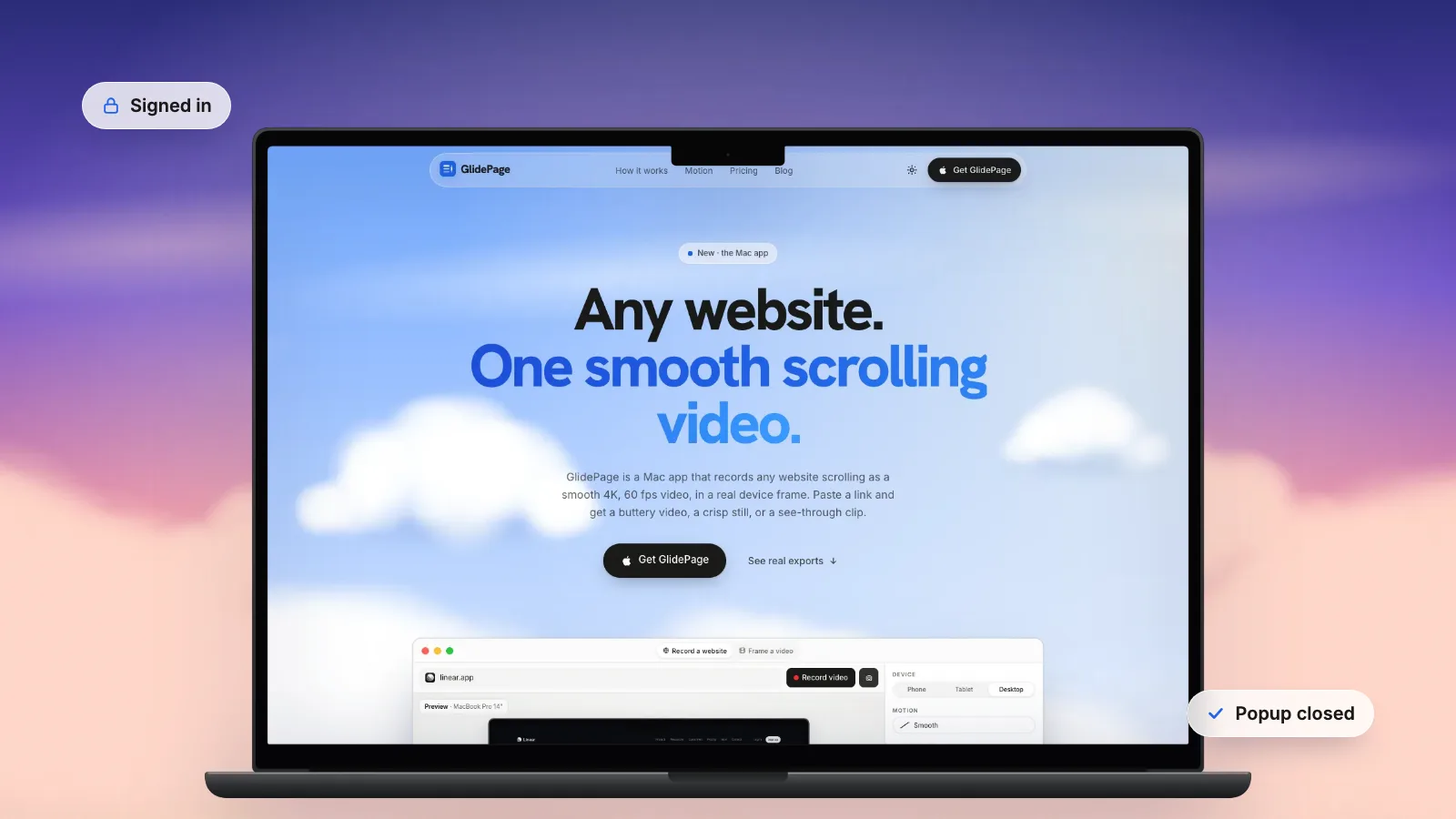
The simplest way to record a page behind a login is to sign in in your own browser and screen record it, for example with Shift-Command-5 on a Mac. Tools that open the page in their own browser start without your session, so they capture the login screen; developers can save a signed-in session once (Playwright calls it storageState) and reuse it. GlidePage, a Mac app for Apple Silicon, lets you sign in on the real page first with Take control, and the recording keeps that session and starts from the page you ended on. Popups that get in the way can be closed the same way, or kept out with Hide element.
On this page
- Why tools show the login page instead of yours
- Method 1: screen record your own signed-in browser
- Method 2: hide what should not be there
- Method 3: for developers, save a signed-in session
- Record it with GlidePage: sign in first
- When a popup comes back on every load
- What still does not work
- Which method to use
- Keep private data out of the shot
- Checklist
You want to show the product, not the front door. But paste the dashboard link into a screenshot or recording tool and you get the login form, a "session expired" message, or a cookie wall on top of both.
This guide covers why that happens and three ways around it: filming your own signed-in browser, saving a session for scripted captures, and signing in first inside a recorder that keeps the session. It also covers the popups that tend to come with logged-in pages, and what to do about private data on screen.
Why tools show the login page instead of yours#
When you are signed in to a site, your browser holds the proof: usually a session cookie, sometimes a token in local storage or IndexedDB. Every request you make carries it, so the site shows you the dashboard.
A screenshot service, a scroll-video tool or a script that opens its own browser does not have any of that. It is a brand-new visitor. So it gets exactly what a stranger gets:
- the login form, or a redirect to it;
- a "your session has expired" page;
- for a store that is still in development, the storefront password page;
- often a cookie banner or a newsletter popup on top, because a new visitor has never dismissed them.
Some session data is also short-lived by design. MDN notes that sessionStorage belongs to one tab: closing the tab clears it, and a new tab starts a new session. So "I am logged in" in one tab does not mean every other window, let alone another app, is logged in too.
The fix is always the same idea: the browser doing the capture has to be the one that signed in.
Method 1: screen record your own signed-in browser#
This works for any page you can see, because it just films your screen.
1. Sign in and get the page ready
Open the page in your usual browser and sign in. Go to the exact view you want to show, set any filters, and scroll through once so images and charts finish loading. Close the cookie banner, the "what's new" dialog and the chat bubble now, not mid-take.
2. Start the recording
On a Mac, press Shift-Command-5 to open the Screenshot toolbar. Choose Record Selected Portion and drag the frame around the browser content, or Record Entire Screen. Click Record.
3. Scroll, then stop
Scroll slowly and steadily through the page. Stop with the Stop button in the menu bar, or Command-Control-Esc.
This is the right method when you want to show clicks: opening a menu, filling in a form, switching tabs. It is also the one that needs no setup at all.
Method 2: hide what should not be there#
Logged-in pages collect overlays: onboarding tours, upgrade prompts, support chat, and the consent banner that came with the fresh session. You can remove any of them from your own capture without changing the live site.
In Chrome, open the developer tools, select the element in the Elements panel and press H to hide it, or Delete to remove it (Command-Z brings it back). If the page stops scrolling after a popup is gone, the site probably set overflow: hidden on the html or body element while the popup was open; turn that declaration off. The full walkthrough, including Safari and Firefox and the scroll-lock fix, is in screenshots without cookie banners.
Method 3: for developers, save a signed-in session#
If you capture pages with a script, sign in once and save the result. Playwright's documentation describes exactly this: log in, save the authenticated state to a file, and start later browser contexts from it. The saved state covers cookies, local storage, IndexedDB and passkey-based sign-in.
In practice that is one call after the login steps, context.storageState({ path: 'auth.json' }), and then storageState: 'auth.json' when you create the next context. Every capture after that starts signed in.
Two cautions from the same docs. The file holds live session cookies that could be used to impersonate the account, so keep it out of your repository (they suggest a git-ignored folder). And sessions expire, so the script needs a way to sign in again.
Record it with GlidePage: sign in first#
GlidePage is a Mac app that records a website scrolling as a smooth 4K video, or takes a 4K still. It opens the page in its own browser, so on its own it would see the login screen too. Take control closes that gap: before recording, you use the real page right inside the device frame.
1. Open the page and take control
Paste the address (the login page, or the page you want; it will usually redirect to the login), pick the device, and click Take control on the preview. The live page appears in the device frame.
2. Sign in and set the page up
Click the fields and type, or paste, as you would in a browser. You can answer the site's alerts, follow a sign-in window it opens, go back, reload, or type another address. On a phone or tablet the page gets taps and swipes. Close the banners and tours while you are there.
3. Click Done, then record
Done keeps the browser session, meaning cookies and site storage, for the preview and every recording after it. The address field follows the page you ended on, so if you signed in on /login and landed on /dashboard, /dashboard is what gets recorded. Pressing Record while still in control saves the session first.
A few details worth knowing:
- Your clicks are not in the video. The recording is still the top-to-bottom scroll. Take control is for getting the page ready.
- The session stays on your Mac, in memory. Nothing is uploaded, it is forgotten when the app quits, and the Session chip in the address field forgets it on demand.
- Stills work the same way. Photo mode takes a 4K PNG of any point on the signed-in page.
When a popup comes back on every load#
Some popups are not remembered at all: a newsletter modal on every visit, a chat bubble, a banner for this week's sale. Closing it in Take control helps only if the site remembers that you closed it.
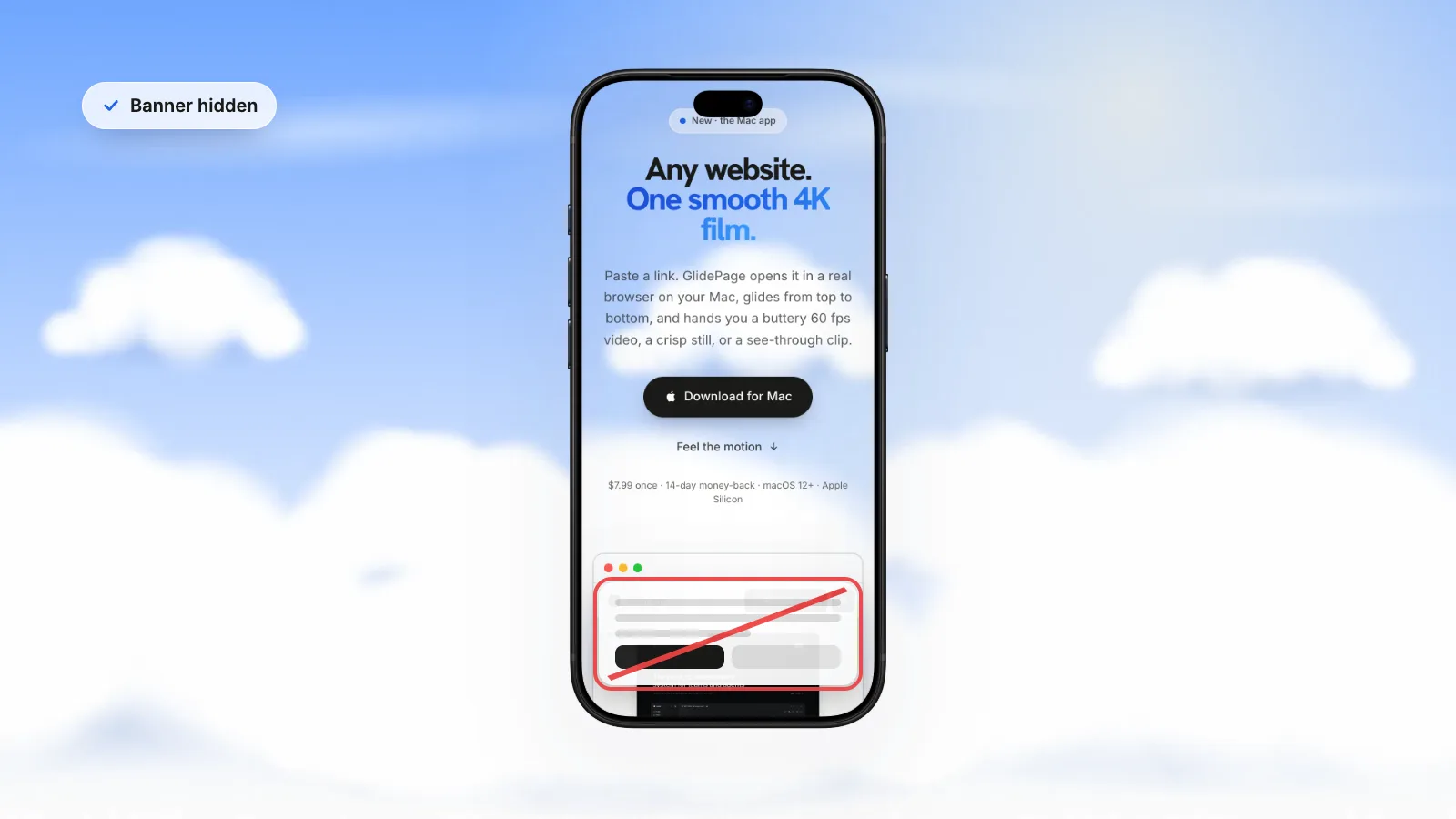
For those, use Hide element in Take control. Click the popup (or banner, or chat bubble) and it is kept out of the preview and every recording of that site, even though the page shows it again each time. Undo brings the last one back if you picked the wrong thing. Common cookie banners do not need any of this: GlidePage hides them by default.
What still does not work#
| Situation | Why | What to do |
|---|---|---|
| Google sign-in | Google blocks sign-ins from browsers controlled through software automation | Sign in with email and password if the site offers it, or use Method 1 |
| Other single sign-on providers | Some refuse automated browsers in the same way | Try a direct login, or use Method 1 |
| A staging site that pops up a browser username and password dialog (HTTP basic auth) | The dialog belongs to the browser, and links with the password written in them are stripped by modern browsers | Turn the protection off for the capture, record the local build, or use Method 1 |
| Clicks, hovers and form filling on camera | GlidePage records the scroll only | Use Method 1 for that part |
| Dropdown menus and date pickers | They do not draw on screen in Take control | They still work from the keyboard: focus the field and use the arrow keys or type |
Which method to use#
| You want | Use |
|---|---|
| Clicks, typing and menus on camera | Method 1, a screen recording |
| A one-off capture of a page you can see | Method 1, plus Method 2 to clean it up |
| Captures from a script, on a schedule | Method 3, a saved session |
| A smooth 4K scroll or a 4K still of a signed-in page, in a device frame | GlidePage with Take control |
Mixing them is normal: a demo video often has a screen-recorded click-through and a scroll shot of the same signed-in page.
Keep private data out of the shot#
A signed-in page is full of things that were never meant for a video: customer names, email addresses, revenue, other people's projects. Before you capture:
- Use a demo account with realistic sample data, not your own or a client's live account.
- For a product you are building, a demo route in your local build with seeded data looks better than a half-empty real account. Local builds can be recorded directly, see how to record a localhost website.
- Check every frame before you post it. A scrolling video shows the whole page, including the parts you did not think about.
- Close notifications on your own Mac too, if you screen record.
For turning the footage into a short product video, how to make a website demo video covers structure and length, and how to make a scrolling video of a website covers the capture in detail.
Checklist#
- Signed in with a demo account, not live customer data
- On the exact page and view you want to show
- Cookie banner, tours, upgrade prompts and chat bubble closed or hidden
- Page scrolled through once so everything has loaded
- Nothing private visible anywhere on the page
- For scripts: the saved session file kept out of the repository
- Every frame checked before sharing
Sources
- Playwright docs: Authentication (storageState) (checked September 2026)
- Google Account Help: "This browser or app may not be secure" (checked September 2026)
- MDN: HTTP authentication (Basic scheme, credentials in URLs) (checked September 2026)
- MDN: Window.sessionStorage (checked September 2026)
- Chrome for Developers: Get started with viewing and changing the DOM (checked September 2026)
- Apple Support: How to record the screen on Mac (checked September 2026)



Make your site move.
Any page, one smooth 4K video. Framed, on any background, or transparent.
Questions, answered
Why does my screenshot tool show the login page instead of my dashboard?
Because it opens the page in its own browser, which has never signed in. Your session lives in your browser as cookies and site storage, so any tool with its own browser is a new visitor and gets the login form. Either capture from your own signed-in browser, or use a tool that lets you sign in first.
Can I record a page that needs a login without giving my password to a website?
Yes. Screen recording your own browser keeps everything on your computer. GlidePage also runs on your Mac: you sign in inside the app with Take control, nothing is uploaded, and the session is kept only in memory until you quit the app.
Why will Google not let me sign in inside a recording tool?
Google blocks sign-ins from browsers that are controlled through software automation or embedded in another app, as a security measure. If the site offers an email and password login, use that instead, or screen record your normal browser.
Can I record a staging site that asks for a username and password in a browser dialog?
Not with GlidePage. That dialog is HTTP basic authentication, which belongs to the browser rather than the page, and modern browsers also strip a username and password written into the link. Switch the protection off for the capture, record the local build, or screen record it yourself.
How do I stop a popup from appearing in my recording?
Close it first in the browser that does the capture, since many popups remember being closed. If it comes back on every load, hide it in the developer tools for a manual capture, or use Hide element in GlidePage, which keeps it out of every recording of that site.
Does GlidePage stay signed in after I quit?
No. The session from Take control is kept in memory only, so it is forgotten when the app quits. Sign in again with Take control next time, or click the Session chip in the address field to forget it sooner.