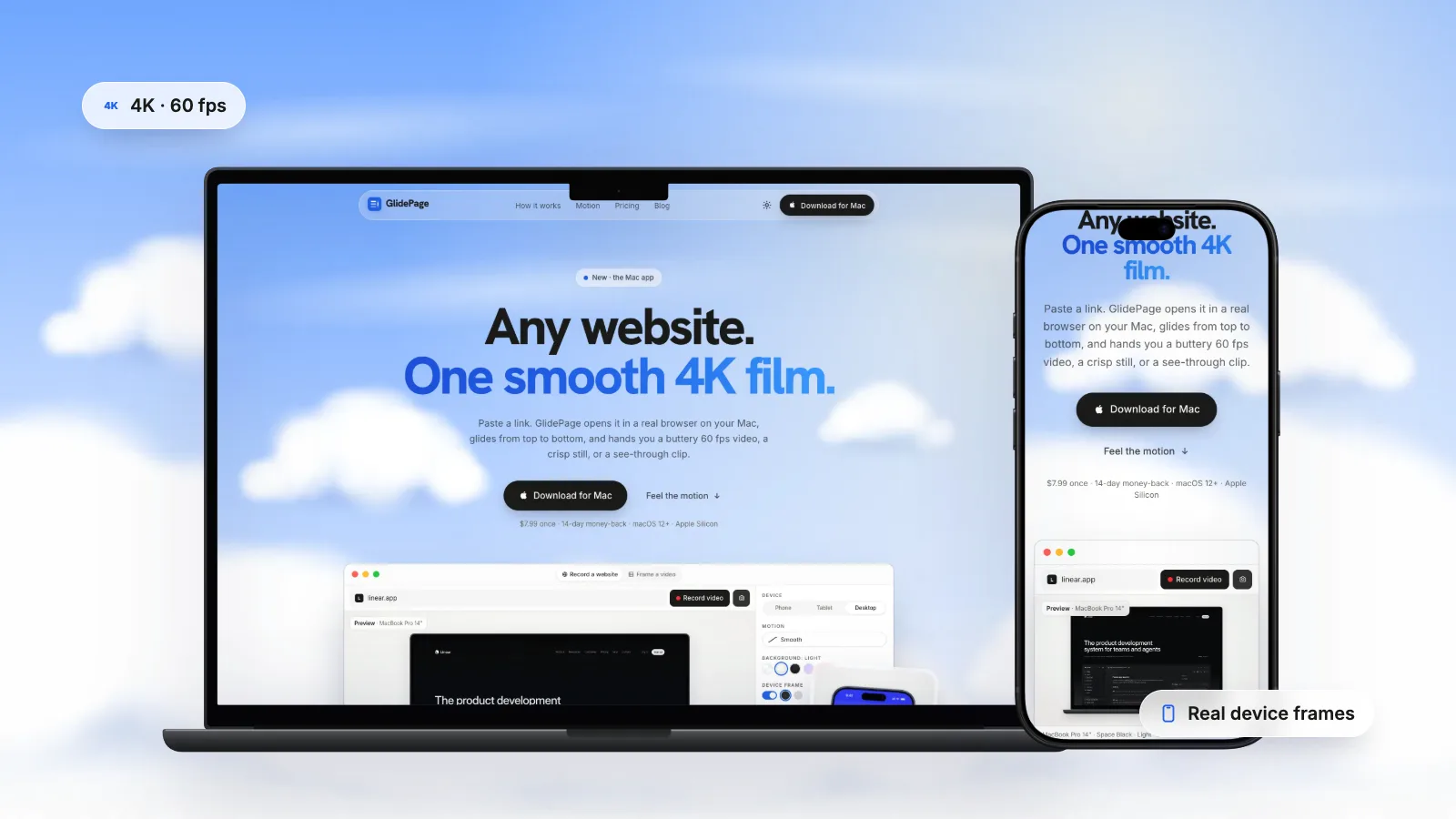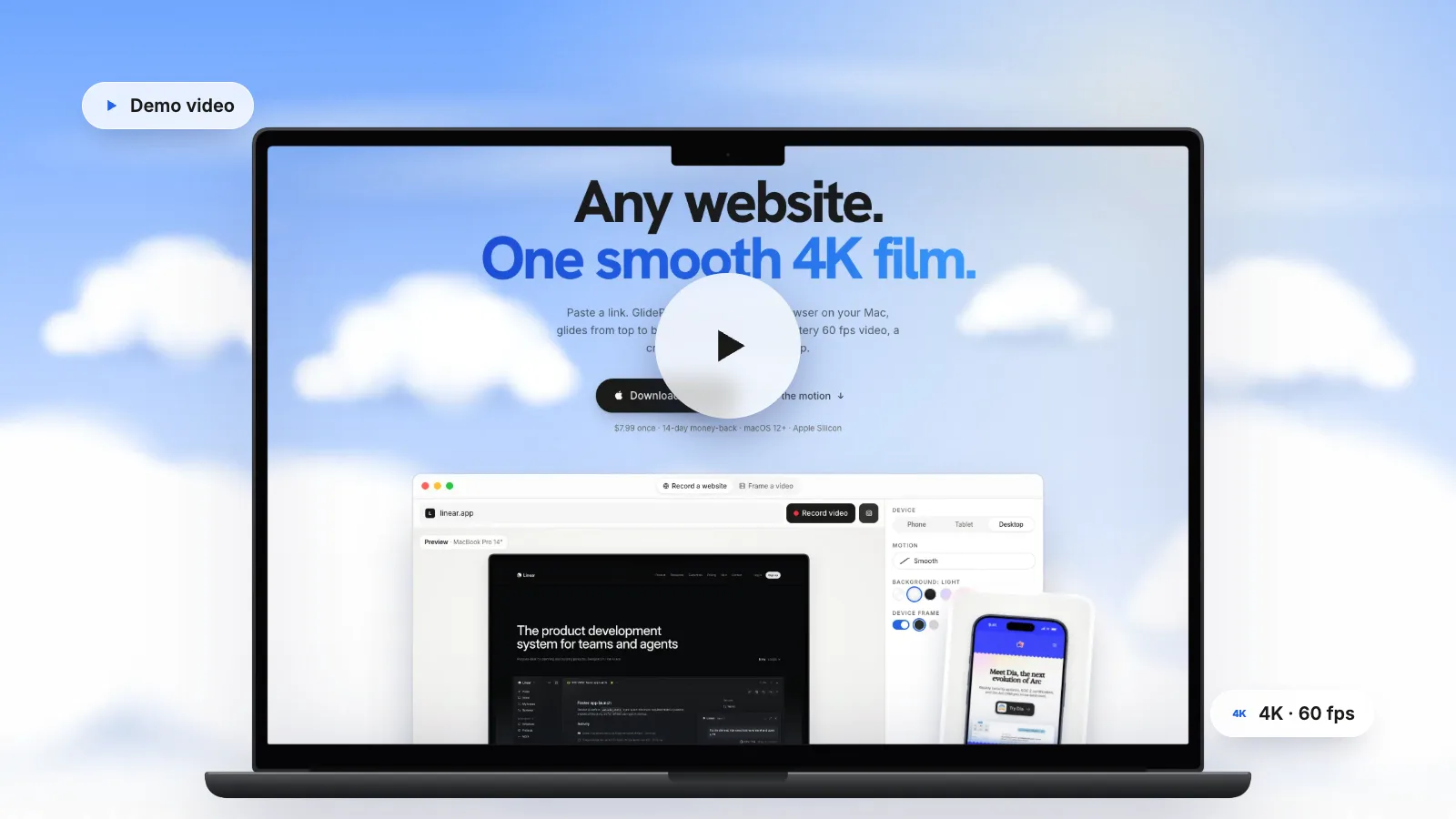
To make a website demo video, decide first whether you need a narrated walkthrough (60 to 90 seconds, showing one workflow with your voice, recorded with your Mac's screen recorder and edited in iMovie or Final Cut Pro) or a silent scroll video (10 to 30 seconds, looping, for hero sections, social posts and READMEs). Open on the result, show one thing clearly, and end with a single next step. For the silent scroll parts, GlidePage, a Mac app for Apple Silicon, turns a link into a smooth 4K scroll in a device frame; it does not do voiceover, captions or editing, so narrated demos still need an editor.
On this page
A good website demo video answers one question fast: what does this do for me? A bad one tours every menu item for three minutes while the viewer waits for the point. The difference is almost never the recording software. It is planning, structure and length.
This guide covers the two kinds of website demo video, how to plan one, a structure that holds attention, how long each kind should be, how to record a narrated walkthrough on a Mac, and where silent scroll videos fit in.
Two kinds of website demo video#
When people say "demo video" they usually mean one of two very different things:
| Narrated walkthrough | Silent scroll video | |
|---|---|---|
| What it shows | One task done step by step, with clicks and typing | The site or product scrolling, usually in a device frame |
| Sound | Voiceover, sometimes music | None, plays muted |
| Length | 60 to 90 seconds for a homepage, longer for tutorials | 10 to 30 seconds, often looping |
| Where it lives | Click-to-play on a product page, YouTube, sales emails | Hero sections, feature blocks, social feeds, READMEs, launch posts |
| Made with | Screen recorder plus an editor | Frame-by-frame capture or a careful screen recording |
Most sites benefit from both: a silent loop that catches the eye in the first second, and a narrated walkthrough for people who want the details. The rest of this guide covers each.
Plan it before you record#
Recording is quick. Re-recording because the plan was vague is not. Before you open a recorder, answer these:
- Who is watching? A first-time visitor needs the outcome; a trial user needs the steps.
- What is the one job? Pick a single workflow or message. A demo that shows everything shows nothing.
- Where will it play? Homepage hero, product page, social feed, README or sales email. This sets length, sound and shape.
- What should the viewer do next? Sign up, start a trial, book a call, star the repo. Only one.
- What is the script? For a narrated demo, write it out and read it aloud. Aim for short sentences that describe what is on screen.
- What is the shot list? List each screen you will show, in order, with the data already set up.
Prepare the environment too: a clean browser profile with no extensions in the toolbar, realistic demo data instead of lorem ipsum, notifications off, and the window sized for the final video.
A structure that holds attention#
For a narrated walkthrough
| Time | What to show |
|---|---|
| 0 to 5 s | The result or the problem: the finished dashboard, the report, the before and after |
| 5 to 15 s | One sentence of context: who it is for and what it replaces |
| 15 to 70 s | One workflow, start to finish, at a steady pace |
| 70 to 90 s | The result again, and one clear next step |
Open on the payoff, not the login screen. Viewers decide in the first few seconds whether to keep watching, so show them what they will get before you show how.
For a silent scroll video
- Start on the hero, already moving. A still first frame looks like a paused video.
- Keep an even pace. One to two seconds per screen height lets people read headlines.
- End on something worth stopping at, such as the pricing section, a testimonial or the call to action, or loop cleanly back to the top.
- Let the page do the talking. No cursor, no clicks, no captions needed; the design carries it.
How long should it be?#
There is no single right length, but there are good defaults for each placement:
| Placement | Kind | Length |
|---|---|---|
| Homepage hero background | Silent loop | 6 to 15 s |
| Feature section on a landing page | Silent loop | 5 to 10 s per feature |
| Social feed post | Silent, or captioned | 15 to 30 s |
| README or docs | Silent loop | 10 to 20 s |
| Homepage or product page explainer | Narrated, click to play | 60 to 90 s |
| Onboarding or tutorial | Narrated | As long as the task, split into chapters |
If a narrated demo runs past two minutes, it is usually two demos. Split it.
Recording a narrated walkthrough on a Mac#
1. Record with your voice
Press Shift-Command-5, choose Record Selected Portion and frame the browser window. In Options, choose your microphone. For a walkthrough, turning on Show Mouse Clicks helps viewers follow along: it draws a black circle around the pointer when you click. Click Record, and stop with Command-Control-Esc.
2. Edit
Bring the segments into iMovie, Final Cut Pro, Premiere Pro or DaVinci Resolve. Cut the pauses, tighten the gaps between steps, and add:
- Captions. They let people follow along with the sound off, and help everyone keep up.
- Zooms or crops on small details, such as a button or a field, so they are readable on a phone.
- A title and an end card with the one next step.
3. Export
Export an MP4 with H.264 video, at the frame rate you recorded. YouTube's upload guidance recommends uploading at the same frame rate the video was recorded in, in an MP4 container with H.264. Longer narrated demos usually belong on a video platform, embedded as click-to-play; they are too large to self-host comfortably and should not autoplay.
Where silent scroll videos fit#
A silent scroll video is the part of a website demo people see without choosing to. Good places for one:
- Homepage hero. A framed laptop or phone scrolling through the product, looping quietly next to the headline. Keep it subtle: it should support the headline, not compete with it.
- Feature sections. A short loop per feature, each showing one screen or section, instead of a static screenshot.
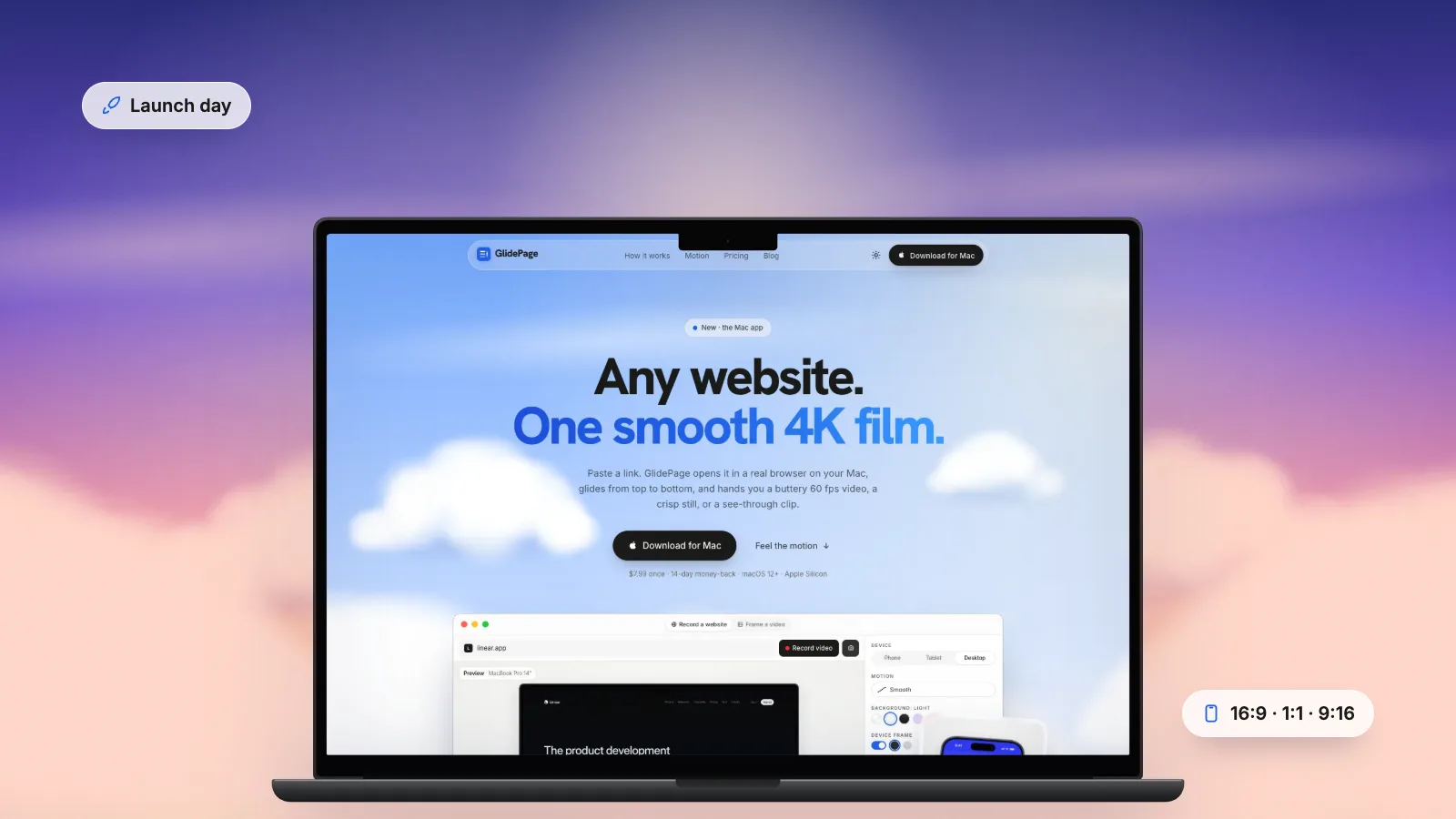
- Social posts and launches. A 15 to 30 second scroll in a device frame is easy to post everywhere. Website videos for LinkedIn and X covers the specs, and making a website launch video covers launch day.
- README files and docs. A short clip at the top of a README shows what a project does before anyone reads a word. GitHub accepts MP4, MOV and WebM video attachments in issues, pull requests and comments, up to 10 MB on free plans, so keep README clips short.
- Sales decks and emails. A loop plays on a slide; in email, use a still image that links to the video.
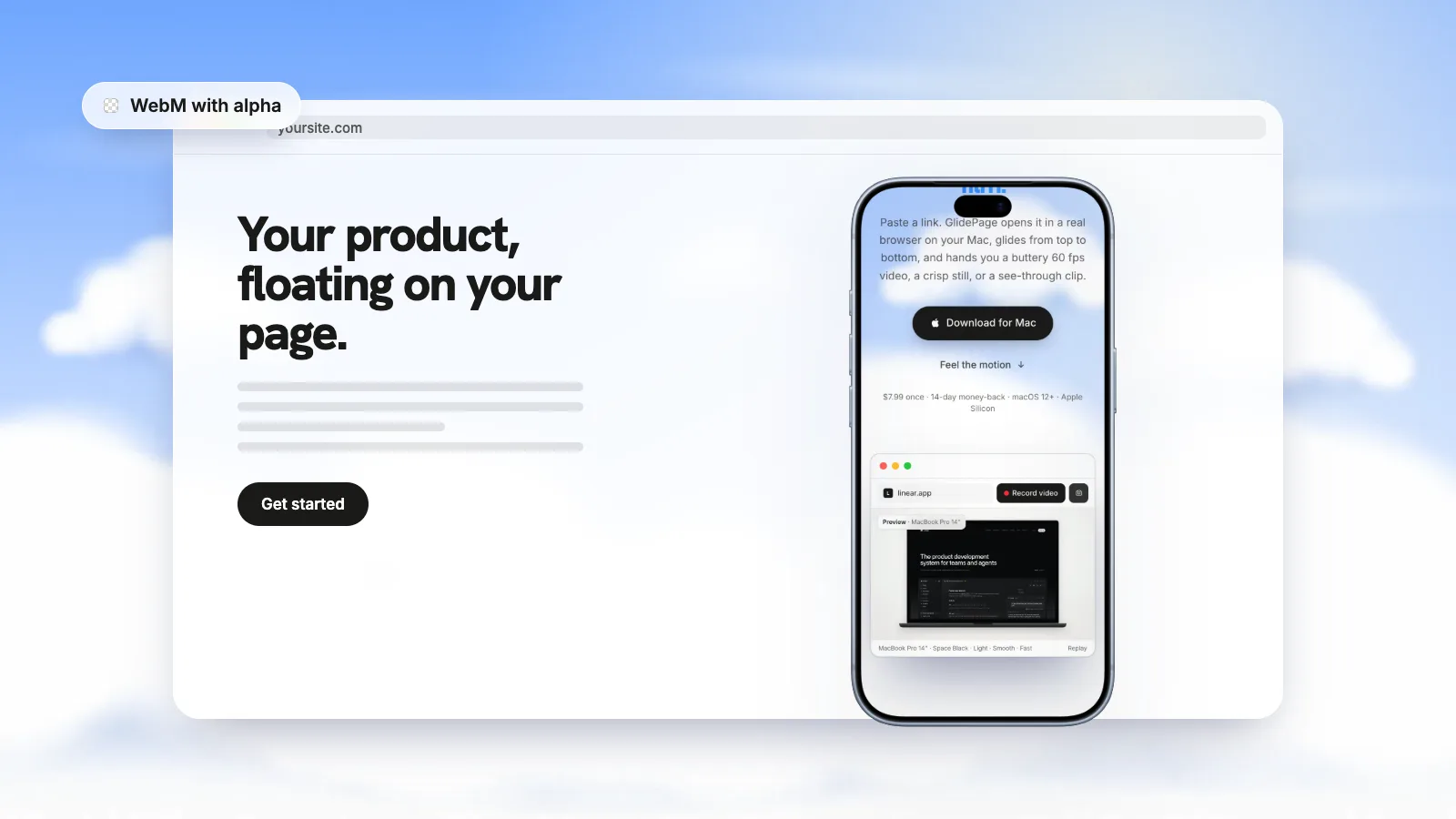
On your own site, embed silent loops with the autoplay, muted, loop and playsinline attributes. Browsers generally block autoplay with sound, so muted is what lets the video start by itself, and MDN notes playsinline is needed for autoplay in Safari. Add a poster image so there is never an empty box. A video is also far lighter than a GIF: on web.dev's example, a 3.7 MB GIF became a 551 KB MP4. For a device floating over your page with no background, see transparent video on a website.
Common demo video mistakes#
| Mistake | What the viewer experiences | Fix |
|---|---|---|
| Starting with sign-up or login | Ten seconds of nothing useful | Open on the result |
| Touring every menu item | No idea what matters | Show one workflow, start to finish |
| Fake or empty data | The product looks unfinished | Set up realistic demo content first |
| Tiny text on a large monitor | Unreadable on a phone | Record a smaller window, zoom in on details |
| A wandering, jittery cursor | Distracting in a walkthrough | Move deliberately, pause before each click |
| A shaky hand-scrolled page in a hero loop | Looks cheap next to a polished headline | Use an even, eased scroll captured frame by frame |
| Autoplay with sound | Browsers block it, and visitors leave | Autoplay only muted loops |
| Three calls to action | None of them get clicked | End with one next step |
Making the scroll parts with GlidePage#
Silent scroll videos are the part of a demo that is surprisingly hard to record well by hand: a steady, even scroll, no cursor, no stutter, sharp text, a device frame. GlidePage is a Mac app built for exactly that part:
- Paste the link. A public page, or a local build such as localhost:3000, so you can make the demo before launch.
- Pick a device. A MacBook, iMac, iPad, iPhone, Pixel or Galaxy frame, or a custom size. Phone layouts use a real phone user agent and viewport.
- Choose motion, speed and background. Six motion curves, including Smooth, Cinematic and Page by page, and backgrounds from Light and Midnight to your own colour or gradient.
- Press Record. It captures the page frame by frame and exports a 4K, 60 fps MP4.
To be clear about what it does not do: GlidePage has no voiceover, captions, cursor animation, zoom effects or timeline editing, and it cannot record pages behind a login. For a narrated walkthrough, record that part with your screen recorder and use GlidePage for the scroll shots, then combine them in your editor. With the frame on and no background, it can export a transparent ProRes 4444 MOV, which drops straight into Final Cut Pro, Premiere Pro, DaVinci Resolve or After Effects, or every frame as a PNG sequence.
Export and hosting checklist#
- Format: MP4 with H.264 for anything that plays in a browser or on social platforms.
- Frame rate: keep the rate you recorded; 60 fps suits scrolling. 4K 60 fps website videos explains when it matters.
- Resolution: keep a high-resolution master and export smaller copies for the web.
- Hosting: self-host short silent loops; put long narrated demos on a video platform and embed them as click-to-play.
- Sound: silent loops muted; narrated demos with captions.
- Poster: a sharp still for every embedded video.
- One next step: in the end card of the narrated video and next to the loop on the page.
The best website demo is usually a pair: a silent loop that shows the product in the first second, and a short narrated walkthrough for people who want to see it work. For the scroll itself, how to make a scrolling video of a website covers every method and setting.
Sources
- Apple Support: How to record the screen on Mac (checked September 2026)
- YouTube Help: Recommended upload encoding settings (checked September 2026)
- MDN: Autoplay guide for media and Web Audio APIs (checked September 2026)
- MDN: The Video Embed element (checked September 2026)
- web.dev: Replace animated GIFs with video for faster page loads (checked September 2026)
- GitHub Docs: Attaching files (checked September 2026)



Make your site move.
Any page, one smooth 4K video. Framed, on any background, or transparent.
Questions, answered
How long should a website demo video be?
It depends on where it plays. Silent hero loops work best at 6 to 15 seconds, social posts at 15 to 30 seconds, and a narrated homepage or product page demo at around 60 to 90 seconds. If a narrated demo runs past two minutes, split it into separate videos.
Should my demo video be narrated or a silent scroll?
Use a silent scroll video where people have not chosen to watch, such as a homepage hero, a feature section or a social feed. Use a narrated walkthrough where people want to understand how something works, as a click-to-play video on a product page or on YouTube. Many sites use both.
How do I record a demo video of my website without mistakes?
Write a script and a shot list, set up realistic demo data, turn off notifications, and record in short segments, one step at a time. Retaking a ten-second step is quick, and the segments are easy to join in an editor.
What should the first five seconds of a demo video show?
The result or the problem, not the login screen. Show the finished output, the dashboard or a before and after, so viewers know straight away what they will get. Then explain how.
How do I make a homepage video autoplay?
Embed it with the autoplay, muted, loop and playsinline attributes. Browsers generally block autoplay with sound, so it must be muted, and playsinline is needed for autoplay in Safari. Keep the file small and add a poster image.
Can GlidePage add a voiceover or captions to my demo?
No. GlidePage records smooth scrolling videos of web pages in device frames, but it has no voiceover, captions, cursor effects or timeline editing. Use it for the scroll shots, then add narration and captions in iMovie, Final Cut Pro or another editor.