A landing page hero video works best as a short, silent loop of the product itself, encoded as an H.264 MP4 of a couple of megabytes or less, with a smaller version for phones. Embed it with the autoplay, muted, loop and playsinline attributes, put a small poster image in the HTML, and show that poster instead of the loop to visitors who prefer reduced motion. To stop the loop jumping, play the clip forward and then backward, which ffmpeg can build with its reverse and concat filters. Record the clip with your Mac's screen recorder, or with GlidePage, a Mac app for Apple Silicon that records a smooth, framed scroll of any page.
On this page
A hero video has one job: show what the product looks like before the visitor decides whether to keep reading. A screenshot can do that. A short loop of the real product scrolling does it better, as long as it does not slow the page down or snap back to the start every few seconds.
This guide covers what makes a good product hero loop, how to record it, how to build a loop with no visible jump, how big the file should be, the HTML that makes it autoplay, and how to keep it from hurting page speed. The numbers come from this site's own landing page, which uses exactly this setup.
What makes a good product hero loop#
- Short. Long enough to show the page, short enough that the file stays small. On this site, the hero clip scrolls a whole landing page down and back up in 22.7 seconds.
- Silent. It will play muted anyway, so nothing in it should depend on sound.
- No text baked in. Your headline already sits next to it as real HTML. Words burned into a video go soft on phones, cannot be selected or translated, and are not read out by screen readers.
- The product itself. Your real page or app, scrolling, in a device frame that says phone or desktop at a glance. Not stock footage.
- Calm motion. An even, eased scroll. Quick cuts and zooms compete with the headline, and a hand-scrolled take that surges and stops looks cheap next to it.
- No seam. The end should flow back into the start. More on that below.
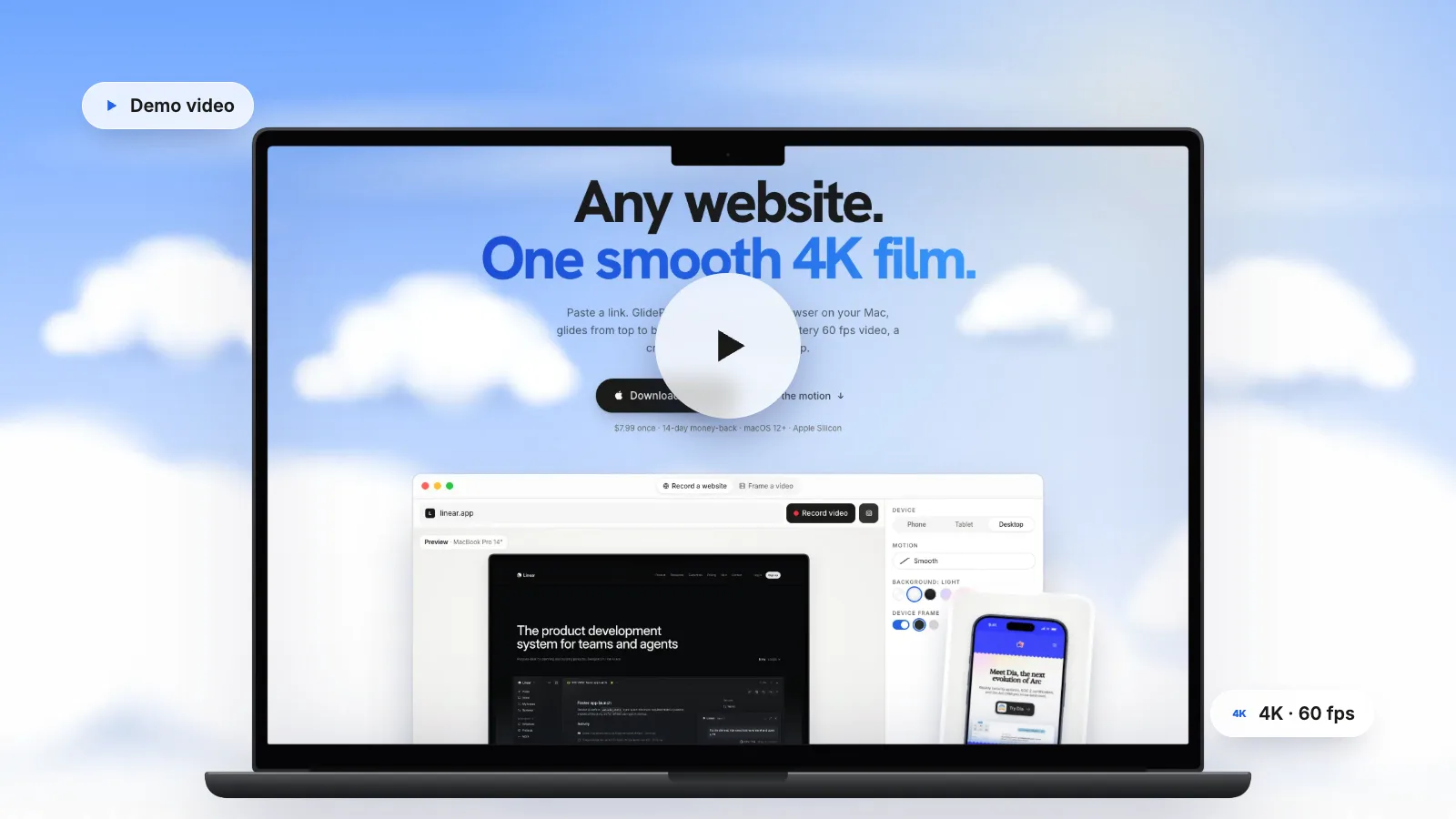
The narrated walkthrough, with a voice and a cursor, belongs further down the page or on its own page: website demo videos covers that longer format. The hero is the silent trailer.
Step 1: record the clip#
By hand
You can screen record the page on a Mac for free: press Shift-Command-5, choose Record Selected Portion, and scroll slowly down the page. For a hero, the weaknesses show quickly: the speed wobbles with your hand, heavy pages drop frames, and the resolution is capped at your display. How to make a scrolling video of a website covers this method and the alternatives in detail.
With GlidePage
GlidePage is a Mac app that records any web page as a smooth scrolling video. It captures the page frame by frame with a controlled clock, so the scroll is even and no frame is dropped, and it is how every clip on this site's landing page was recorded. For a hero clip:
- Paste the link to the page you want to show, or a local build such as localhost:3000 if the site is not live yet.
- Pick a device. A MacBook or iMac frame for a desktop product, a current iPhone or Pixel for a mobile-first one. Phone sizes load the site's real mobile layout.
- Choose a background and shape. Pick a background that suits your hero section, and 16:9 for a wide hero slot (the aspect ratio applies to exports with a background).
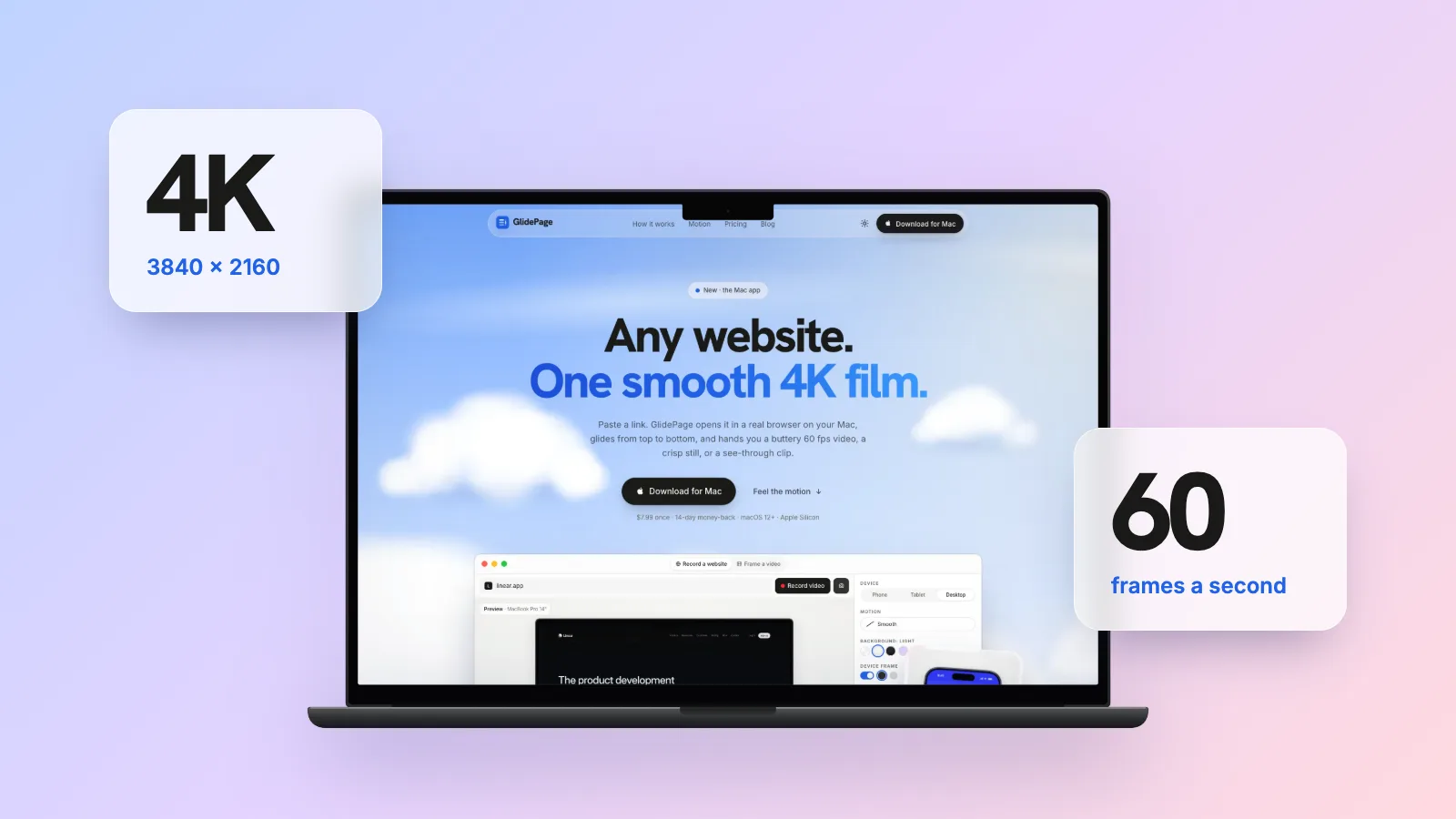
- Pick the export size. 4K is the default. The HD option (1920 × 1080 for a desktop frame) records noticeably faster and is still larger than most hero slots. 30 fps makes lighter files; 60 fps keeps the scroll smoothest, and this site's clips are 60 fps. 4K 60 fps website videos covers when the full 4K master is worth keeping.
- Choose a calm curve, such as Smooth, set the speed, and press Record.
This site records its hero twice, once on the Light background with the page in light mode and once on Midnight with the page in dark mode, and shows whichever matches the visitor's theme.
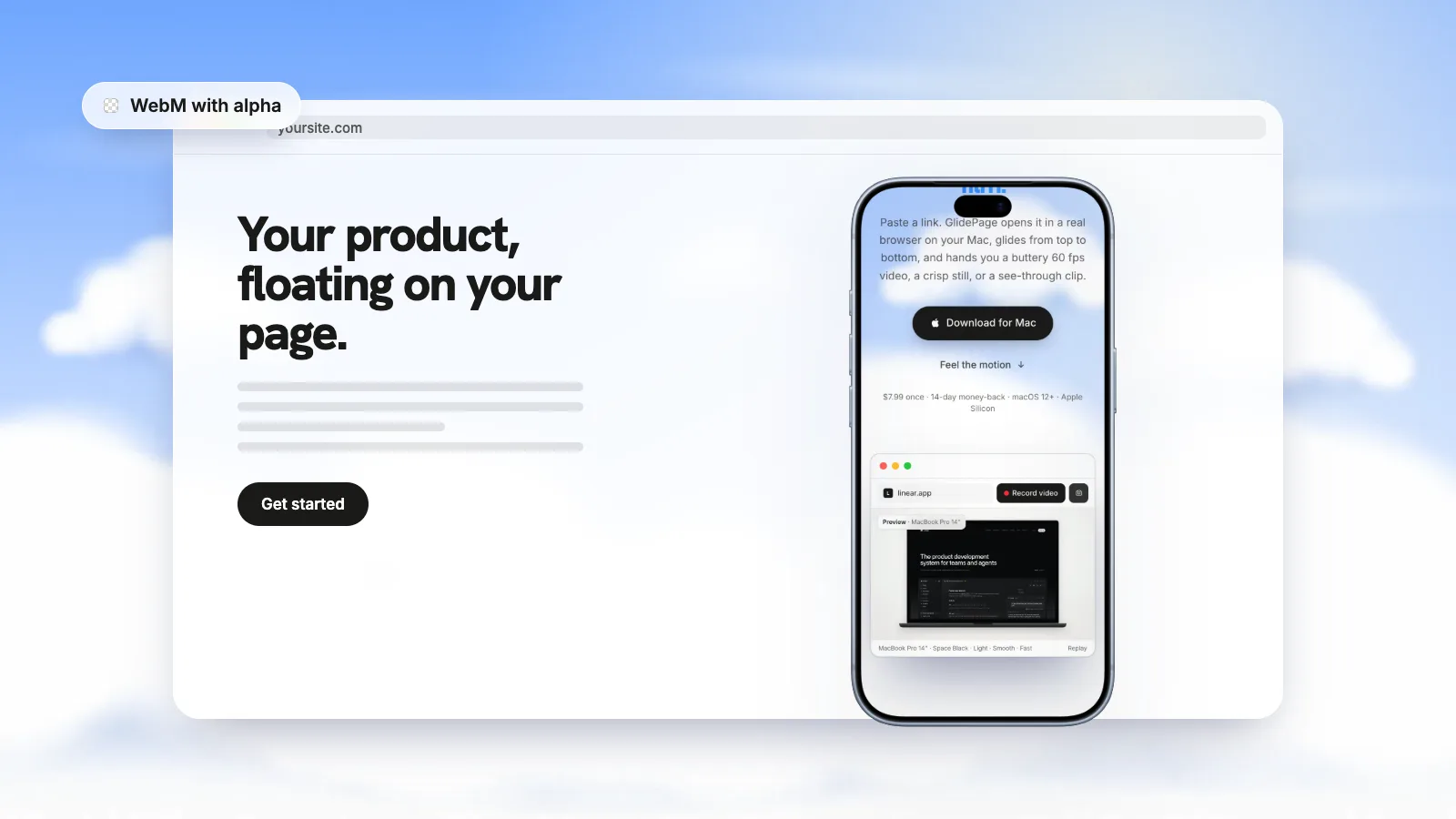
For the poster, photo mode saves a 4K PNG still at any point on the page, in the same frame and background; take it at the top of the page so it matches the first frame, then scale it down. For a see-through hero, turn the frame on and the background off: GlidePage exports a VP9 WebM with alpha, which plays transparent in Chrome, Edge and Firefox, while Safari plays it without transparency. Transparent video on a website shows how to give Safari a file that works.
GlidePage runs on Apple Silicon Macs with macOS 12 or later, and the page is not uploaded anywhere.
Step 2: make a loop that never jumps#
A scroll video ends at the bottom of the page and starts at the top. With the loop attribute, the browser seeks back to the start when the video ends, so visitors watch the page teleport from the footer to the hero every twenty seconds.
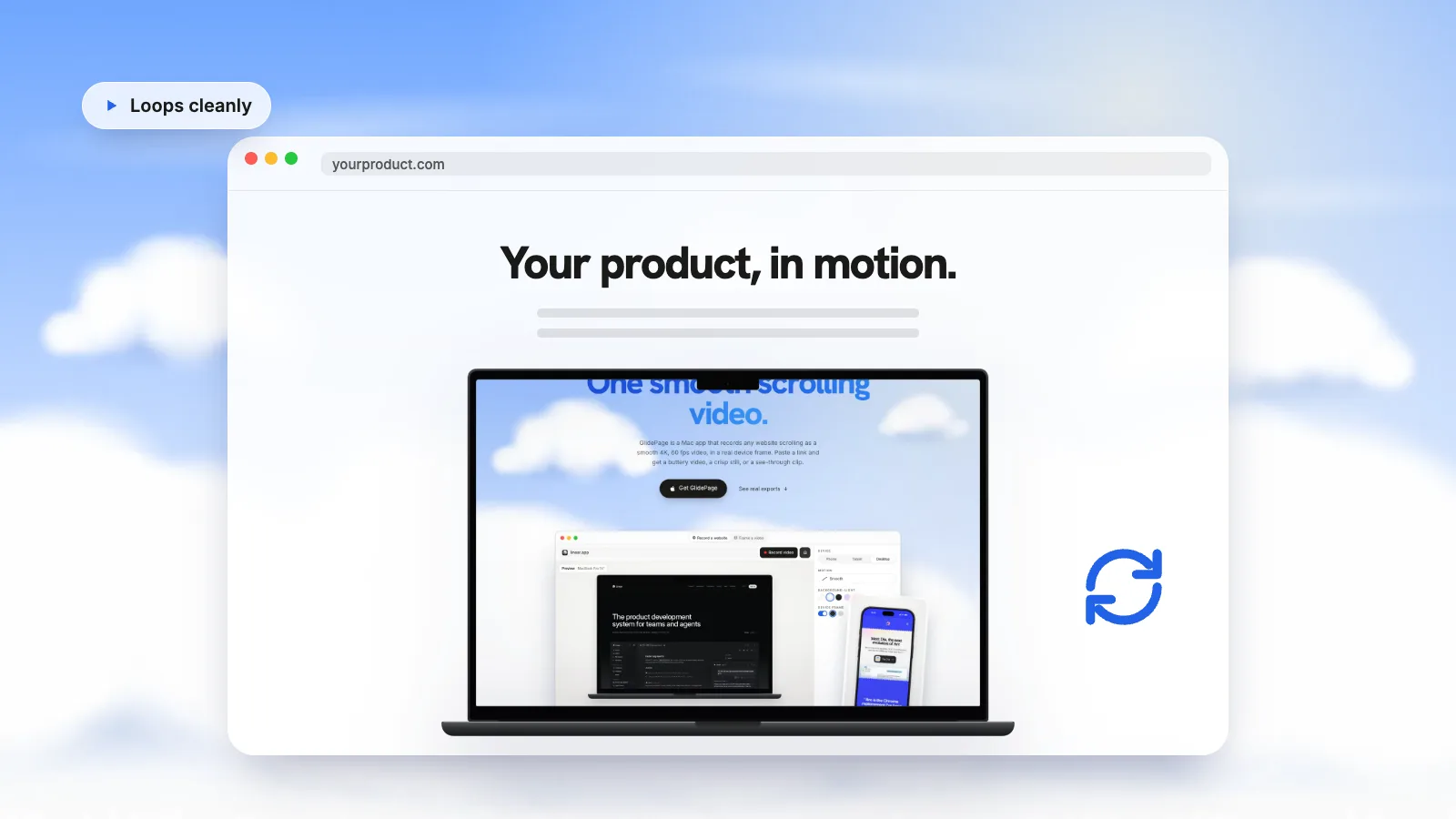
The fix this site uses is a forward-and-back loop: the clip plays down the page, then the same frames in reverse, so the scroll glides back up and the last frame flows into the first. ffmpeg builds it in one command:
ffmpeg -i scroll.mp4 -filter_complex "[0:v]scale=1600:-2,split[a][b];[b]reverse[r];[a][r]concat=n=2:v=1:a=0[v]" -map "[v]" -an -c:v libx264 -crf 27 -pix_fmt yuv420p -movflags +faststart hero.mp4
What each part does:
- scale=1600:-2 resizes to 1600 pixels wide first. ffmpeg's documentation warns that the reverse filter buffers the entire clip in memory, so shrink a 4K recording before reversing it.
- split makes two identical copies, reverse plays one of them backwards, and concat joins the forward copy and the reversed copy into one clip.
- -an drops the audio track, and the rest are the H.264 settings this site uses.
One refinement: in this simple version, the bottom frame appears twice at the turn (the last frame going down, then the first frame coming back), and the top frame appears twice when the video wraps around. This site's build script trims the first and last frame of the reversed half, so each turn shows every frame once. A doubled frame reads as a tiny hitch, which you may or may not notice on your page.
Run the same command with scale=960:-2 for the phone version.
Step 3: keep the file small#
Never use a GIF for this. web.dev's guide to replacing animated GIFs with video shows a 3.7 MB GIF becoming a 551 KB MP4 and a 341 KB WebM. Scrolling pages full of fine text are exactly where GIFs get large and blotchy.
MP4 or WebM? H.264 MP4 is the safe default. WebM is often smaller, and web.dev suggests making both and listing the WebM source first, because the browser picks the first format it can play. This site ships MP4 only, which keeps the build simple.
Size it to the slot, not to 4K. Encode at about the largest size the video is displayed at on a high-density screen. Here is what that looks like on this site:
| File | Dimensions | Size | Notes |
|---|---|---|---|
| Hero clip, desktop | 1600 × 900, 60 fps, H.264 | about 1.8 MB | 22.7-second forward-and-back loop |
| Hero clip, phones | 960 × 540, 60 fps, H.264 | about 0.75 MB | Same loop, for screens up to 767 px wide |
| Poster | 1600 × 900 WebP | about 32 KB | A real image in the HTML |
A rough budget that follows from those numbers: a couple of megabytes for the desktop loop, under one megabyte for phones, and a poster in the tens of kilobytes. A longer loop, a busier page or a higher frame rate all push the size up, so check the output rather than guessing.
Step 4: the HTML#
For a hero that should start as soon as it can:
<video autoplay muted loop playsinline poster="/media/hero.webp" width="1600" height="900">
  <source src="/media/hero.mp4" type="video/mp4">
</video>
What each attribute does:
- autoplay starts playback as soon as the browser can. MDN notes that modern browsers block videos with an unmuted audio track from autoplaying.
- muted starts the video silenced. Chrome's autoplay policy says muted autoplay is always allowed, so keep this attribute even though the file has no audio track.
- loop seeks back to the start at the end, which is why the forward-and-back clip matters.
- playsinline plays the video inside the page rather than full screen.
- poster is the image shown while the video downloads. Without it, MDN says, nothing is displayed until the first frame is available.
- width and height set the display area, so the page reserves the space before the video arrives. Size it responsively with CSS as usual.
- preload is only a hint: none, metadata or auto. MDN notes the default differs between browsers. Leave it off for the hero, and use none for clips further down the page.
Step 5: keep it off the critical path#
Largest Contentful Paint (LCP) measures when the largest image, text block or video in the viewport is rendered, and web.dev recommends 2.5 seconds or less. A hero video is often that largest element. For a video element, web.dev notes that LCP uses the poster image's load time or the first frame's presentation time.
This site takes the video out of that race:
- The poster is a real image in the HTML. An img element with the same WebP sits under the video, so the browser finds it in the first response, paints it early, and it can be the LCP element. At about 32 KB it arrives quickly.
- The video loads after. The video element starts with preload="none" and no source; a small script gives it the source once the page is running, and the video paints over the poster once it plays.
- Phones get the small file. The same script checks the screen width and picks the 960 × 540 version on phones.
- Clips below the fold wait. Every other clip on the page also uses preload="none" plus an IntersectionObserver: it loads only when it comes within a couple of hundred pixels of the screen, and pauses when it scrolls away.
If you use the plain HTML from Step 4 instead, keep the poster small and the file light, and test the page on a real phone over a normal connection.
Step 6: respect reduced motion#
The prefers-reduced-motion media query tells you whether a visitor has asked their device to minimise non-essential motion. A looping hero is non-essential motion, so give those visitors the still.
On this site, the script that starts each clip checks the query first. When it matches, the video is never started and the visitor sees the poster: the product is still there, it just does not move. With the plain HTML version, you can remove the autoplay attribute and start playback from a script only when the query does not match.
Hero video checklist#
- The clip shows the product itself, with no text baked in and no sound.
- The scroll is even and eased, not hand-made.
- It loops forward and back, with the turns trimmed.
- It is an H.264 MP4 at the displayed size: roughly 2 MB or less for desktop, under 1 MB for phones.
- The video has autoplay, muted, loop, playsinline, width and height.
- A small WebP poster is in the HTML, matching the first frame.
- The video loads after the poster, and clips below the fold load only when they near the screen.
- Visitors who prefer reduced motion get the poster.
- You tested it on a real phone, in both light and dark mode if your site has both.
Sources
- web.dev: Replace animated GIFs with video for faster page loads (checked September 2026)
- MDN: The video element (checked September 2026)
- Chrome for Developers: Autoplay policy in Chrome (checked September 2026)
- MDN: prefers-reduced-motion (checked September 2026)
- web.dev: Largest Contentful Paint (LCP) (checked September 2026)
- FFmpeg filters documentation (split, reverse, concat) (checked September 2026)



Make your site move.
Any page, one smooth 4K video. Framed, on any background, or transparent.
Questions, answered
How big should a landing page hero video be?
As small as it can be while looking sharp at its displayed size. On this site, the desktop hero loop is about 1.8 MB for 22.7 seconds at 1600 × 900 and 60 fps, and phones get a 960 × 540 version of about 0.75 MB. Encode at the size the video is shown, not at 4K.
Should a hero video be MP4 or WebM?
H.264 MP4 is the safe default. WebM is often smaller, and web.dev suggests offering both with the WebM listed first so browsers that support it use it. A transparent hero is the exception: it needs a WebM with alpha plus a separate approach for Safari.
How do I make a video autoplay on a website?
Add the autoplay, muted, loop and playsinline attributes to the video element. Browsers block autoplay for videos with sound, and Chrome always allows muted autoplay, so muted is what makes it work. playsinline keeps the video inside the page instead of full screen.
How long should a hero video loop be?
Long enough to show the page, short enough to keep the file small. This site's hero runs 22.7 seconds down the page and back up. Playing the clip forward then backward removes the jump at the end without making the recording longer.
Does a hero video slow down the page?
It can. Put a small poster image in the HTML as a real image so it can be the Largest Contentful Paint element, load the video after it, and give phones a smaller file. Clips further down the page should load only when they come near the screen.
What should a hero video show to visitors who prefer reduced motion?
The poster image. Check the prefers-reduced-motion media query before starting the video, and leave the still in place when it matches. The product is still visible; it just does not move.