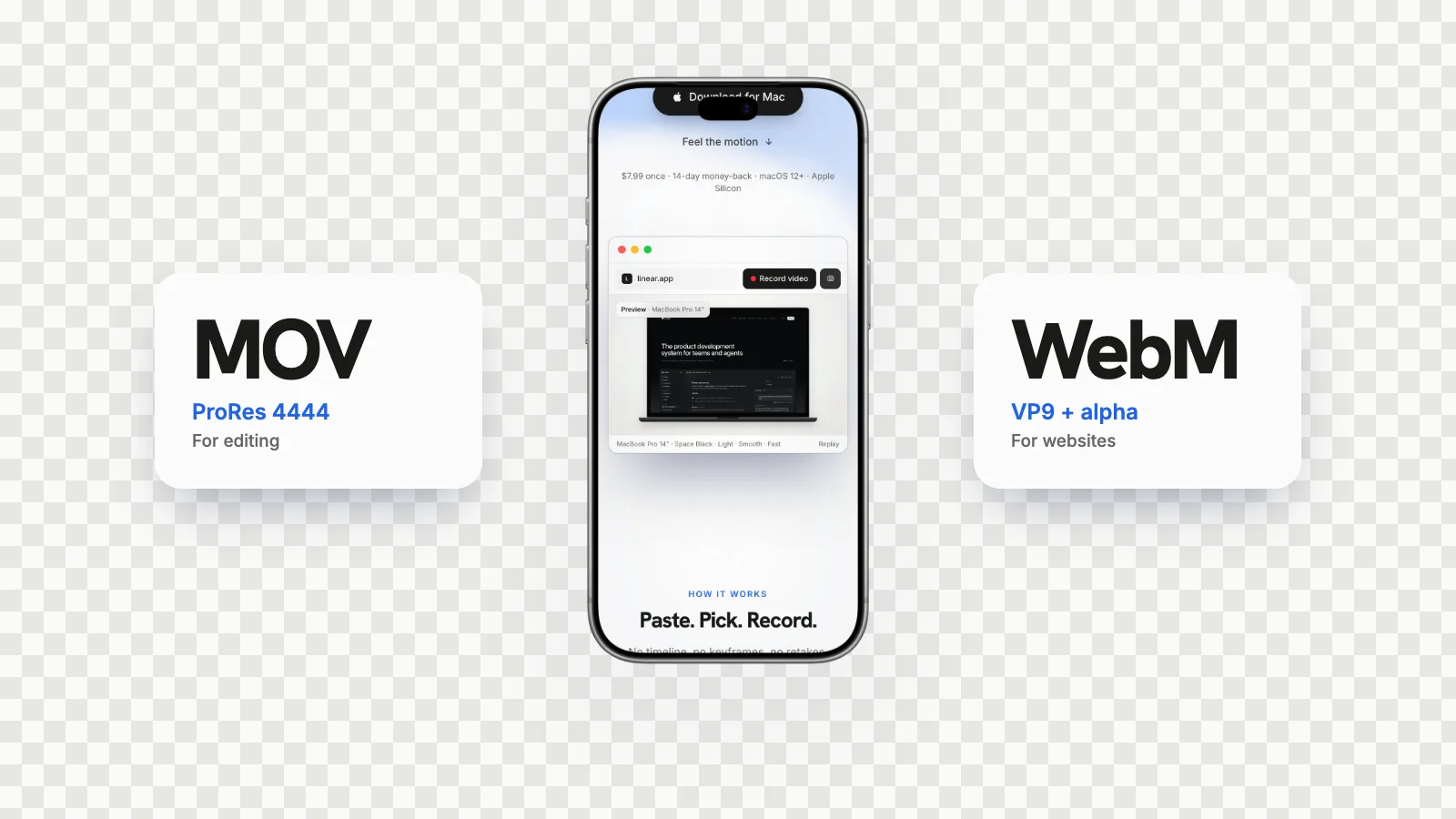
To put a transparent video on a website, you need two files: a VP9 WebM with alpha for Chrome, Edge and Firefox, and an HEVC with alpha MOV for Safari, which still ignores WebM transparency in Safari 27.0. Listing both as source elements is not enough on its own, because Safari will happily pick a WebM listed first, and Chrome can now decode HEVC and may pick an HEVC file listed first without showing its alpha. A small script that chooses the file per browser, plus autoplay, muted, loop, playsinline and a poster image, works reliably. GlidePage, a Mac app for Apple Silicon, exports device videos as a transparent VP9 WebM and a ProRes 4444 MOV that QuickTime Player can turn into HEVC with alpha.
On this page
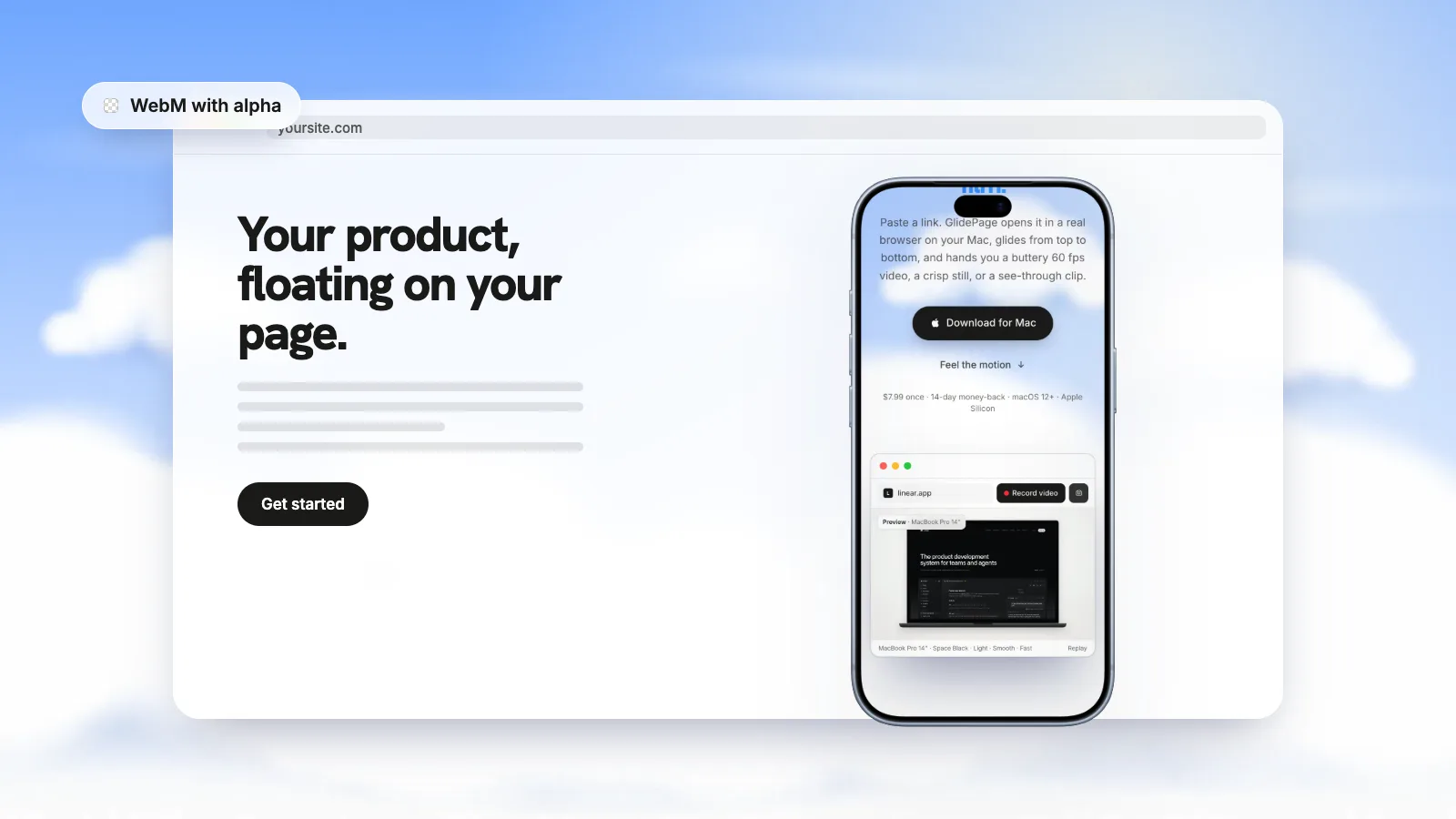
A transparent video is one of the nicest things you can put on a landing page: a phone scrolling through your product, floating over your own layout, with the page's colours showing around it. Then you open the page in Safari and the phone sits inside an opaque box.
Nothing is wrong with your file. The web simply has no single transparent video format that every browser shows with its alpha channel. This guide covers the two formats you need, the trap in the obvious HTML, a setup that works, and when you are better off without a video at all.
Why transparent video is tricky on the web#
Two video formats can carry an alpha channel in a browser:
- VP9 in a WebM file. Chrome, Edge and Firefox play it with transparency. Safari plays the video but ignores the alpha channel. MDN's codec guide says so directly, and caniuse still flags Safari 27.0 (September 2026) as not supporting WebM alpha.
- HEVC with alpha, usually in a MOV file. Apple added it in 2019. Safari on macOS Catalina and later, and on iOS 13 and later, plays it with transparency. Other browsers do not document alpha support for it.
So a site that should look right for everyone needs both files, and a way to hand each browser the right one.
Browser support in 2026#
| Browser | VP9 WebM with alpha | HEVC with alpha |
|---|---|---|
| Chrome and Edge | Transparent | Chrome decodes HEVC on macOS Big Sur and later, but alpha is not documented |
| Firefox | Transparent | HEVC only on some hardware; alpha not documented |
| Safari on Mac, iPhone and iPad | Plays, without transparency | Transparent |
The detail in the Chrome row matters more than it looks. A few years ago, Chrome simply could not play HEVC, so it skipped those files. Today it often can, which changes how the usual HTML behaves. ProRes 4444 vs WebM with alpha compares the formats themselves in more depth.
Step 1: make the two files#
Start from a master with a real alpha channel, ideally a ProRes 4444 MOV exported from your editor or motion graphics app. From it, make:
- The WebM for Chrome, Edge and Firefox. You need an encoder that writes VP9 with alpha. ffmpeg is the usual free option; whatever you use, check the result in Chrome over a coloured background, because an encoder that drops the alpha does it silently.
- The HEVC with alpha for Safari. On a Mac, QuickTime Player does it for free: open the ProRes 4444 MOV, choose File → Export As, pick a resolution, and select Use HEVC and then Preserve Transparency. How to make a transparent background video on Mac walks through this and the editor exports.
- A poster image. A PNG or WebP of the first frame, with transparency, so something shows before the video loads or if it never plays.
Keep both videos at the size they will actually be displayed. A phone mockup that appears 400 pixels wide on the page does not need a 4K file; a smaller copy loads faster and decodes with less effort.
If the video is a website in a device
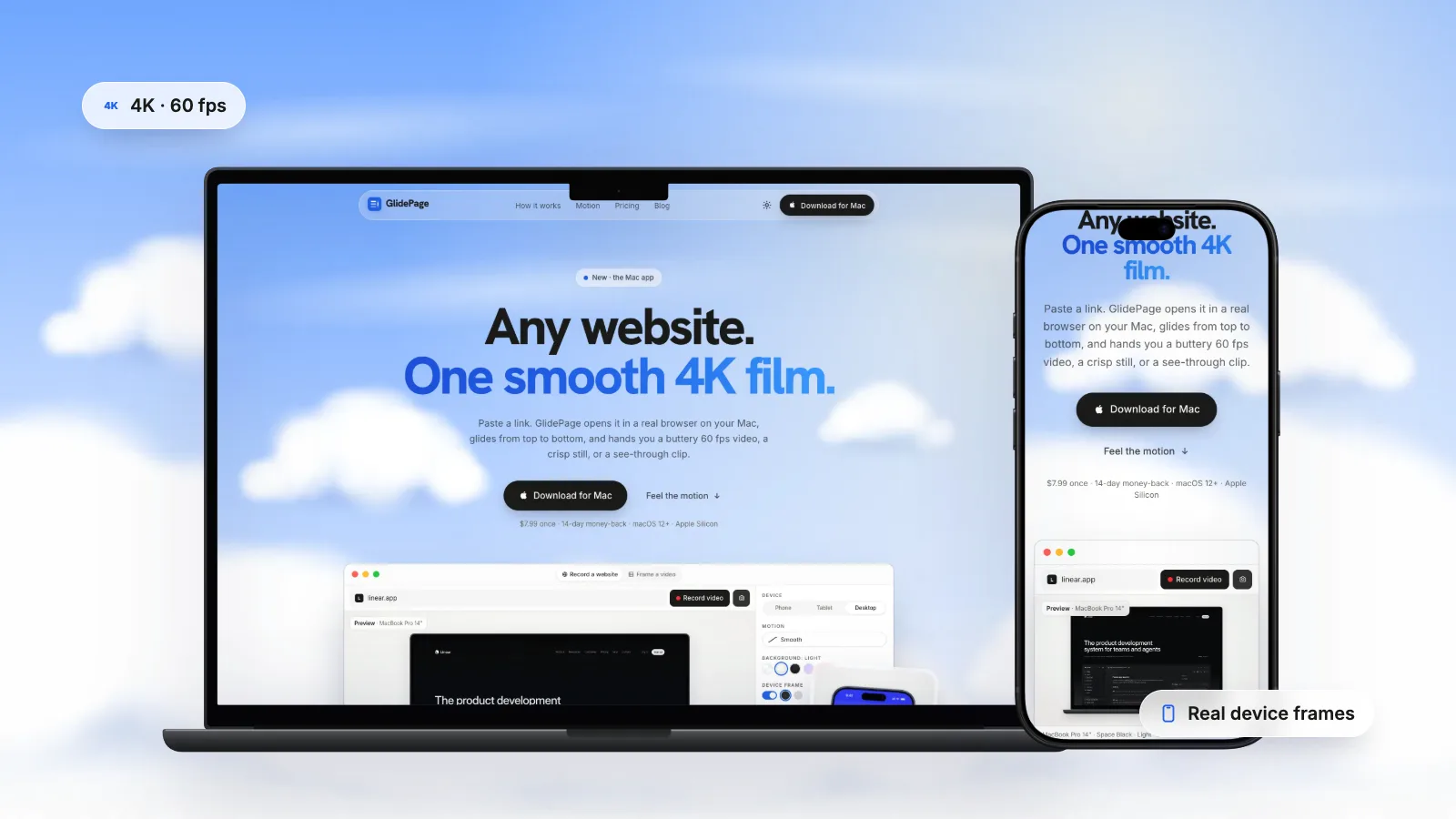
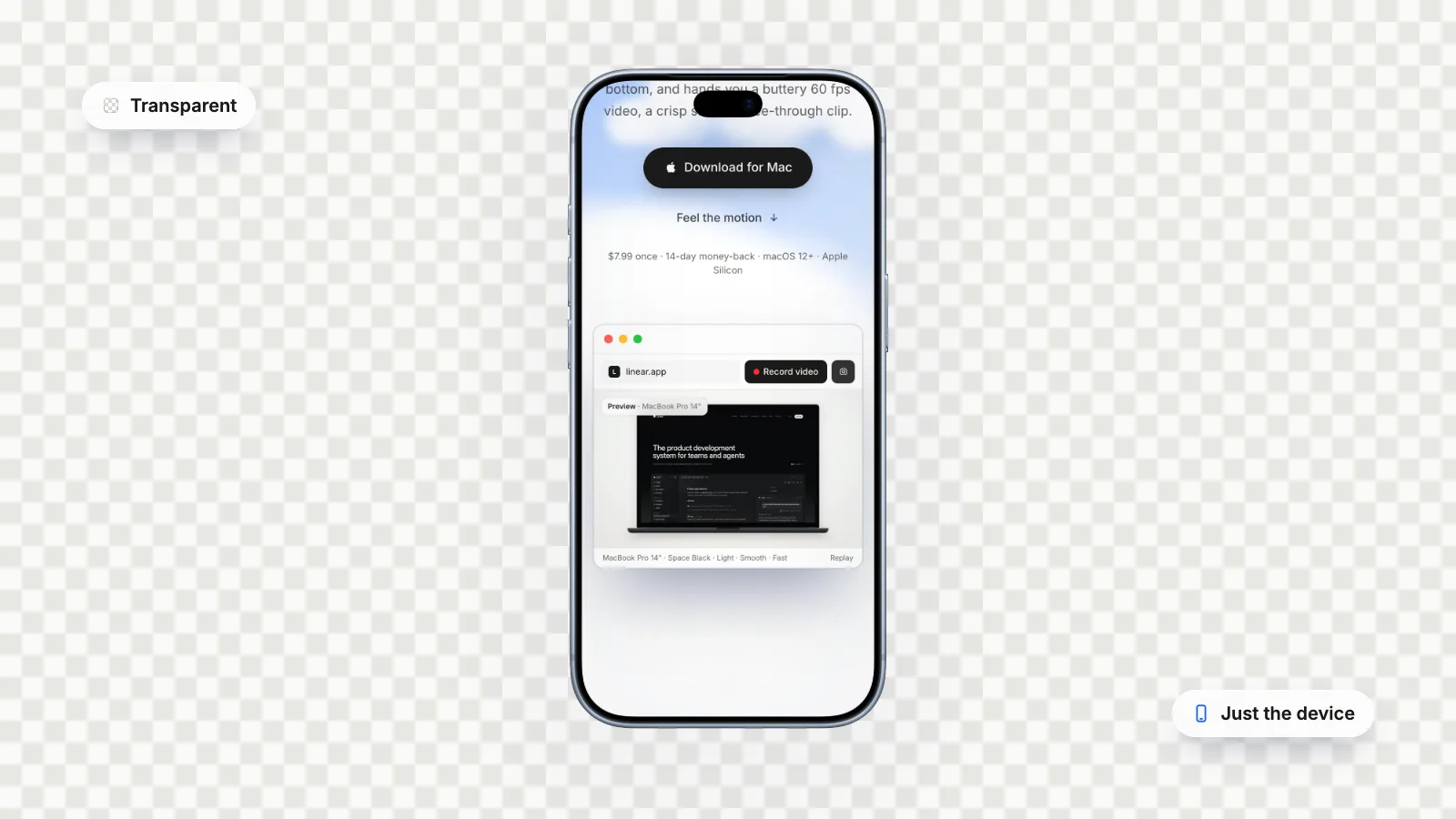
That is exactly what GlidePage, a Mac app, makes. Paste a link, pick a device (current iPhones, Pixels, Galaxy phones, iPads, MacBooks and more), turn the frame on and set the background to None. It scrolls the page and captures every frame at 4K and 60 fps, so the motion is perfectly smooth, then gives you:
- a VP9 WebM with alpha, converted on request at 4K, for Chrome, Edge and Firefox;
- a ProRes 4444 MOV with alpha, which QuickTime Player can turn into the HEVC copy for Safari (GlidePage does not export HEVC itself);
- a transparent 4K PNG still from photo mode, at any point on the page, which makes a good poster.
It runs entirely on your Mac, on Apple Silicon with macOS 12 or later, and nothing is uploaded.
Step 2: avoid the source-order trap#
The standard way to offer several formats is to list them as source elements inside the video element. The browser tries them in order and uses the first one it understands. That rule is the problem here, because "understands" means "can decode", not "can show transparently":
- WebM first: Safari can decode VP9, so it takes the WebM and never looks at the HEVC file. You get the video on an opaque background.
- HEVC first: Safari takes it and looks right. But Chrome on a Mac can decode HEVC now, so it may take that file too, and show it on a solid black background because it does not handle HEVC's alpha layer.
Older tutorials recommend listing the HEVC file first with a very specific type string, which worked when Chrome could not play HEVC at all. Whether a browser accepts that source today depends on the exact type string and the browser version, so it is fragile. Plain source ordering is fine for opaque video. For transparent video, choose the file deliberately.
Step 3: a setup that works#
The reliable approach is to decide which file to load with a few lines of script. The only browsers that need the HEVC file are Safari and other browsers built on Apple's WebKit engine, which includes most browsers on iPhone and iPad. Everything else gets the WebM.
<video class="device" autoplay muted loop playsinline
  width="540" height="960" poster="device-poster.png"></video>

<script>
  const video = document.querySelector('video.device');
  const ua = navigator.userAgent;
  // Safari and other WebKit browsers ignore WebM alpha: give them HEVC.
  const webkit = ua.includes('AppleWebKit') &&
    !ua.includes('Chrome/') && !ua.includes('Chromium/');
  video.src = webkit ? 'device-hevc-alpha.mov' : 'device-vp9-alpha.webm';
</script>
How it works:
- Chrome, Edge, Opera and other Chromium browsers mention "AppleWebKit" in their user agent string for historical reasons, but they also include "Chrome/", so they get the WebM. Firefox does not claim WebKit at all.
- Safari on the Mac, and WebKit browsers on iPhone and iPad, do not include "Chrome/", so they get the HEVC file.
- If the script never runs, the poster image still shows, so the page does not look broken.
User agent checks are a blunt tool, and browsers change. Treat this as a starting point and test in Safari on a Mac, Safari on an iPhone, Chrome and Firefox before you ship, over both a light and a dark part of your page.
What each attribute does
- autoplay starts the video without a click. Browsers generally only allow this for muted video.
- muted is what makes autoplay allowed. WebKit lets muted video (or video with no audio track) autoplay without a user gesture.
- loop jumps back to the start at the end, so a short clip plays forever.
- playsinline keeps the video in the page on iPhone. Without it, iPhone Safari may open the video fullscreen instead.
- poster is the image shown until the first frame is ready. Without it, nothing shows until the video has loaded enough.
- width and height reserve the right space from the start, so the layout does not jump when the video arrives. Match them to the clip's shape (540 × 960 for a 9:16 phone clip).
Performance: keep it light#
A transparent loop is decoration. It should never be the reason a page feels slow.
- Size the file to the layout. Encode at roughly the largest size it will be displayed at on a high-density screen, not at 4K.
- Keep loops short. Six to fifteen seconds is usually plenty for a scrolling device. Loop points are easier to hide when the clip starts and ends on the same frame.
- Load below-the-fold videos late. If the video is far down the page, set its source only when it comes close to the viewport, for example with an IntersectionObserver.
- Respect reduced motion. Visitors who ask their system to reduce motion can get the poster image instead of the loop; the
prefers-reduced-motionmedia query tells you who they are. - Mind the page weight on phones. Test on a real phone over a normal connection, not only on your desktop.
Test before you publish#
- Safari on a Mac shows the device with the page colours around it, not a box.
- Safari on an iPhone plays it inline, automatically, and transparent.
- Chrome, Edge and Firefox show the WebM transparent.
- Soft shadows look clean over both light and dark sections.
- The poster appears before the video and when scripts are off.
- The page's total weight is still reasonable on a phone.
When a video is not the best tool#
Transparent video is not the only way to get a moving device onto a page, and sometimes it is not the best one.
| Approach | Good for | Trade-off |
|---|---|---|
| Transparent video (this guide) | Soft shadows, a device that moves, anything irregular | Two files and a little script |
| Opaque video inside an image or CSS frame | A device that stays still while its screen scrolls | You need a frame image or CSS; the screen must be a simple rounded rectangle |
| Animated WebP or AVIF | Short, small loops | Heavy at large sizes; no playback controls |
| Animated GIF | Tiny, simple animations | 256 colours and on-off transparency, so soft edges look jagged |
| A transparent PNG still | Hero images that do not need motion | No motion at all |
The second row is worth knowing. If only the screen content moves, you can skip alpha entirely: play an ordinary MP4 of the page (an unframed recording) inside a rounded rectangle, and lay a device frame image on top. Every browser plays that, and the video can be a small H.264 file.
Where this fits#
Transparent device loops work well on landing pages, launch pages and portfolios. For portfolio ideas, see web design portfolio videos; for a narrated or stepped walkthrough rather than a loop, see website demo videos. And if you have not recorded the site yet, how to make a scrolling video of a website covers devices, speed and motion.
Sources
- MDN: The Video Embed element (checked September 2026)
- MDN: Web video codec guide (checked September 2026)
- Can I use: WebM video format (checked September 2026)
- Can I use: HEVC/H.265 video format (checked September 2026)
- Apple Developer: HEVC Video with Alpha (WWDC19) (checked September 2026)
- WebKit: New video policies for iOS (checked September 2026)



Make your site move.
Any page, one smooth 4K video. Framed, on any background, or transparent.
Questions, answered
Why does my transparent WebM have a black background in Safari?
Safari plays WebM video but ignores its alpha channel, so the transparent areas are drawn opaque. This is still the case in Safari 27.0. Give Safari an HEVC with alpha file instead, and keep the WebM for Chrome, Edge and Firefox.
Does Safari support WebM alpha yet?
No. As of Safari 27.0, released in September 2026, caniuse still lists Safari as playing WebM without alpha transparency, and MDN says the same for VP9. Safari does support HEVC with alpha, which is the format to serve it.
Can I just list the HEVC and WebM files as two source elements?
It is risky. Browsers use the first source they can decode, not the first they can show transparently. Safari picks a WebM listed first, and Chrome on a Mac can now decode HEVC and may pick an HEVC file listed first without its alpha. Choosing the file with a small script, then testing in each browser, is more reliable.
How do I make an HEVC with alpha file on a Mac?
Export a ProRes 4444 MOV with an alpha channel, open it in QuickTime Player, choose File → Export As, pick a resolution, then select Use HEVC and Preserve Transparency. The Preserve Transparency option only appears when the source has an alpha channel.
Do I need autoplay, muted, loop and playsinline?
For a background-style loop, yes. Browsers only allow autoplay for muted video, loop keeps it going, and playsinline stops iPhone Safari from opening the video fullscreen. Add a poster image so something shows before the video loads.
Is there an alternative to transparent video?
If only the screen content moves, play an ordinary MP4 inside a rounded rectangle and place a device frame image on top: every browser supports it and files are small. For short loops, animated WebP or AVIF also support transparency.