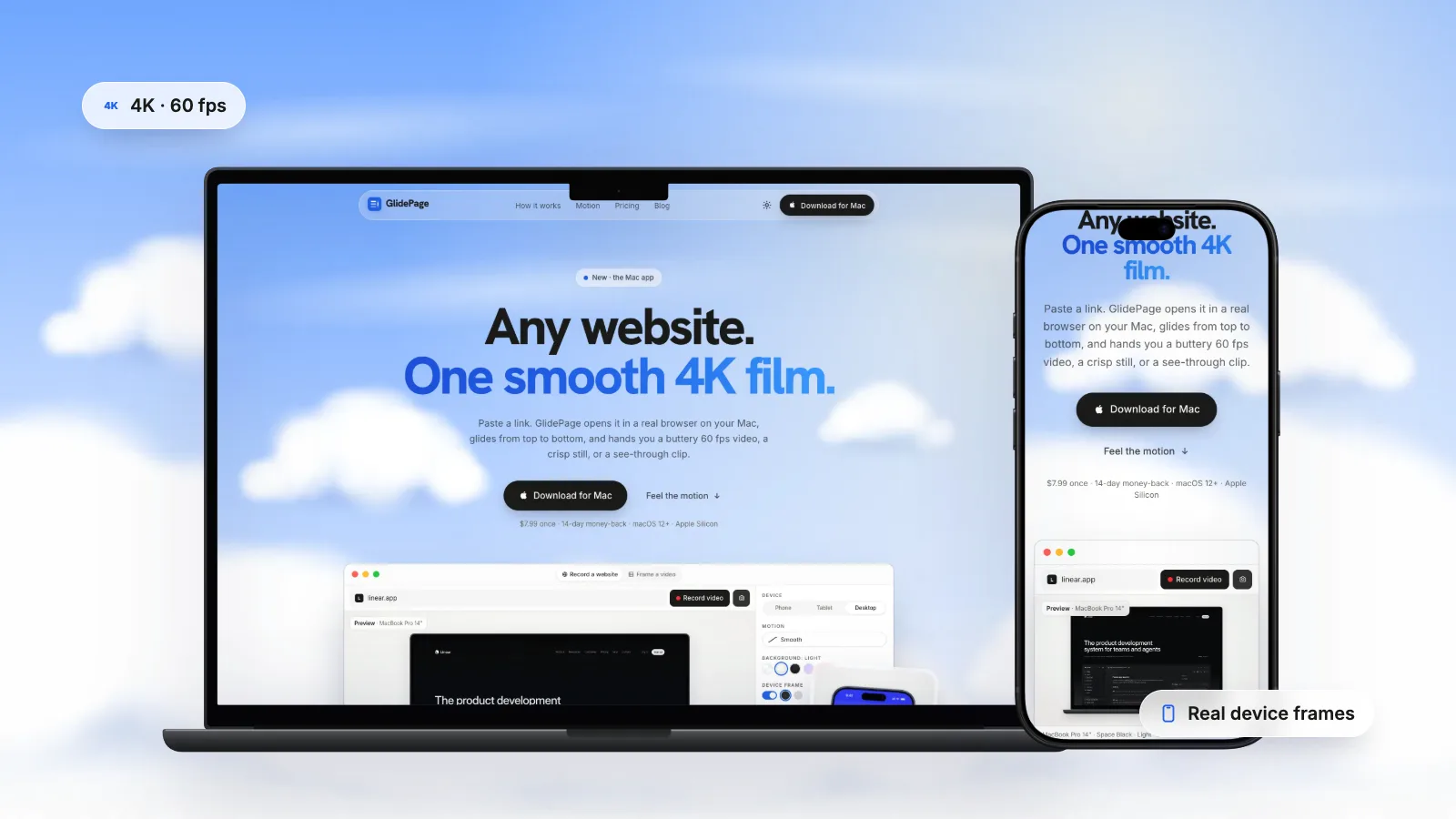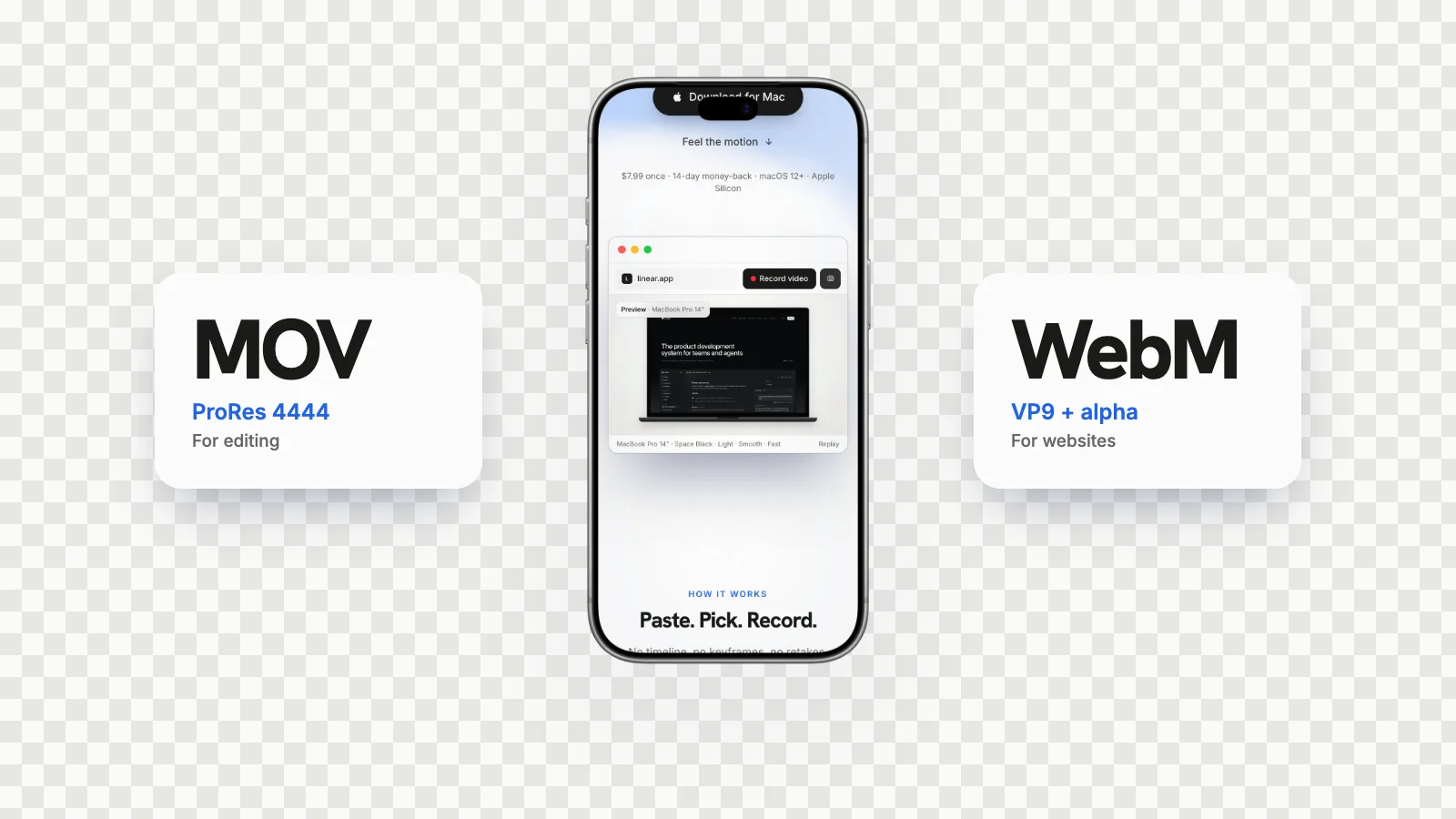
To make a video with a transparent background on a Mac, export it in a format that carries an alpha channel: Apple ProRes 4444 in a MOV for editing apps, HEVC with alpha for Apple devices and Safari, or VP9 WebM for other browsers. In Final Cut Pro, Motion or After Effects, remove every background layer and export to ProRes 4444 with the alpha channel turned on; an H.264 MP4 cannot keep transparency. For a device mockup of a website, GlidePage, a Mac app for Apple Silicon, exports a transparent 4K, 60 fps ProRes 4444 MOV or VP9 WebM when you record with a device frame and no background.
On this page
- What an alpha channel is
- Which formats keep transparency
- Export with alpha from Final Cut Pro
- Export with alpha from Motion
- Export with alpha from After Effects
- Make a smaller copy with QuickTime Player
- Common mistakes that kill transparency
- Transparent device mockups of a website
- Where to use a transparent video
- A quick checklist before you send the file
If you searched for a transparent background video, you probably found plenty of tools that cut a person out of their footage. That is a different job. This guide is about the other one: exporting a video with a real alpha channel, so a phone, a logo, a title or a product shot floats over whatever sits behind it in an editor, a slide or a web page.
The short version: transparency lives in the file format. Pick a format that carries an alpha channel, make sure nothing opaque sits behind your subject, and export with the alpha turned on. The rest is detail, and the details below are where most transparent exports go wrong.
What an alpha channel is#
A normal video frame stores three values for every pixel: red, green and blue. A transparent video adds a fourth, the alpha channel, which says how opaque each pixel is. White in the alpha channel means solid, black means fully transparent, and greys are partly see-through. Those greys are what give soft shadows and anti-aliased edges their smooth falloff.
When an editor or a browser plays the file, it uses that fourth channel to blend the video over whatever is underneath. If the format has no alpha channel, there is nothing to blend with, and the "empty" areas get filled with a colour, usually black.
Alpha can be stored in two ways:
- Straight (unmatted). The colour channels keep their full colour, and the alpha channel alone holds the transparency.
- Premultiplied (matted). The colour has already been multiplied by the alpha against a background colour, usually black, so semi-transparent edges are darkened in advance.
Both work fine. Problems only start when an app reads one as the other, which is covered in the mistakes section below.
Which formats keep transparency#
| Format | Keeps alpha? | Best for | File size |
|---|---|---|---|
| Apple ProRes 4444 or 4444 XQ (MOV) | Yes | Editing apps: Final Cut Pro, Premiere Pro, DaVinci Resolve, After Effects | Very large |
| HEVC with alpha (MOV) | Yes | Apple devices and Safari | Much smaller |
| VP9 in WebM | Yes | Web pages in Chrome, Edge and Firefox | Small |
| PNG image sequence | Yes | Editors and compositing apps that want one image per frame | Large, one file per frame |
| ProRes 422, 422 HQ, LT, Proxy | No | Opaque editing masters | Large |
| H.264 in MP4 | No | Social feeds, messaging, anything opaque | Small |
A few notes on that table:
- Apple states that ProRes 4444 and 4444 XQ are the only ProRes codecs that support alpha channels. The 422 family sits in the same menu and quietly flattens it.
- HEVC with alpha is Apple's compact option. It is far smaller than ProRes, which makes it the usual choice for Safari on a web page.
- VP9 WebM with alpha plays transparent in Chrome, Edge and Firefox. Safari plays WebM too, but without the transparency. Transparent video on a website explains how to serve each browser the right file.
- For editing, use the MOV. Final Cut Pro does not import WebM natively.
If you are weighing the formats against each other, ProRes 4444 vs WebM with alpha compares them side by side.
Can an MP4 have a transparent background?
In practice, no. MP4 files almost always carry H.264, and H.264 as browsers, phones and social apps play it has no alpha channel. Export an MP4 from a project with empty areas and those areas turn solid, usually black.
QuickTime Player's own export makes the point: it only offers a Preserve Transparency option when you export to HEVC, and only for movies that already have an alpha channel.
So if a tool promises a "transparent MP4", check what it delivers. It is usually a MOV or a WebM, or a video on a flat green background that you are expected to key out later.
Export with alpha from Final Cut Pro#
Final Cut Pro treats any part of the frame with no clip underneath as transparent. The export format decides whether that survives.
1. Build the timeline without a background
Put the element you want to float in the timeline and make sure nothing fills the frame behind it: no background clip, no generator, no solid colour. The empty areas are what become transparent.
2. Open the export settings
Choose File → Share → Export File (or press Command-E), then click Settings at the top of the Share window.
3. Pick ProRes 4444
In the Video Codec menu, choose Apple ProRes 4444 (or 4444 XQ for the highest quality). Leave the ProRes 422 options alone: they have no alpha channel.
4. Save and test
Click Next, choose a location and click Save. To check it, drop the new file into a project above a brightly coloured clip. If the colour shows through around your subject, the alpha made it.
Export with alpha from Motion#
Motion has an explicit switch for the background, which is the step people miss.
1. Make the project background transparent
Choose Edit → Project Properties (or press Command-J). In the Properties Inspector, set Background to Transparent. The Solid and Environment options render the background into the alpha channel, so the export will not be see-through.
2. Export a QuickTime movie
Choose File → Share → Export Movie (or press Command-E), then click Settings.
3. Choose the codec and the channels
Set Video Codec to Apple ProRes 4444 and set Color Channels to color plus alpha. Apple's note is worth repeating: codecs that do not support alpha save no alpha channel, whatever you choose in that menu.
Export with alpha from After Effects#
1. Queue the composition
Select the composition and choose Composition → Add to Render Queue (Command-M on a Mac). Make sure no solid or background layer covers the whole frame.
2. Set the output module
In the Render Queue panel, open the Output Module settings. Choose QuickTime as the format, open Format Options and pick Apple ProRes 4444 as the video codec.
3. Turn on the alpha channel
Set Channels to RGB + Alpha. Adobe notes that this implies a depth of Millions of Colors+ and that not every codec supports alpha, which is why the codec in step 2 matters. Then set Color to Straight (Unmatted) or Premultiplied (Matted), depending on what the next app expects.
Make a smaller copy with QuickTime Player#
ProRes 4444 files are big. When you need a compact transparent file for Apple devices or for Safari on a web page, convert the MOV to HEVC with alpha. QuickTime Player does it for free:
- Open the ProRes 4444 MOV in QuickTime Player.
- Choose File → Export As and pick a resolution (Apple's guide uses 1080p as the example).
- Select Use HEVC, then select Preserve Transparency.
- Name the file, choose where to save it, and click Save.
The Preserve Transparency checkbox only appears when the movie already has an alpha channel, such as ProRes 4444. If you do not see it, the source was never transparent, and the problem is further up the chain.
Common mistakes that kill transparency#
| What you see | Likely cause | Fix |
|---|---|---|
| A black background where it should be clear | Exported as H.264 MP4 or ProRes 422 | Re-export as ProRes 4444, HEVC with alpha or VP9 WebM |
| A solid colour behind the subject | A background clip or generator, or Motion's Background set to Solid | Remove it, or set Background to Transparent |
| A dark or light fringe around edges and shadows | Premultiplied alpha read as straight, or the other way round | Change how the editor interprets the clip's alpha |
| Black in a preview, fine in the editor | Some viewers draw transparent areas as black | Test over a coloured layer, not in a player |
| The file will not import into Final Cut Pro | It is a WebM | Use the ProRes 4444 MOV for editing |
| Transparency gone after posting | Social feeds play ordinary opaque video | Put the video on the background you want before posting |
The fringe problem deserves a closer look. Premultiplied files already have their semi-transparent pixels blended with black (or white). If an app treats them as straight, that blend happens twice and soft edges pick up a dark halo. The fix is never to re-export in a panic: tell the editor which kind of alpha the clip has. Device mockups in Final Cut Pro and Premiere shows where that setting lives in each editor.
Transparent device mockups of a website#
A common reason to want a transparent video is a device mockup: a phone or laptop showing a website, floating over your own footage, slide or landing page. Building one by hand means recording the site, fitting the recording into a frame template, keyframing it, and then exporting with alpha as above.
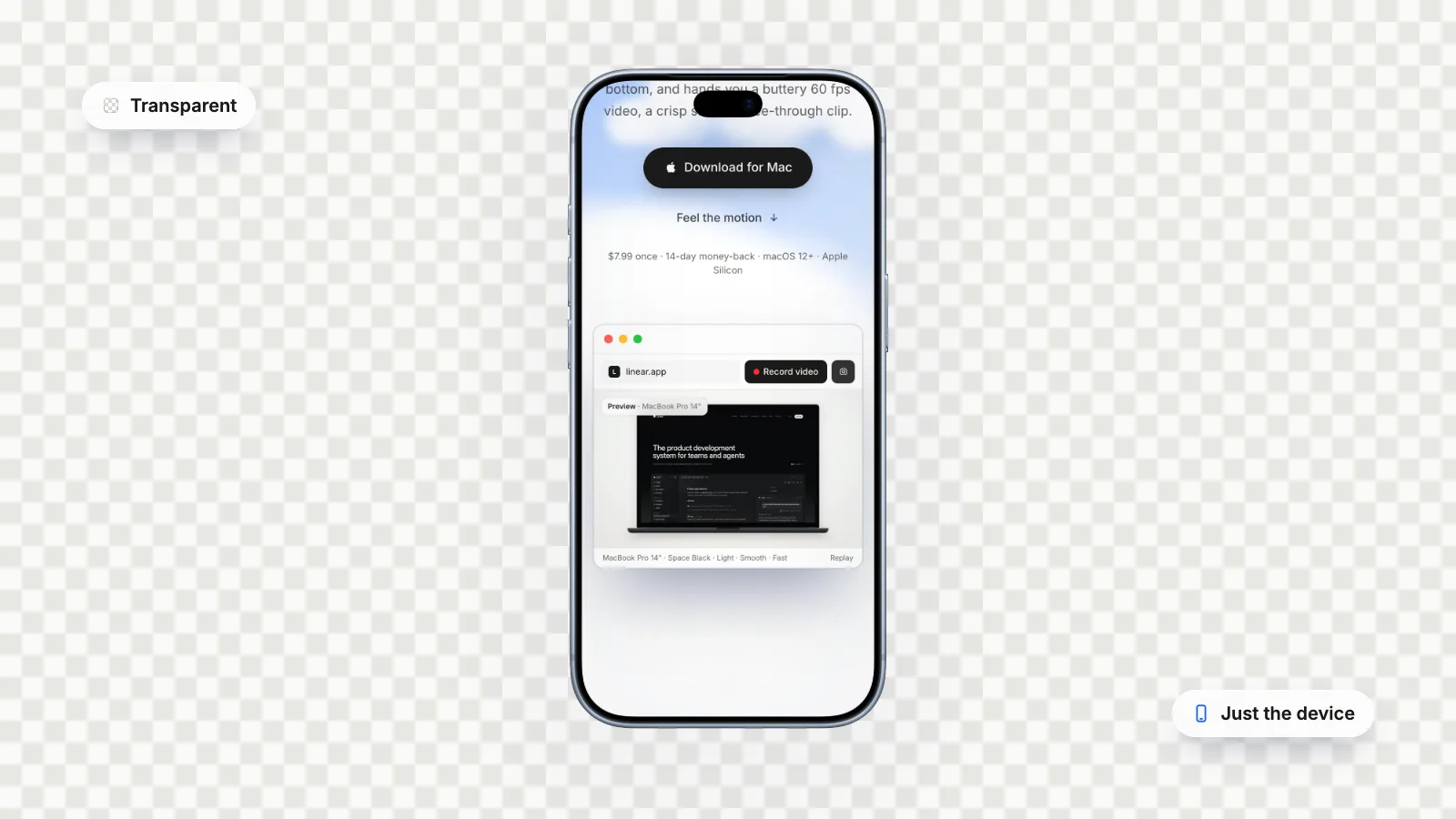
GlidePage, a Mac app, does that part in one step. Paste a link, pick a device, turn the frame on and set the background to None, and the export is transparent:
- ProRes 4444 MOV with alpha, for Final Cut Pro, Premiere Pro, DaVinci Resolve and After Effects.
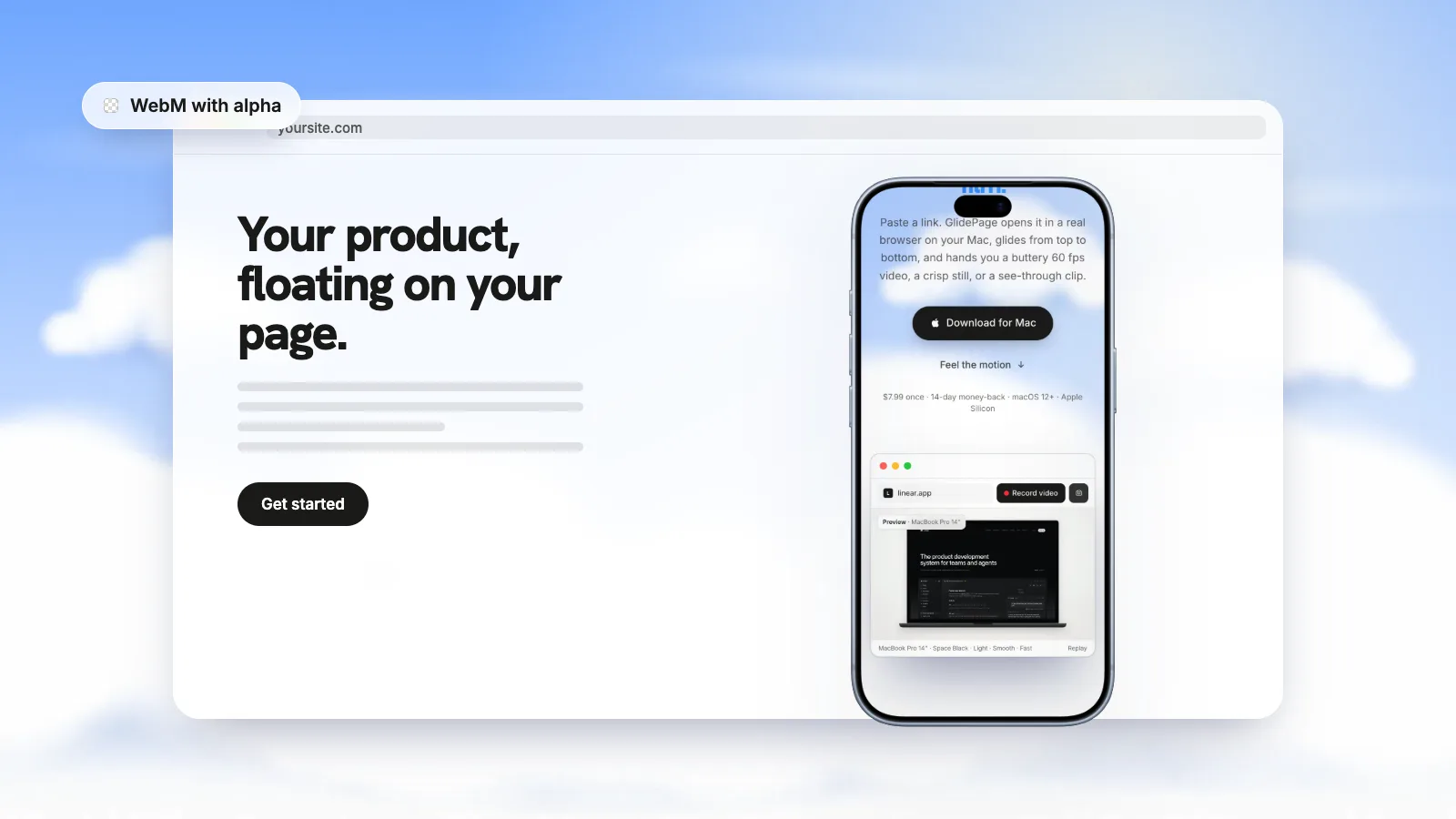
- VP9 WebM with alpha, for websites, converted on request at 4K. It plays transparent in Chrome, Edge and Firefox; Safari plays it without transparency.
- Transparent PNG stills from photo mode: a 4K image of any point on the page.
- PNG frame sequences in a ZIP, if your editor prefers one image per frame.
The page is scrolled and captured frame by frame at 4K and 60 fps, inside a real frame for current iPhones, Pixels, Galaxy phones, iPads, MacBooks and more, with the status bar and safe areas in place. It all runs on your Mac: nothing is uploaded, and no account is needed. It needs macOS 12 or later on Apple Silicon.
Two honest notes. Transparent MOV files are large: roughly 40 MB per second of 4K 60 fps video, so a 20-second clip is around 800 MB. And GlidePage does not export HEVC with alpha itself; if you need it for Safari, make it from the MOV with QuickTime Player as shown above. Transparency also needs the frame on: without a frame, the video is just the page, which is opaque anyway.
Where to use a transparent video#
- In a video editor. Drop the MOV on the track above your footage and animate it. See device mockups in Final Cut Pro and Premiere.
- On a web page. Float a device over your own layout with a WebM (and an HEVC copy for Safari). See transparent video on a website.
- Over a phone recording. If you have an app or screen recording rather than a website, adding an iPhone frame to a screen recording covers that case.
- In a slide or a still. A transparent PNG from photo mode drops onto any slide background without a white box around the device.
If you are starting from scratch, how to make a scrolling video of a website walks through the whole recording process.
A quick checklist before you send the file#
- Nothing opaque fills the frame behind the subject.
- The codec is ProRes 4444 or 4444 XQ, HEVC with alpha, VP9 WebM, or PNG.
- Alpha is switched on in the export (Color Channels in Motion, RGB + Alpha in After Effects).
- You tested it over a bright colour in an editor, not in a player.
- Soft edges and shadows look clean, with no dark halo.
- Editors get the MOV, web pages get the WebM (plus an HEVC copy for Safari).
- You know the file size: ProRes 4444 at 4K fills a drive quickly.
Sources
- Apple Support: About Apple ProRes (checked September 2026)
- Final Cut Pro User Guide: Export final mastering files (checked September 2026)
- Motion User Guide: Edit project properties (checked September 2026)
- Motion User Guide: Export a QuickTime movie (checked September 2026)
- Adobe After Effects User Guide: Basics of rendering and exporting (checked September 2026)
- QuickTime Player User Guide: Export movies to other file formats (checked September 2026)



Make your site move.
Any page, one smooth 4K video. Framed, on any background, or transparent.
Questions, answered
Can an MP4 video have a transparent background?
Not in practice. MP4 files almost always use H.264, which browsers, phones and social apps play without an alpha channel, so transparent areas turn black. Use ProRes 4444 or HEVC with alpha in a MOV, or VP9 in a WebM, instead.
What is the best format for a transparent video on Mac?
For editing, Apple ProRes 4444 in a MOV: it is the ProRes flavour with an alpha channel and every major editor reads it. For Safari and Apple devices, HEVC with alpha is much smaller. For Chrome, Edge and Firefox on the web, VP9 WebM with alpha.
Why does my transparent video have a black background?
Usually because it was exported in a codec without alpha, such as H.264 or ProRes 422, or because a background layer was still in the project. It can also be the viewer: some players draw transparent areas as black, so test the file over a coloured layer in an editor.
How do I make a ProRes 4444 file smaller and keep the transparency?
Open it in QuickTime Player, choose File → Export As, pick a resolution, then select Use HEVC and Preserve Transparency. The result is an HEVC with alpha MOV that Apple devices and Safari play with transparency. The Preserve Transparency option only appears when the source has an alpha channel.
How big are transparent ProRes 4444 files?
Very big. GlidePage's transparent 4K, 60 fps MOV files run at roughly 40 MB per second, so a 20-second clip is around 800 MB. That is fine for editing, but convert to HEVC with alpha or VP9 WebM for anything that has to load over the web.
Does a transparent video stay transparent on Instagram or LinkedIn?
No. Social feeds play ordinary opaque video, so any transparent areas end up filled in. Export the version for social with the background you want already in place, and keep the transparent file for editors, slides and web pages.