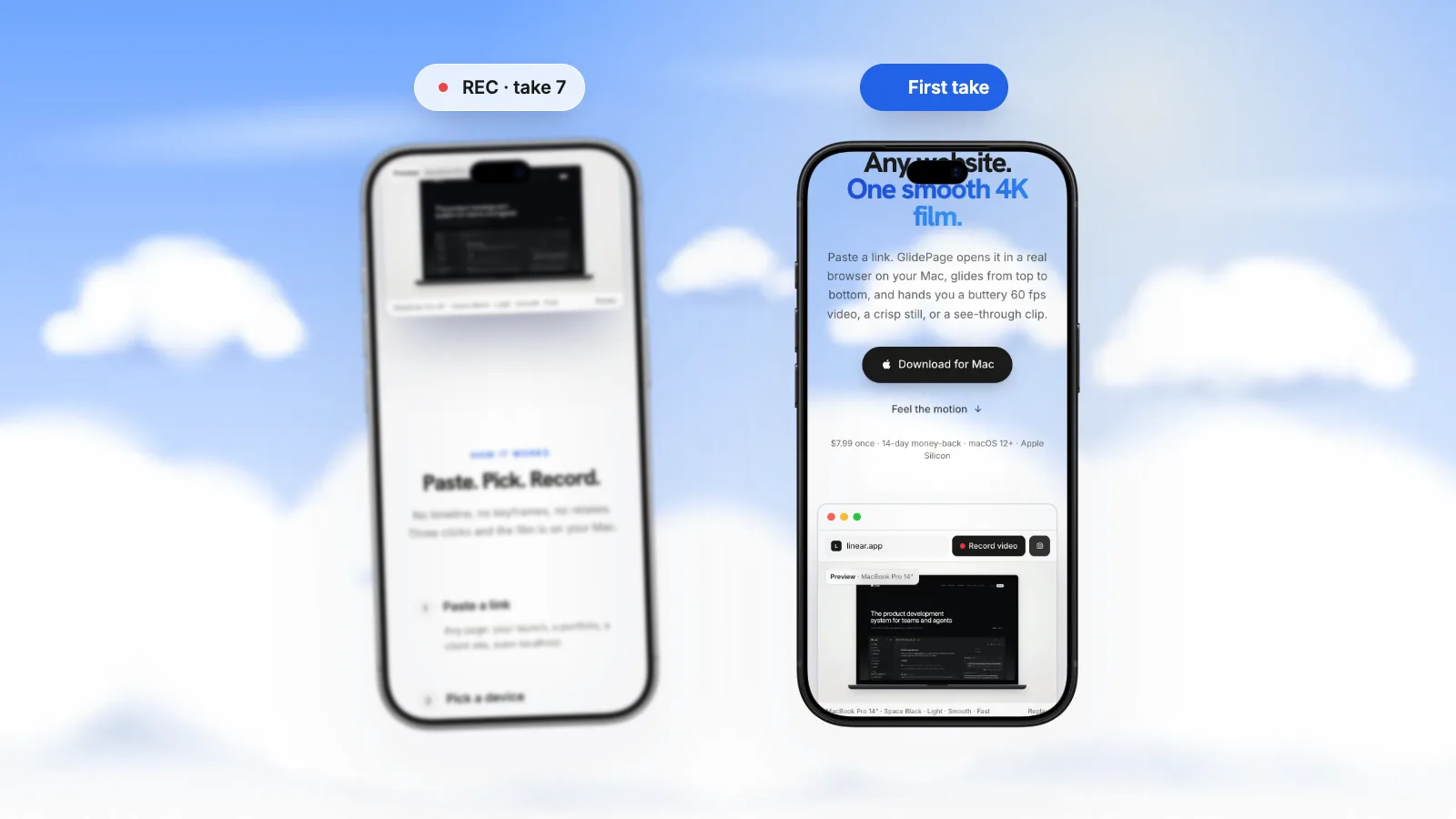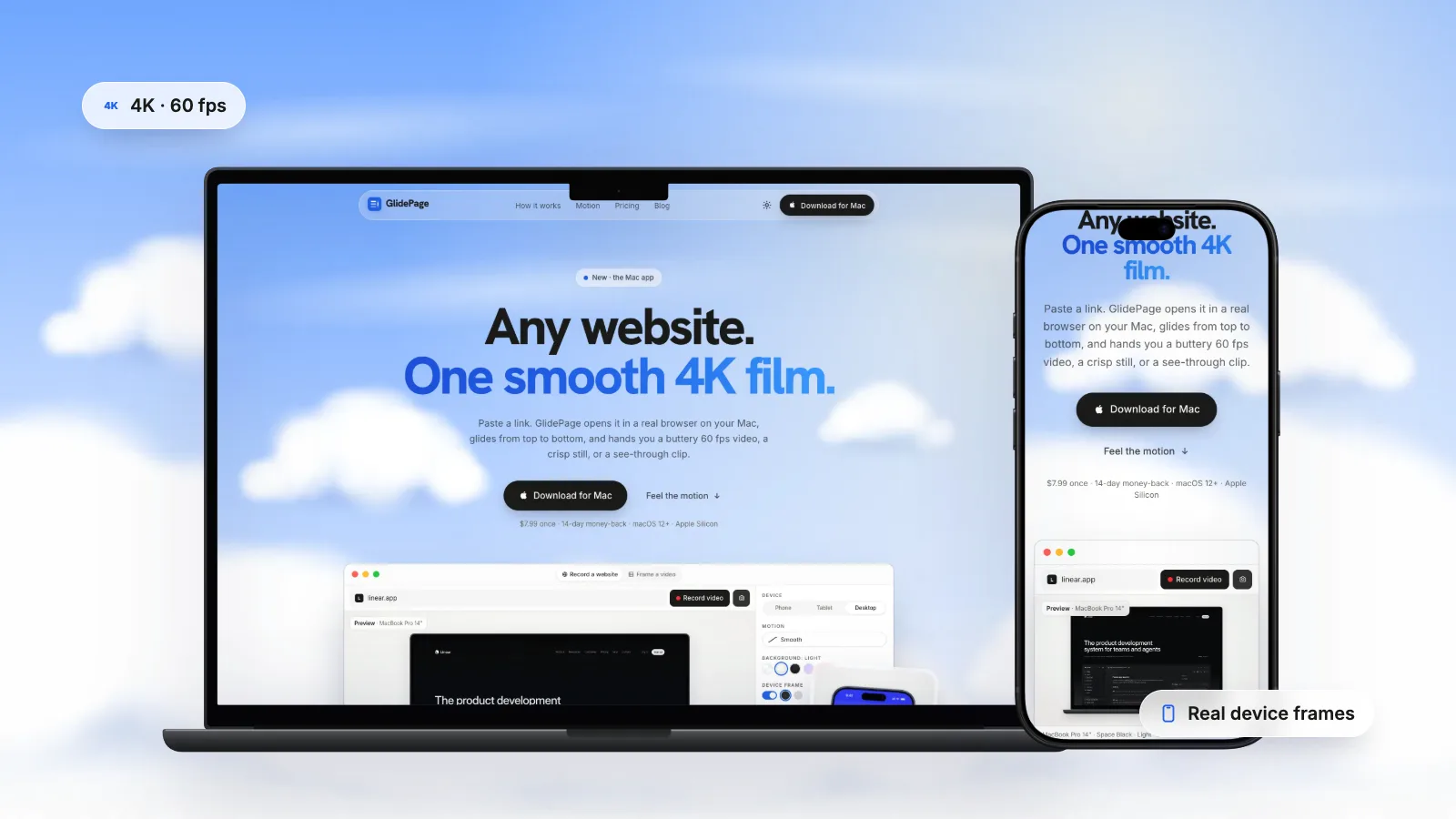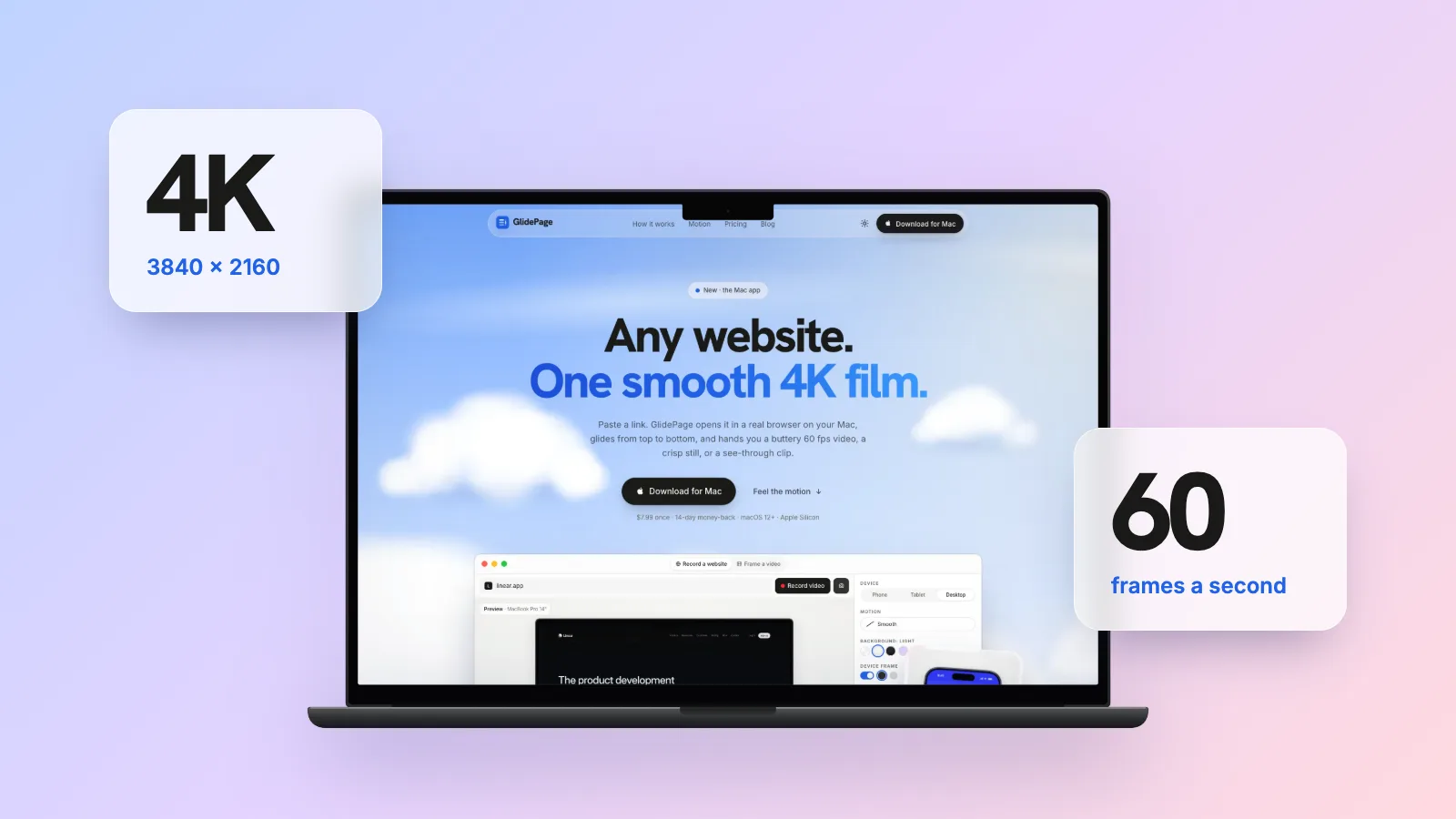
A Mac screen recording is captured at your display's pixel resolution, so true 4K (3840 × 2160) needs a display with at least that many pixels, and Apple documents no frame-rate setting for the built-in recorder. For website videos, 4K keeps small text sharp after platforms re-encode it and 60 fps keeps a scroll smooth; 1080p is enough for quick shares and internal videos. To get 4K without a 4K display, render the page frame by frame with a headless browser at a higher device scale factor, or use GlidePage, a Mac app for Apple Silicon that renders any page at 4K and 60 fps whatever screen you have.
On this page
- What 4K and 60 fps actually mean
- Why resolution matters for a website video
- Why 60 fps matters for scrolling
- When 1080p (or 30 fps) is enough
- File sizes: what to expect
- YouTube's upload recommendations for 4K 60 fps
- Getting true 4K from a Mac: the display ceiling
- Making a 4K 60 fps website video with GlidePage
- H.264, HEVC or ProRes for your master?
Most video advice about 4K is about cameras: landscapes, skin detail, cropping in post. A website video has a different problem. It is almost entirely text and thin lines, moving vertically across the frame, and then compressed by whatever platform you post it to. Small type is the first thing to smear, and scrolling is the first motion to stutter.
That makes website videos one of the clearest cases for 4K at 60 fps. It also means you should know when it is overkill, what it costs in file size, and why a Mac's built-in recorder usually cannot deliver it.
What 4K and 60 fps actually mean#
4K, in video, almost always means UHD: 3840 × 2160 pixels in a 16:9 frame. YouTube calls it 2160p. It has exactly four times the pixels of 1080p (1920 × 1080). A vertical 4K video, for a phone layout, is 2160 × 3840.
60 fps means 60 separate images per second. Most screen recordings and social videos default to 30.
| Name | Pixels (landscape) | Pixels per frame |
|---|---|---|
| 1080p (HD) | 1920 × 1080 | about 2.1 million |
| 1440p | 2560 × 1440 | about 3.7 million |
| 2160p (4K UHD) | 3840 × 2160 | about 8.3 million |
Why resolution matters for a website video#
You might think 4K is pointless when most people will watch on a phone. For websites, there are three reasons it is not.
Text survives downscaling better than upscaling. When a 4K video is shown at 1080p, each output pixel is built from four source pixels. The edges of letters come out smooth and precise. When a 1080p recording is shown full screen on a large display, it has to invent pixels, and small text goes soft.
Platforms re-encode everything. YouTube, LinkedIn and X all compress what you upload. Compression throws away fine detail first, and fine detail is exactly what small type is made of. The more real detail you start with, the more survives.
You get room to crop and zoom. In an editor, a 4K master lets you crop to a square, punch in on a section or reframe for vertical without dropping below 1080p.
Where 4K does not help: if the text on the page is already too small at the size people watch, more pixels will not make it readable. Zoom the page so the type is larger, or show fewer, closer sections.
Why 60 fps matters for scrolling#
Scrolling moves the whole frame at once. The faster it moves, the further everything jumps between frames.
Take a desktop page in a 1080p video, scrolling one screen (1,080 pixels) every 1.5 seconds. That is 720 pixels per second:
- At 30 fps, the page jumps 24 pixels between frames.
- At 60 fps, it moves 12 pixels between frames.
Your eye reads 24-pixel jumps as a slight judder, especially on text, which has sharp horizontal edges. Halve the jump and the motion reads as a glide. This is why a 30 fps export of a smooth scroll can look worse than the page did on your screen.
60 fps only helps if every frame is actually different and evenly spaced. A live recording that drops frames, or a hand scroll with bursts of speed, still looks rough at 60 fps. Why screen recordings look choppy explains those causes.
When 1080p (or 30 fps) is enough#
4K at 60 fps is the best master, not always the best upload. Pick by destination:
| Destination | Record at | Upload or embed at |
|---|---|---|
| YouTube (including a Product Hunt gallery video) | 4K, 60 fps | 4K, 60 fps |
| LinkedIn and X feeds | 4K, 60 fps | 1080p, 60 fps |
| Website hero or background video | 4K, 60 fps | 1080p or 1440p, to keep the file small |
| Video editor (Final Cut Pro, Premiere Pro, DaVinci Resolve) | 4K, 60 fps | Keep the 4K master |
| Slack, a bug report, a quick internal share | Whatever is fastest | 1080p is fine |
| Ads with a stated frame rate | 4K, 60 fps | Follow the platform's ad specs |
For feeds, the practical workflow is to record once in 4K and export a 1080p copy. Website videos for LinkedIn and X covers the exact limits and export settings for those two.
30 fps is fine for content that barely moves: a talking head, a slide, a slow cross-fade. For a scrolling website, keep 60.
File sizes: what to expect#
Bigger frames and more of them mean bigger files. YouTube's recommended upload bitrates give a useful yardstick for H.264 SDR video:
| Format | YouTube's recommended bitrate | Size of a 30-second clip |
|---|---|---|
| 1080p at 60 fps | 12 Mbps | about 45 MB |
| 1440p at 60 fps | 24 Mbps | about 90 MB |
| 4K at 24 to 30 fps | 35 to 45 Mbps | about 130 to 170 MB |
| 4K at 48 to 60 fps | 53 to 68 Mbps | about 200 to 255 MB |
A 4K, 60 fps clip of 20 to 30 seconds is big for an email but trivial for a YouTube upload. Editing formats are much larger: a ProRes 4444 file with transparency at 4K 60 fps runs to roughly 40 MB per second, which is why you keep it for the editor and share an MP4.
YouTube's upload recommendations for 4K 60 fps#
If the video is going to YouTube, or to Product Hunt through a YouTube link, YouTube's help centre recommends:
- Container: MP4, with the moov atom at the front (often called "fast start").
- Codec: H.264, progressive scan, High Profile, 4:2:0 chroma subsampling.
- Frame rate: the same rate you recorded at. 60 fps is one of the common rates it lists; do not convert 60 to 30 or the other way round.
- Bitrate for 4K at 48 to 60 fps (SDR): 53 to 68 Mbps.
- Resolution: 3840 × 2160 for 2160p, with 16:9 as the standard on a computer.
- Colour: BT.709 for SDR.
- No black bars. YouTube asks you not to add padding to the video, because its player adapts to the video's shape.
Getting true 4K from a Mac: the display ceiling#
Here is the catch. The built-in recorder (press Shift-Command-5 to open it) captures what is on your display, so it can only record as many pixels as your display has. Apple's guide lists options for audio, the pointer, a timer and the capture format (SDR as H.264, HDR as HEVC), but no resolution or frame-rate setting.
Now look at the built-in screens on current MacBooks:
| Mac | Native display resolution |
|---|---|
| MacBook Air 13-inch | 2560 × 1664 |
| MacBook Air 15-inch | 2880 × 1864 |
| MacBook Pro 14-inch | 3024 × 1964 |
| MacBook Pro 16-inch | 3456 × 2234 |
None of them reach 3840 pixels across, so a full-screen recording on a MacBook is not 4K. Record a selected portion, such as just the browser's page area, and the file is smaller still. And the page usually fills only part of the screen, so the page itself covers even fewer pixels.
There are three ways around the ceiling.
Option 1: record on a larger external display
A 4K, 5K or 6K external display gives the recorder enough pixels. Make the browser window cover a 3840 × 2160 area and record that portion. It works, with the usual live-recording trade-offs: the Mac is rendering and encoding millions of pixels in real time, a hand scroll is uneven, and busy pages drop frames.
Option 2: render the page frame by frame
A headless browser such as Playwright can render a page at any size, independent of your screen. Set a viewport of 1920 × 1080 with a device scale factor of 2 and each screenshot is 3840 × 2160, with the page laid out as it would be on a 1920-pixel-wide Retina screen. Scroll a tiny, eased step, take a screenshot, repeat 60 times per second of video, then join the frames with ffmpeg at 60 fps.
Because nothing happens in real time, nothing can drop, and the result is exactly 60 evenly spaced frames per second. The work is in the details: easing, lazy images, animations that run on a real clock, sticky headers, cookie banners and device frames.
Option 3: use an app that does the rendering for you
That is the job GlidePage was built for.
Making a 4K 60 fps website video with GlidePage#
GlidePage is a Mac app that turns a web page into a smooth scrolling video. It uses the frame-by-frame approach from Option 2, so your display size does not limit the output:
- Always 4K at 60 fps. A desktop video in a frame or on a background is 3840 × 2160, a phone video is 2160 × 3840, and a tablet video is 3072 × 3840. Unframed, it is the device's own screen resolution scaled so the long edge is 3840 pixels.
- Frame by frame, on a controlled clock. Every frame is captured one at a time, so the scroll is perfectly smooth however fast your Mac is, and animations and videos on the page advance frame by frame with it.
- Loaded before it records. It scrolls through the page once first, so lazy images, fonts and reveal animations are in place.
- Real devices and custom sizes. Current iPhones, Pixels, Galaxys, iPads, MacBooks and iMacs, or any custom size from 320 to 3840 pixels per side.
- Motion and speed. Six motion styles and a speed setting measured in seconds per screen.
- Outputs. MP4 (H.264) for sharing, ProRes 4444 or WebM with alpha for transparent exports, and PNG or JPEG frame sequences for editors. Photo mode takes a 4K PNG still from any point on the page.
It runs on your Mac (Apple Silicon, macOS 12 or later) and does not upload the page anywhere, so it can also record a local dev server. It does not record pages behind a login. For the full walkthrough, see how to make a scrolling video of a website.
H.264, HEVC or ProRes for your master?#
- H.264 in an MP4 is the safe choice for anything you upload or share. It is what YouTube recommends, and the major social platforms accept it.
- HEVC makes smaller files at the same quality and plays well on Apple devices, but check that the destination accepts it before you rely on it.
- ProRes is an editing format. It is large and quick to edit, and ProRes 4444 can carry transparency, but it is not meant for uploading.
Keep one 4K, 60 fps master, and export smaller H.264 copies for each place it goes: a 4K upload for YouTube, a 1080p copy for feeds and a short, light version for your homepage. If the video is for a launch, making a website launch video shows how that set of files fits together, and how to make a website demo video covers the longer, narrated kind.
Sources
- YouTube Help: Recommended upload encoding settings (checked September 2026)
- YouTube Help: Video resolution and aspect ratios (checked September 2026)
- Apple Support: How to record the screen on Mac (checked September 2026)
- Apple: MacBook Pro technical specifications (checked September 2026)
- Apple: MacBook Air technical specifications (checked September 2026)
- Playwright docs: Emulation (viewport and deviceScaleFactor) (checked September 2026)



Make your site move.
Any page, one smooth 4K video. Framed, on any background, or transparent.
Questions, answered
Can a Mac record the screen in 4K?
Only if the display has at least 3840 × 2160 pixels, because the built-in recorder captures what is on the screen. Current MacBook Air and MacBook Pro screens are all below 3840 pixels wide, so you need a 4K or larger external display, or a tool that renders the page at 4K instead of recording the screen.
Does QuickTime record at 60 fps?
Apple does not document a frame-rate setting for QuickTime Player or the Screenshot toolbar, and its guide lists no frame-rate option. Live recordings also drop frames when the Mac is busy. If you need a guaranteed 60 fps, render the video frame by frame.
Is 60 fps worth it for a scrolling website video?
Yes. Scrolling moves the whole frame, and at 30 fps the page jumps twice as far between frames, which reads as judder on text. At 60 fps the same scroll looks like a smooth glide.
Should I upload 4K or 1080p to YouTube?
Upload the 4K, 60 fps master to YouTube. YouTube recommends MP4 with H.264, uploading at the frame rate you recorded, and 53 to 68 Mbps for 4K at 48 to 60 fps in SDR. For LinkedIn and X, a 1080p copy made from the 4K master is usually the better upload.
How big is a 4K 60 fps video file?
At YouTube's recommended 53 to 68 Mbps, a 30-second 4K 60 fps clip is roughly 200 to 255 MB. The same clip at 1080p60 and 12 Mbps is about 45 MB. Editing formats such as ProRes 4444 are many times larger.
Does recording in 4K slow down my Mac?
A live 4K recording asks the Mac to render and encode about 8.3 million pixels per frame in real time, which can drop frames on busy pages. Frame-by-frame rendering is not real time, so it cannot drop frames; it simply takes as long as it needs.