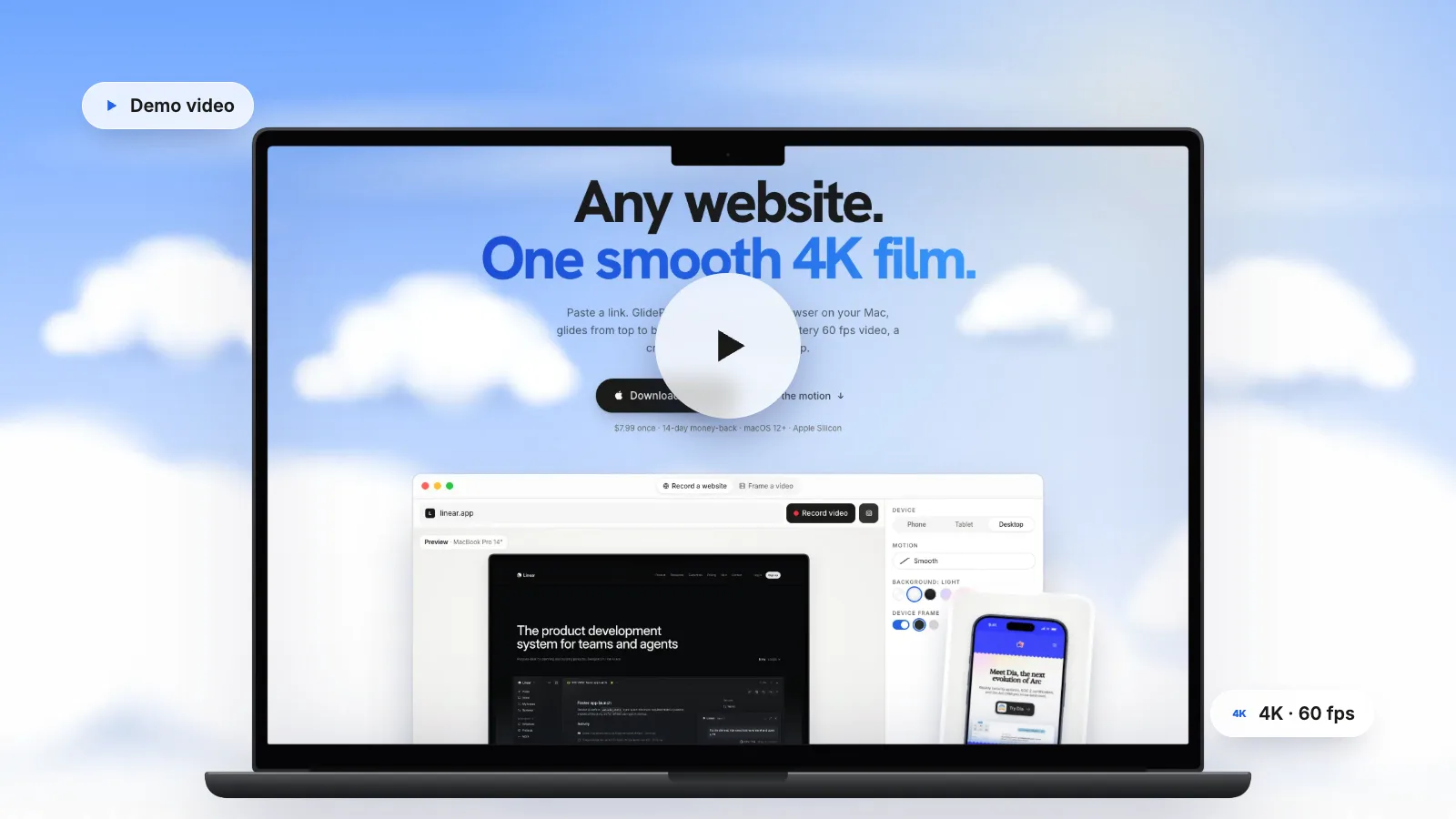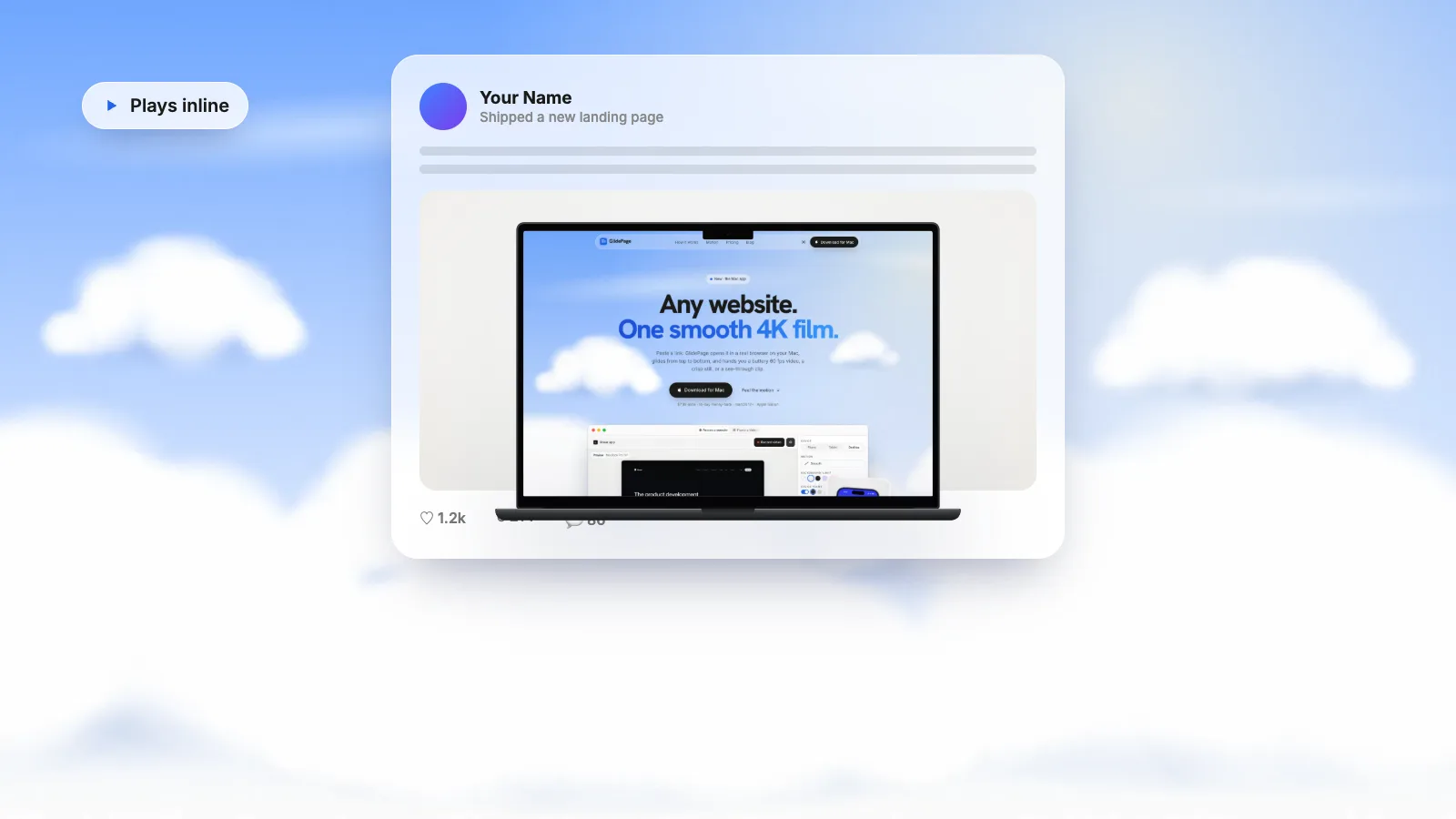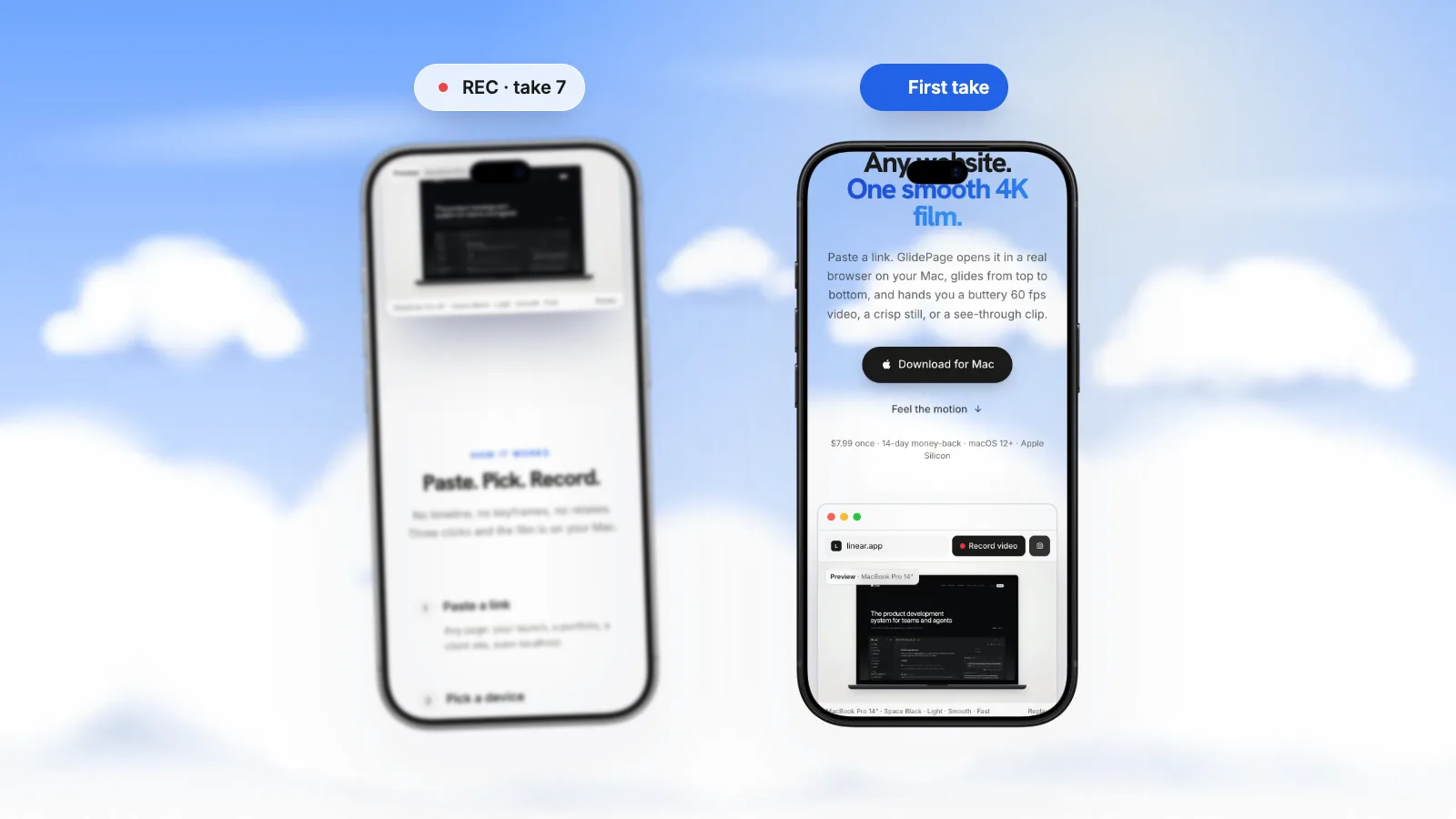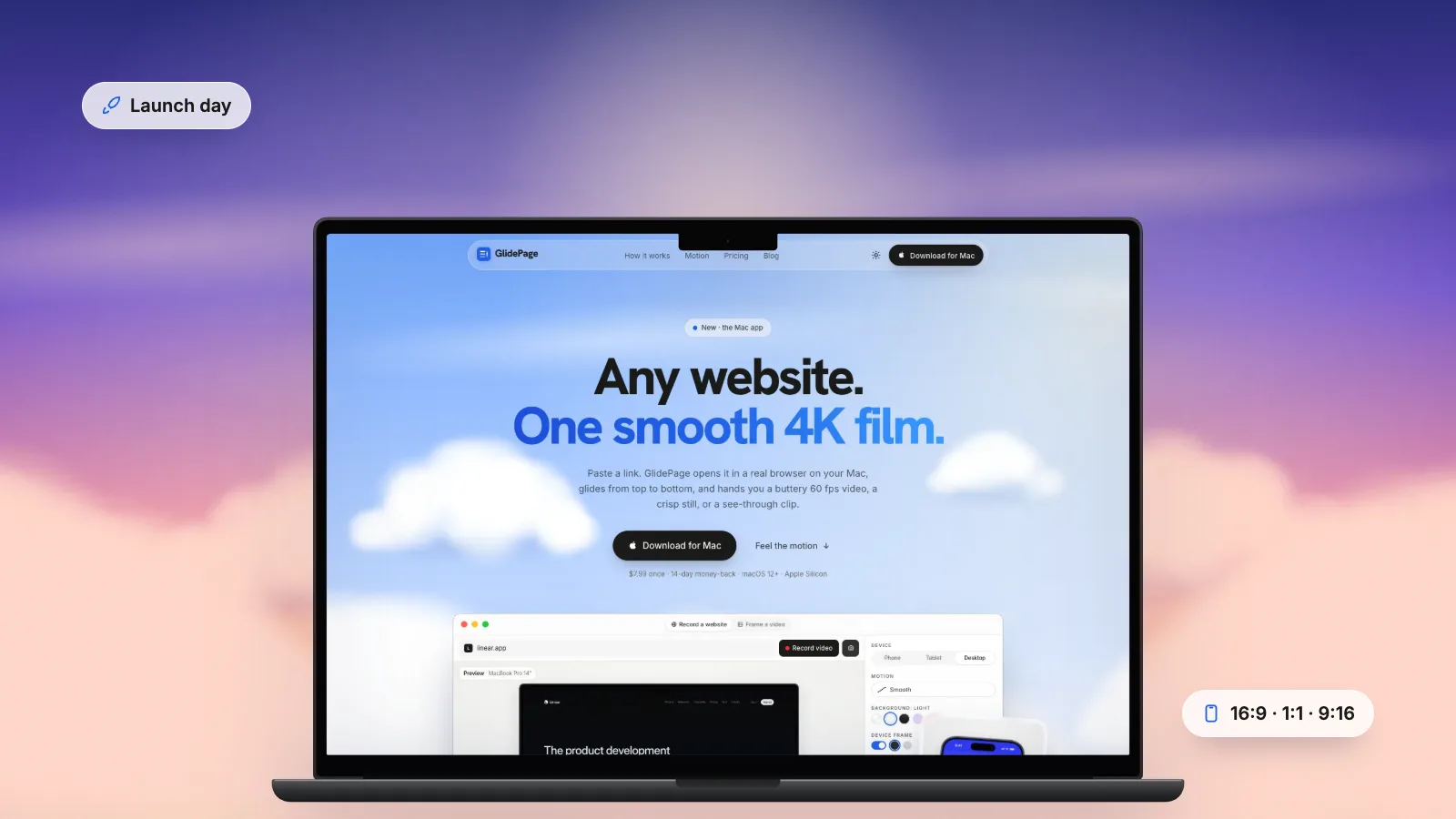
A good website launch video is 15 to 30 seconds of the real site in motion: the hero first, then the one section that explains what it does, silent and looping. Make a small kit from one page: a 16:9 desktop scroll for YouTube, X and LinkedIn (Product Hunt only accepts YouTube links for video), a vertical phone scroll for feeds, and 1270 × 760 stills for the Product Hunt gallery. You can do it for free with the Mac screen recorder and Preview, or with GlidePage, a Mac app for Apple Silicon that records the page as a smooth 4K, 60 fps scroll in a device frame and takes matching 4K stills.
On this page
- What a website launch video needs to do
- What to show (and what to leave out)
- A simple launch asset kit
- Formats for each launch destination
- Product Hunt: what the media guidelines say
- Length, pacing and looping
- Making the kit by hand on a Mac
- Making the kit with GlidePage
- Turning a clip into a small GIF
- Launch-day checklist
Launch day is loud. Your post sits in a feed between hundreds of others, and most people give it a second or two, with the sound off. A launch video has one job in that second: show the thing you made, clearly enough that someone stops scrolling.
For a website, the best footage already exists: the site itself. This guide covers what to show, what each launch destination wants, what Product Hunt's media guidelines say, and a small asset kit you can make in an afternoon.
What a website launch video needs to do#
Most launch videos are watched without anyone choosing to watch them. They autoplay in a feed, muted, at the size of a thumb. That changes what "good" means:
- It works in silence. If the story needs a voiceover, most people will never hear it. A website carries its own captions: the headlines on the page.
- The first frame sells. Feeds and galleries often show a still before anything plays, and a GIF thumbnail on Product Hunt only animates on hover. Start on your strongest screen, which is usually the hero.
- It shows the real product. Countdown templates and "We're live!" titles say that something launched. They do not say what. A few seconds of the real site does.
- It stays sharp on a phone. Every platform re-encodes what you upload. Starting from a high-resolution, high-frame-rate file keeps small text readable after compression.
- It loops cleanly. Short clips replay. A video that holds briefly at the start and end looks deliberate on the second loop instead of glitchy.
What to show (and what to leave out)#
A launch video is not a tour of every page. Pick the path a new visitor would take and show that, in order:
- The hero. Your headline and main visual, held long enough to read. This is the frame people judge you on.
- The one section that explains it. Usually a feature block, a product screenshot or a short "how it works". If you could keep only one section, which would it be?
- Proof. A row of logos, a testimonial or a number, if you have one. Keep it brief.
- The ending. The call to action or the footer, with a short hold so the loop does not snap back.
Leave out anything that makes people squint: dense tables, long legal text, empty states. Close anything that sits on top of the page, such as cookie banners, chat bubbles and newsletter pop-ups. They are the first thing a viewer's eye goes to.
A launch clip is not a demo. A demo walks through a task with a cursor and a voice; a launch clip is the silent teaser that gets people to click through. For the longer version, see how to make a website demo video.
A simple launch asset kit#
You do not need a studio. Four files, made from the same page on the same day, cover almost every launch destination:
| Asset | Shape and size | Where it goes |
|---|---|---|
| Desktop scroll | 16:9 landscape, a 3840 × 2160 master plus a 1080p copy | YouTube (for Product Hunt), X, LinkedIn, your homepage |
| Mobile scroll | 9:16 vertical, in a phone frame | Vertical feeds, stories, the second slot in a gallery |
| Gallery stills | 1270 × 760 PNG | Product Hunt gallery, your launch blog post, a press kit |
| Optional GIF | Small, under 3 MB | Product Hunt thumbnail or an inline preview |
Make the master files as large and smooth as you can, ideally 4K at 60 fps, then export smaller copies for each destination. Downscaling a sharp master looks better than upscaling a soft one, and a 60 fps scroll keeps text legible as it moves. 4K 60 fps website videos explains why the extra resolution survives platform compression.
Keep the look consistent across the kit: the same background, device family and page theme, so your X post and your Product Hunt gallery feel like one launch.
Formats for each launch destination#
Each platform has its own limits, and each re-encodes what you upload. These are the ones that matter for a launch, checked against each platform's help pages:
| Destination | What it accepts | What to give it |
|---|---|---|
| Product Hunt video | YouTube links only (full URL, not private) | The 16:9 desktop scroll, uploaded to YouTube first |
| Product Hunt gallery | Recommended 1270 × 760 images; at least 2 | Stills of the same page, including the mobile layout |
| X | Up to 140 seconds and 512 MB without Premium | A 1080p file, 15 to 30 seconds |
| 3 seconds to 15 minutes, up to 5 GB, up to 60 fps, MP4 supported | A 1080p MP4; vertical or square takes more room in the feed | |
| YouTube | MP4 with H.264 recommended, at the frame rate you recorded | The 4K, 60 fps master |
| Your homepage | Any web video; browsers let muted video autoplay | A short, silent, looping MP4 with a poster image |
A few details worth knowing:
- YouTube recommends an MP4 container with H.264 video and uploading at the frame rate you recorded, with 60 fps among the common rates it lists. For a 4K upload at 48 to 60 fps, it suggests 53 to 68 Mbps for SDR video.
- X limits accounts without Premium to 140 seconds and 512 MB per video, according to its help page. Premium allows much longer uploads, but a launch clip never needs them.
- LinkedIn lists MP4 among its supported formats and accepts frame rates up to 60 fps. Its help page warns that a ProRes file may upload but will not process, so post an MP4, not your editing master.
- On your own site, browsers block autoplay for video with sound but allow it for muted video. Add the autoplay, muted, loop and playsinline attributes to the video element, plus a poster image so something shows while it loads.
Website videos for LinkedIn and X goes deeper on aspect ratios, readability and compression for those two feeds.
Product Hunt: what the media guidelines say#
Product Hunt is where many website launches get their first big day, and its gallery has rules worth knowing before you make anything:
- Gallery images: the recommended size is 1270 × 760. The gallery needs at least two images before it is viewable, and you can drag to reorder them after uploading. Animated GIFs can be used in the gallery too.
- Thumbnail: square, with 240 × 240 recommended. All thumbnail images, GIF or not, must be under 3 MB. Animated thumbnails are optional: Product Hunt notes that fewer than a third of Product of the Day products used one.
- GIFs do not autoplay. They animate on hover, so the first frame is what most people see. Make sure it works as a still. Product Hunt also advises against GIFs with strobing effects, quick cuts or unreadable text.
- Video: only YouTube links are supported. Use the full URL (shortened links will not load) and make sure the video is not set to private. Upload it well before launch day.
- Is a video worth it? Product Hunt says about 53% of products that reached Product of the Day since 2021 included a video, while noting that a video is not always necessary.
For a website, a practical setup is: the 16:9 desktop scroll as the YouTube video, then three or four stills that each make one point (the hero, the key feature, the mobile layout, one close detail). The first still does most of the work in the feed, so make it readable at a glance.
Length, pacing and looping#
Launch videos are watched in fragments, so shorter is safer:
- Feeds (X, LinkedIn): 15 to 30 seconds. The first three seconds should already show the site.
- Product Hunt video: long enough to show the main path, which for a landing page is rarely more than 30 to 45 seconds of scrolling.
- Homepage hero: 8 to 20 seconds, looping, with nothing important in the last second.
Pacing matters as much as length. About one to two seconds per screen height lets people read the headlines, and a scroll that eases in and settles at the bottom looks intentional where a constant speed looks mechanical.
For a clean loop, hold for half a second on the first and last frames. When the video jumps from the footer back to the hero, the pause makes the cut read as a restart rather than a glitch.
Making the kit by hand on a Mac#
You can make every asset with tools that come with macOS. It costs nothing but time.
1. Prepare the page
Open the site in your browser and size the window to the shape you want, such as 16:9. Scroll through the whole page once so images and fonts load, then go back to the top. Dismiss cookie banners and chat widgets, and turn on a Focus mode so notifications stay out of the shot.
2. Record the desktop scroll
Press Shift-Command-5 to open the Screenshot toolbar, choose Record Selected Portion, frame the page area without the browser tabs, and click Record. Scroll with one long, gentle trackpad swipe. Click the Stop button in the menu bar at the bottom of the page, then click the thumbnail that appears in the corner of the screen to edit the recording and trim the ends. Expect a few takes. If the result stutters, why screen recordings look choppy explains the causes and fixes.
3. Record the mobile scroll
Use Safari's Responsive Design Mode or Chrome's device mode to show the site's phone layout at a phone size, and record it the same way. A bare phone-width recording looks unfinished in a feed, so you will want to place it in a phone frame on a background, which means a trip to a video editor or a design tool template.
4. Take the stills
Open the Screenshot toolbar again (Shift-Command-5) and use its still-image controls to capture the part of the page you want. Open the PNG in Preview, crop it to a 1270 × 760 shape, and resize it to exactly 1270 × 760 pixels. Keep in mind that a screenshot is limited to your display's resolution, so text can go soft if you enlarge it.
5. Upload to YouTube
Upload the desktop scroll, set it to public or unlisted (not private), and copy the full URL for your Product Hunt listing.
This works, within limits: the scroll speed depends on your hand, the resolution is capped by your display, and the device frame is a separate job in another app.
Making the kit with GlidePage#
GlidePage is a Mac app that turns a web page into a smooth scrolling video or a sharp still, which is most of a launch kit:
- Paste the link. A public URL, or a staging or localhost address if the site is not live yet.
- Record the desktop scroll. Pick a MacBook or iMac frame (or no frame), a background, a motion style and a speed, and press Record. It scrolls through once so lazy images and animations load, then captures every frame one at a time and encodes a 4K, 60 fps MP4 at 3840 × 2160.
- Record the mobile scroll. Switch to a current iPhone, Pixel or Galaxy. Phone layouts are rendered with a real phone user agent and viewport, so you get the site's actual mobile design, framed at 2160 × 3840.
- Take the stills. Photo mode takes a 4K PNG from any point on the page: press the camera, scroll to the spot with the scrollbar, press again. Use the same frame and background as the videos so the gallery matches.
- Make the GIF yourself. GlidePage does not export GIFs. Use the MP4, or export a frame sequence (every frame as PNG or JPEG in a ZIP), and convert it with ffmpeg as shown below.
Cookie banners are hidden by default, and nothing is uploaded: the page opens in the app's own browser on your Mac. It runs on Apple Silicon Macs with macOS 12 or later, and it cannot record pages behind a login. For the full walkthrough, see how to make a scrolling video of a website.
Turning a clip into a small GIF#
If you want an animated thumbnail or an inline preview, ffmpeg can turn the first few seconds of any MP4 into a GIF with a clean palette:
ffmpeg -i launch.mp4 -t 6 -vf "fps=15,scale=480:-1:flags=lanczos,split[a][b];[a]palettegen[p];[b][p]paletteuse" launch.gif
That keeps the first six seconds at 15 frames per second and 480 pixels wide. Check the file size: for a Product Hunt thumbnail it has to be under 3 MB, so lower the width, the frame rate or the length until it fits. Then open the GIF and look at the first frame on its own, because that is what people see until they hover.
Launch-day checklist#
- Desktop scroll: 16:9, a 4K master and a 1080p copy, 15 to 30 seconds
- Mobile scroll: vertical, in a phone frame, same background as the desktop one
- YouTube upload of the desktop scroll, public or unlisted, full URL copied
- Product Hunt gallery: at least two 1270 × 760 stills, strongest first
- Thumbnail: square, 240 × 240, under 3 MB, first frame works alone
- Homepage hero: muted, looping, playsinline, with a poster image
- No cookie banner, chat bubble or pop-up in any frame
- Every file watched once on a phone before you post
Make the kit a day early, and spend launch day answering people instead of re-exporting video.
Sources
- Product Hunt: Prepare for your Product Hunt launch (checked September 2026)
- Apple Support: How to record the screen on Mac (checked September 2026)
- X Help Center: How to share and watch videos on X (checked September 2026)
- LinkedIn Help: Video sharing troubleshooting (checked September 2026)
- YouTube Help: Recommended upload encoding settings (checked September 2026)
- MDN: Autoplay guide for media and Web Audio APIs (checked September 2026)



Make your site move.
Any page, one smooth 4K video. Framed, on any background, or transparent.
Questions, answered
What should a website launch video show?
The real site, starting with the hero, then the one section that best explains what it does, then proof and the call to action. Keep it silent-friendly, since most feeds autoplay muted, and remove cookie banners and pop-ups before you record.
How long should a website launch video be?
For X and LinkedIn feeds, 15 to 30 seconds works well, with the site visible in the first three seconds. A homepage hero loop can be shorter. About one to two seconds per screen height gives people time to read headlines.
What size are Product Hunt gallery images?
Product Hunt recommends 1270 × 760 for gallery images, and the gallery needs at least two images before it shows. The thumbnail should be square, 240 × 240 recommended, and under 3 MB.
Can I upload a video file to Product Hunt?
No. Product Hunt only supports YouTube links for video. Upload your video to YouTube first, make sure it is not set to private, and paste the full URL, because shortened links will not load.
Do GIFs autoplay on Product Hunt?
No. GIFs animate when someone hovers over them, so the first frame is what most people see. Make sure that frame works as a still and keep the file under 3 MB.
Should a launch video have sound?
It does not need it. Feeds autoplay muted and browsers only autoplay muted video on websites, so the video should tell its story without audio. A scrolling website does that well because the headlines do the talking.