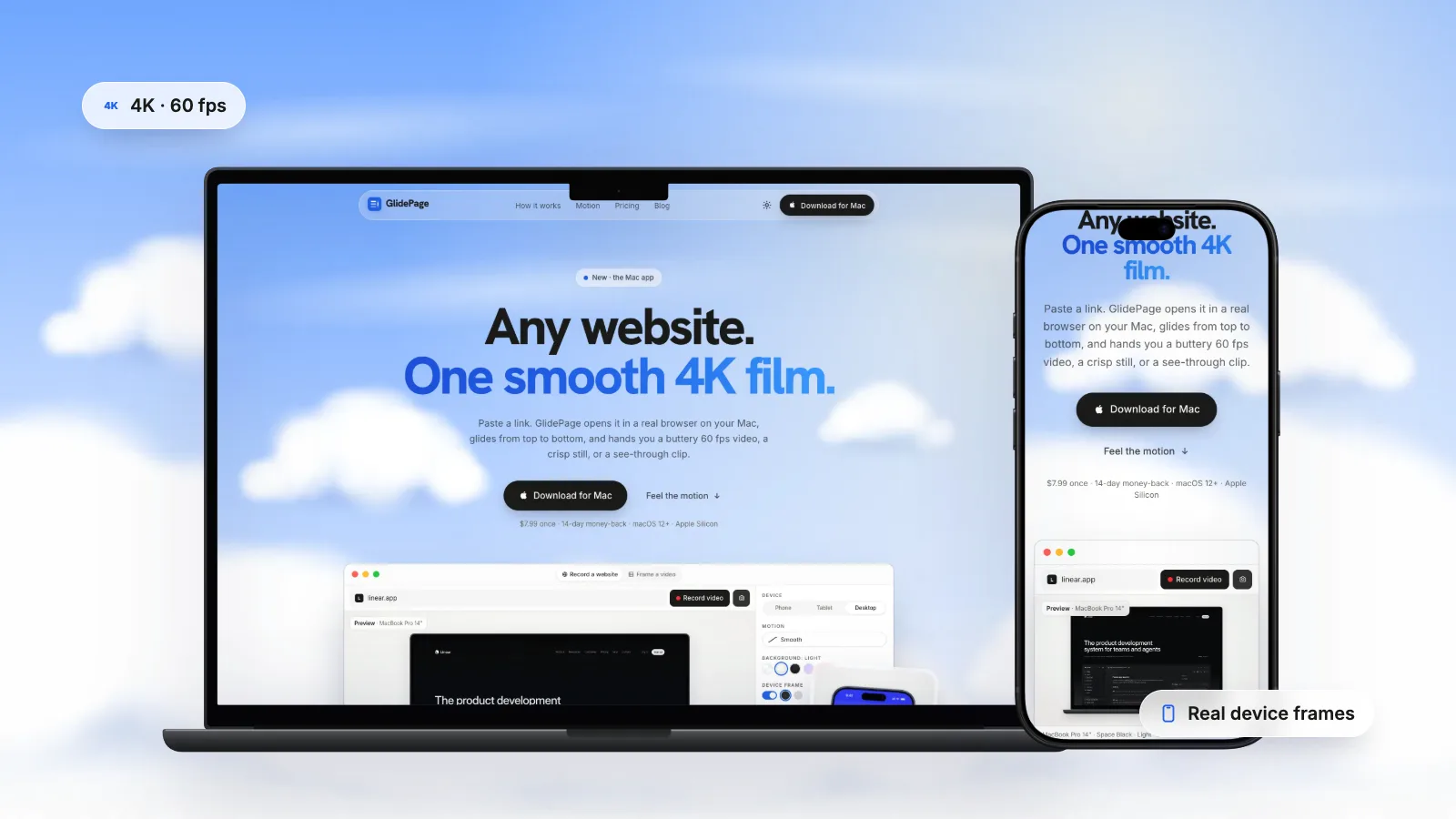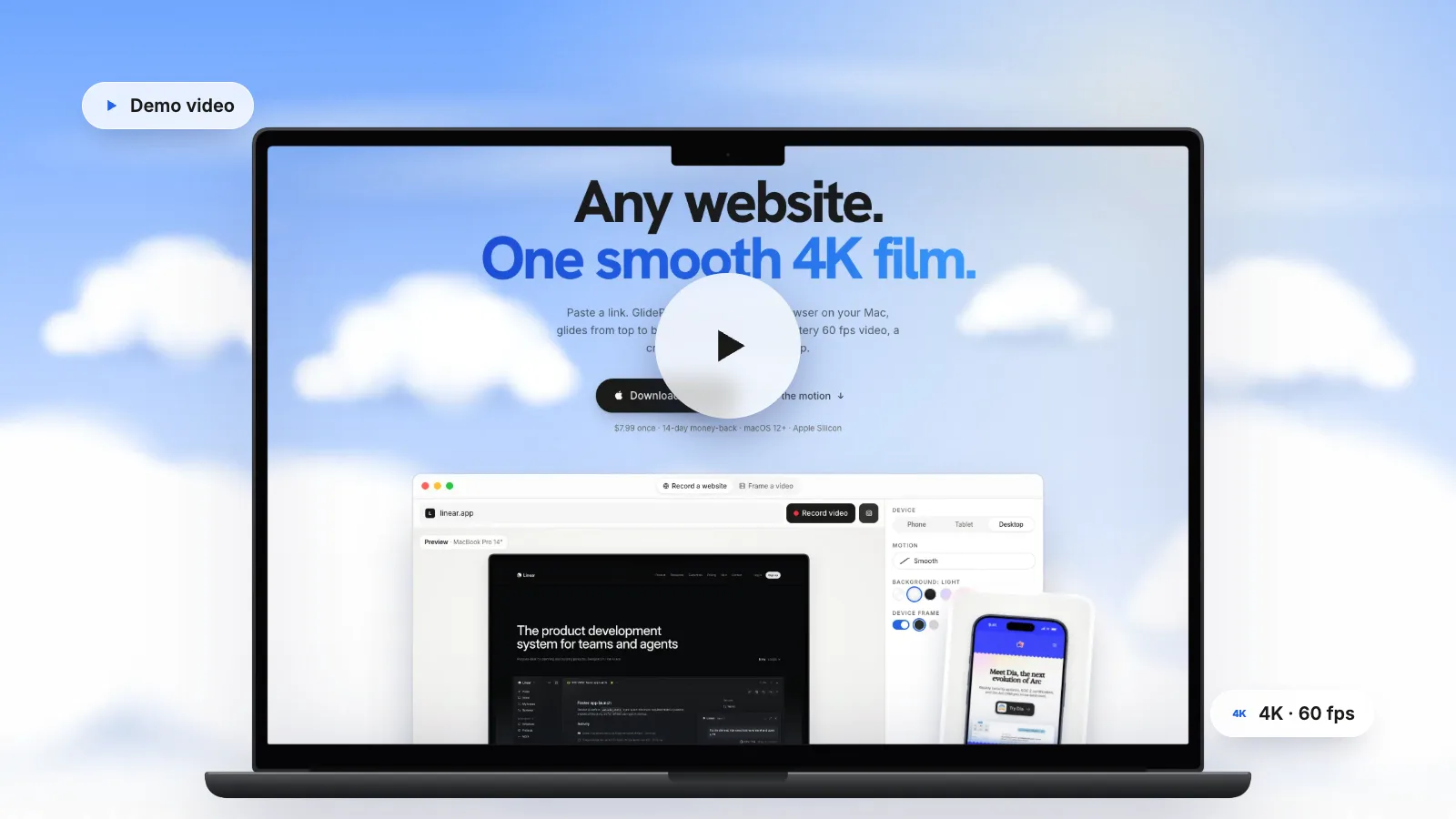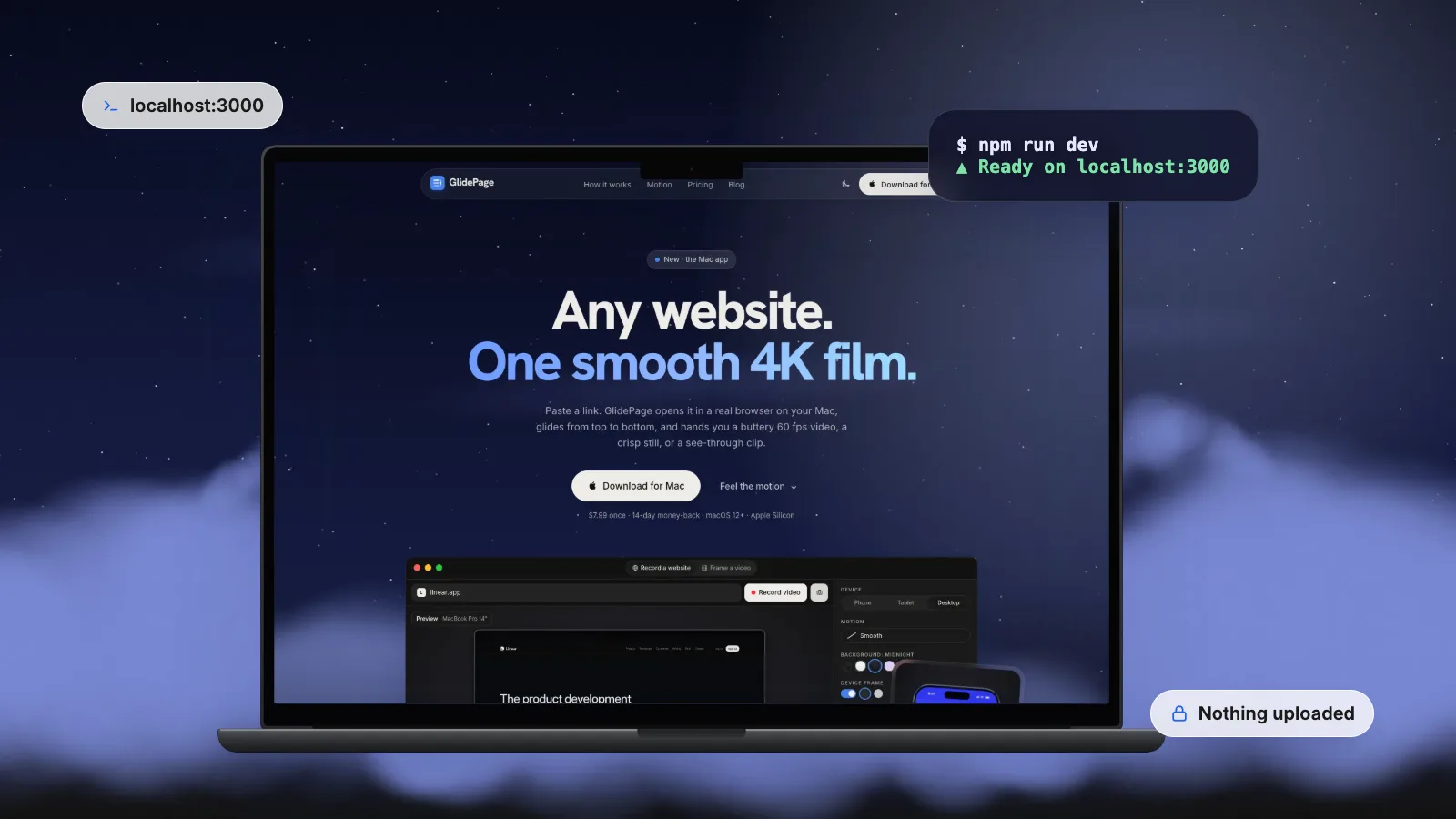
Online screenshot and scroll-video tools load pages from their own servers, so they cannot reach localhost, a LAN address or a .local host on your network. To record a site that is not public yet, record it on your own machine: screen record the dev server on your Mac (Shift-Command-5), script a headless browser locally, or use a local app. Tunnelling the dev server to a public URL also works, but it exposes unreleased work and a development server to the internet. GlidePage, a Mac app for Apple Silicon, records localhost, LAN and .local addresses as smooth 4K, 60 fps videos and uploads nothing.
On this page
- Why online recorders cannot see localhost
- Your options at a glance
- Option 1: screen record your dev server
- Option 2: tunnel it to a public URL, carefully
- Option 3: record it locally
- Get the site camera-ready
- Recording a staging site on your network
- What about pages behind a login?
- Keep unreleased work private
- Where to go next
You want a launch video, a portfolio clip or a client preview, and the site is not live yet. It runs on your laptop at localhost:3000, or on a staging box on the office network. You paste the address into an online scroll-video or screenshot tool, and it fails.
That is not a bug in the tool. It is how the web works. This guide explains why, walks through the ways to record a site that only exists on your machine, and covers the prep that makes a dev build look like a finished product on camera.
Why online recorders cannot see localhost#
Web-based generators do their work on their own servers. When you give them a URL, their browser, somewhere in a data centre, opens it. That is fine for public sites and useless for yours:
- localhost always means "this machine". The standard for special-use domain names says localhost names resolve to the loopback address, the computer asking. On their server, localhost:3000 is their server, not your laptop.
- .local names, like my-mac.local, are link-local: the Multicast DNS standard says they are meaningful only on the network where they originate. A server elsewhere cannot resolve them.
- LAN addresses, like 192.168.1.20, point to machines on your own network, which the outside world cannot reach.
So the recording has to happen somewhere that can see the site: on your Mac, or on another machine on the same network. Or you have to make the site public, which is what a tunnel does.
Your options at a glance#
| Method | Reaches localhost | Cost | Smoothness | Privacy |
|---|---|---|---|---|
| Screen record the dev server | Yes | Free | Depends on your hand and your Mac | Stays on your Mac |
| Tunnel it to a public URL, then use an online tool | Yes, via the tunnel | Free or paid | Depends on the tool | Unreleased work is on the public internet while the tunnel is open |
| Script a headless browser locally | Yes | Free, needs code | Excellent if captured frame by frame | Stays on your machine |
| A local recording app | Yes | Varies | Excellent | Stays on your Mac |
Option 1: screen record your dev server#
The quickest route uses what is already on your Mac.
1. Open the site and size the window
Open the local URL in your browser, make the window the size you want the video to be, and scroll through once so images and fonts load. Then scroll back to the top.
2. Record a selected portion
Press Shift-Command-5 to open the Screenshot toolbar, choose Record Selected Portion, and drag the frame around the page area (leave out the tabs and address bar, which show "localhost" to everyone). Click Record.
3. Scroll, then stop
Scroll in one long, steady motion. Stop with the button in the menu bar, or press Command-Control-Esc. The file lands on your desktop as a MOV.
This is free and private, but it has the usual limits of a live recording: the smoothness depends on your hand and your Mac, and the resolution is capped at your display. How to make a scrolling video of a website covers those trade-offs in detail.
Option 2: tunnel it to a public URL, carefully#
A tunnelling service gives your local server a temporary public address. Anything that can reach the internet, including an online recorder, can then load it. It works, and developers use tunnels every day for webhooks and quick previews. For recording unreleased work, weigh it first:
- Your unreleased site is public while the tunnel is open. Anyone with the link can see it, and links travel.
- Dev servers are not built to face the internet. Vite's own docs warn against using even its preview server as a production server, and a dev server is more permissive still.
- Host checks exist for a reason. Vite, for example, only answers to localhost, .localhost names and IP addresses by default. To serve a tunnel's hostname you have to allow it, and Vite warns that allowing every host exposes the dev server to DNS rebinding attacks that can download your source code. Add the one hostname you need, not everything.
- Client work may be under NDA. Sending a client's pre-launch site through a third-party service may not be yours to decide.
If you do tunnel: use a production build rather than the dev server, protect the URL if the service allows it, and close the tunnel as soon as the recording is done.
Option 3: record it locally#
The cleanest answer is a recorder that runs on your own machine, because it can see everything your browser can.
If you write code, script a headless browser (Playwright or Puppeteer) on your Mac. Point it at localhost, step the scroll position a little at a time, save a screenshot per frame, and join the frames with ffmpeg. Because each frame is captured on its own, the result is smooth; the pillar guide linked above covers what else you have to handle (easing, lazy images, animations, the device frame).
If you would rather not, GlidePage, a Mac app, does the same frame-by-frame capture with the hard parts handled, and it can record localhost, LAN addresses and .local hosts, such as a dev server on localhost:3000 or a staging site on your network:
- Paste the local address, for example http://localhost:3000.
- Pick a device: a current iPhone, Pixel, Galaxy, iPad, MacBook or iMac, or a custom size. Phone sizes load your site's real mobile layout.
- Choose motion, speed, frame and background, including a transparent export for editors.
- Press Record. It scrolls through once so lazy images, fonts and reveal animations load, then captures every frame and encodes a 4K, 60 fps video. Photo mode takes a 4K still if you only need a screenshot of the local site.
Pages, videos and stills stay on your Mac. Nothing is uploaded and no account is needed, which matters when the site is a client's unreleased work. It runs on Apple Silicon Macs with macOS 12 or later.
Get the site camera-ready#
A dev build is full of things you never notice while working and immediately notice on video. Before you record:
- Record a production build. Dev servers add overlays, extra logging and hot reloading. With Vite, run a build and then vite preview to serve it locally; most frameworks have an equivalent.
- Turn off error overlays if you must use the dev server. In Vite, setting server.hmr.overlay to false disables the error overlay.
- Do not save files mid-take. Hot reloading can refresh the page in the middle of a recording.
- Seed realistic data. Replace "Lorem ipsum", "Test User" and empty states with believable names, numbers and images.
- Freeze time-sensitive text. "Posted 2 minutes ago" and countdowns age badly in a video you will reuse.
- Check your web fonts really load. A font installed on your Mac can hide a missing web font. In Chrome DevTools, the Rendering tab's Disable local fonts option shows what visitors will actually see.
- Hide dev-only badges and toolbars, such as framework indicators, feature-flag panels and debug banners.
- Deal with the cookie banner. Accept it, or hide it; screenshots without cookie banners covers the options.
Recording a staging site on your network#
Sometimes the site runs on another machine: a teammate's laptop, a Mac mini in the office, a staging box. You can record it from your Mac as long as your Mac can open it in a browser.
- Make the server listen on the network. Many dev servers only listen on localhost by default. In Vite, the
--hostflag (or the server.host option) makes it listen on all addresses, including your LAN. - Use the machine's address. Either its LAN IP, like http://192.168.1.20:5173, or its .local name, like http://studio-mac.local:5173.
- Allow the hostname if needed. Vite accepts IP addresses by default, but a .local name has to be added to server.allowedHosts before the dev server will answer to it.
- Open it in a browser first. If your browser can load it, a local recorder can too.
Keep in mind that listening on all addresses makes the server reachable by anyone on the same network, so do it on a network you trust and switch it back afterwards.
What about pages behind a login?#
Screen recording works for any page you can see, including logged-in dashboards, because it just films your screen. Automated recorders are different: they open the page in their own browser, without your session.
GlidePage cannot record pages behind a login, because its built-in browser has no saved sessions. If the thing you want to show is a dashboard, the usual workarounds are:
- a demo route in your local build that renders the dashboard with seeded data and no authentication (and is never deployed);
- a public marketing page that shows the product in its best state;
- or a screen recording for that one section, framed afterwards.
Keep unreleased work private#
- Record locally where you can, so the site never leaves your machine.
- If you tunnel, allow only the tunnel's hostname, protect the URL and close it after the take.
- Crop out the address bar and bookmarks; they reveal project names and internal URLs.
- Check the recording for real customer data, email addresses and API keys in the page before you share it.
- Share the finished video, not the staging URL.
Where to go next#
Once the video is recorded, making a website launch video covers how to cut and post it for launch day, and website demo videos covers longer walkthroughs. For the recording techniques themselves, how to make a scrolling video of a website is the complete guide.
Sources
- Apple Support: How to record the screen on Mac (checked September 2026)
- RFC 6761: Special-Use Domain Names (localhost) (checked September 2026)
- RFC 6762: Multicast DNS (.local names) (checked September 2026)
- Vite docs: Server options (checked September 2026)
- Vite docs: Command line interface (vite preview) (checked September 2026)
- Chrome DevTools: Rendering tab effects (Disable local fonts) (checked September 2026)



Make your site move.
Any page, one smooth 4K video. Framed, on any background, or transparent.
Questions, answered
Can online screenshot or scroll-video tools record localhost?
No. They open pages from their own servers, where localhost means their own machine, and .local names and LAN addresses cannot be reached from outside your network. Record on your own Mac instead, or expose the site through a tunnel if you accept making it public for a while.
Is it safe to tunnel my dev server to record it?
It can be, with care. While the tunnel is open your unreleased site is on the public internet, and dev servers are not hardened for that. Use a production build, allow only the tunnel hostname, protect the link if you can, and close the tunnel when you are done.
Should I record the dev server or a production build?
A production build. It has no error overlays, hot reloading or debug badges, and it loads like the real site. With Vite, build the project and serve it locally with vite preview; other frameworks have similar commands.
How do I record a staging site on my local network?
Make sure the server listens on the network (in Vite, start it with --host), then open it from your Mac using the machine's LAN IP or .local name. If your browser can load it, you can screen record it, and GlidePage can record LAN and .local addresses directly.
Can I take a screenshot of a localhost page?
Yes. Any screenshot you take on your own Mac works, for example with the Screenshot toolbar (Shift-Command-5). GlidePage's photo mode also saves a 4K PNG of a local page at any scroll position, inside a device frame if you like.
Can GlidePage record pages behind a login?
No. Its built-in browser has no saved sessions, so logged-in pages show their login screen. Use a demo route with seeded data in your local build, or screen record that section yourself.