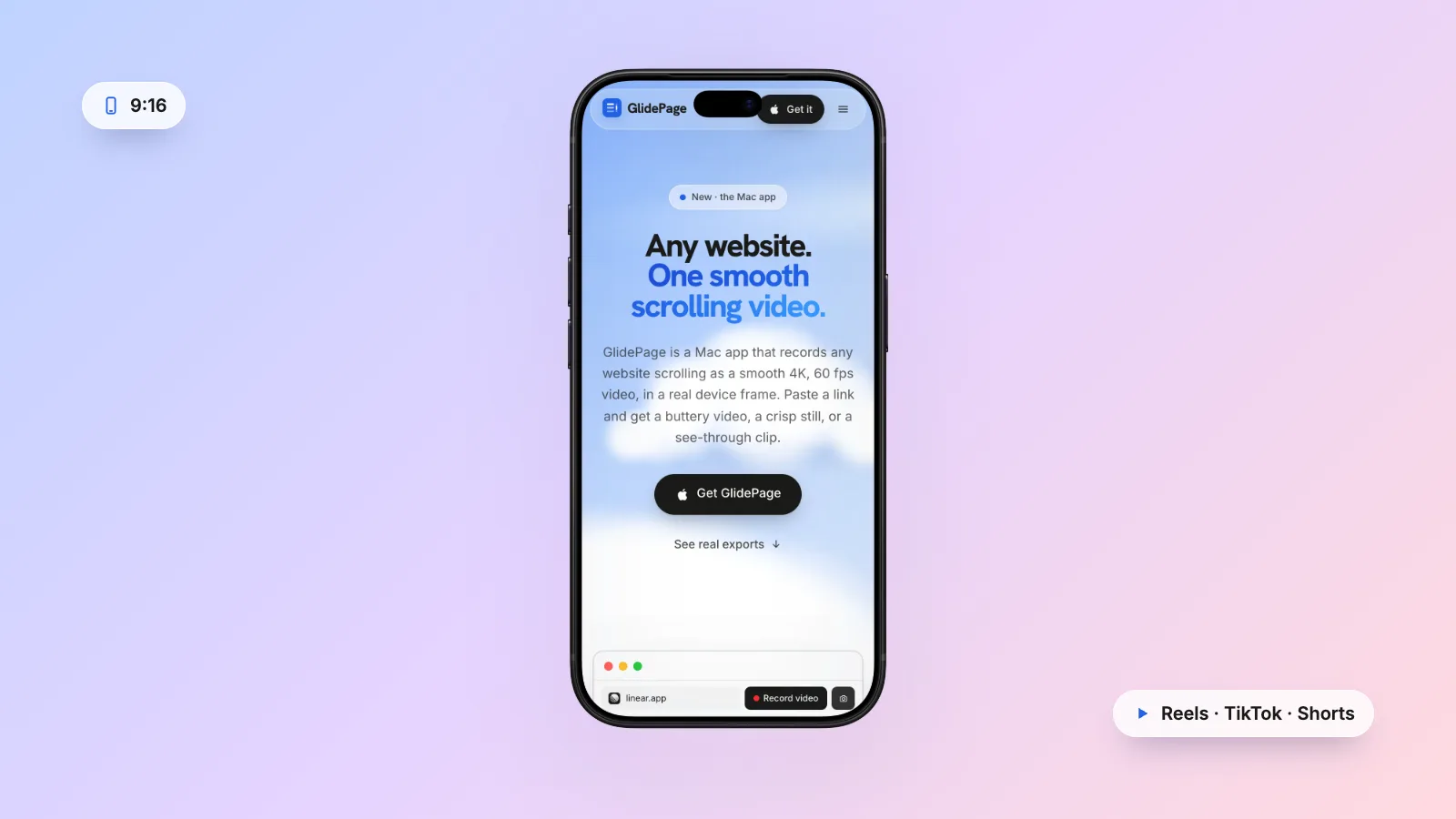
To turn a website into a video for Instagram Reels, TikTok or YouTube Shorts, capture it in a vertical 9:16 shape, ideally showing the site's mobile layout, at 1080 × 1920 or larger and at least 30 fps, and keep headlines out of the bottom third, where captions and buttons sit. The free way is to screen record the site on your iPhone from Control Center, then trim it and add text or music in the platform's own editor. GlidePage, a Mac app for Apple Silicon, records the real mobile layout inside a phone frame as a smooth 2160 × 3840 video at 60 fps, or places a zoomed desktop site on a 9:16 background.
On this page
- Reels, TikTok and Shorts specs at a glance
- Mobile layout or zoomed-in desktop?
- Keep text and buttons out of the safe zone
- Pacing: slower and shorter than you think
- The free method: screen record on your iPhone
- Making it with GlidePage
- Add captions, text and music in the platform's editor
- Checklist before you post
Vertical video feeds are where a lot of people discover new products now, and a website is a natural fit for them: it is tall, it scrolls, and it is already designed for a phone. Yet most website clips in those feeds are hard to watch. A wide desktop page sits in a thin strip across the middle, the text is too small to read, and the headline hides under the caption.
This guide covers what Reels, TikTok and Shorts accept, how to decide between the mobile layout and a zoomed desktop layout, where the platform buttons will cover your video, how to pace the scroll, and two ways to make the clip: free on your iPhone, or in one step on a Mac.
Reels, TikTok and Shorts specs at a glance#
These numbers come from each platform's own help pages. TikTok publishes its clearest specs for in-feed ads, so those are used here as the target.
| Instagram Reels | TikTok | YouTube Shorts | |
|---|---|---|---|
| Shape | Anything from 1.91:1 to 9:16; 9:16 fills the screen | 9:16 recommended (in-feed ad specs) | Square or vertical |
| Resolution | At least 720 px; Meta's Reels ad guide recommends 1440 × 2560 | At least 540 × 960 for vertical in-feed ads | Not stated on the upload page |
| Frame rate | At least 30 fps | Not stated | Not stated |
| Length | Up to 20 minutes; reels over 3 minutes are not recommended to new audiences | Up to 10 minutes for in-feed ads | Up to 3 minutes |
| Safe zone | Reels ads: keep 14% at the top, 35% at the bottom and 6% on each side clear | Downloadable templates; the zone depends on the format and caption length | No figure in the Shorts upload help |
What that means in practice:
- Make it 9:16. All three platforms take a vertical video, and 9:16 is the one shape that fills a phone screen on each of them.
- Export at 1080 × 1920 or larger. It clears every minimum above. A 4K master (2160 × 3840) gives the platforms a sharper file to compress, and they will scale it down for playback.
- Use an H.264 MP4. Meta's Reels ad guide lists MP4 and MOV, and TikTok's ad specs list .mp4 among their formats.
- Record at 30 or 60 fps. Instagram asks for at least 30. Scrolling text looks smoother at 60, which is worth having if your tool can capture it cleanly.
Length limits are generous everywhere. A website clip rarely needs more than half a minute, so you will not come close to any of them.
Mobile layout or zoomed-in desktop?#
A 9:16 frame is the shape of a phone screen, so the most natural thing to put in it is your site's mobile layout. The text is already sized for a phone, the layout is a single column, and the page fills the whole frame. Anyone who taps through from a Reel or a TikTok will land on that same mobile layout, so the video sets the right expectation.
A desktop layout is a different problem. A 16:10 laptop page placed across a 9:16 frame covers roughly a third of the height, and a 1440-pixel-wide page shrunk to the width of a phone turns 16-pixel body text into something around 4 or 5 points tall on a typical phone screen, about a quarter of its size in the mobile layout. There are still good reasons to show the desktop design, and ways to make it readable.
| Situation | Show | Why |
|---|---|---|
| Consumer product, landing page, shop | Mobile layout in a phone frame | Fills the frame and matches where viewers will visit |
| SaaS dashboard or a desktop-first tool | Zoomed desktop layout on a 9:16 background | The desktop screen is the product |
| Web design portfolio piece | Both, as separate clips or one after the other | Shows the design works at every size |
| Very long page | Mobile layout, faster speed, trimmed | Keeps the clip short |
Making a desktop site readable in 9:16
- Zoom the page. Recording at 150% or more makes the type larger relative to the frame. The layout reflows as it does with browser zoom, so at higher zoom some sites switch to a narrower layout, which can actually help.
- Put the device high and add a headline. A laptop in the upper half of the frame, with a line of text above it and space below, reads as a designed graphic rather than a shrunken screen.
- Show less of the page. Pick the hero and one or two sections, not the whole page.
If the mobile design is strong, lead with it. Mobile website mockup videos covers how to capture the real mobile layout, and why a shrunken desktop page never looks right in a phone.
Keep text and buttons out of the safe zone#
Vertical feeds put their own interface on top of your video: the account name, caption and audio details at the bottom, and a column of buttons for likes, comments and shares down the right side. Anything of yours that sits under them is hard to see.
Meta publishes exact numbers in its Reels ad guide: keep at least 14% at the top, 35% at the bottom and 6% on each side free of text, logos and other key elements. On a 1080 × 1920 video that is about 270 pixels at the top, 670 at the bottom and 65 on each side. The clear area left over is roughly a square in the upper middle of the frame. Those numbers are written for ads, but organic Reels carry the same kind of overlays. TikTok offers downloadable safe zone templates for its ad formats, and notes that the zone depends on the video's shape and the length of the caption. For Shorts, follow the same rule of thumb: keep anything important away from the bottom and the right edge.
For a website video, scrolling helps: every part of the page passes through the clear area on its way up. What matters is what stays put:
- The first frame. Start with the headline in the upper half of the frame, not at the bottom of a phone screen.
- Sticky bars. A fixed bottom call-to-action bar on the site will sit under the caption for the whole clip. If it matters, zoom or reposition so it clears the bottom third.
- Your own text overlays. Put them near the top, inside the side margins.
Pacing: slower and shorter than you think#
A phone screen is small and people watch while scrolling past other videos, so a website clip needs a calmer pace than a desktop demo.
- One idea per clip. Show the hero and the one section that explains the product. If you have three features to show, make three clips.
- Slow the scroll down. On a phone, about one and a half to two seconds per screen height gives people time to read a headline. Fast scrolling also compresses badly, because every frame is different from the last.
- Hold the first second. Let the loaded hero sit still for a beat before it moves. That is the moment someone decides to keep watching.
- Ease in and out. A scroll that starts gently and settles at the end reads as intentional, like a camera move. A constant, fast scroll reads as someone flicking through.
- Keep it short. Clips of 10 to 30 seconds are common for this kind of content, and a short clip is easy to watch twice. Trim the ending so it stops on a strong section rather than an empty footer.
The free method: screen record on your iPhone#
Your iPhone can record its own screen, and it shows the real mobile rendering in Safari. Here is how to get a clean take.
1. Get the page ready
Open the site in Safari and scroll to the bottom and back so images and fonts load. Dismiss the cookie banner and any pop-ups. Silence notifications so nothing slides in during the take.
2. Start the recording
Swipe down from the top-right corner of the screen to open Control Center, tap the gray Record button, and wait for the three-second countdown. Close Control Center to start recording what is on screen. If you do not see the Record button, add it to Control Center first.
3. Scroll slowly and evenly
Use short, steady drags with one finger rather than flicks. A flick sends the page flying and then coasts to a stop, which looks rushed on video. Take a few runs and keep the best one.
4. Stop and find the clip
Tap the Screen Recording button at the top of the screen, then tap Stop, or open Control Center and tap the red Record button. The recording is saved in the Photos app.
5. Trim and post
Upload the clip in the Instagram, TikTok or YouTube app, trim off the countdown and the first seconds, and add text or music in their editor.
It is free and it shows the genuine mobile rendering, but it has limits. Your status bar, Safari's toolbars and any notification are in the shot. The scroll is only as smooth as your thumb. And a modern iPhone screen is taller than 9:16, which is outside the range Instagram's help page lists, so expect the app to crop or fit it; check the preview before you post. To tidy the clip up afterwards, adding an iPhone frame to a screen recording shows how to place it in a device frame on a background.
Making it with GlidePage#
GlidePage is a Mac app that turns a link into a scrolling video, and vertical clips are one of the things it is built for:
- Paste the link. Any public page, or a local one such as a dev server on localhost:3000.
- Pick a phone. Current iPhones, Pixel and Galaxy phones, in their real colours. The page is loaded with a real phone user agent and viewport, so the site shows its actual mobile layout, and the frame keeps content clear of the status bar and Dynamic Island.
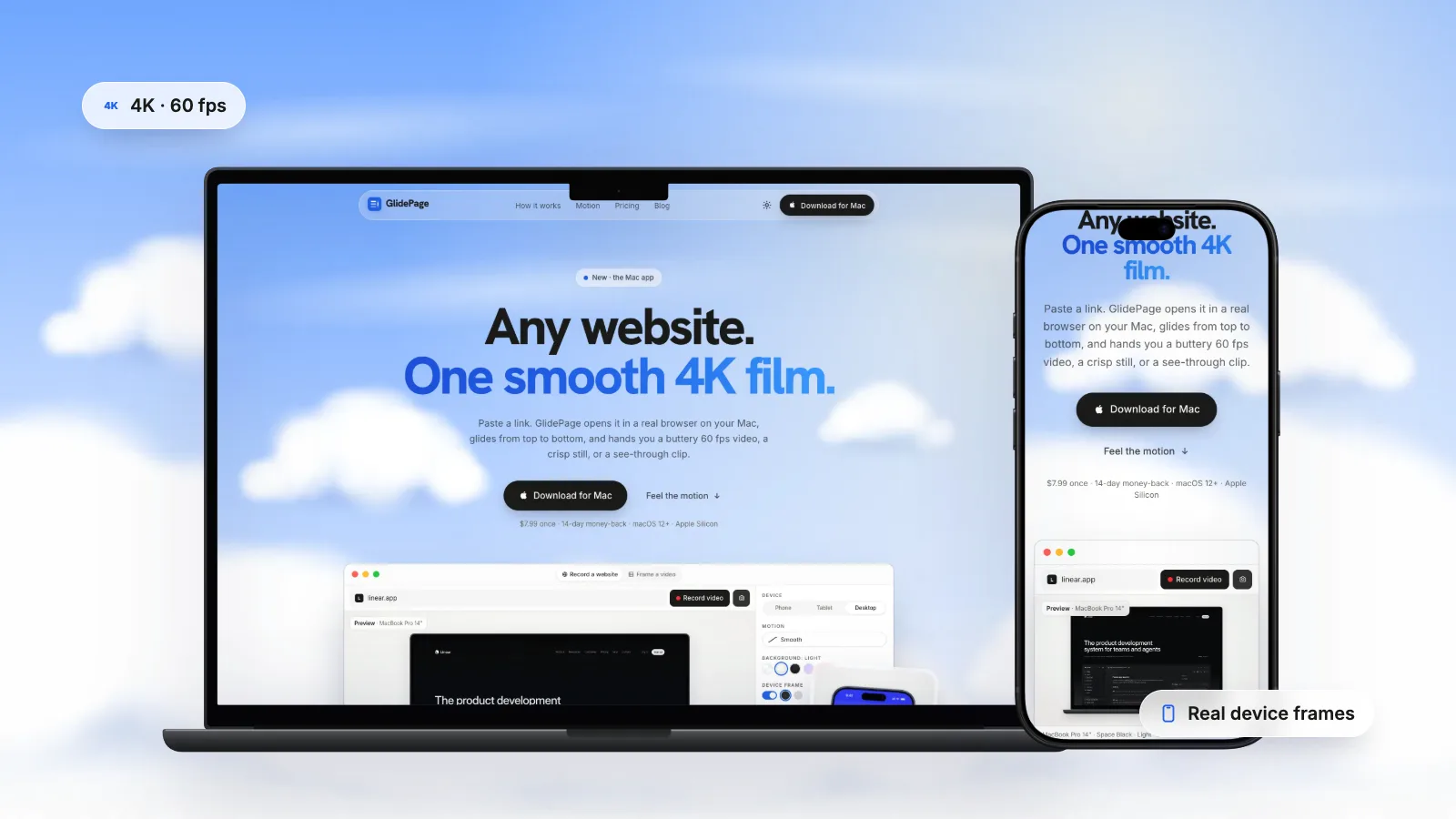
- Or pick a laptop for a desktop site. Choose a background and set the canvas to 9:16, then raise the page zoom (anything from 50% to 200%) until the type reads well. The layout reflows and the output resolution stays the same.
- Choose the motion and speed. Smooth eases in and out; Steady keeps a constant pace. The speed slider is measured in seconds per screen, and speed follows screen height, so a phone and a laptop feel similar at the same setting.
- Choose the export. A phone in its frame or on a background comes out at 2160 × 3840, exactly 9:16. The HD option gives 1080 × 1920 and records noticeably faster. Pick 60 or 30 fps.
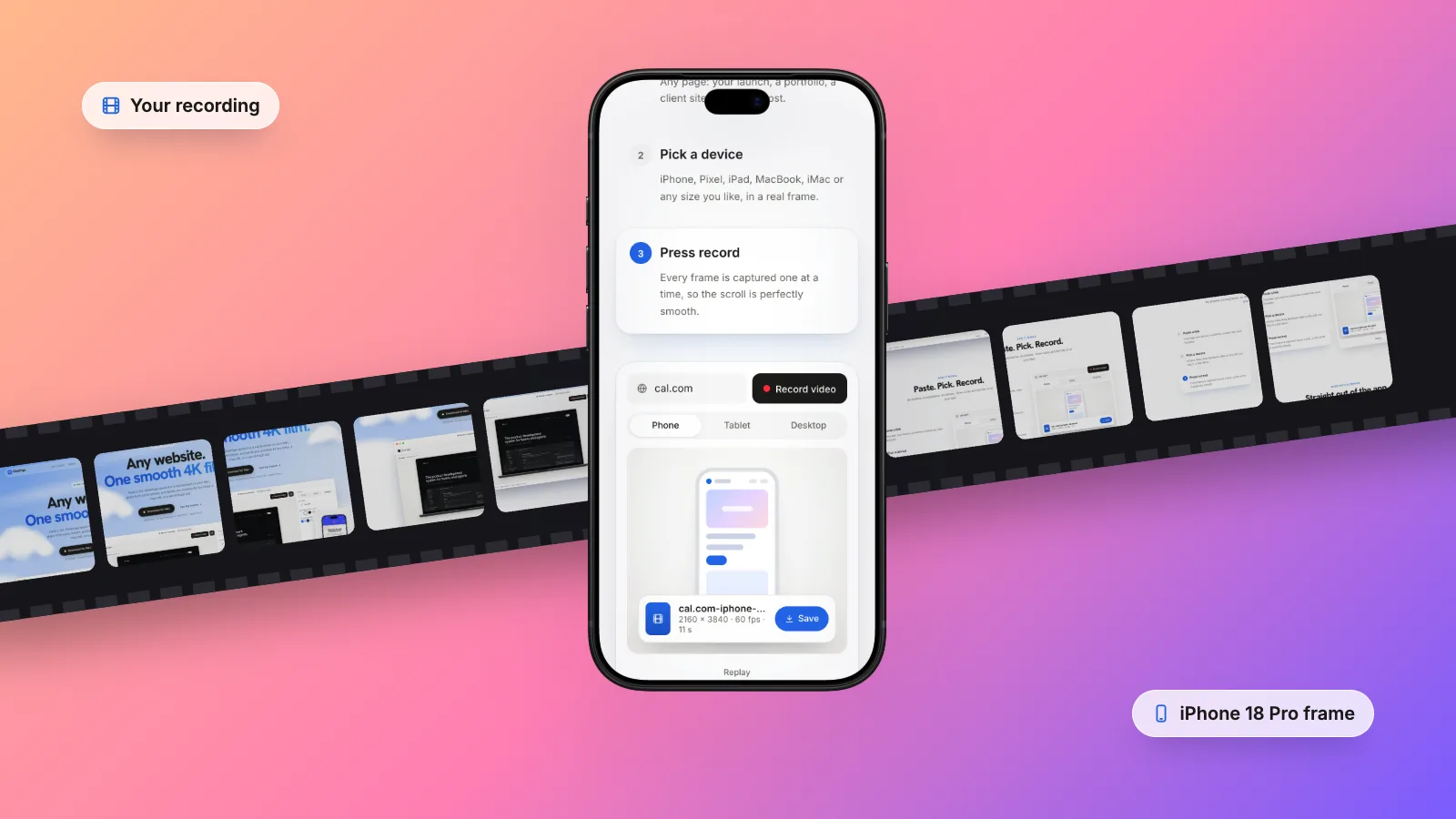
- Press Record. It scrolls through once so lazy images and reveal animations load, then captures every frame one at a time, so the scroll is smooth however busy your Mac is.
Common cookie banners are hidden by default, and anything the filter misses can be closed in Take control or removed with Hide element. You can record the site in light or dark mode. For a sense of timing: a 31.4-second iPhone 18 Pro recording of this site's landing page at 4K and 60 fps took about five and a half minutes on a MacBook Air M4 and came out at 71.0 MB, comfortably inside every upload limit above.
Everything runs on your Mac, with no upload and no account. GlidePage does not add captions, text, music or voiceover. It can record pages behind a login: sign in with Take control before you record. It runs on Apple Silicon Macs with macOS 12 or later.
Add captions, text and music in the platform's editor#
Each platform's own editor is the right place for the finishing touches, because it shows you exactly where its buttons and caption will sit:
- Text on screen. A short line such as the product name and what it does, placed in the upper part of the frame, inside the side margins.
- Music. Instagram lets you add music or your own audio to a reel, and the other apps have similar libraries. A silent scroll works too, since many people watch with the sound off.
- Captions. Automatic captions transcribe speech. A silent scroll has none, so use on-screen text and a clear post caption instead. If you add a voiceover, turn captions on.
- Cover. On Instagram you can choose a cover frame from the clip. Pick one where the hero and headline are clearly visible.
- Alt text. Instagram's reel flow includes a field for alternate text. Describe the site in a sentence for people using a screen reader.
Checklist before you post#
- 9:16, at 1080 × 1920 or larger, as an H.264 MP4
- At least 30 fps; 60 for the smoothest scroll
- Mobile layout for phone-first sites; zoomed desktop only when the desktop design is the point
- Headline in the upper half of the first frame, nothing important in the bottom 35% or along the right edge
- One idea per clip, 10 to 30 seconds, ending on a strong section
- No cookie banner, chat bubble or notification in the shot
- Text, music and cover added in the platform's editor
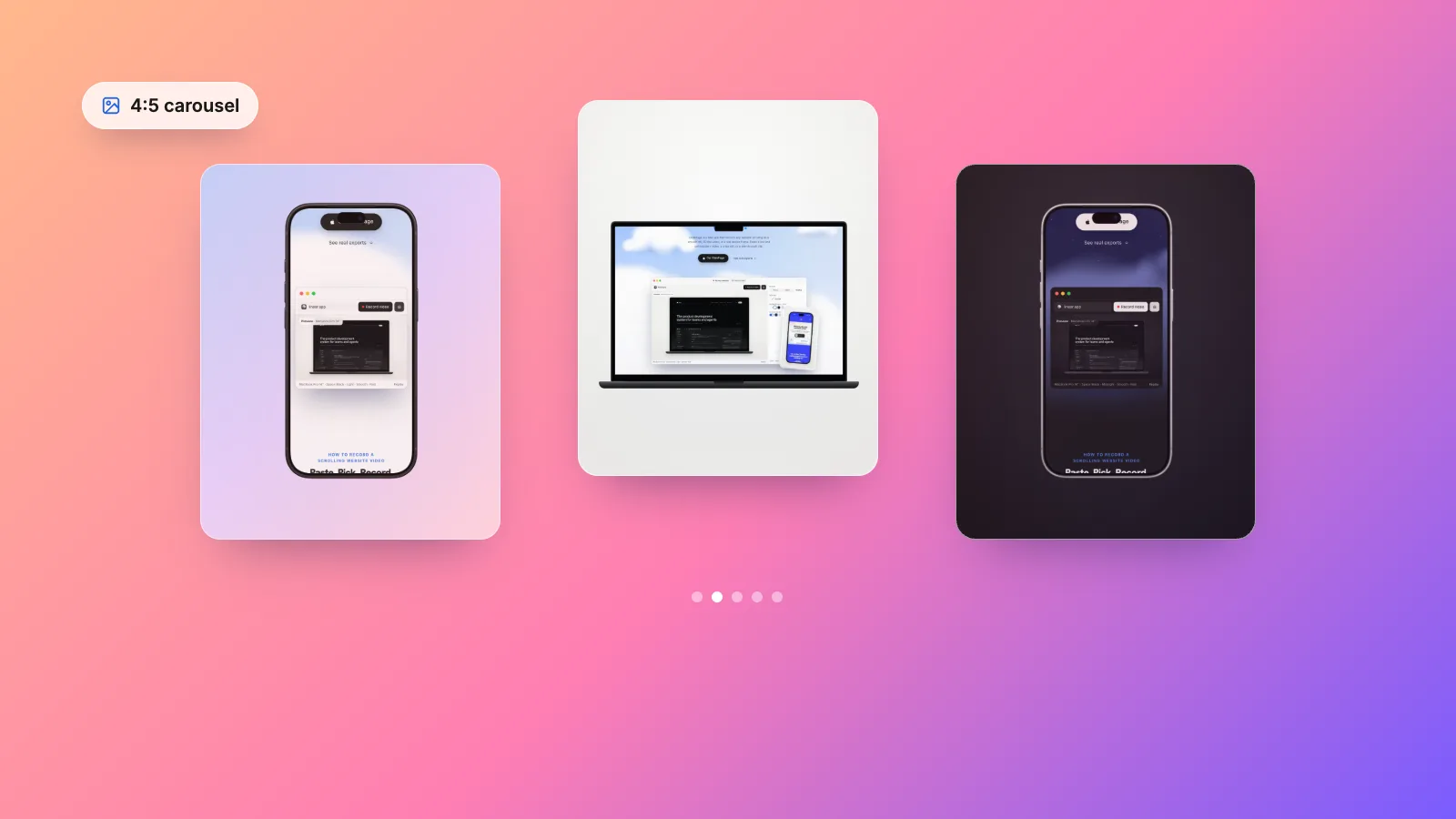
For a still version of the same site, website mockups for Instagram covers 4:5 carousels, and for landscape feeds, website videos for LinkedIn and X has their specs. The complete guide to the scroll itself is how to make a scrolling video of a website.
Sources
- Instagram Help Center: Reel size and aspect ratios (checked September 2026)
- Instagram Help Center: Record a reel (length and editing) (checked September 2026)
- Meta Ads Guide: Instagram Reels video ads (safe zone) (checked September 2026)
- TikTok Ads: In-feed video ad specifications (checked September 2026)
- YouTube Help: Upload YouTube Shorts (checked September 2026)
- Apple Support: Take a screen recording on iPhone (checked September 2026)



Make your site move.
Any page, one smooth 4K video. Framed, on any background, or transparent.
Questions, answered
What size should a website video be for Instagram Reels?
Vertical 9:16 at 1080 × 1920 or larger. Instagram's help page accepts reels from 1.91:1 to 9:16 with a minimum resolution of 720 pixels and at least 30 fps, and Meta's Reels ad guide recommends 1440 × 2560. A 2160 × 3840 master is also 9:16 and gives Instagram a sharper file to compress.
How do I fit a desktop website into a 9:16 video?
Show the mobile layout if the site has a good one, since it fills the frame naturally. If the desktop design is the point, zoom the page to 150% or more so the type is larger, place the laptop in the upper half of a 9:16 background with a headline above it, and show only the hero and one or two sections.
What is the safe zone on Instagram Reels?
Meta's Reels ad guide asks you to keep at least 14% at the top, 35% at the bottom and 6% on each side free of text, logos and key elements, so the caption, account name and buttons do not cover them. On a 1080 × 1920 video that leaves roughly a square area in the upper middle of the frame.
Should a website video for Reels or TikTok be 30 or 60 fps?
Instagram asks for at least 30 fps, so both work. Scrolling text looks noticeably smoother at 60 fps, as long as the recording captures every frame cleanly. A hand-held phone recording that drops frames will not look better just because it is labelled 60 fps.
How long should a website video on Reels, TikTok or Shorts be?
Short. The limits are generous, with Shorts up to 3 minutes and Reels up to 20, but 10 to 30 seconds is common for a website clip. Show one idea per video, such as the hero and one key section, and trim the end before the footer.
Should I use 9:16 or 4:5 for a website video?
Use 9:16 for Reels, TikTok and Shorts, because it fills the screen on all three. A 4:5 video suits a feed post or a slide in an Instagram carousel, where the slides share one shape.