To record Framer scroll animations, capture the published site with a smooth, automatic scroll, and turn on replay for the reveals you want on camera, because a reveal that plays only once is used up by any earlier pass down the page. A free macOS screen recording (Shift-Command-5) catches Appear effects if you start recording before you reload, but it drops frames on effect-heavy pages. GlidePage, a Mac app for Apple Silicon, records frame by frame instead: Appear intros play from the start, Scroll Transforms, parallax and sticky sections follow the scroll, and tickers advance in step, while hover effects and page transitions are not recorded.
On this page
- Why Framer motion is hard to capture
- The five kinds of Framer motion
- What shows on camera, effect by effect
- The Replay tip: decide which reveals play on camera
- Method 1: record it by hand on a Mac
- Method 2: record it with GlidePage
- Making parallax, transforms and sticky sections read well
- Troubleshooting Framer recordings
A Framer template is often bought on its motion: a hero that fades up as the page loads, cards that slide in as you scroll, a product shot that turns with the scroll, a logo ticker that never stops. Then you record it for the listing or a launch post, and half of it is missing. The intro has already played, the reveals are already in place, the ticker stutters and the parallax wobbles along with your hand.
None of that is a bug in your site. Each kind of Framer effect runs on a different clock, and each reacts to a recording in its own way. This guide sorts them out, shows what each one does on camera, and covers the one setting that decides whether your reveals play in the video.
Why Framer motion is hard to capture#
A live screen recording asks your Mac to render the page and encode video at the same time. When it falls behind, frames are dropped, and Framer sites with parallax, transforms, blur and tickers make it fall behind more often. Why screen recordings look choppy covers the general causes.
Motion adds three problems of its own:
- Time-based effects jump. Loops and tickers are built to stay on time, so when the browser falls behind they skip ahead, and the video shows the skip.
- Scroll-linked effects copy your hand. A transform tied to the scroll position moves exactly as unevenly as you scroll.
- Reveals play once. Many reveals run the first time an element enters the view and never again, so any scroll before the take uses them up.
The general version of this problem, with code-level fixes for any site, is in how to record website animations. This page is about Framer's own effects.
The five kinds of Framer motion#
Before you record, work out which kinds your page uses. Most templates mix all five.
1. Load effects
Appear effects animate a layer in when the visitor arrives. Framer Academy describes them as "perfect for adding animations above the fold, since they start automatically when the page loads."
2. Scroll-linked effects
These are tied to the scroll position, not to time:
- Scroll Transforms map the page's scroll range to properties such as position, scale, rotation or opacity, between a start and an end point you set around a section.
- Scroll Speed moves layers faster or slower than the page. Framer's lesson puts it simply: apply it "to foreground and background layers at different rates to create parallax."
- Sticky layers move with the page until they reach their set edge, stay there while their parent section passes, then leave with it.
- Scroll Variants connect named Scroll Sections to a component's variants, so the component changes as the visitor reaches each section, and the On Scroll trigger starts animations when the visitor scrolls up or down.
3. Scroll-triggered reveals
These start when a layer or section reaches a chosen point in the viewport, then play on their own timing: the fade-ups and slide-ins on most templates. Whether one plays once or every time it comes into view is its replay behaviour, which matters more than anything else on this page.
4. Time-based effects
The Loop effect repeats a property such as rotation, position, scale or opacity. The Ticker effect runs continuous animation for text, images and more on a Stack or CMS Collection List. Videos playing on the page belong here too.
5. Interaction effects
Hover and press states, component variants switched by click, mouse enter or mouse leave, and page transitions between pages. These need a visitor's pointer, which matters below.
What shows on camera, effect by effect#
| Framer effect | Driven by | Hand screen recording | GlidePage |
|---|---|---|---|
| Appear effect on page load | Page load | Plays only if the page loads while you record | Plays from the start on the first screen |
| Scroll-triggered reveal, replay on | Entering the viewport | Plays, if your scroll gives it time | Plays on camera as it scrolls in |
| Scroll-triggered reveal, replay off | Entering the viewport, once | Plays only on the first pass after a reload | Already finished: the warm-up pass played it |
| Scroll Transforms | Scroll position | Follows your hand, wobbles included | Follows the recorded scroll |
| Scroll Speed (parallax) | Scroll position | Follows your hand | Follows the recorded scroll |
| Sticky sections | Scroll position | Follows your hand | Follows the recorded scroll |
| Scroll Variants, On Scroll trigger | Scroll position or direction | Fire as you scroll | Follow the scroll down; nothing fires on scrolling up |
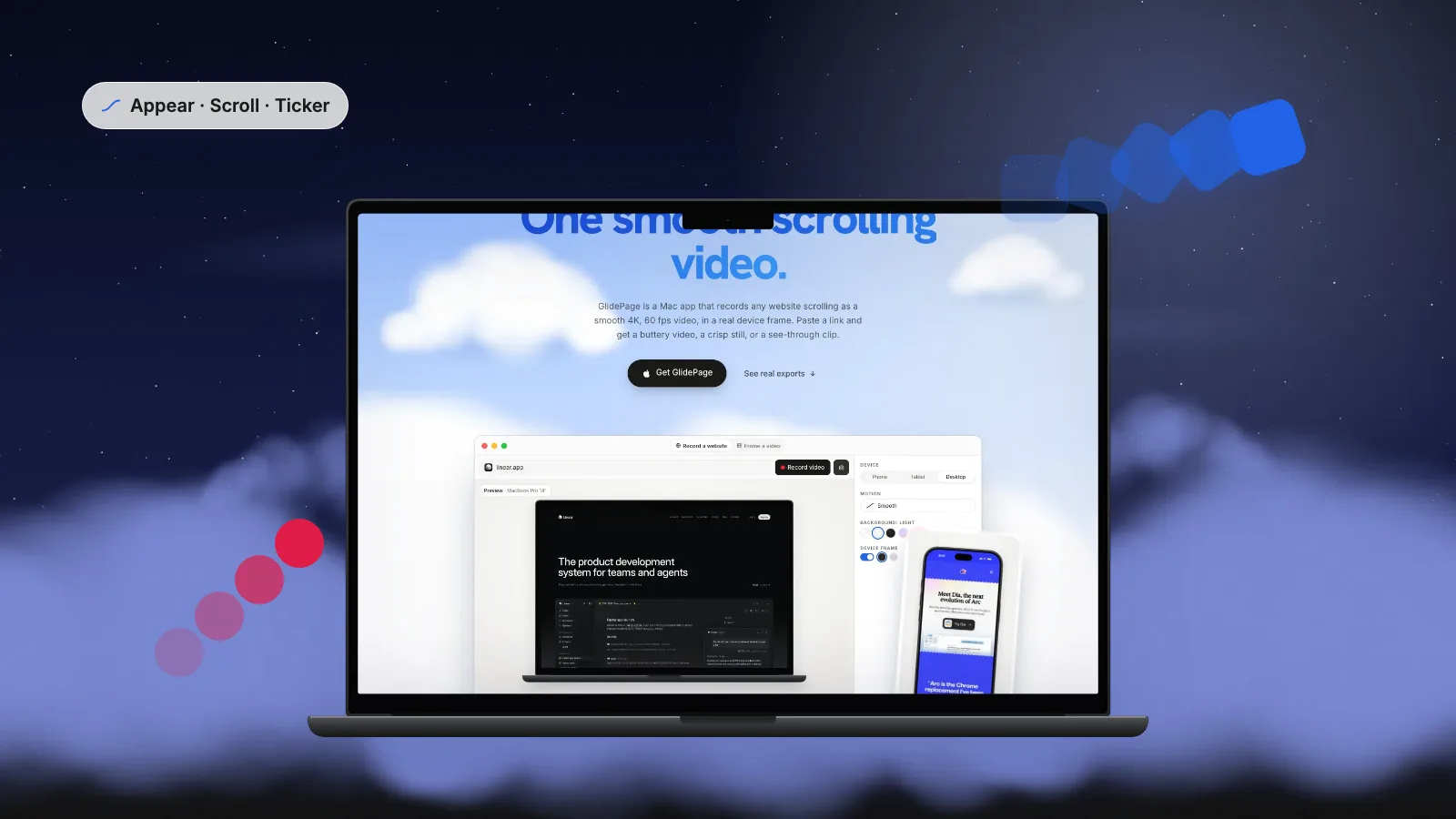
| Loop effect and Ticker | Time | Skip ahead when the Mac falls behind | Advance exactly in step with the video |
| Video playing on the page | Time | Plays, with dropped frames | Advances frame by frame |
| Hover, press and click states | The pointer | Recorded if you perform them | Not recorded |
| Page transitions | Clicking a link | Recorded if you click | Not recorded |
Two rows need a note. The recording only moves down the page, so an effect set to fire on scrolling up has nothing to fire it, and a navigation bar that hides on the way down is likely to stay hidden for most of the video. And anything that needs a pointer, like a hover state or a page transition, needs a separate screen recording.
The Replay tip: decide which reveals play on camera#
This is the setting that explains most "my animations are missing" recordings.
Any good recording scrolls through the page once before the take, so images and fonts are loaded and nothing pops in on camera. GlidePage does this automatically, and you should do it by hand too. But a reveal that plays only once fires during that pass, so by the time the real take reaches it, it is already in its final state.
Framer's scroll-triggered effects let you set this per element: with replay on, the effect runs again each time the layer comes back into view. Framer's own lesson lists "replay behavior" among the settings to test, but the docs do not state the default, so do not assume. Check each element that matters:
1. Pick the reveals worth watching
Not every fade-up needs to play in the video. Choose the ones that sell: the section after the hero, a feature grid, a big headline, a stats row.
2. Turn replay on
Select each layer, open its scroll-triggered effect, and look for the replay setting. Turn it on.
3. Publish and record
Changes only reach the published site when you publish, so publish before you record.
4. Decide whether to keep it
A reveal that plays once may be the experience you want for visitors. If so, switch replay back off after recording and publish again. Many templates look good either way, so test it.
Method 1: record it by hand on a Mac#
Screen recording is free and is the only way to capture hover states and page transitions. Motion-heavy Framer pages just need a little extra care.
1. Load the page, then go back to the top
Open the published site, scroll slowly to the bottom so everything loads, then return to the top. On a ProMotion display, set a fixed 60 Hz refresh rate for the take.
2. Start recording, then reload
Press Shift-Command-5, choose Record Selected Portion, frame the page area and click Record. Keep Show Mouse Clicks off. Now reload the page. The reload re-arms Appear effects and once-only reveals, and because you are already recording, the hero intro is on camera. Trim the blank start later.
3. Scroll slower than feels natural
Give each reveal time to finish while it is on screen. Let the hero sit for a second or two so tickers and loops can be seen. Use one long trackpad swipe rather than several flicks.
4. Stop and trim
Click Stop in the menu bar or press Command-Control-Esc, then trim both ends in QuickTime Player.
Expect several takes. Loops and tickers still skip when the Mac falls behind, and scroll-linked effects still wobble with your hand. The full routine, including a constant-speed scroll script, is in exporting a Framer website as video.
Method 2: record it with GlidePage#
GlidePage is a Mac app that records the live page frame by frame, with a controlled clock, so motion plays in step with the video however busy your Mac is. Paste the published URL, pick a device, choose a motion curve and speed, and press Record. It opens the page in its own built-in browser, scrolls through once so images, fonts and reveals load, then captures every frame one at a time and encodes a 4K, 60 fps video. Nothing is added to your Framer project.
For Framer effects, that means:
- Appear intros play from the start. Since version 1.3, animations that run as the page loads are rewound on the first screen before the first frame, so the video opens on the hero as a visitor first sees it, with its intro playing once.
- Scroll Transforms, Scroll Speed, sticky sections and Scroll Variants follow the recorded scroll, so they animate on camera.
- Loops, tickers and videos on the page advance exactly in step with the video, with no skipped frames.
- Reveals with replay on play as they scroll in; reveals that play once are already finished.
- Hover, click and page transitions are not recorded: only the top-to-bottom scroll is.
Three settings help motion-heavy pages in particular:
- Pauses. Click up to ten places on the page where the scroll should ease to a stop and hold for 0.5 to 5 seconds. Loops and tickers keep moving during a pause, and a reveal gets time to finish.
- No motion. No scroll at all: the top of the page for 5, 10, 20 or 30 seconds with its animations playing. Ideal for a hero with an Appear intro and a ticker.
- Page by page. One screen at a time with a pause on each, so every section's reveal plays in full.
Phone devices load the page with a real phone user agent and viewport, so you record the effects on your Phone breakpoint, which may be set up differently from the desktop. The live preview in the app is a quick, lower-quality render, so judge the motion in the export. A 22.7-second recording at 4K and 60 fps took about 4.5 minutes on a MacBook Air with an M4 chip.
Making parallax, transforms and sticky sections read well#
Scroll-linked effects move exactly as fast as the scroll, so the scroll's speed and shape decide how they look:
- Slow down for long transforms. A product shot that rotates across a whole section turns into a blur at a fast scroll. Lower the speed until the move is easy to follow.
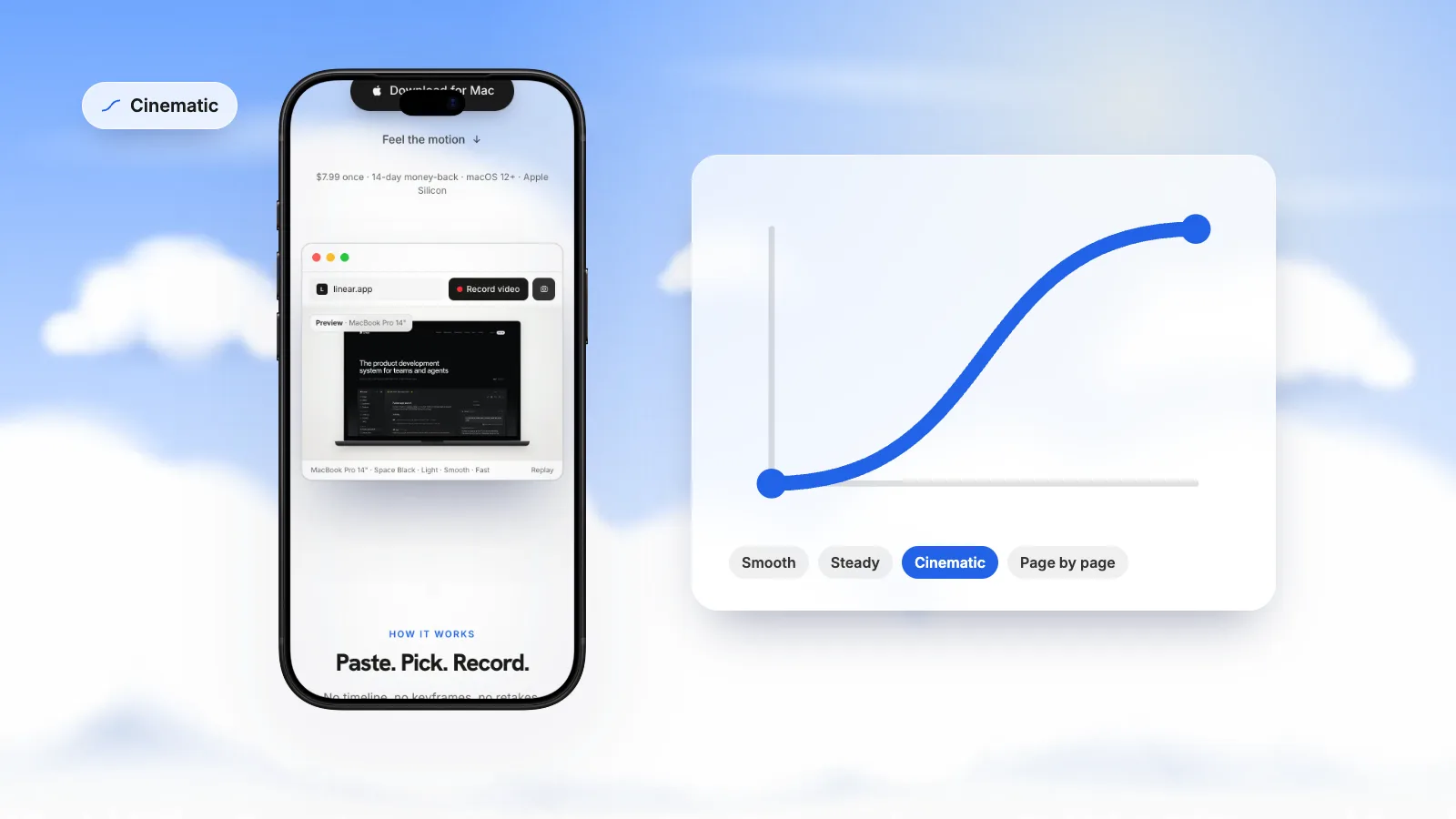
- Pick the curve to suit the page. An eased scroll starts and stops gently. A constant speed keeps a long transform even from start to finish. Easing curves for scroll videos explains which curve suits which page.
- Put pauses next to scroll effects, not in them. During a pause, scroll-linked effects hold still, because the scroll does. Pause just after a reveal or on a ticker, not halfway through a transform.
- Record each breakpoint separately. Framer effects can be set per breakpoint (the Ticker effect, for one, supports unique settings for each breakpoint), so a phone recording may show different motion from the desktop one.
Troubleshooting Framer recordings#
| What you see | Likely cause | Fix |
|---|---|---|
| Reveals are already in place | They play once, and an earlier pass used them up | Turn on replay for those elements, then publish |
| The hero intro is missing | The page loaded before the recording started | Start recording, then reload; or record frame by frame |
| A ticker or loop jumps | The live recording fell behind | Capture frame by frame |
| Parallax wobbles | Uneven hand scrolling | An automatic, eased scroll |
| A transform looks rushed | The scroll is too fast | Lower the speed |
| A reveal is cut off mid-fade | It left the view too soon | Slower speed, or a pause just after it |
| The navbar is gone for most of the video | It hides on scroll down and the recording never scrolls up | Expected; change the setting for the take if it matters |
| A hover effect is missing | Only the scroll is recorded | Screen record that interaction separately |
For the bigger picture on scroll videos, see how to make a scrolling video of a website.
Sources
- Framer Academy: Triggering animations on scroll in Framer (checked October 2026)
- Framer Academy: Transforming elements on scroll in Framer (checked October 2026)
- Framer Academy: Creating parallax with Scroll Speed in Framer (checked October 2026)
- Framer Academy: Fixed and sticky positioning in Framer (checked October 2026)
- Framer Updates: Scroll direction (On Scroll trigger) (checked October 2026)
- Framer Updates: Ticker effect (checked October 2026)




Make your site move.
Any page, one smooth 4K video. Framed, on any background, or transparent. Free for 7 days, no card needed.
Questions, answered
Why do my Framer appear effects not show in my recording?
Appear effects start when the page loads, so if the page loaded before you started recording, the intro has already played. Start the screen recording first, then reload the page and trim the start. GlidePage rewinds load animations on the first screen, so the intro plays from the start in the video.
Will parallax and sticky sections look smooth on video?
Yes, if the scroll is smooth. Scroll Speed parallax, Scroll Transforms and sticky sections follow the scroll position, so they copy every wobble of a hand scroll. An automatic, evenly eased scroll, recorded frame by frame, makes them move cleanly.
Do Framer tickers and loops keep moving in a recording?
Yes. They run on time, so they keep moving whether or not the page scrolls. In a live screen recording they skip when the Mac falls behind; in a frame-by-frame capture such as GlidePage they advance exactly in step with the video, including during pauses.
What does Replay do on a Framer scroll animation?
It decides whether a scroll-triggered effect plays every time the layer comes into view or only the first time. With replay off, any scroll before your take uses the reveal up, so it shows already finished. Framer's docs do not state the default, so check the setting on each element you want on camera.
Can I record Framer hover effects and page transitions?
Only with a live screen recording, where you perform them yourself. GlidePage records the top-to-bottom scroll only, so hover states, clicks and page transitions are not part of its video. Record those interactions separately and combine the clips in an editor.
Why does my Framer site lag in a screen recording?
The Mac is rendering heavy effects and encoding video at the same time, and drops frames when it falls behind. Quit other apps, pre-load the page and set the display to 60 Hz, or capture the page frame by frame so no frame is ever rushed.