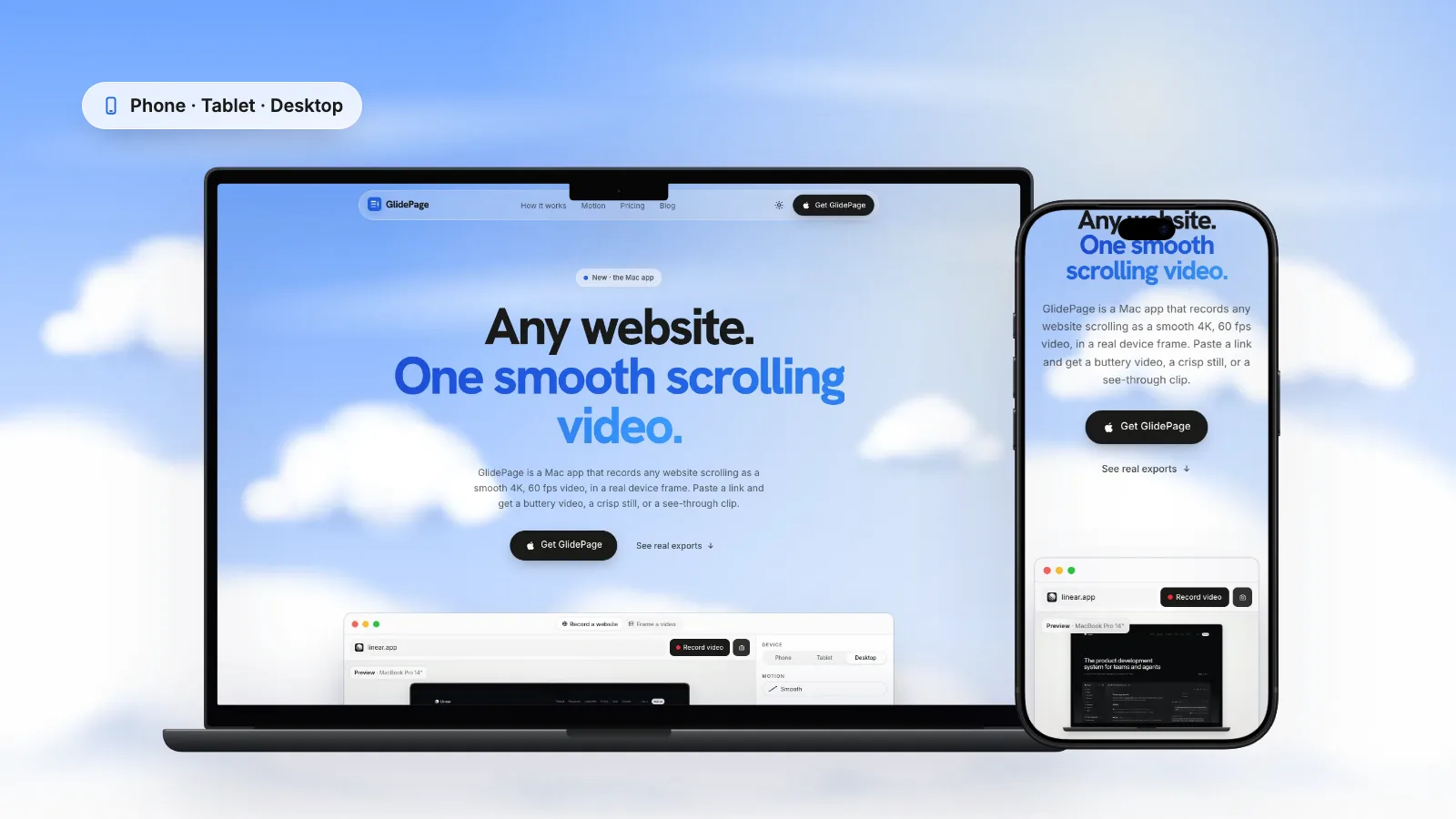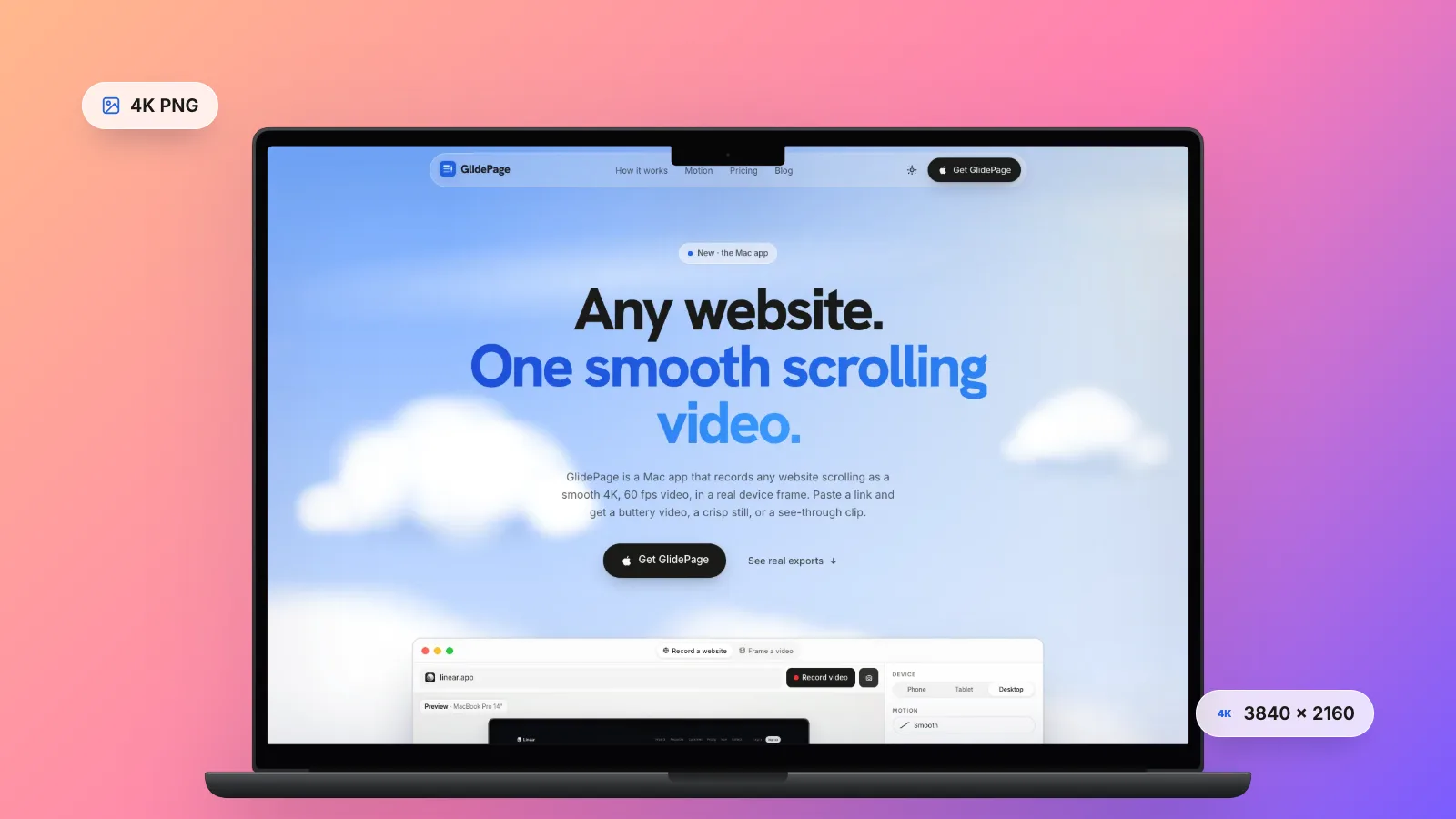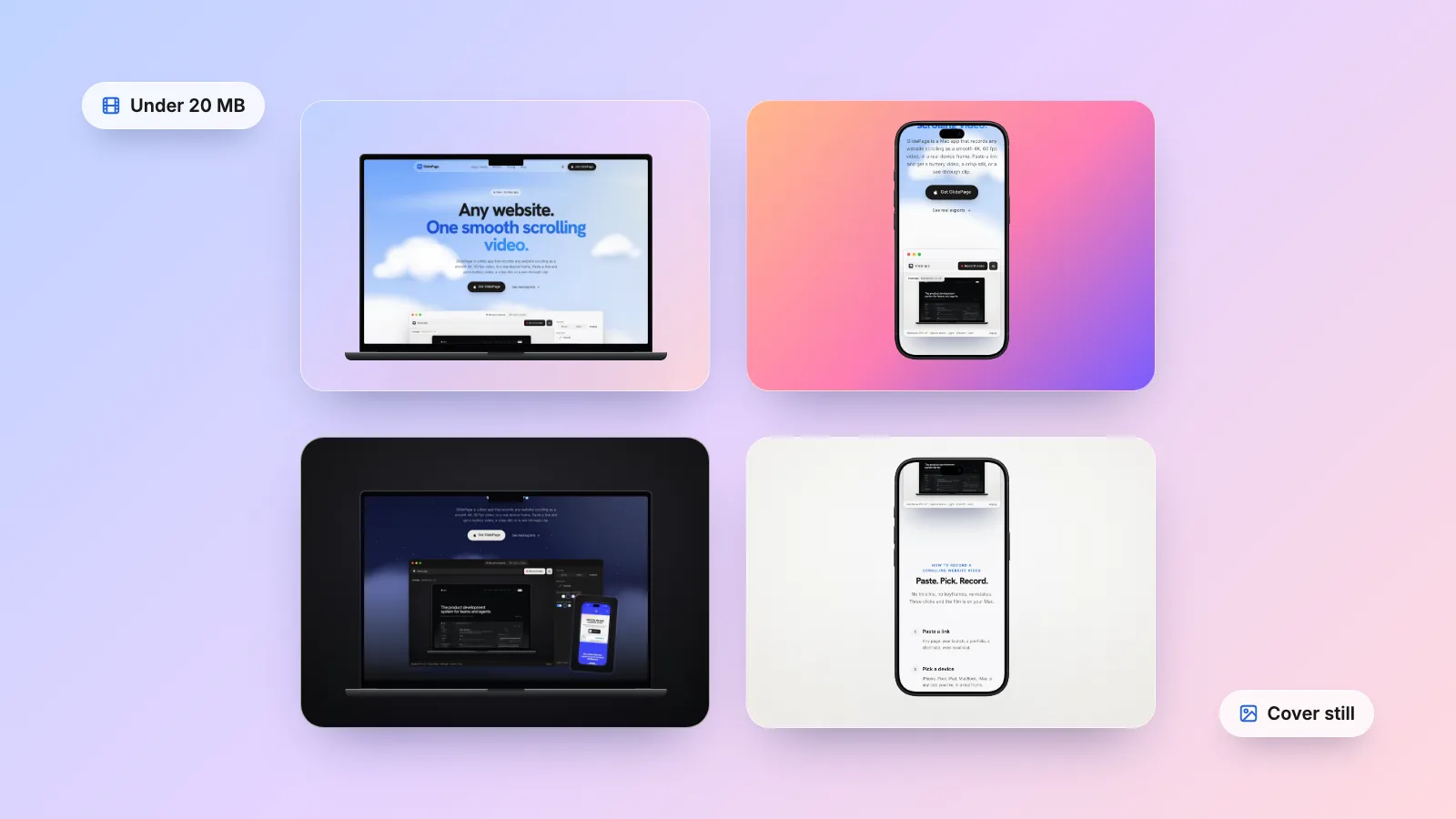
To post a website on Dribbble, upload stills at least 1600 px wide (any ratio, PNG, JPG or GIF up to 10 MB) and a scroll video as MP4 or MOV up to 20 MB, then pick the thumbnail with Crop/Select thumbnail. On Behance, upload a cover of at least 808 × 632 px, images up to 2800 px wide, and embed the full-quality video from YouTube, because video uploaded to Behance is capped at 1280 px wide and its middle frame becomes the thumbnail. You can capture the stills with your Mac's screenshot tools and the video with a screen recording, or use GlidePage, a Mac app for Apple Silicon that records any live site as a smooth 4K scroll video and takes 4K stills, in a device frame on a background.
On this page
- Dribbble and Behance specs at a glance
- Dribbble: what the help centre says now
- Fitting a website video under Dribbble's 20 MB
- Behance: covers, images and why uploaded video looks soft
- Showing mobile views
- The free way to make the shots
- Making Dribbble and Behance media with GlidePage
- Checklist before you post
Dribbble and Behance are built for images. A website is a long page that moves: a hero that animates, sections that reveal as you scroll, a mobile layout that is a design of its own. Squeezing that into a shot or a project is half the work of posting it.
The other half is the specs, and that is where most guides go wrong. Spec cheat sheets still repeat Dribbble rules from years ago (a fixed 4:3 shape, 8 MB images, video for paid plans only) that the help centre no longer lists. This guide uses the current help pages, real file sizes from real recordings, and the free and faster ways to make each piece.
Dribbble and Behance specs at a glance#
Checked against each platform's help centre on 9 October 2026.
| Dribbble | Behance | |
|---|---|---|
| Image width | At least 1600 px recommended, for images, GIFs and videos | Shown at 1400 px wide in the project, up to 2800 px in the lightbox; 2800 px or smaller suggested |
| Shape | Any ratio or height | Any, for project images |
| Image files | PNG, JPG or GIF, up to 10 MB | JPEG (recommended), PNG or GIF; under 10 MB suggested, 50 MB max; no GIF covers |
| Video files | MP4 or MOV, up to 20 MB | MOV, MP4 and other formats under 1 GB, shown at most 1280 px wide |
| Thumbnail or cover | Chosen with Crop/Select thumbnail, from any block in the shot | Cover uploaded at least 808 × 632 (shown at 202 × 158); an uploaded video's middle frame is its thumbnail |
| Full-quality video | Upload the file | Embed it from YouTube |
Dribbble: what the help centre says now#
Dribbble's help article on creating shots (dated April 2025) says it recommends "a minimum width of 1600 pixels for images, GIFs, and videos", and that "you are no longer restrained to a specific ratio or height for your shots." Images can be PNG, JPG or GIF up to 10 MB, and videos MOV or MP4 up to 20 MB.
What older guides get wrong:
- A fixed 4:3 size, such as 1600 × 1200. Any shape works now; 1600 px is the recommended minimum width, not a fixed size.
- 8 MB images. The current limit is 10 MB.
- Video for paid plans only, 24 seconds and under 10 MB. That comes from Dribbble's 2018 video launch. The current help article lists MOV and MP4 up to 20 MB and does not mention a plan requirement or a length limit. If the uploader refuses a file, check the size first.
Posting a website shot
- Open the uploader and drag in your first piece of media. You can replace it later.
- Add more blocks. Once the first file is in, a menu of content blocks appears: Image, Text, Video and Gallery. Put your cursor where the next block should go and click the pink plus sign.
- Click Continue. The Final Touches window opens.
- Choose Crop/Select thumbnail and pick the block, and the crop, that represents the shot in the feed.
- Fill in the details and publish.
What to put in a website shot
A shot with several blocks tells the story better than one long image:
- First block: a short scroll video of the home page, or a framed still of the hero.
- Next blocks: stills of the sections you are proudest of, at a size where the type reads.
- A mobile block: the same page on a phone (more on that below).
- A text block: one or two sentences on the brief and your role, and the link to the live site.
Fitting a website video under Dribbble's 20 MB#
A scroll video is the most convincing block in a website shot, and 20 MB is the limit that bites. To show how much room that is, here are three recordings of the same long landing page made with GlidePage. They are example recordings: sizes vary with the page, the length and the background.
| Recording | Length | File size | Under 20 MB? |
|---|---|---|---|
| MacBook Pro 14 frame, 4K at 60 fps | 22.7 s | 26.9 MB | No |
| MacBook Pro 14 frame, HD at 30 fps | 22.8 s | 10.1 MB | Yes |
| iPhone 18 Pro frame, 4K at 60 fps (2160 × 3840) | 31.4 s | 71.0 MB | No |
Three ways to get under the cap:
1. Export a desktop video in HD
A desktop recording in HD is 1920 × 1080, wider than Dribbble's 1600 px minimum, and the HD example above came in at half the limit. HD also renders faster. For a desktop site, this is the simplest route.
2. Keep it short
At the rate of the 4K desktop example (about 1.2 MB per second), roughly 15 seconds fits under 20 MB. Pages with lots of photos, video or grain compress less well, so check the file.
3. Shrink a 4K file to 1600 px wide
A phone video needs this most: in HD a phone recording is only 1080 px wide, under Dribbble's recommended minimum, and in 4K it is far over 20 MB. Record in 4K and scale it down with ffmpeg, which keeps more detail than recording small:
ffmpeg -i shot-4k.mp4 -vf "scale=1600:-2" -c:v libx264 -crf 22 -preset slow -pix_fmt yuv420p -an -movflags +faststart shot-1600.mp4
If the result is still over 20 MB, run it again with a higher -crf value, such as 24 or 26, or trim the clip. You can also place the phone on a landscape background (16:9 or 4:3) so the canvas is wide, not the phone.
Behance: covers, images and why uploaded video looks soft#
The cover: at least 808 × 632
Behance's help centre says covers are displayed at 202 × 158 px, but you must upload one at least 808 × 632 px so it looks sharp on Retina screens. To set it, add your images to the project, click Settings or Continue, then Edit Cover Image, pick one of the project's images (or click + to add a new one), crop it with the slider, and click Crop & Continue. GIFs cannot be covers.
At 202 px wide, a full desktop page is unreadable. Crop in on the hero, a device on a background, or one strong detail.
Project images
Behance shows project images 1400 px wide, and up to 2800 px in the lightbox when someone clicks. It suggests JPEG or PNG images 2800 px wide or smaller and under 10 MB, and refuses anything over 50 MB. A 4K still is wider than that, so resize a copy to 2800 px with Preview (Tools → Adjust Size) or with the sips tool built into macOS:
sips --resampleWidth 2800 photo.png --out behance.png
Video: why it looks soft, and the fix
Behance's help centre says video uploaded directly is capped at 1280 px wide, and that the middle frame of the file is picked as its thumbnail automatically. That is why a crisp 4K scroll looks soft after upload, and why the thumbnail lands on whatever section sits halfway down the page. Behance recommends embedding the video from YouTube instead, for the full-bleed look:
- Upload the 4K MP4 to YouTube, and keep embedding allowed (it is on unless you turn it off in YouTube Studio).
- On YouTube, click Share, then Embed, and copy the HTML code.
- In the Behance project editor, click Embed Media, paste the code and click Embed. Behance takes the iframe code, not the video's link.
Since the cover is the image people click, choose it yourself from a still rather than relying on any video frame.
Showing mobile views#
Both platforms reward a phone view next to the desktop one: it shows the design works at both sizes, and a tall phone shot stands out in a grid of landscape images. Two rules make it convincing:
- Show the real mobile layout. A desktop page shrunk into a phone frame looks wrong to anyone who has used the site. Capture it on a phone, or with a tool that loads the site as a phone does.
- Match the desktop shots. Use the same background and the same style of frame, so the phone and desktop views read as one project.
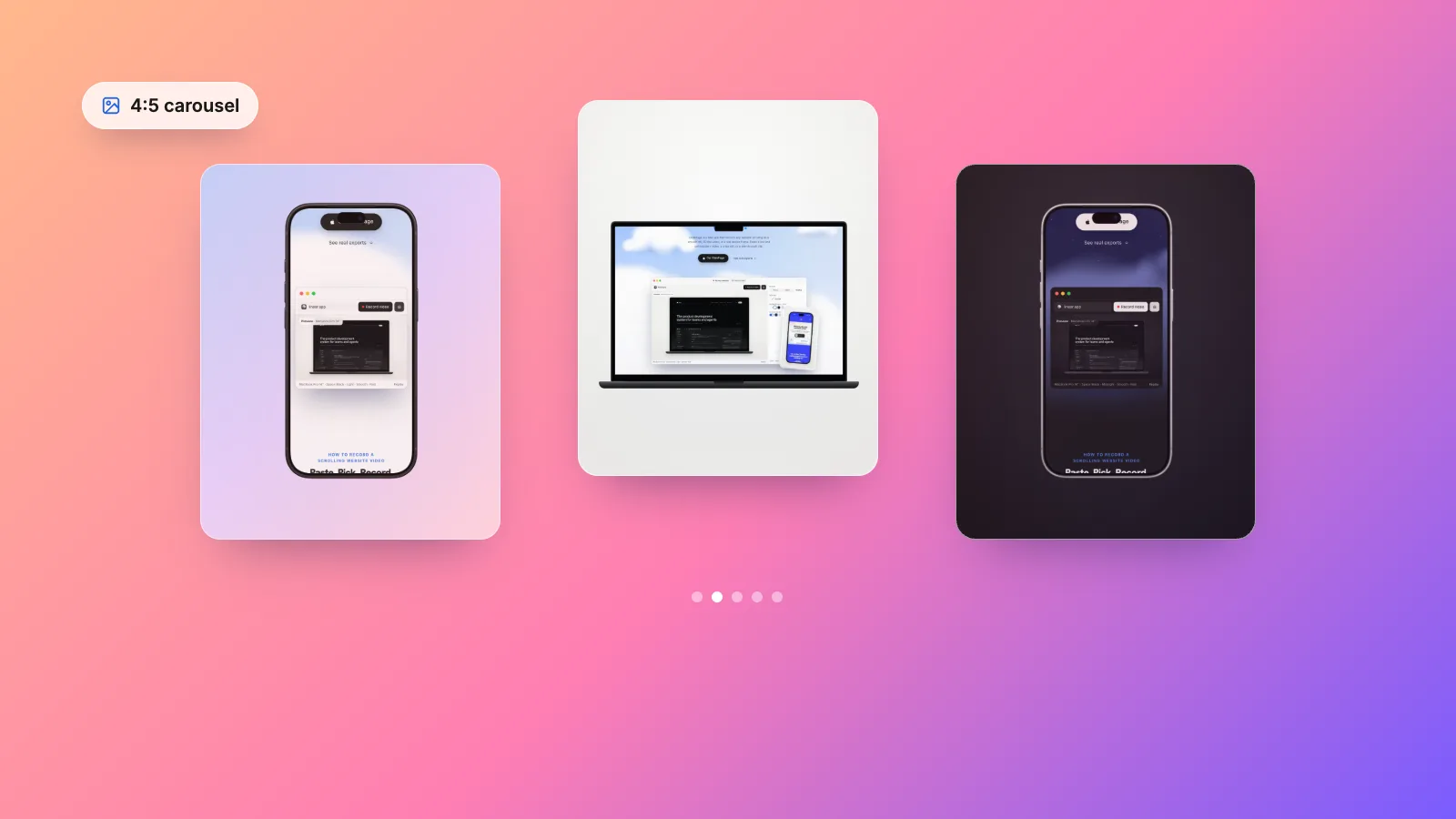
On Dribbble, a phone frame on a landscape background fills a shot well; on Behance, a row of phone screens works as one wide image. How to show responsive design in your portfolio covers laying out phone, tablet and desktop together, and website mockups for Instagram covers framing phone stills in 4:5.
The free way to make the shots#
Stills. On a Retina Mac, Shift-Command-4 captures a selection at twice its size in points. For a set width, Chrome DevTools' device mode lets you type an exact viewport and a pixel ratio, then capture it. High-resolution website screenshots walks through both. For phone views, take a screenshot on your iPhone (side button and volume up together) and place it on a background in your design tool.
Video. Press Shift-Command-5, choose Record Selected Portion, drag the frame around the page, click Record, and scroll with one long, slow trackpad swipe. Trim it in QuickTime Player, then shrink it with the ffmpeg command above. It is free; the scroll will be as smooth as your hand and your Mac allow, and the size is capped at your display. How to make a scrolling video of a website covers the methods in more depth.
Making Dribbble and Behance media with GlidePage#
GlidePage is a Mac app that turns any web page into a smooth scrolling video or a sharp still, recorded frame by frame on your Mac.
- Paste the link and pick a device: a MacBook, iMac or Safari window for desktop shots, an iPhone, Pixel or Galaxy for mobile ones. Phones load the site with a real phone user agent and viewport, so you get the real mobile layout.
- Choose a background and a shape. Light, Midnight, a gradient or your own colour, at 4:3, 1:1, 4:5 or 16:9. On a background, stills take the same shape as the video.
- Pick 4K or HD, and 60 or 30 fps, before recording. HD suits a Dribbble desktop video; 4K suits YouTube and the Behance embed.
- Press Record for an MP4, or use photo mode for a 4K PNG of any point on the page.
The page is ready for its close-up: cookie banners are hidden by default, a popup the filter misses can be removed with Hide element in Take control, and intros that play when the page loads are rewound so the video opens on them. It runs on Apple Silicon Macs with macOS 12 or later, and nothing is uploaded.
The free 7-day trial needs no card. Trial exports carry a small "captured with GlidePage.app" watermark that cannot be turned off; with a license, it is off by default.
Checklist before you post#
- Dribbble stills: at least 1600 px wide, under 10 MB (save a JPEG copy if a PNG is bigger)
- Dribbble video: MP4 or MOV, under 20 MB, at least 1600 px wide
- Dribbble thumbnail chosen with Crop/Select thumbnail
- Behance cover: at least 808 × 632, cropped in on one strong detail
- Behance images: 2800 px wide or smaller, under 10 MB
- Behance video: the 4K version embedded from YouTube, not uploaded
- Mobile view from the real mobile layout, matching the desktop shots
- A sentence on your role and a link to the live site
Award galleries want much of the same media in other sizes; Awwwards submission requirements lists them, and web design portfolio videos covers using the same captures on your own site.
Sources
- Dribbble Help Center: Creating Dribbble shots (checked October 2026)
- Behance Help Center: Cover image and project title (checked October 2026)
- Behance Help Center: Uploading audio and video files (checked October 2026)
- Behance Help Center: Formatting images for display on Behance (checked October 2026)
- Behance Help Center: Embedding media (checked October 2026)
- YouTube Help: Embed videos and playlists (checked October 2026)




Make your site move.
Any page, one smooth 4K video. Framed, on any background, or transparent. Free for 7 days, no card needed.
Questions, answered
What size should a Dribbble shot be?
Dribbble recommends a minimum width of 1600 pixels for images, GIFs and videos, and shots are no longer tied to a fixed ratio or height. Images can be PNG, JPG or GIF up to 10 MB. A 4:3 shot of 1600 × 1200 still works, but that shape is no longer required.
Is video on Dribbble only for Pro members, and how big can it be?
Dribbble's current help article lists MOV and MP4 video up to 20 MB and does not mention a plan requirement. The Pro-only, 10 MB and 24-second limits often quoted come from Dribbble's 2018 video launch. Check the help centre before you export, since limits can change.
Should I use a video or a GIF for a website shot?
A video. GIFs share the 10 MB image limit and are restricted to 256 colours, so a scrolling page turns grainy and large. An MP4 under 20 MB shows the same scroll sharper, and you choose the thumbnail with Crop/Select thumbnail.
What size is a Behance project cover?
Behance displays covers at 202 × 158 pixels and asks for an upload of at least 808 × 632 pixels for Retina screens. You crop it with a slider when you set it, and GIFs cannot be used as covers.
Why does my video look blurry on Behance?
Video uploaded directly to Behance is capped at 1280 pixels wide, so a 4K or 1080p file is scaled down. Behance recommends embedding the video from YouTube instead: upload the full-quality file there, copy the embed code from Share, then Embed, and paste it into Embed Media in the project editor.
Should I show the mobile version of a website on Dribbble or Behance?
Yes, if the site has a real mobile design. Show the actual mobile layout, captured on a phone or with a tool that loads the site as a phone does, and keep the background and frame style the same as the desktop shots so they read as one project.