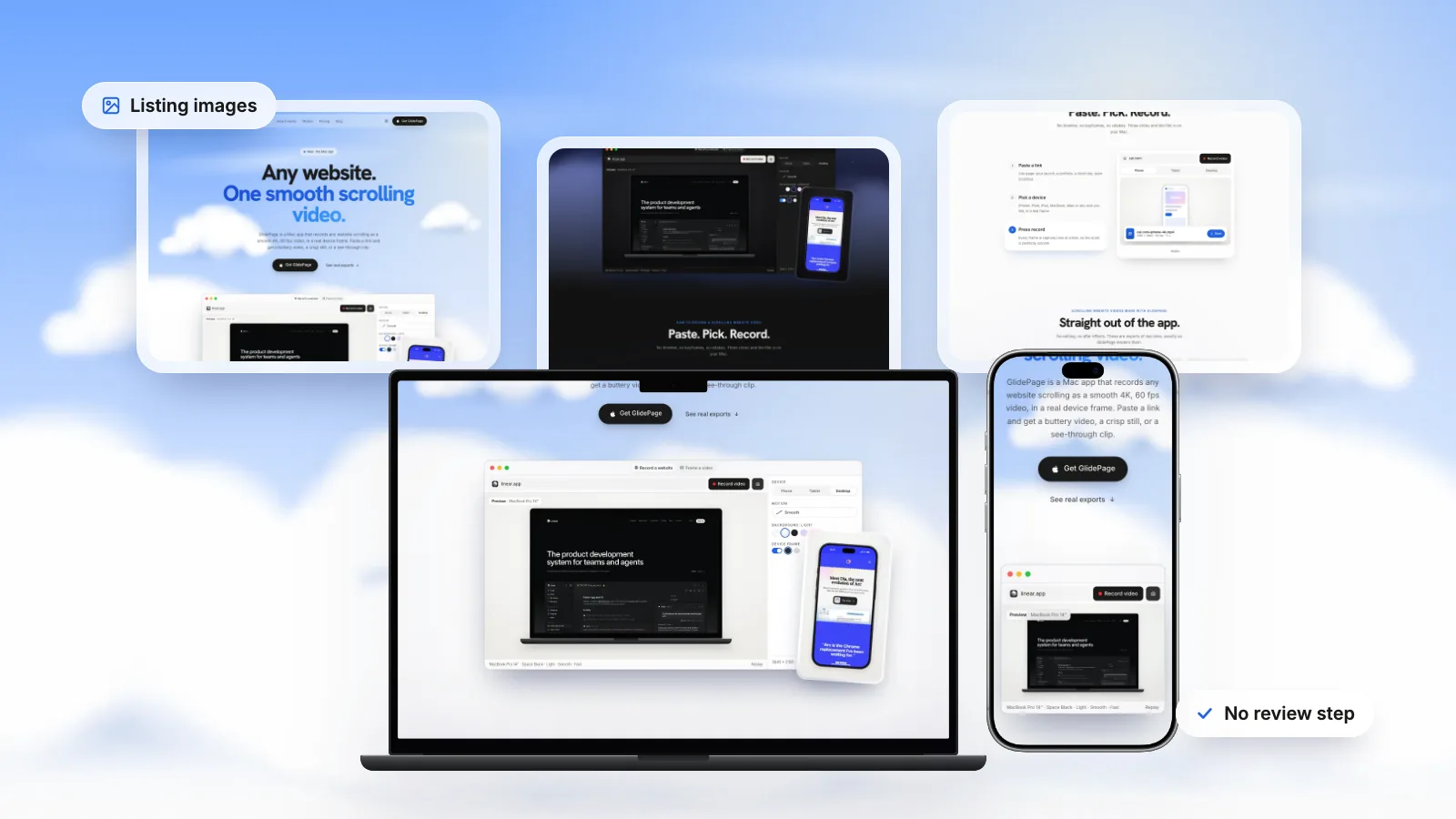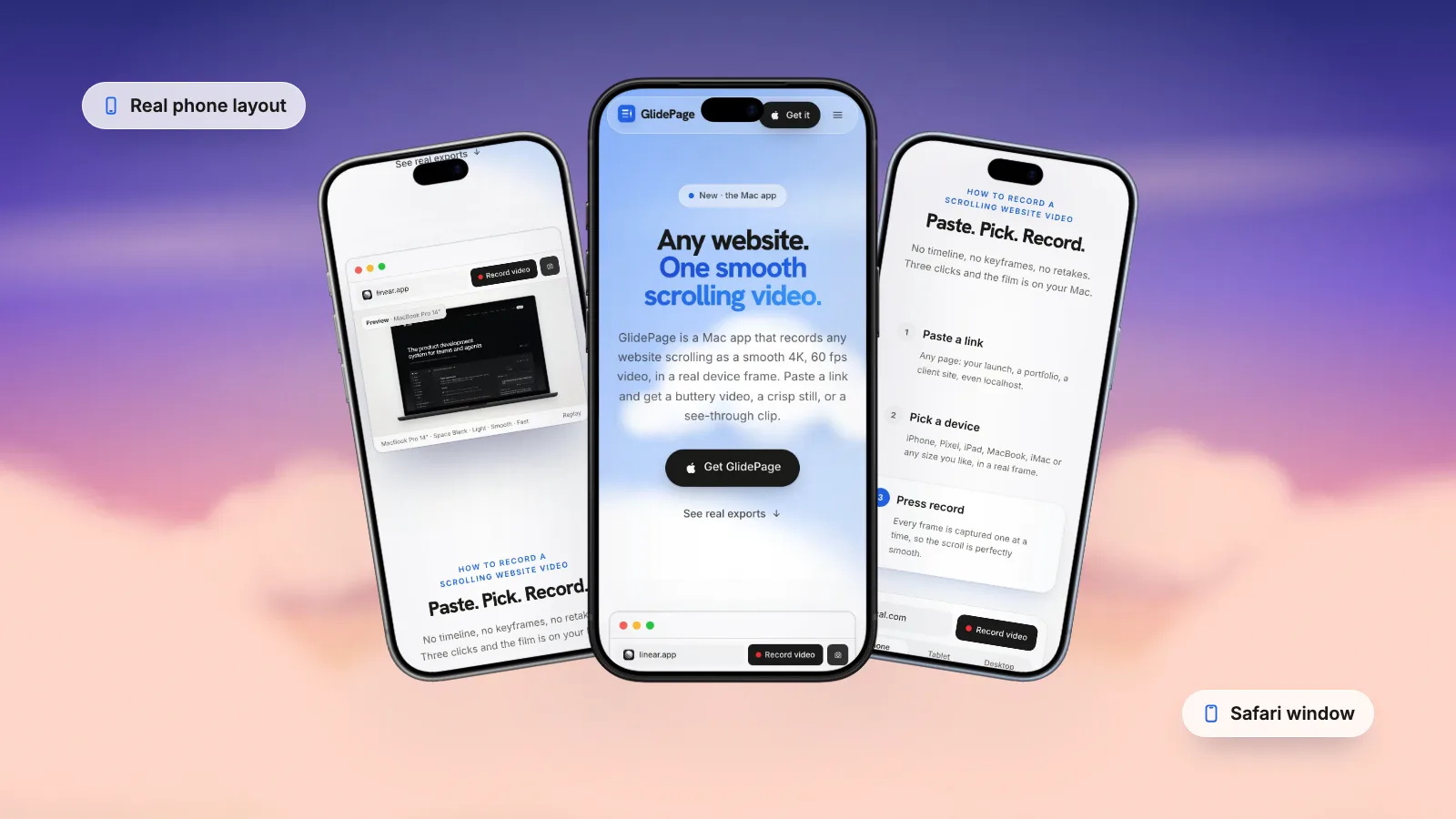
Framer publishes no length, size or format for listing media, and its help only mentions images. Creators report that listings now accept a video thumbnail, so check the listing form, and make a clip that works equally well in a Community feed post, on your own storefront and on social. A good one is a short, silent loop of the live preview: the hero intro playing from the start, a slow scroll through the sections that sell, then the same frames in reverse so it never jumps, recorded at 4K with the subject centred, plus an HD copy for small files. You can screen record the preview and build the loop with ffmpeg, or record it with GlidePage, a Mac app for Apple Silicon that captures a smooth 4K scroll of your preview URL with pauses on key sections.
On this page
- Can a Framer listing have a video?
- What a good animated thumbnail shows
- Three loop styles that work
- Safe shapes and sizes when nothing is published
- The free method: record the preview and loop it yourself
- Recording the loop with GlidePage
- Make the loop never jump
- Phone or desktop version?
- Keep the file small
- Animated thumbnail checklist
Since Framer 3.0 removed the Marketplace review in June 2026, templates go live the moment they are submitted, and getting noticed is down to ranking, the Community feed and whatever you post elsewhere. In all of those places, a template sits next to dozens of others as a small rectangle. Motion catches the eye there, and a short loop of the real preview shows what a still cannot: the intro, the scroll effects, how the sections flow.
This guide covers what a good animated thumbnail shows, which shapes are safe when Framer publishes no sizes, how to build a loop that never jumps, and how to keep the file small. The same clip works for a listing, a feed post, your own storefront and social, so make it once.
Can a Framer listing have a video?#
Framer's help article on publishing a template lists the listing fields as name, byline, description, images, categories, styles, features, the Preview and Remix URLs, and payment settings. It gives no image sizes, no image count and nothing about video. Its best-practice checklist only asks that "Preview images accurately represent the template."
Creators report that the listing form now accepts video as a thumbnail, and you will see short clips in Community feed posts too. Framer has not documented either: its Community updates mention a new carousel on resource pages in August 2026, but no media specs. Treat video as something to check rather than a spec:
- Open the listing form and see whether the image field takes a video file, and how it crops it.
- If it does, upload the loop as the first item and keep a still from the same session as the next one.
- If it does not, use the loop in your feed post, if the post form takes video, and on your storefront and social, and use a still from the same session in the listing.
Either way, nothing is lost: every channel a template creator uses wants the same short loop. Framer Marketplace requirements covers the rest of the listing.
What a good animated thumbnail shows#
A thumbnail is not a demo. It has a second or two to make someone click, then a few more seconds to make them stay. What works:
- The hero first, as a visitor sees it. If the template has a load-in intro, the clip should open with it playing, not on a finished page.
- One idea. The hero plus the one or two sections that sell the template: a work grid, a pricing table, a case-study layout. Not every page.
- The real preview. Framer's checklist asks that preview images accurately represent the template, so record the published preview, not a mock that differs from it.
- Purposeful motion. Framer's checklist also says motion should be "used purposefully to guide attention". A calm, eased scroll with a pause on each key section reads better than a fast pass through everything.
- Short. Around 6 to 15 seconds is a sensible target for a loop: long enough to show two or three sections, short enough to watch twice.
- Silent, with no text baked in. The listing already shows your name and byline, and feeds usually play muted.
Three loop styles that work#
| Style | What it shows | How it loops | Good for |
|---|---|---|---|
| Hero only | The top of the page with its intro, tickers and loops playing | Restarts on the intro | Templates that sell on the hero animation |
| Down and back | A slow scroll through two or three sections, then back up | Forward, then the same frames in reverse | Most templates |
| Phone | The same down-and-back scroll on the mobile breakpoint | Forward, then reverse | Mobile-first templates, vertical feeds |
The down-and-back loop is the safe default. A scroll that ends at the bottom and restarts at the top makes the page teleport every few seconds; playing the clip forward then backward means the last frame always flows into the first. Landing page hero videos explains the technique in detail, and the command below is adapted from it.
Safe shapes and sizes when nothing is published#
With no published sizes, make one sharp master and cut copies from it:
- Record at 4K. A 3840 × 2160 desktop clip can be cropped to 1:1, 4:5 or a wide banner and still be sharp.
- Keep the subject centred with a margin around the device, so a crop never cuts off the headline.
- Match your stills. Use the same frame, background and theme as the listing images, so the set reads as one product.
- Check the crop preview in whatever form you upload to, before exporting every version.
| Where it goes | Shape to start from | What to export |
|---|---|---|
| Framer listing, if it takes video | The shape of your listing stills | An HD MP4, small and silent |
| Community feed post | 16:9 or 4:5 | An HD MP4 |
| Your own storefront hero | 16:9 | A small MP4 and a poster image |
| X, LinkedIn, Dribbble | 16:9 or 1:1 | See how to promote Framer templates |
| Vertical feeds | 9:16 phone | The phone loop |
The free method: record the preview and loop it yourself#
You can make a good loop with the Mac's screen recorder and ffmpeg.
1. Prepare the preview
Open the published framer.app preview in your browser, close the cookie banner, and make the window the size you want the clip to be. If you want the intro, scroll the page once so images load, then reload so the intro runs again when you record.
2. Record
Press Shift-Command-5, choose Record Selected Portion, drag the frame around the page area only, and click Record. Reload the page, wait for the intro, then scroll slowly through two or three sections with one long trackpad swipe. Stop the recording from the menu bar.
3. Trim and loop
Trim the start and end in QuickTime Player (Edit → Trim), then build the forward-and-back loop with the ffmpeg command further down.
It works, with the usual weak spots: the scroll speed follows your hand, heavy pages drop frames, the resolution is capped at your display, and the cursor tends to wander into the shot. How to make a scrolling video of a website compares this with the other methods.
Recording the loop with GlidePage#
GlidePage is a Mac app that turns any web page into a smooth scrolling video. It captures the page one frame at a time with a controlled clock, so the scroll is perfectly even and animations on the page advance in step with the video. For a thumbnail loop:
- Paste the preview URL and pick a device: a MacBook or Safari window for the desktop loop, a current iPhone for the phone loop. Phone devices use a real phone user agent and viewport, so you get the template's own mobile layout.
- The intro plays from the start. Since version 1.3, animations a site runs as it loads (CSS animations and transitions, Web Animations, GSAP tweens, Lottie, autoplaying videos) are rewound on the first screen, so the clip opens on the page as a visitor first sees it, with its intro playing once. Scroll-driven animations are left to follow the scroll.
- Add Pauses on the sections that sell. Click places on the page where the scroll should stop: it eases to a stop, holds for 0.5 to 5 seconds (1.5 by default) and moves on. Up to 10 pauses.
- Or use No motion for a hero-only loop: the top of the page for 5, 10, 20 or 30 seconds with its animations playing.
- Pick a curve, a background and a shape. Smooth suits most loops. Choose a background that matches your listing stills (a solid colour, a gradient or an animated Material), and 16:9, 1:1, 4:5 or 9:16.
- Choose the export. 4K at 60 fps for the master, or HD at 30 fps for a smaller file that records noticeably faster.
Some limits worth knowing. GlidePage scrolls the whole page from top to bottom, so for a short loop you trim the recording to the first sections. Reveal animations that play once are already in place in the video, because GlidePage scrolls through the page first to load everything; reveals that replay each time an element enters the view play on camera. Hover and click interactions are not recorded. How to record Framer scroll animations covers each effect.
Nothing is uploaded, and it runs on Apple Silicon Macs with macOS 12 or later. There is a free 7-day trial with no card needed; trial exports carry a small "captured with GlidePage.app" watermark.
Make the loop never jump#
With a recording in hand, ffmpeg turns it into a forward-and-back loop in one command:
ffmpeg -i scroll.mp4 -filter_complex "[0:v]trim=end=8,setpts=PTS-STARTPTS,scale=1920:-2,split[a][b];[b]reverse[r];[a][r]concat=n=2:v=1:a=0[v]" -map "[v]" -an -c:v libx264 -crf 23 -pix_fmt yuv420p -movflags +faststart thumb.mp4
What each part does:
- trim=end=8 keeps the first 8 seconds: the intro and the first sections. ffmpeg's documentation warns that the reverse filter buffers the entire clip in memory and suggests trimming first.
- scale=1920:-2 makes an HD copy from a 4K recording. Leave it out to keep the master size.
- split, reverse and concat play the clip forward, then the same frames backward, as one 16-second clip.
- -an drops any audio, and +faststart moves the file's index to the front so it starts playing sooner.
At each turn, one frame shows twice, which reads as a tiny hitch at most. Landing page hero videos shows how to trim it if you notice it.
For a hero-only clip made with No motion, there is no scroll to reverse. The loop restarts on the intro, which works well when the intro is the selling point. If the restart looks abrupt, end the clip on a calm moment and keep it short.
Phone or desktop version?#
Make both from the same session; they do different jobs.
- Desktop is the cover: the layout most buyers picture when they browse templates, and the natural shape for a listing and a wide storefront hero.
- Phone proves the template is responsive. Framer's checklist asks that layouts "adapt cleanly across mobile, tablet, and desktop breakpoints", and buyers check. The phone loop also fills more of a vertical feed.
Record each on its own device rather than shrinking the desktop recording, so the phone clip shows the real mobile breakpoint, status bar and all. Framer mockup videos goes deeper into choosing frames. For a listing that may sit beside Shopify or ThemeForest versions of the same design, template preview videos and screenshot sizes covers those marketplaces' rules.
Keep the file small#
A thumbnail plays in a small rectangle, often on a phone connection, so size it to the job rather than to 4K. Real recordings of this site's landing page with GlidePage give a sense of scale:
| Recording | Length | File size |
|---|---|---|
| MacBook Pro 14 frame, 4K at 60 fps | 22.7 seconds | 26.9 MB |
| iPhone 18 Pro frame, 4K at 60 fps | 31.4 seconds | 71.0 MB |
| MacBook Pro 14 frame, HD at 30 fps | 22.8 seconds | 10.1 MB |
A 6 to 15 second loop at HD and 30 fps should land well below those, and the ffmpeg command's scale and crf settings shrink it further. HD at 30 fps also rendered in about 2.5 minutes against about 4.5 for 4K at 60 fps, which helps when you are trying versions. Keep the 4K master for crops and future edits.
Use MP4 (H.264), not GIF. GIFs of scrolling text are large and blotchy, and a short MP4 is sharper and much smaller.
Animated thumbnail checklist#
- Recorded from the published preview URL, with no cookie banner or test widgets in the shot.
- Opens on the hero with the intro playing, not on a finished page.
- Shows the hero plus one or two sections that sell, with a pause on each.
- Loops forward and back, or restarts cleanly on the intro.
- Subject centred, recorded at 4K, matching the listing stills.
- A desktop and a phone version.
- An HD MP4 copy for uploads; the 4K master kept.
- Checked in the listing form's crop preview, and in a feed post.
A good loop takes an afternoon the first time and minutes after that. Make it once, and every place you show the template gets better for it.
Sources
- Framer Help: How to publish a template (checked October 2026)
- Framer Help: Template best practices (checked October 2026)
- Framer Updates: Community (checked October 2026)
- Framer Blog: Why Marketplace is becoming part of the new Framer Community (checked October 2026)
- FFmpeg Filters Documentation (trim, split, reverse, concat) (checked October 2026)




Make your site move.
Any page, one smooth 4K video. Framed, on any background, or transparent. Free for 7 days, no card needed.
Questions, answered
Can a Framer Marketplace listing have a video?
Creators report that the listing form now accepts a video thumbnail, but Framer's help articles only mention images and give no video specs. Check the form when you edit your listing. If it takes video, use a short silent MP4 loop; if not, use the loop in your feed post and on your own site.
How long should an animated template thumbnail be?
Framer states no length. Around 6 to 15 seconds works well: long enough to show the hero and one or two key sections, short enough to watch twice. A forward-and-back loop doubles the running time without recording more.
Should the thumbnail show the phone or desktop layout?
Make both. The desktop loop is the natural cover for a listing and a storefront, and the phone loop proves the template is responsive and fills more of a vertical feed. Record the phone version on a real phone viewport so it shows the actual mobile breakpoint.
How do I make a template preview loop without a jump?
Play the clip forward and then the same frames in reverse, so the last frame flows into the first. ffmpeg does this with its split, reverse and concat filters; trim the clip first, because the reverse filter holds the whole clip in memory.
Should I use a GIF or an MP4 for an animated thumbnail?
An MP4 with H.264 wherever it is accepted. A GIF of a scrolling page is usually much larger and loses colour detail. Keep the MP4 silent and export an HD copy for uploads.
Will the intro animation show in the recording?
With a screen recording, only if you start recording before you reload the page. GlidePage, since version 1.3, rewinds animations that run as the page loads, so the video opens with the intro playing once. Reveals that play only once as you scroll are already finished in its videos, so set the ones that matter to replay.